> ## Documentation Index
> Fetch the complete documentation index at: https://fillout.com/help/llms.txt
> Use this file to discover all available pages before exploring further.
# Use AI to create forms
> Fillout lets you make a new form using a prompt or by importing an existing form with the first AI Form Builder for free.
export const SupportBanner = () => {
const titleId = React.useId();
return ;
};
## How it works
On Fillout, scroll to the bottom of the page, and click [**AI Form Builder**](https://www.fillout.com/ai-form-builder).
Start from scratch by specifying the form you need or build from an existing structure by importing questions or a file.
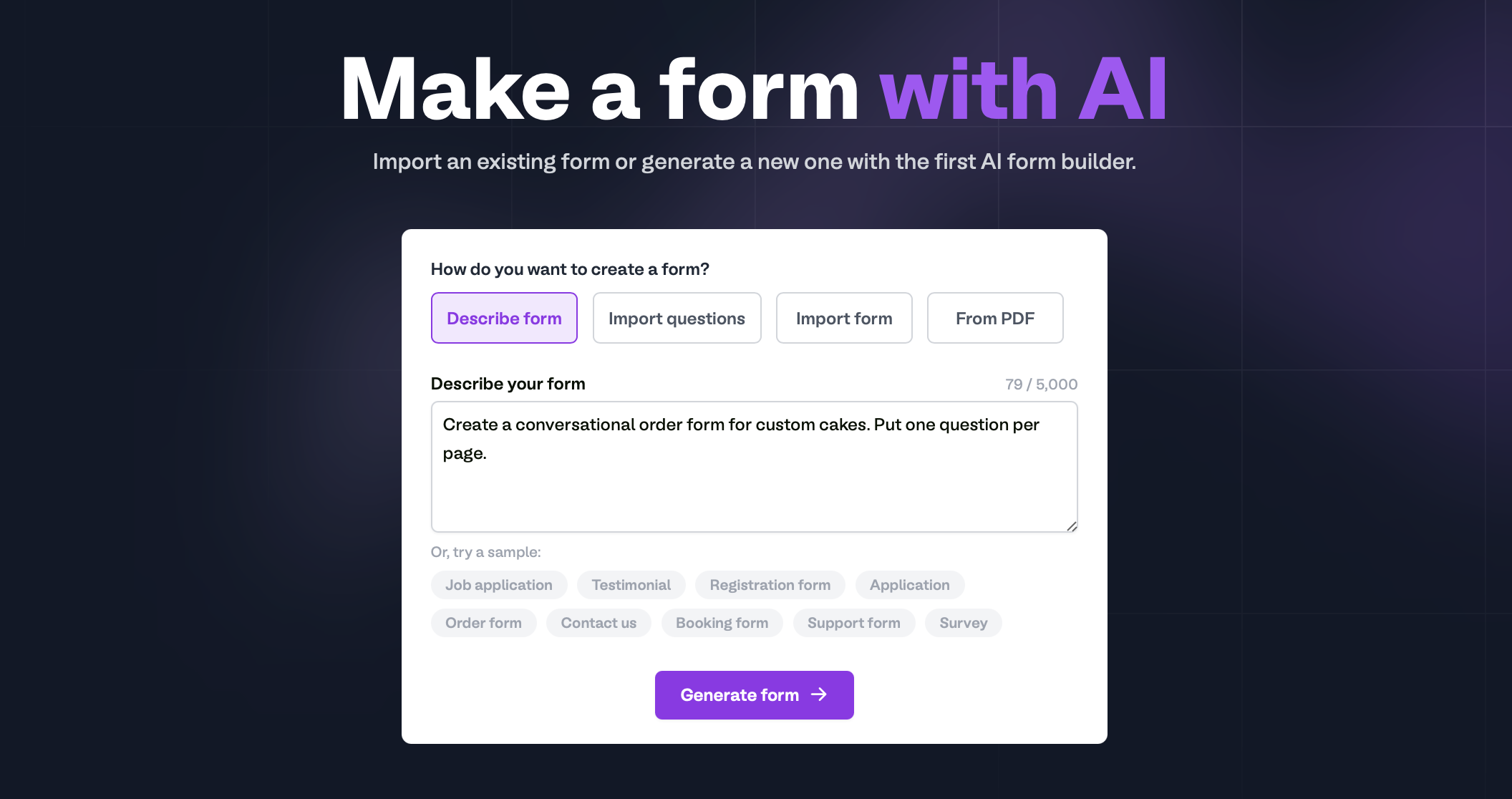
**Describe form**
Specify the form you want or choose a sample. Then, `Generate form`.
 **Import questions**
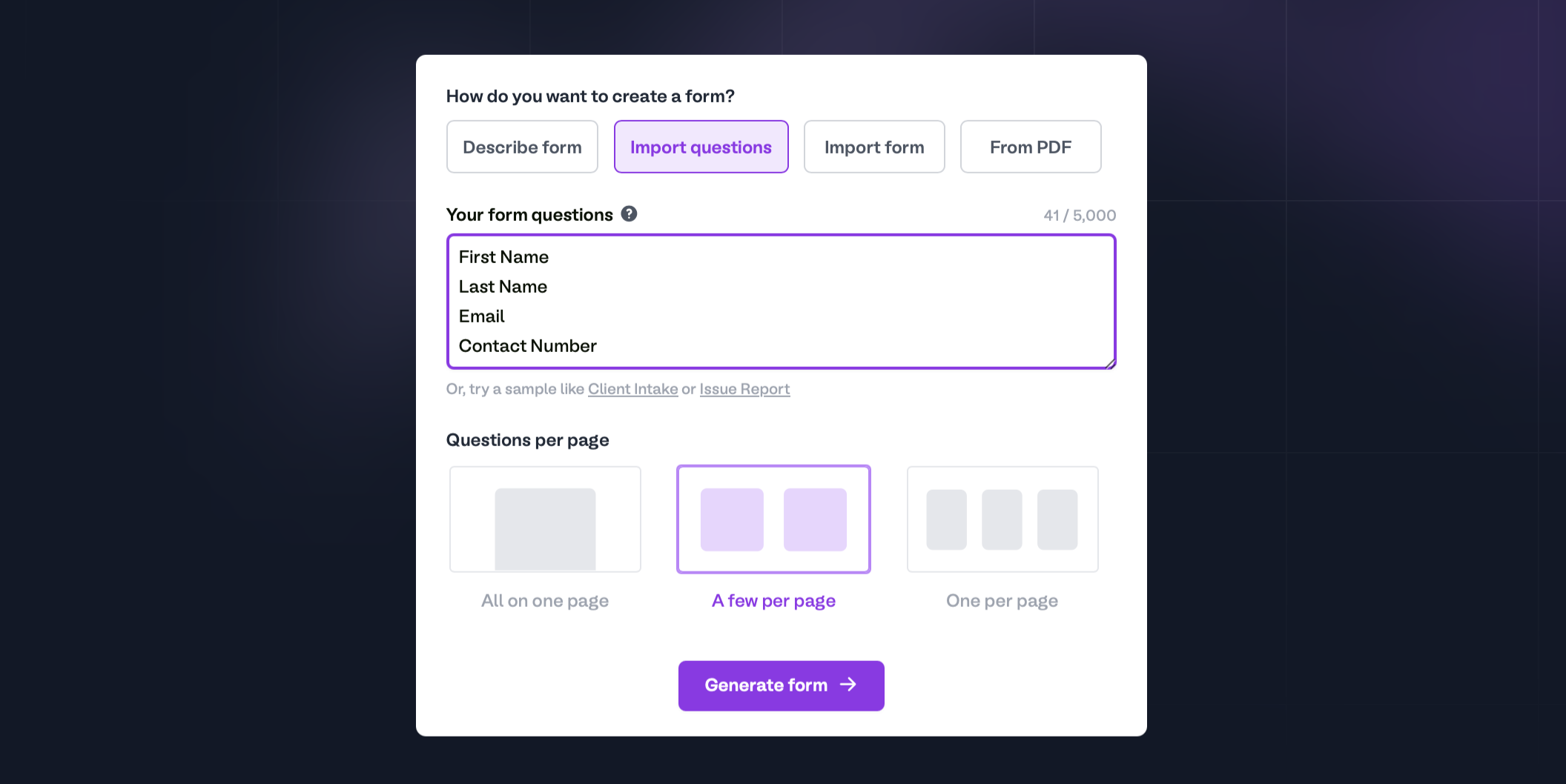
List your questions vertically — one line equals one question or field. At the bottom, select how you want the **Questions per page** to be displayed.
**Import questions**
List your questions vertically — one line equals one question or field. At the bottom, select how you want the **Questions per page** to be displayed.
 **Import form**
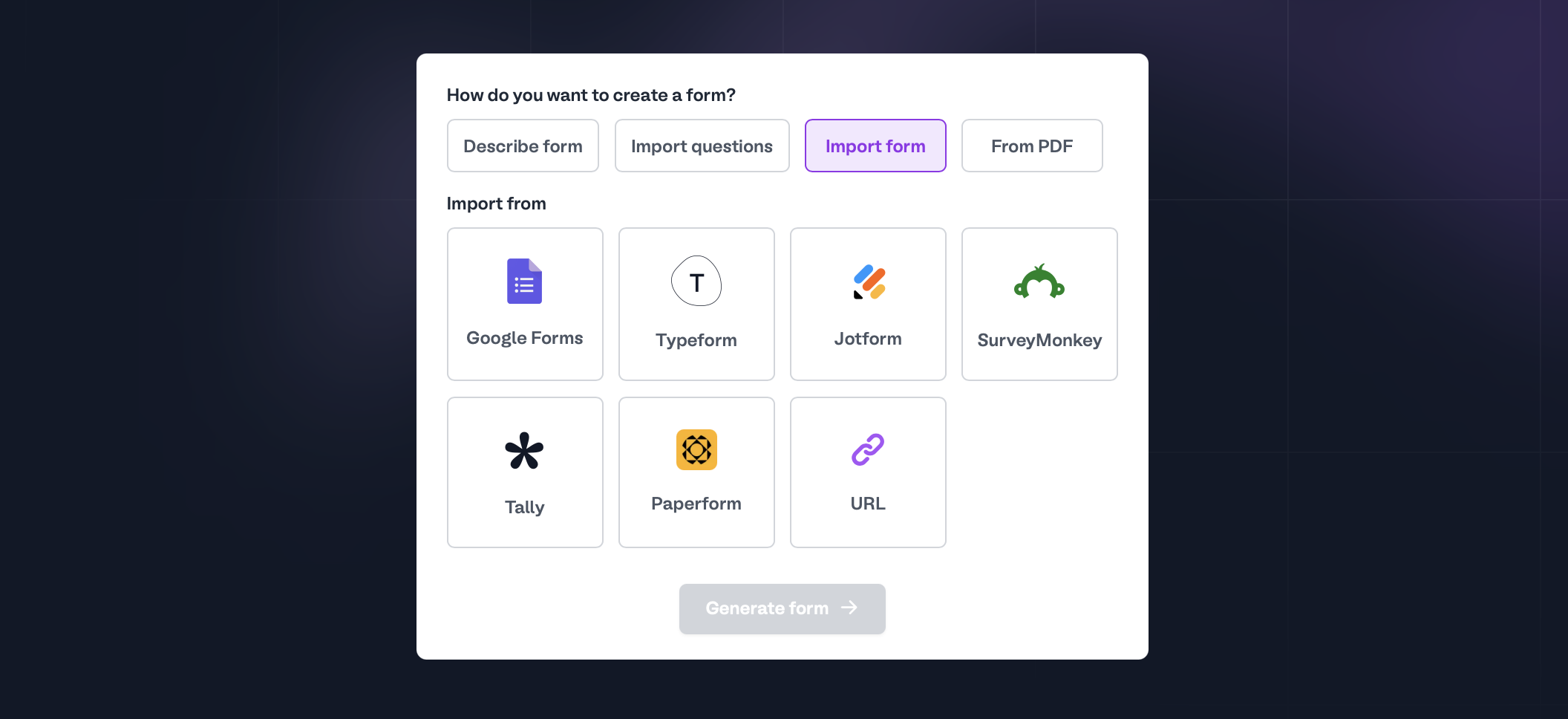
You can import an existing form built with Google Forms, Typeform, Jotform, SurveyMonkey, Tally, or Paperform, or by pasting a form URL.
**Import form**
You can import an existing form built with Google Forms, Typeform, Jotform, SurveyMonkey, Tally, or Paperform, or by pasting a form URL.
 You can bulk import forms, including their responses.
**From PDF**
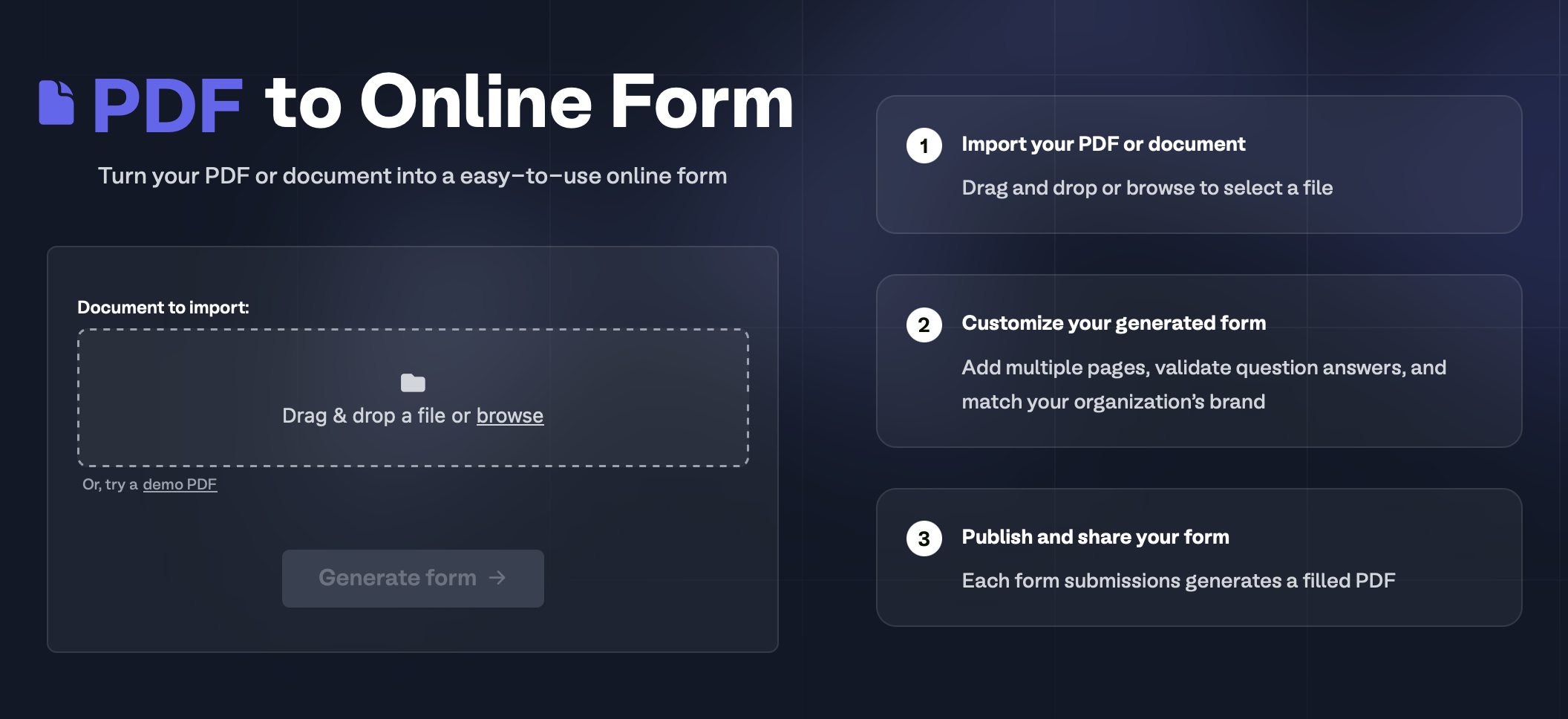
Even documents that aren't technically forms can be converted as long as they're saved as PDFs. Simply upload the file [here](https://www.fillout.com/pdf-to-form?source=ai_form_builder).
You can bulk import forms, including their responses.
**From PDF**
Even documents that aren't technically forms can be converted as long as they're saved as PDFs. Simply upload the file [here](https://www.fillout.com/pdf-to-form?source=ai_form_builder).
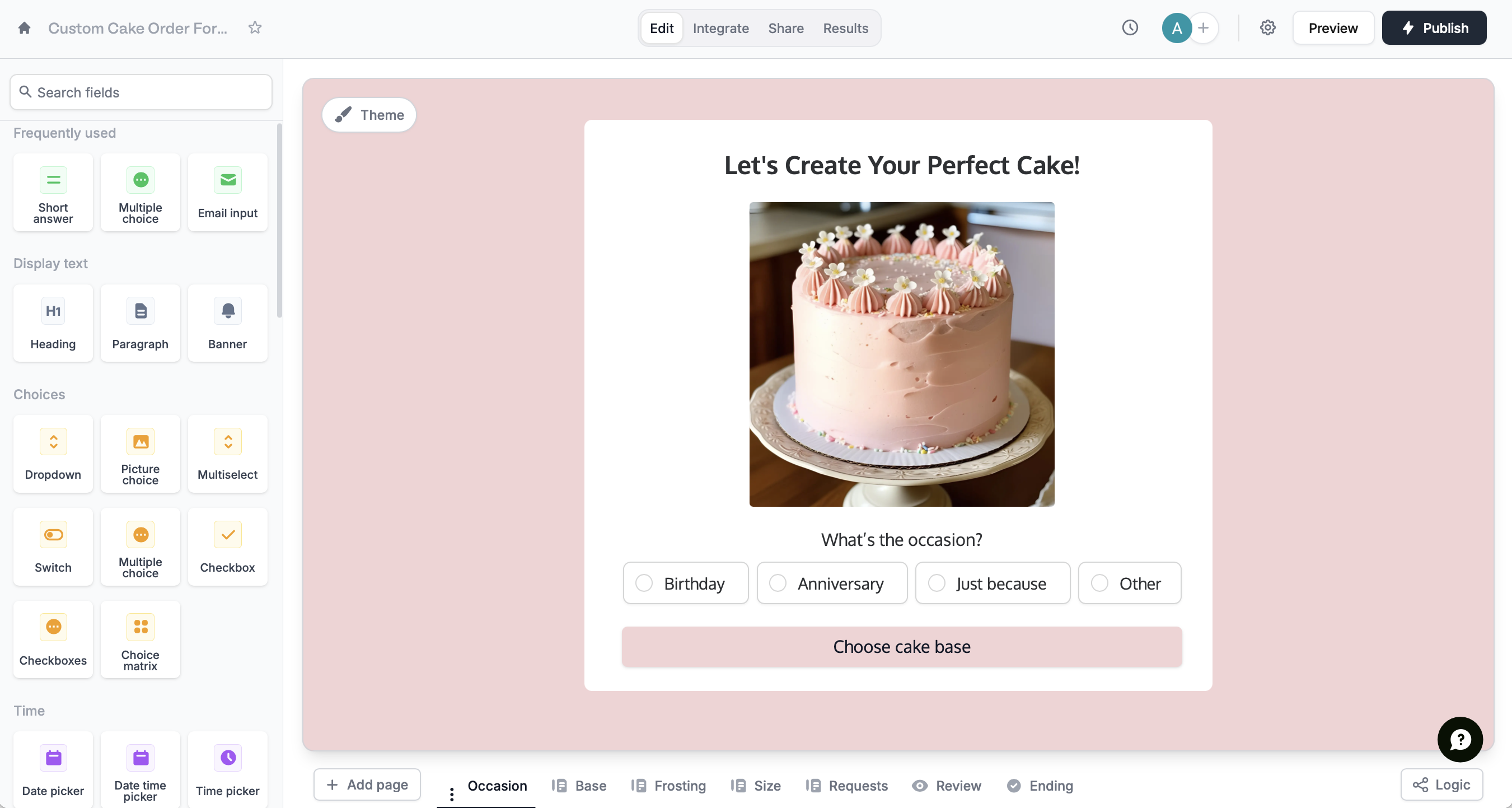
 [Style](/help/themes) your form, require and [reorder questions](/help/reorder-with-drag-and-drop), add [logic](/help/logic), and more. Then, click `Publish` in the upper right corner to share your form via link or embed.
 ## Related articles
Select from hundreds of themes or create your own.
Easily arrange pages and field options.
Hide or show pages or custom endings based on respondent input.
## Related articles
Select from hundreds of themes or create your own.
Easily arrange pages and field options.
Hide or show pages or custom endings based on respondent input.