> ## Documentation Index
> Fetch the complete documentation index at: https://fillout.com/help/llms.txt
> Use this file to discover all available pages before exploring further.
# Use AI to create quizzes
> Fillout lets you make interactive quizzes with the AI Quiz Maker for free. Add this to your ChatGPT.
export const SupportBanner = () => {
const titleId = React.useId();
return ;
};
## How it works
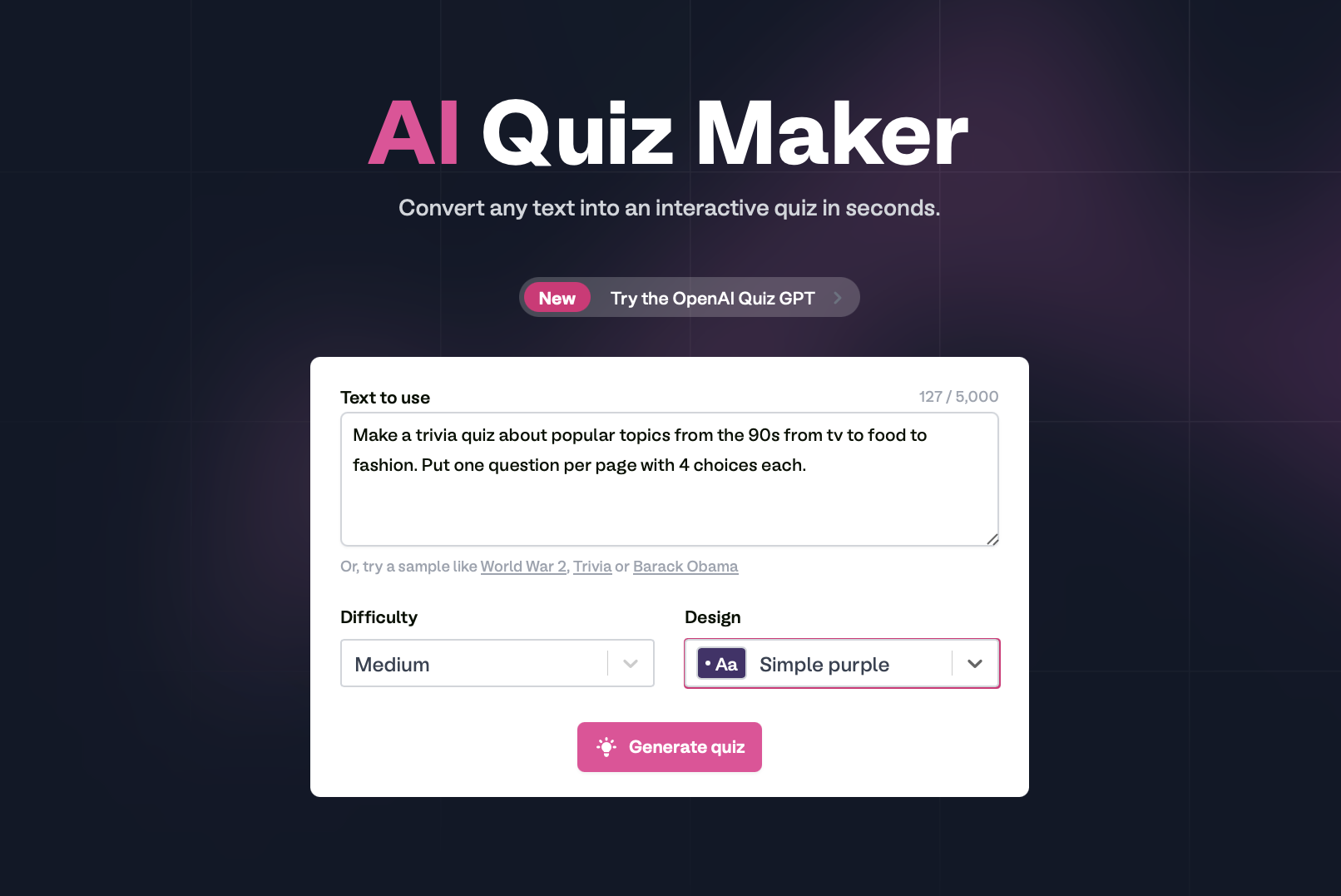
On Fillout, scroll to the bottom of the page, and click [**AI Quiz Maker**](https://www.fillout.com/ai-quiz-maker).
Describe the kind of quiz you want, then choose a **Difficulty** and a theme **Design** to `Generate quiz`.
 [Style](/help/themes) your quiz, set up [scoring](https://www.fillout.com/help/make-a-free-quiz#how-to-create-a-quiz-in-fillout), and [choose which ending page to display](https://www.fillout.com/help/create-a-lead-quiz#add-calculations-to-ending-pages-and-custom-emails) depending on the outcome.
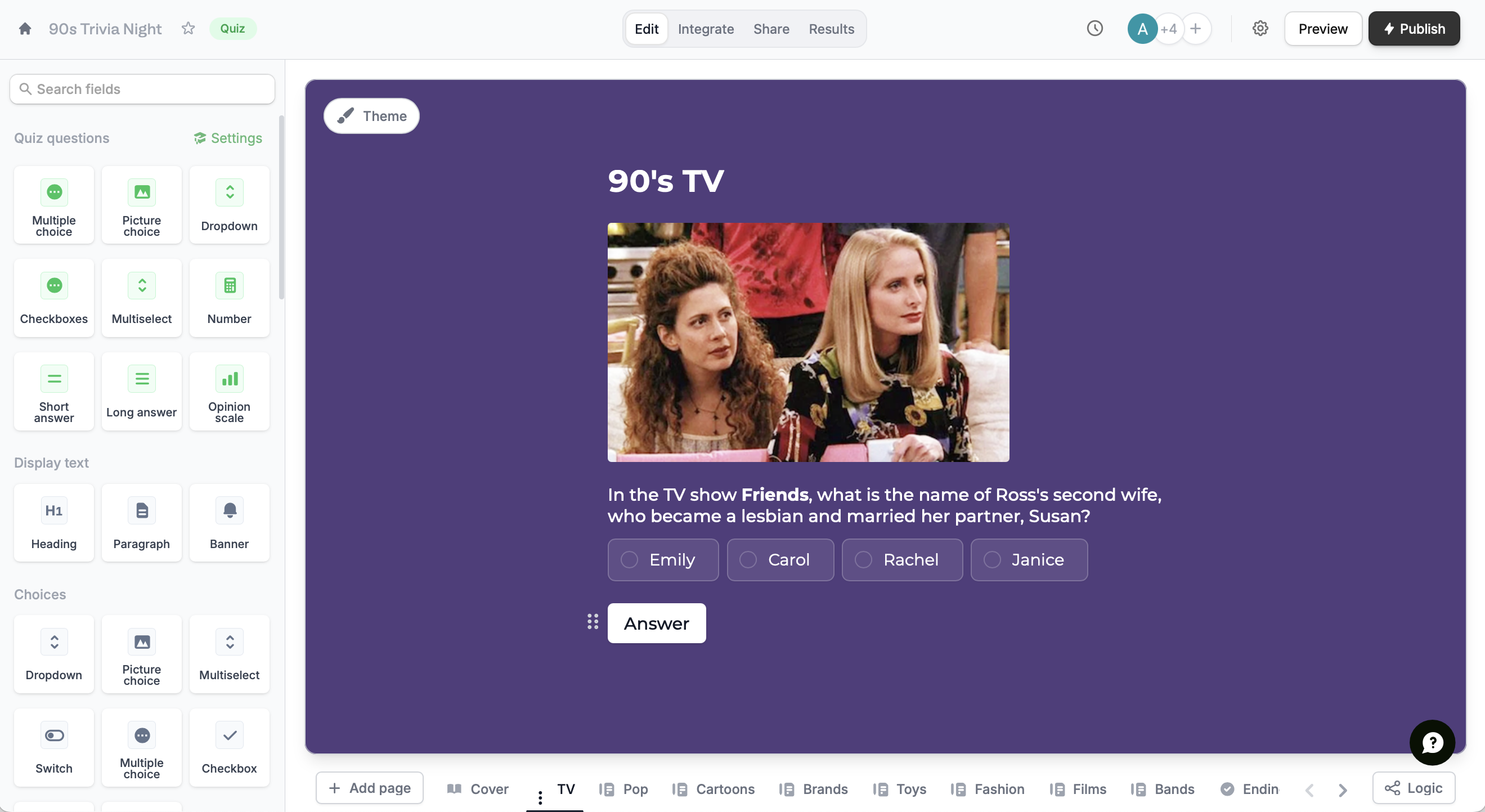 Enabling [**Show correct answers after each page**](https://www.fillout.com/help/make-a-free-quiz#how-to-create-a-quiz-in-fillout) will disable the back button.
## Use OpenAI Quiz GPT
Build smarter quizzes faster by adding the AI Quiz Maker extension to ChatGPT.
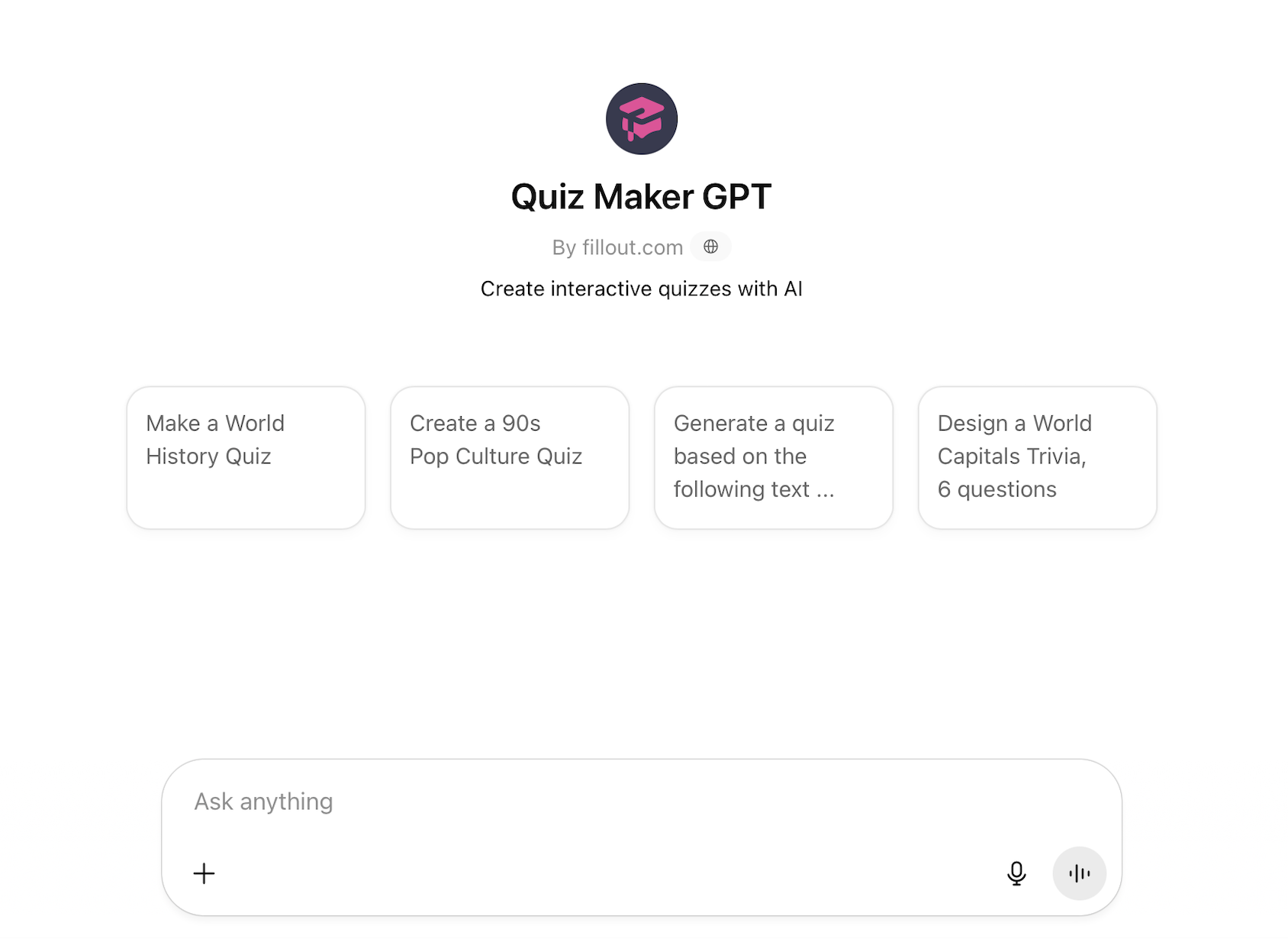
On the [**AI Quiz Maker**](https://www.fillout.com/ai-quiz-maker) page, click `Try the Open AI Quiz GPT` to add the extension.
Enabling [**Show correct answers after each page**](https://www.fillout.com/help/make-a-free-quiz#how-to-create-a-quiz-in-fillout) will disable the back button.
## Use OpenAI Quiz GPT
Build smarter quizzes faster by adding the AI Quiz Maker extension to ChatGPT.
On the [**AI Quiz Maker**](https://www.fillout.com/ai-quiz-maker) page, click `Try the Open AI Quiz GPT` to add the extension.
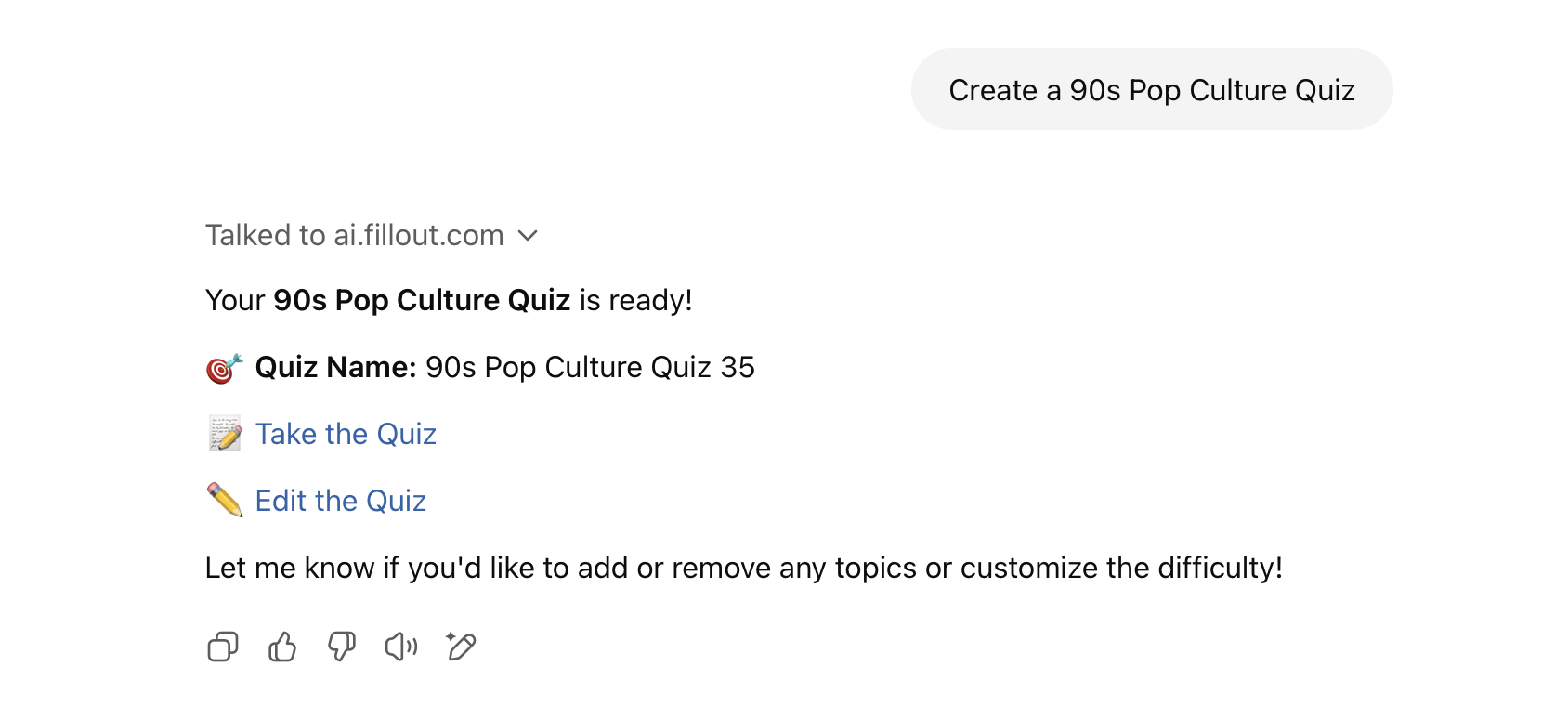
 Ask ChatGPT to create the quiz you want. You can also choose from the 4 suggested samples.
 Click `Edit this quiz` to customize the [design](/help/themes), set up [scoring](https://www.fillout.com/help/make-a-free-quiz#how-to-create-a-quiz-in-fillout), and create [dynamic ending pages](https://www.fillout.com/help/create-a-lead-quiz#add-calculations-to-ending-pages-and-custom-emails) depending on the outcome.
 ## Related articles
Select from hundreds of themes or create your own.
Use different question types, calculate scores, and more.
Use scoring, logic, and calculations to create dynamic outcomes.
## Related articles
Select from hundreds of themes or create your own.
Use different question types, calculate scores, and more.
Use scoring, logic, and calculations to create dynamic outcomes.