> ## Documentation Index
> Fetch the complete documentation index at: https://fillout.com/help/llms.txt
> Use this file to discover all available pages before exploring further.
# Update existing Airtable records with a form
> Make a form that edits existing records from Airtable and pre-fills fields with data from the record.
## Tutorial video
Check out [Gareth](https://www.garethpronovost.com/)’s tutorial on using Fillout to update existing Airtable records.
## How it works
**Only share each update link with people who should see all of that record's fields.** An update link acts as a key to the entire record: anyone who opens it can view every field on the record, even fields that don't appear as questions on the form. This is what lets update forms use any record field for pre-filling, [answer piping](/answer-piping), show/hide [logic](/conditional-hiding), and [calculations](/calculations).
To keep certain fields private, store them in a separate table so they aren't part of the record being updated, or [restrict prefilled data](/update-forms#restrict-prefilled-data) so the form only loads fields mapped to questions.
Open your [Airtable-connected form](https://www.fillout.com/help/airtable). Click `Integrate` on the top menu followed by `Airtable`.
Then specify that you want to `Update record`.
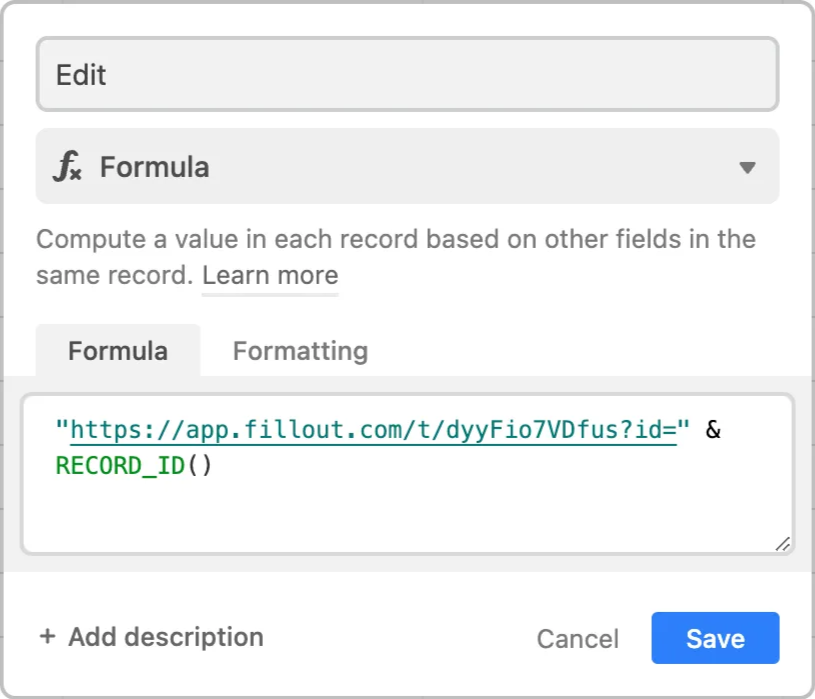
You’ll now get a formula that defines a **unique link** for every record in your table.
Create a new `formula` field and copy the formula Fillout provides on the `Integrate` page.
That's it! Click `Update` followed by `Publish` in the upper right corner.
To update a record, click `Preview` and select a **Record to update** or click one of the unique links from your Airtable.
Your form is **automatically pre-filled** for whichever record it is updating.
If you don’t provide an **id** in the unique URL, the form will create a new record instead.
## Let respondents choose a record to update
Use [this approach](/choose-record-to-update) if you prefer to let respondents choose (in Fillout) which record they’d like to update.
## Advanced next steps (Optional)
You can use update forms in combination with products like Airtable interfaces, Softr, or Stacker. For example, instead of adding a formula in Step 2 above, we could add a `Button` field.
Then, we can display this button in an Airtable interface, for users to easily edit the record.
## Airtable specific guides
Let respondents create records from your form.
Let respondents choose from your form.
Add entries across multiple tables.
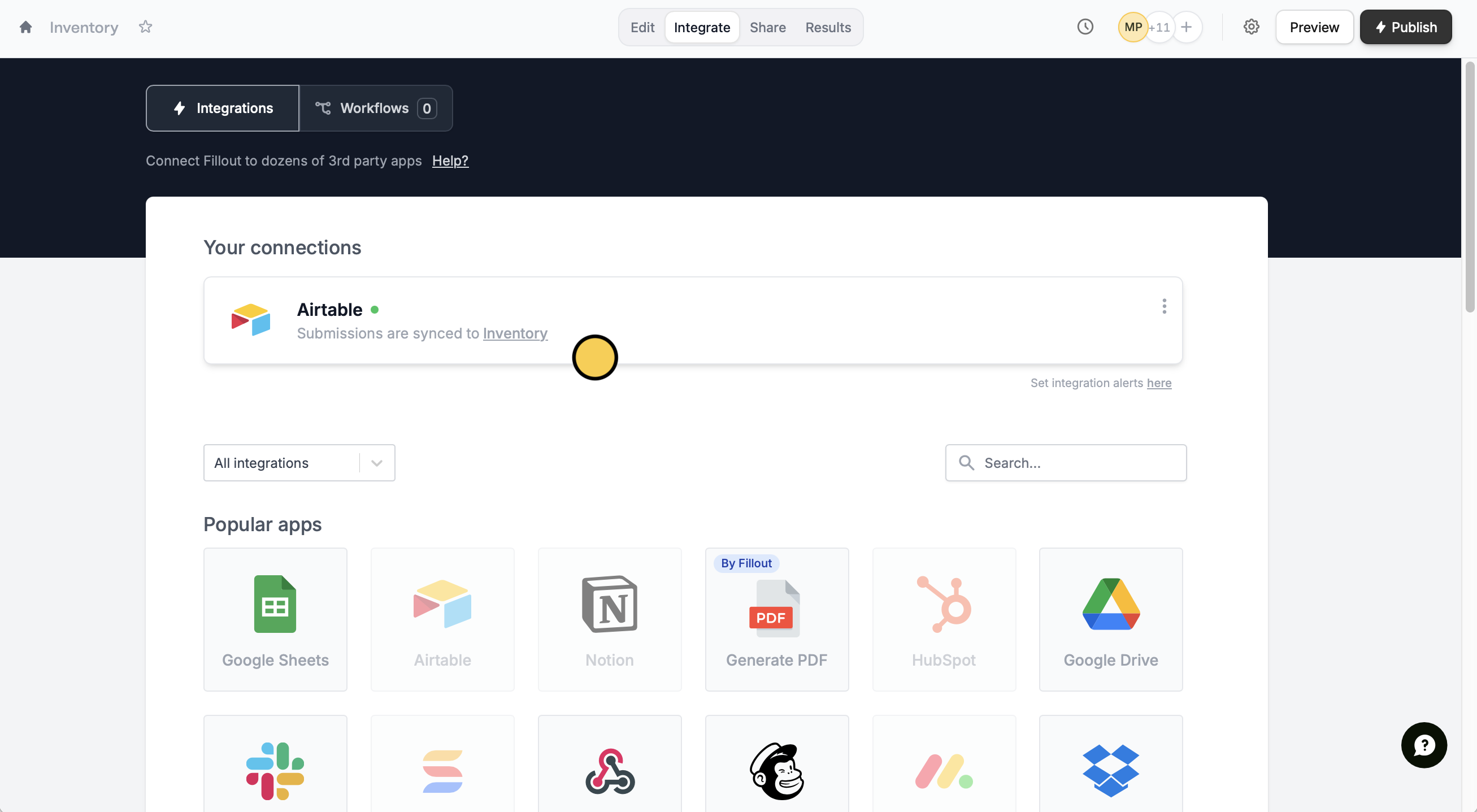 Then specify that you want to `Update record`.
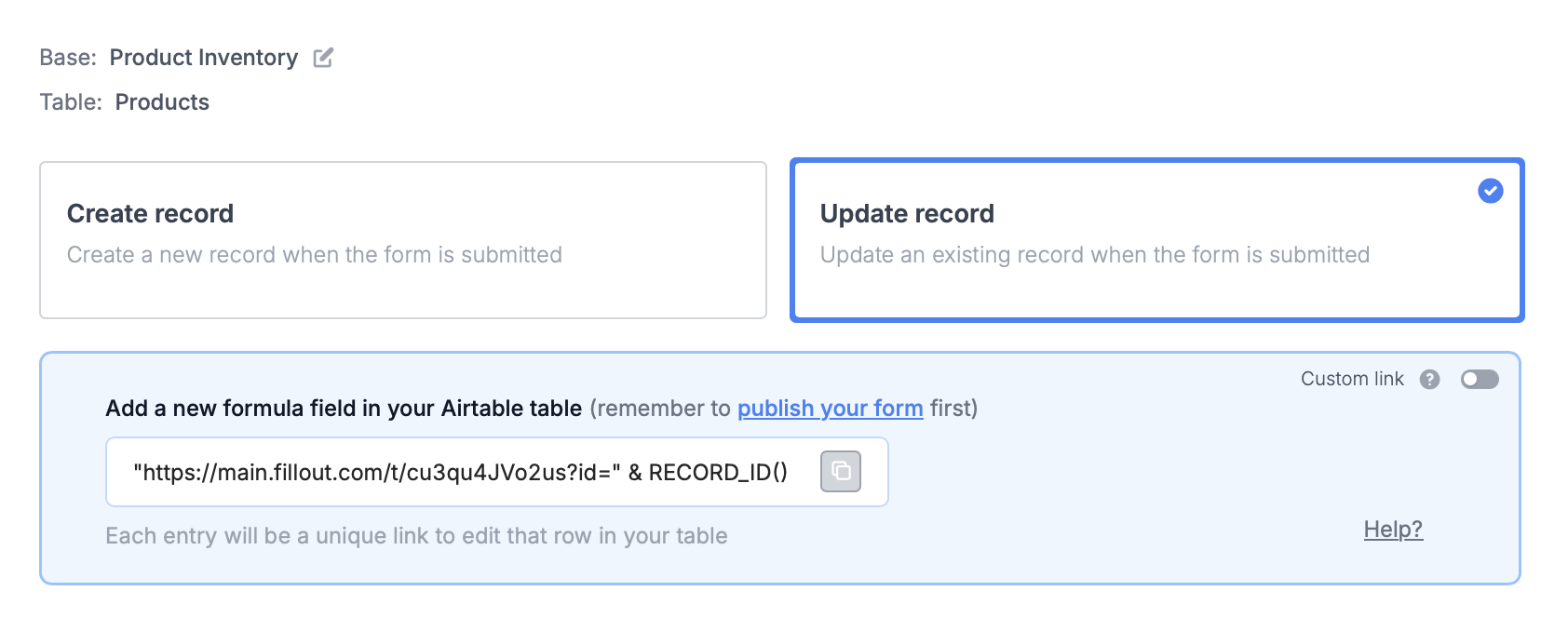 You’ll now get a formula that defines a **unique link** for every record in your table.
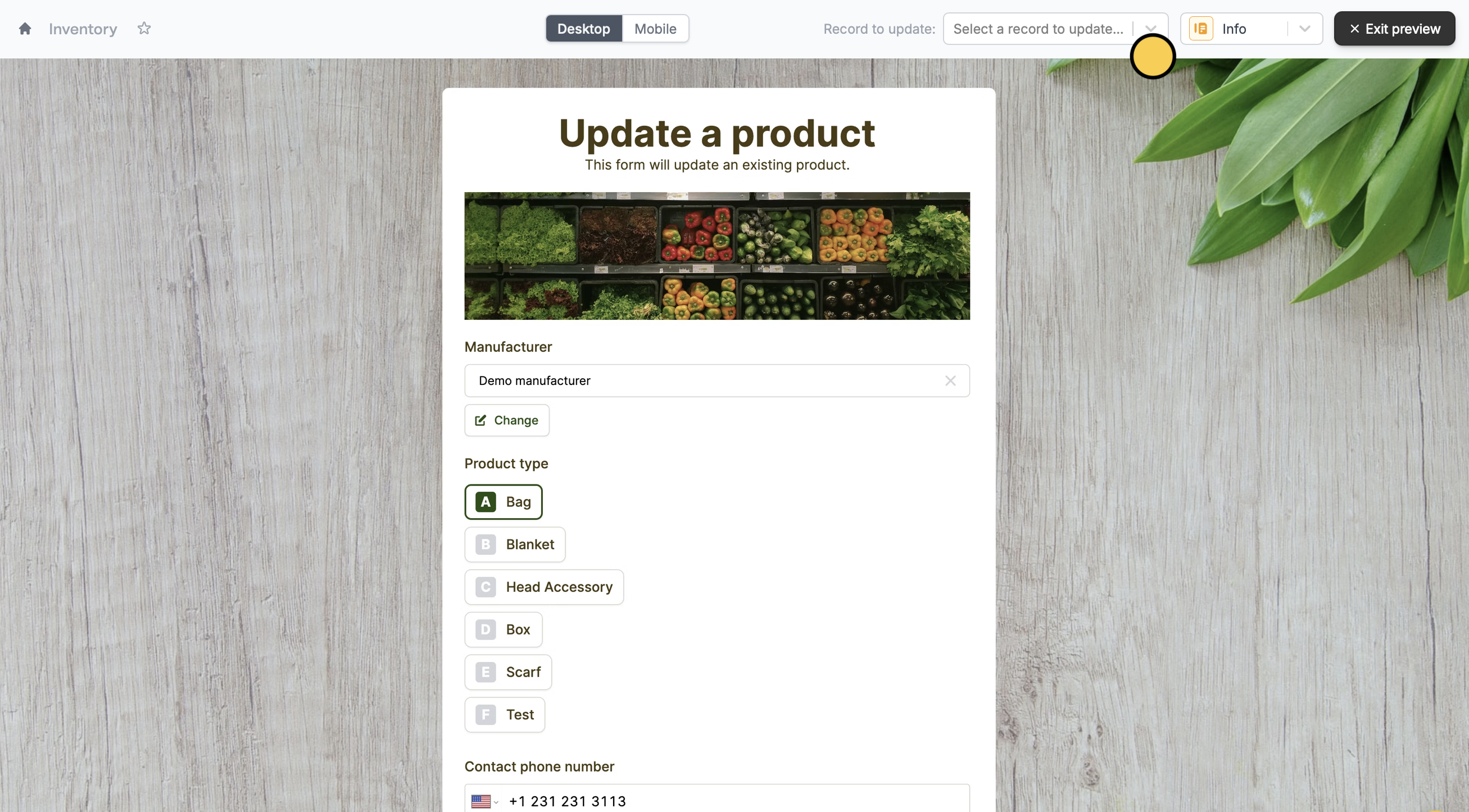 Your form is **automatically pre-filled** for whichever record it is updating.
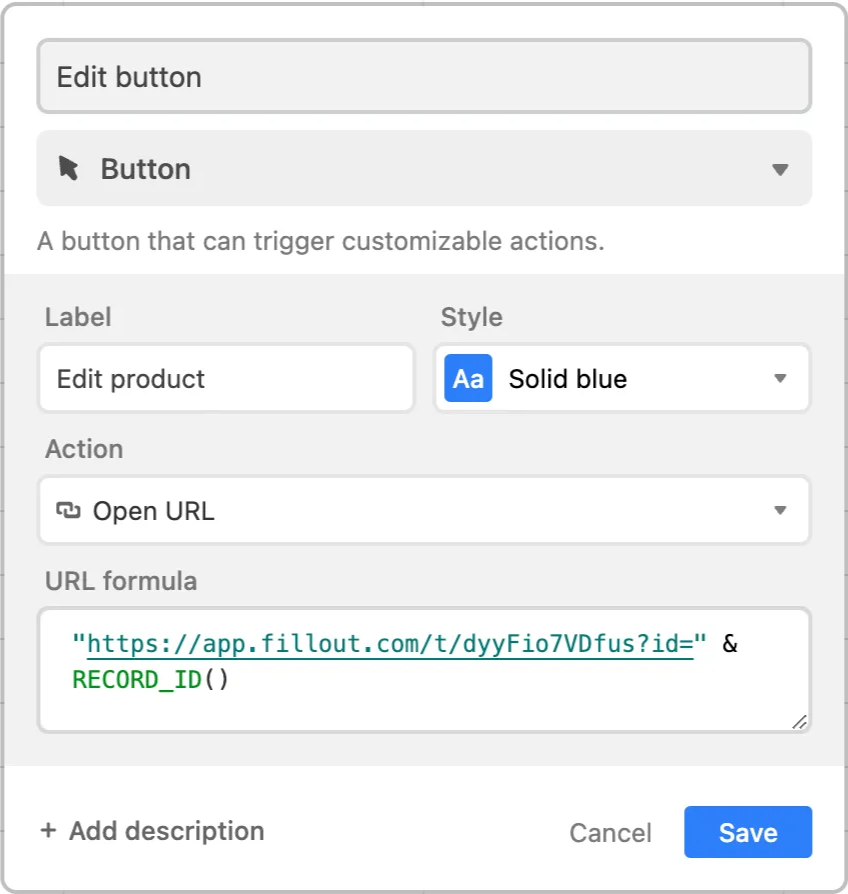 Then, we can display this button in an Airtable interface, for users to easily edit the record.
 ## Airtable specific guides