> ## Documentation Index
> Fetch the complete documentation index at: https://fillout.com/help/llms.txt
> Use this file to discover all available pages before exploring further.
# Fillout Approvals
> Automate project approvals, HR requests, job applications, and other workflow types. Easily track and manage submissions in one place, assign tasks, and request approvals via email or Slack.
## How to automate approvals
In the [**Workflows page**](https://www.fillout.com/help/workflows#how-to-create-a-workflow), select your preferred **Approval** template.
### Approve or reject submissions
By default, the form owner is the **Approver**. You can `Edit` this to choose another member of the workspace or add more approvers.
You can also opt to **Request approval by** Slack.
If necessary, request for **Approver input** like reason and comments, and edit the default **Notification email**.
A different email will be sent depending on the option the approver will choose. When you have set your workflow, `Test` this before clicking `Publish`.
You can opt to `Edit` the contents of each email and [format its style](/custom-emails).
### Assign task for submissions
Delegate a task to your team after receiving submissions. The default workflow template, sends a summary of form responses in a Slack channel to notify members.
Besides notifying, you can enhance this workflow. For example, add a step for reviewing submissions. Customize it by clicking `Edit` in **Approval** and adding **Options**.
You can opt to edit the `Custom message` in Slack and reference form fields. More info [here](https://www.fillout.com/help/slack#send-a-custom-message-to-slack).
## Manage approvals in one dashboard
When you receive an approval request, it will redirect to the `Results page` of your form where you can take the necessary `Action needed`.
You can view comments by clicking the `messaging icon` beside **Answers**.
## Related articles
Simplify task flows with native multi-step automations.
Automate sending, pipe previous answers, and style your email.
Insert previous answers into upcoming questions or fields.
 ### Approve or reject submissions
By default, the form owner is the **Approver**. You can `Edit` this to choose another member of the workspace or add more approvers.
### Approve or reject submissions
By default, the form owner is the **Approver**. You can `Edit` this to choose another member of the workspace or add more approvers.
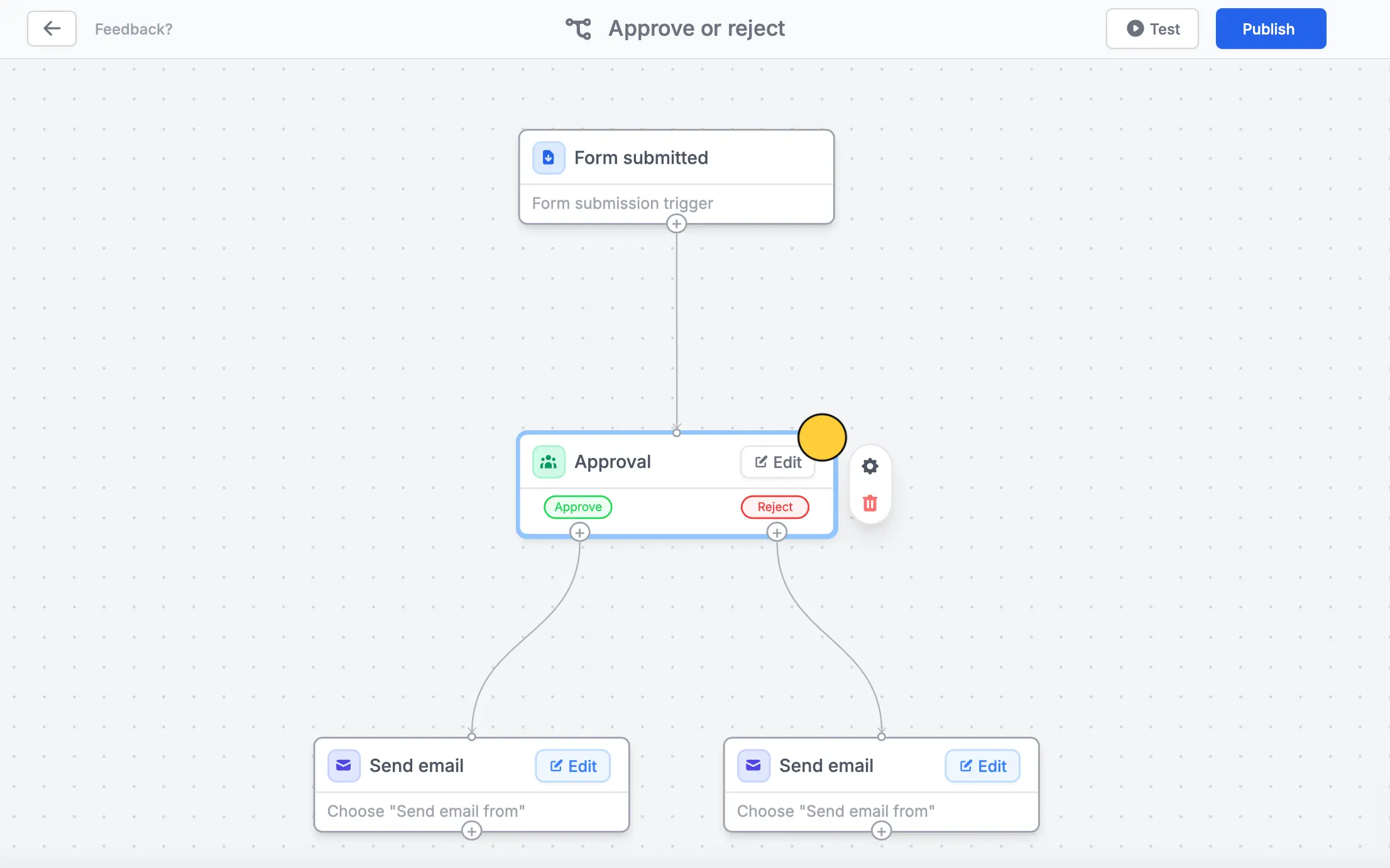 You can also opt to **Request approval by** Slack.
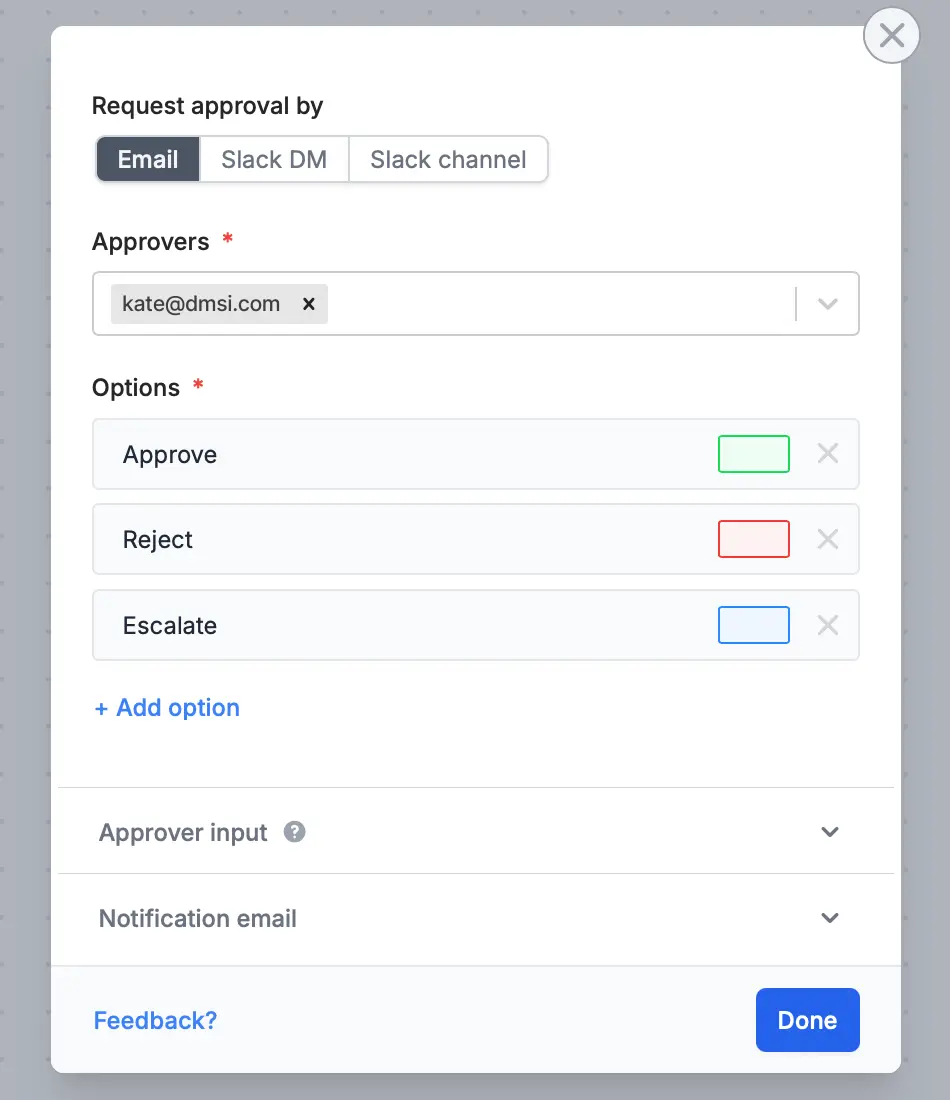 If necessary, request for **Approver input** like reason and comments, and edit the default **Notification email**.
A different email will be sent depending on the option the approver will choose. When you have set your workflow, `Test` this before clicking `Publish`.
If necessary, request for **Approver input** like reason and comments, and edit the default **Notification email**.
A different email will be sent depending on the option the approver will choose. When you have set your workflow, `Test` this before clicking `Publish`.
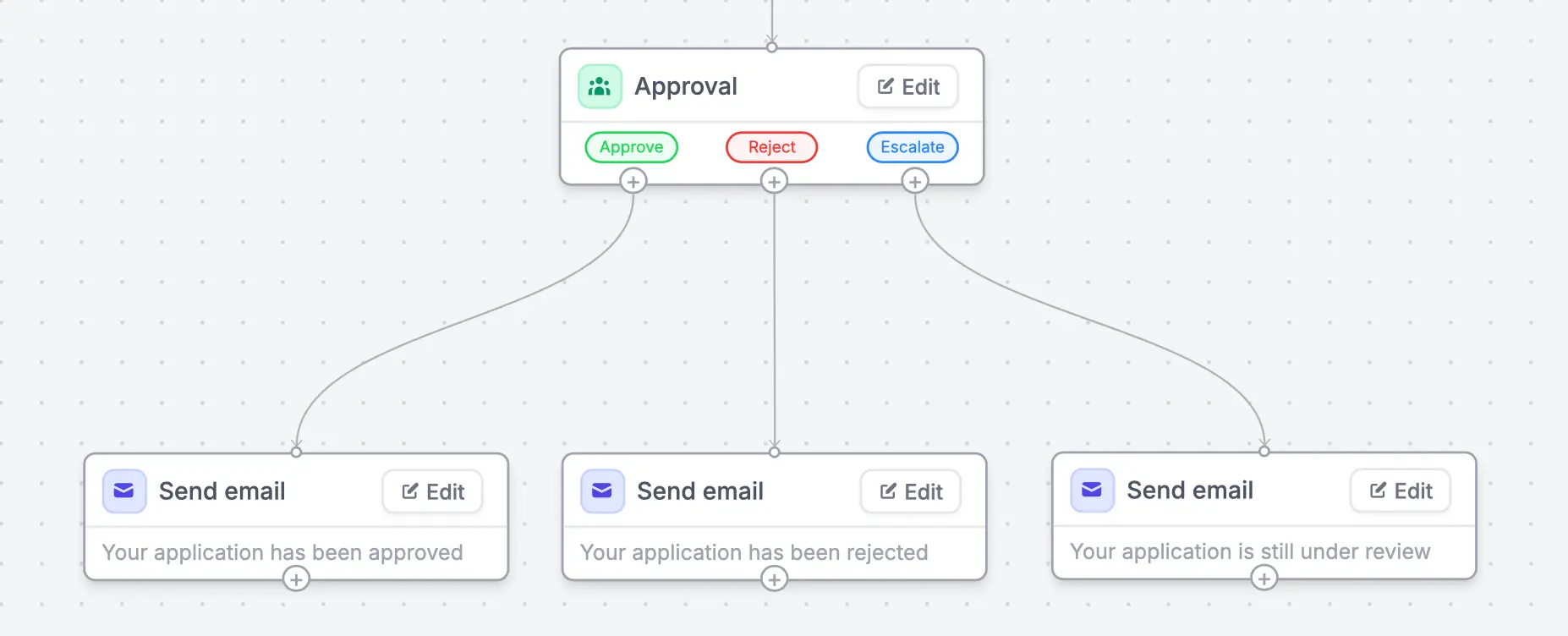 You can opt to `Edit` the contents of each email and [format its style](/custom-emails).
### Assign task for submissions
Delegate a task to your team after receiving submissions. The default workflow template, sends a summary of form responses in a Slack channel to notify members.
You can opt to `Edit` the contents of each email and [format its style](/custom-emails).
### Assign task for submissions
Delegate a task to your team after receiving submissions. The default workflow template, sends a summary of form responses in a Slack channel to notify members.
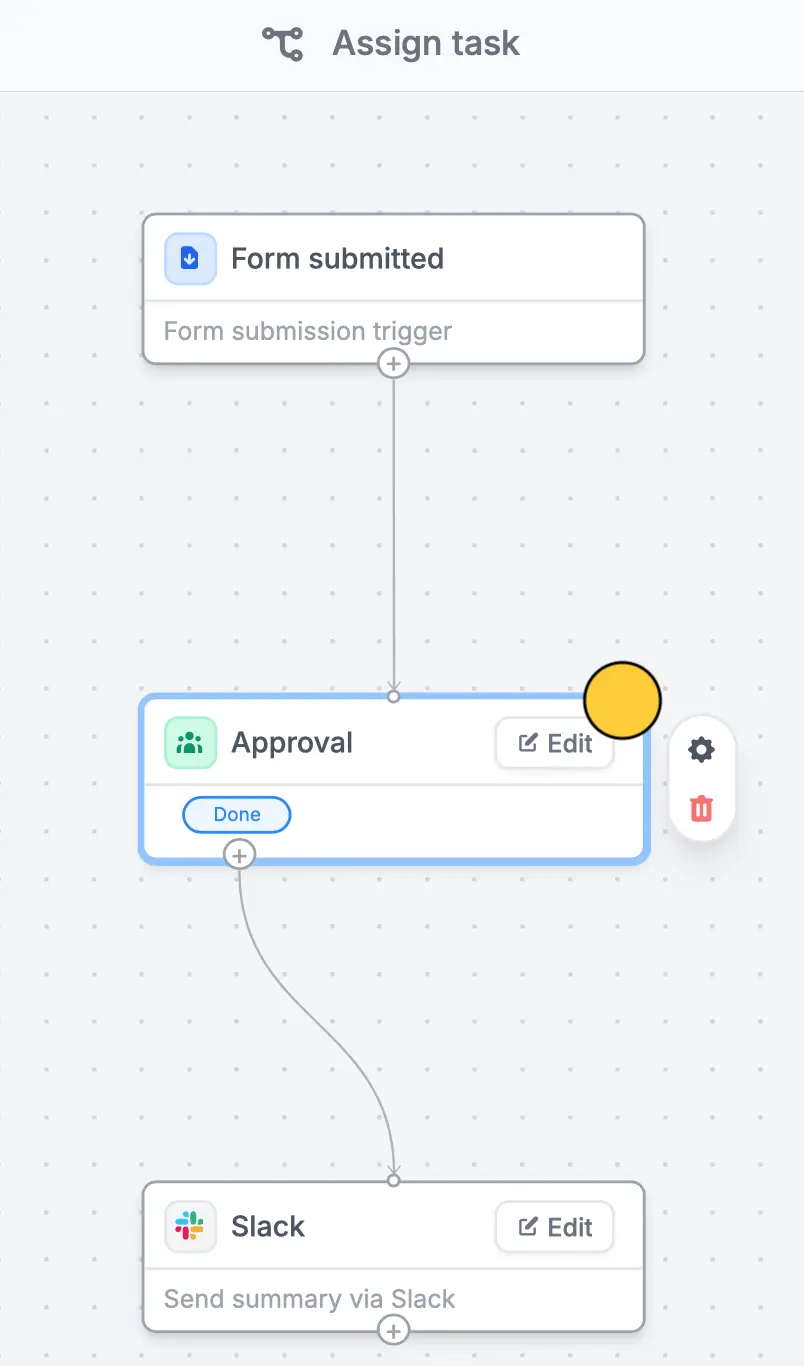 Besides notifying, you can enhance this workflow. For example, add a step for reviewing submissions. Customize it by clicking `Edit` in **Approval** and adding **Options**.
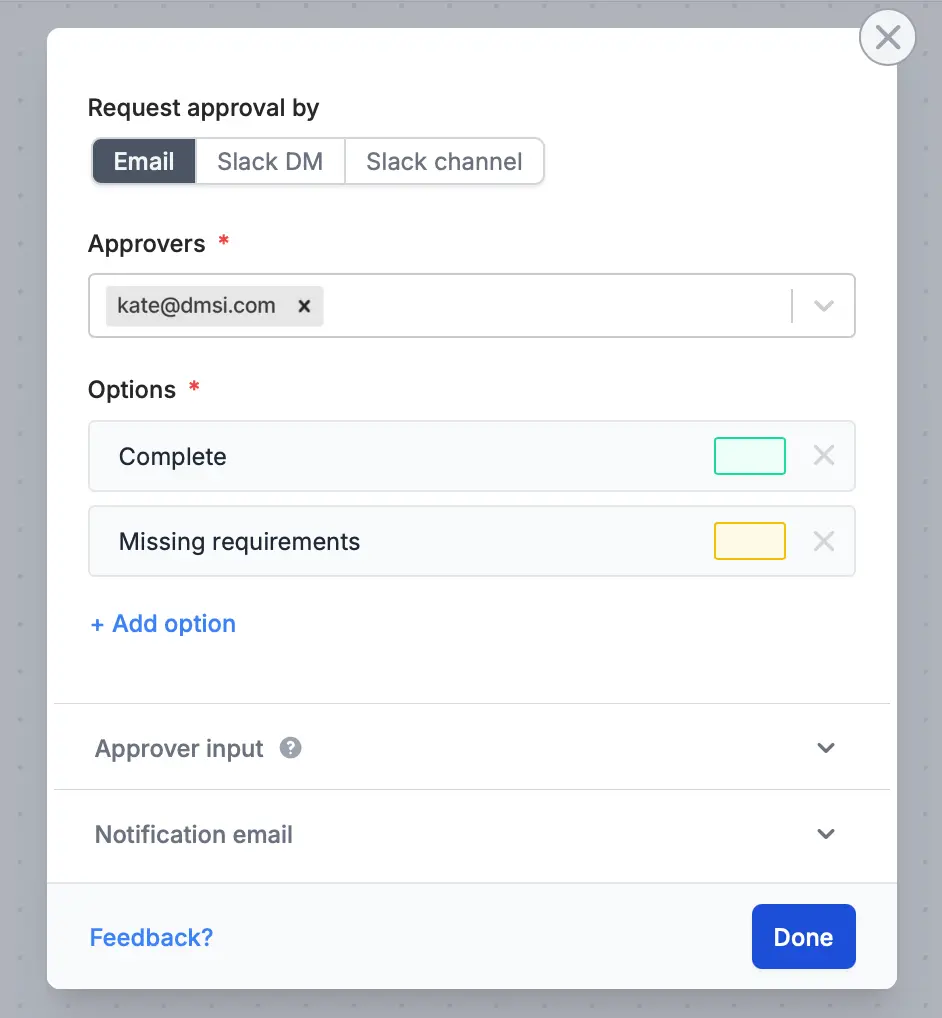 You can opt to edit the `Custom message` in Slack and reference form fields. More info [here](https://www.fillout.com/help/slack#send-a-custom-message-to-slack).
## Manage approvals in one dashboard
When you receive an approval request, it will redirect to the `Results page` of your form where you can take the necessary `Action needed`.
You can opt to edit the `Custom message` in Slack and reference form fields. More info [here](https://www.fillout.com/help/slack#send-a-custom-message-to-slack).
## Manage approvals in one dashboard
When you receive an approval request, it will redirect to the `Results page` of your form where you can take the necessary `Action needed`.
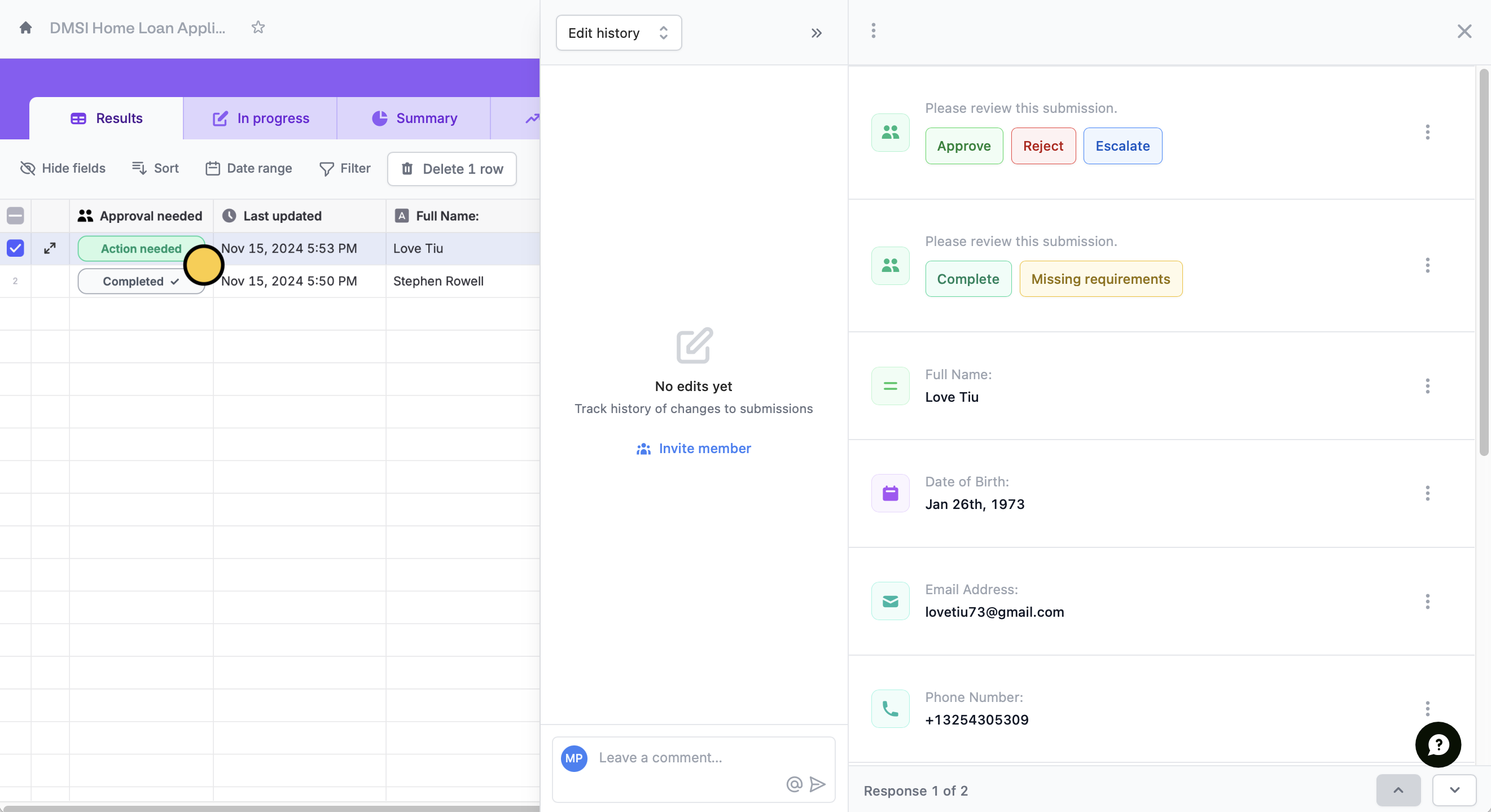 You can view comments by clicking the `messaging icon` beside **Answers**.
## Related articles
You can view comments by clicking the `messaging icon` beside **Answers**.
## Related articles