> ## Documentation Index
> Fetch the complete documentation index at: https://fillout.com/help/llms.txt
> Use this file to discover all available pages before exploring further.
# Create new contacts in Brevo (formerly Sendinblue)
> Add new contacts in Brevo or update existing ones with a Fillout form. Set conditions to modify fields in your form.
## What is Brevo?
[Brevo](https://www.brevo.com/) (formerly Sendinblue) is an all-in-one marketing platform that helps businesses manage their email marketing, SMS campaigns, and customer relationship management (CRM) in one place.
## How it works
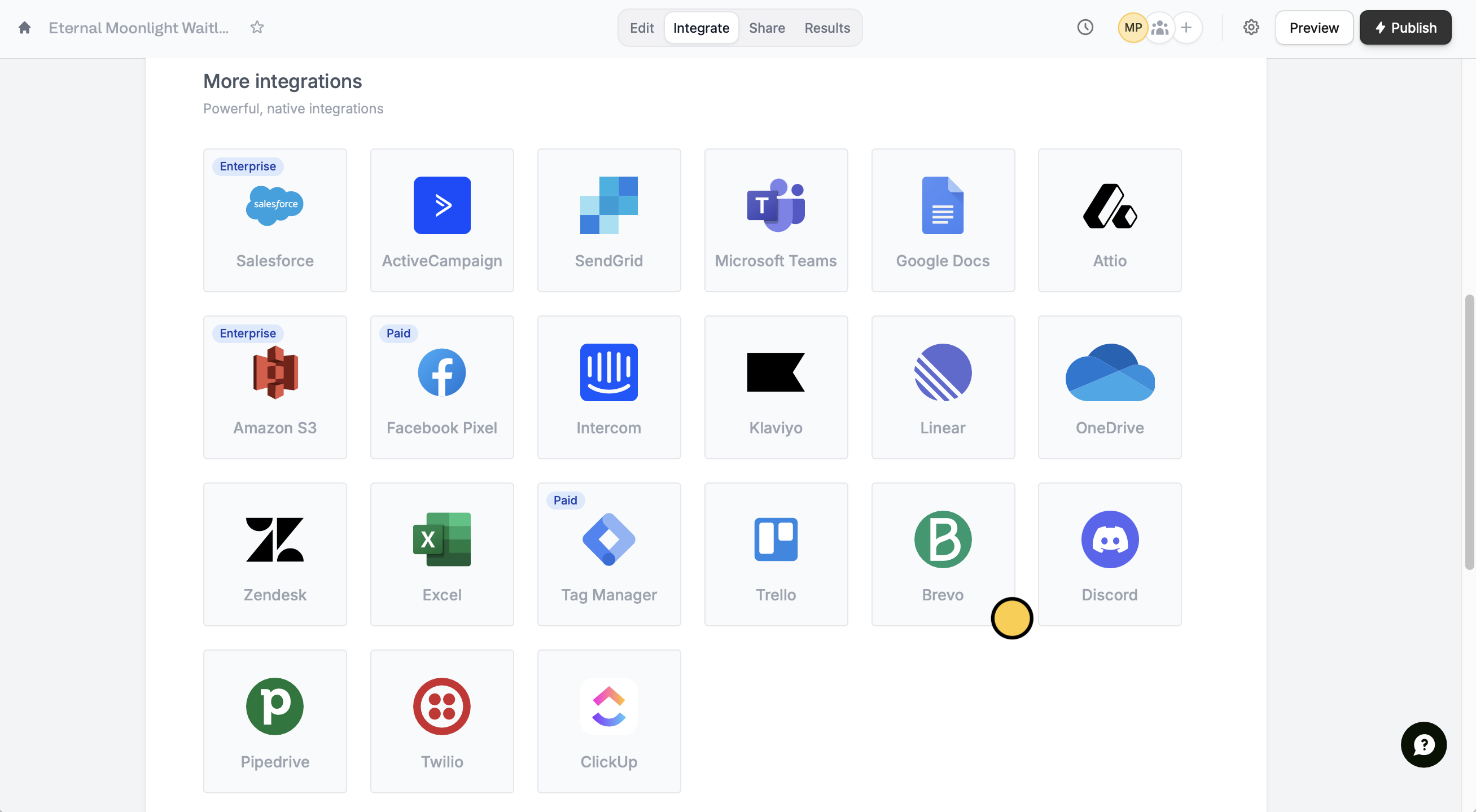
Open an existing form or create a new one. Head over to `Integrate` and look for `Brevo`.
 Type your **API Key**. To view the instructions, click the link in the banner. Then, select a **List** to `Continue`.
First, select the `Email address` field. Then, `+ Add new` fields to map the corresponding **Contact fields** in Brevo to those in your form.
Type your **API Key**. To view the instructions, click the link in the banner. Then, select a **List** to `Continue`.
First, select the `Email address` field. Then, `+ Add new` fields to map the corresponding **Contact fields** in Brevo to those in your form.
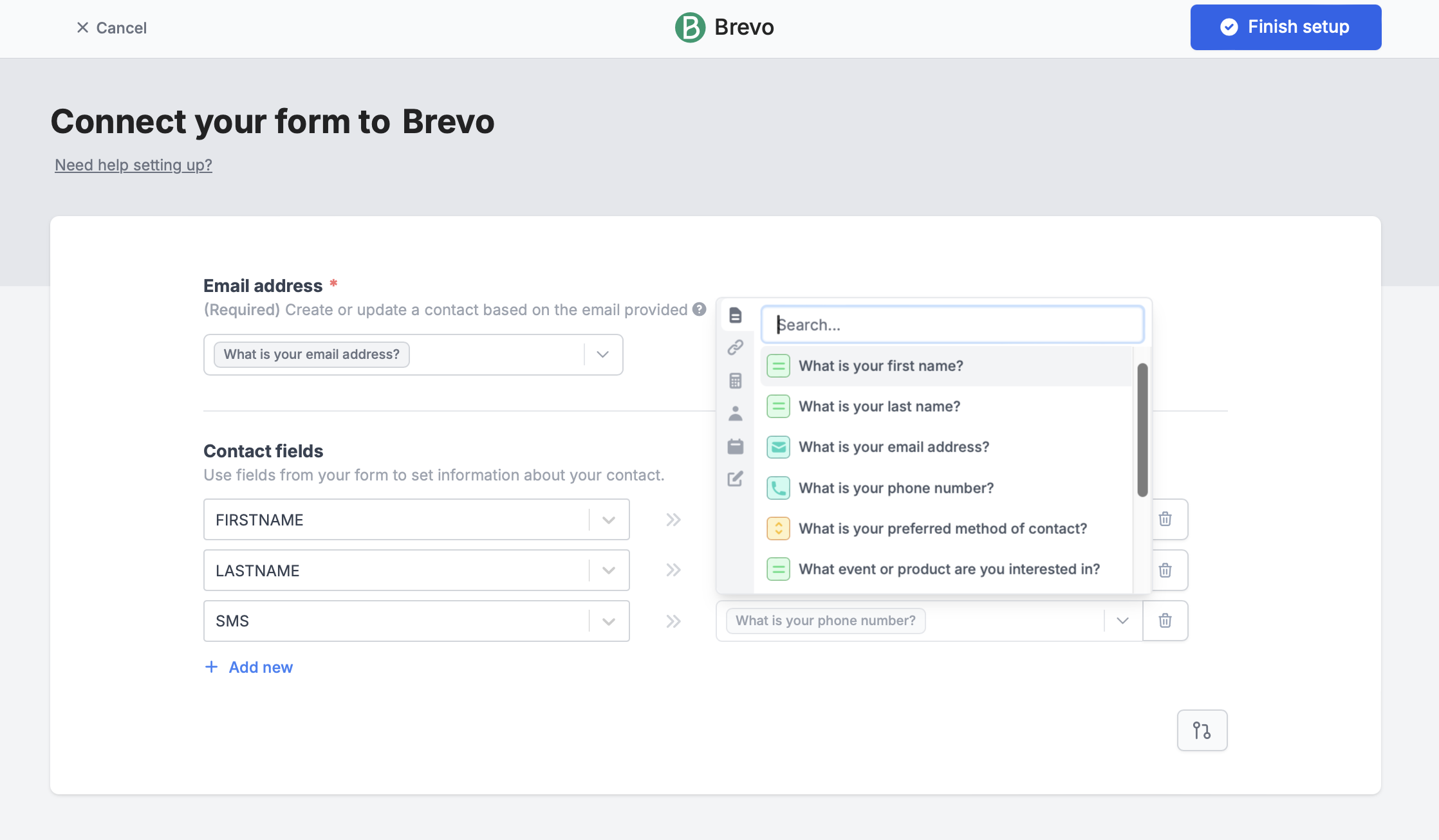 Click `Finish setup` once everything is set.
That’s it! Click `Publish` in the upper right corner to share your link or embed it on your website.
Now, every time someone submits your form, a new contact will be added to your chosen list. If an email already exists, the contact details will be updated.
If a respondent inputs a new email but uses a phone number that’s already on your list, Brevo will show an error.
## **Specify a condition**
You can choose to run your integration only when a certain condition is met. Check out the quick guide [here](/conditional-integration).
## Related articles
Perform an integration only when a certain condition is met.
Hide or show pages or custom endings based on respondent input.
Click `Finish setup` once everything is set.
That’s it! Click `Publish` in the upper right corner to share your link or embed it on your website.
Now, every time someone submits your form, a new contact will be added to your chosen list. If an email already exists, the contact details will be updated.
If a respondent inputs a new email but uses a phone number that’s already on your list, Brevo will show an error.
## **Specify a condition**
You can choose to run your integration only when a certain condition is met. Check out the quick guide [here](/conditional-integration).
## Related articles
Perform an integration only when a certain condition is met.
Hide or show pages or custom endings based on respondent input.