> ## Documentation Index
> Fetch the complete documentation index at: https://fillout.com/help/llms.txt
> Use this file to discover all available pages before exploring further.
# Button types
> Change the labels, alignment, style, and animation of your form's next, submit, and start buttons. Optionally add a skip button and edit the position of your back button.
## List of button types
By default, your form will have the following buttons:
* **Next** - assigned button for form, review, payment, login, and scheduling [pages](/page-types)
* **Submit** - button to proceed to the [ending page](/ending-page)
* **Back** - located on the upper left corner, allows respondents to view previous pages
* **Start** - found in [cover pages](/cover-page)
You can also add:
* **Skip** - lets respondents proceed to the next page without answering the current one
## Customize button
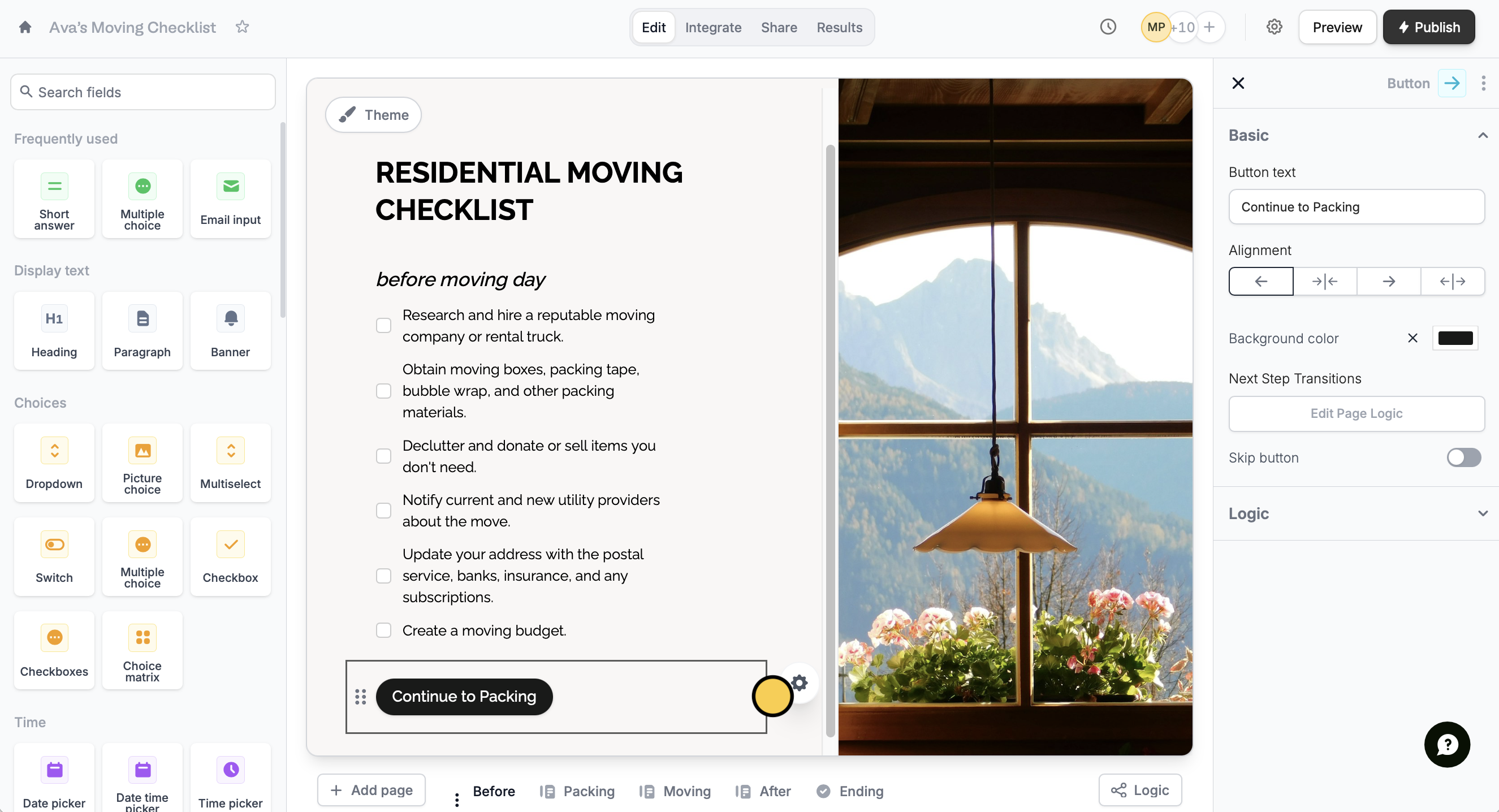
Click a button's . On the right-hand panel, you can:
* Edit the default button text to your preferred label
* Change its alignment
* Change its background color
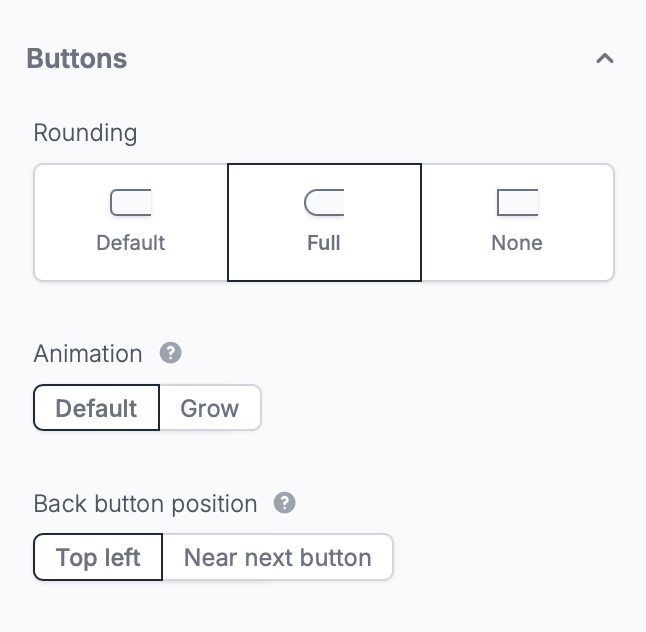
 You can further customize your button by clicking `Theme` on the upper left part of your form followed by `Advanced designer`. The designer lets you:
* Change the rounding or shape of your button
* Change the subtle animation
* Change the back button's position
You can further customize your button by clicking `Theme` on the upper left part of your form followed by `Advanced designer`. The designer lets you:
* Change the rounding or shape of your button
* Change the subtle animation
* Change the back button's position
 Custom themes are available on the **Starter** plan and above. Learn more about our pricing plans and advanced features [**here**](https://www.fillout.com/pricing).
## Add a skip button
Go back to your button's right-hand panel settings. Toggle the `Skip button` switch.
Custom themes are available on the **Starter** plan and above. Learn more about our pricing plans and advanced features [**here**](https://www.fillout.com/pricing).
## Add a skip button
Go back to your button's right-hand panel settings. Toggle the `Skip button` switch.
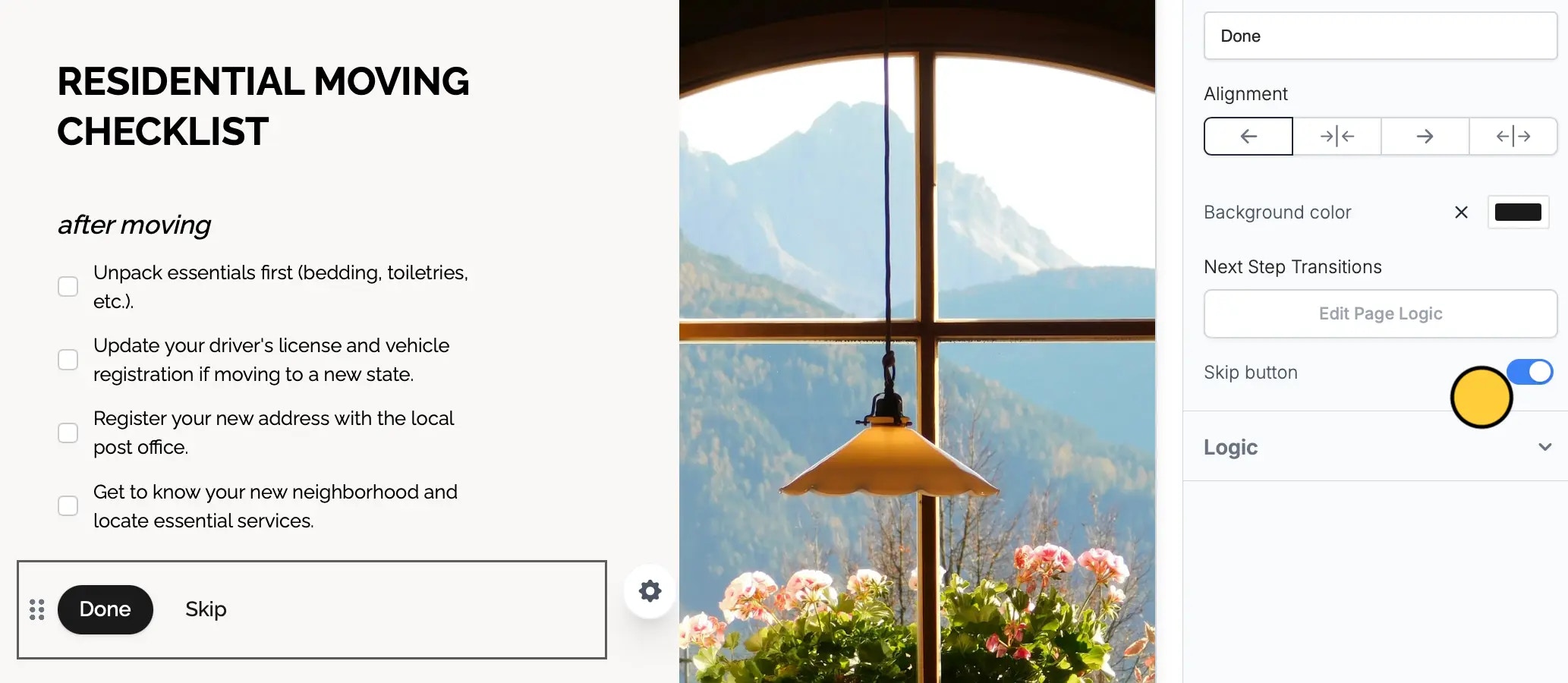 Make sure your Back button position is set to Default (Top Left) to be able to use a Skip button.
You can also let respondents automatically skip pages without the skip button by enabling [Auto jump](/auto-jump).
## **Related articles**
Select from hundreds of themes or create your own.
Hide or show pages or custom endings based on respondent input.
Auto-redirect to the next page after making a selection.
Make sure your Back button position is set to Default (Top Left) to be able to use a Skip button.
You can also let respondents automatically skip pages without the skip button by enabling [Auto jump](/auto-jump).
## **Related articles**
Select from hundreds of themes or create your own.
Hide or show pages or custom endings based on respondent input.
Auto-redirect to the next page after making a selection.