> ## Documentation Index
> Fetch the complete documentation index at: https://fillout.com/help/llms.txt
> Use this file to discover all available pages before exploring further.
# Connect your form to ClickUp
> Automatically create and manage new tasks in your ClickUp list when someone submits your Fillout form.
## What ClickUp is
[ClickUp](https://clickup.com/) is an all-in-one productivity platform that helps teams and individuals manage tasks, projects, and workflows in one place. It offers features like task management, document collaboration, goal tracking, and automation to streamline work efficiently.
## How it works
Open your Fillout form or create a new one. Head to the **Integrate** page and look for `ClickUp`. Then, connect to your account.
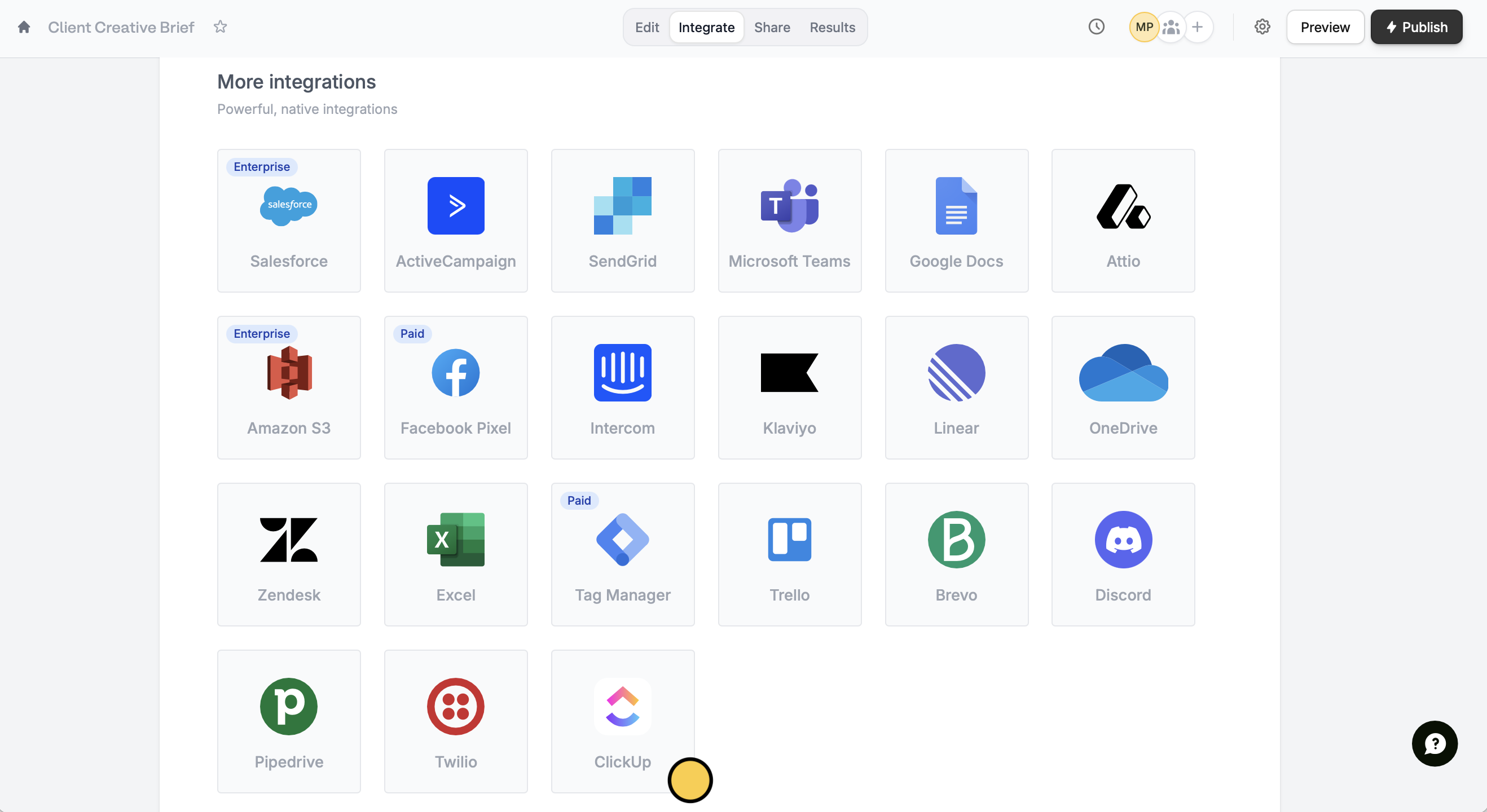 Then, select a **workspace** and a **list**.
Your ClickUp fields will [automatically show up](https://www.fillout.com/help/additional-integration-mappings#automatic-field-mapping) on the left-hand panel of your form editor. Simply drag and drop these to your form.
Alternatively, click `+ Add new` in **Mappings** to reference ClickUp fields from the left to Fillout form fields in the right.
Then, select a **workspace** and a **list**.
Your ClickUp fields will [automatically show up](https://www.fillout.com/help/additional-integration-mappings#automatic-field-mapping) on the left-hand panel of your form editor. Simply drag and drop these to your form.
Alternatively, click `+ Add new` in **Mappings** to reference ClickUp fields from the left to Fillout form fields in the right.
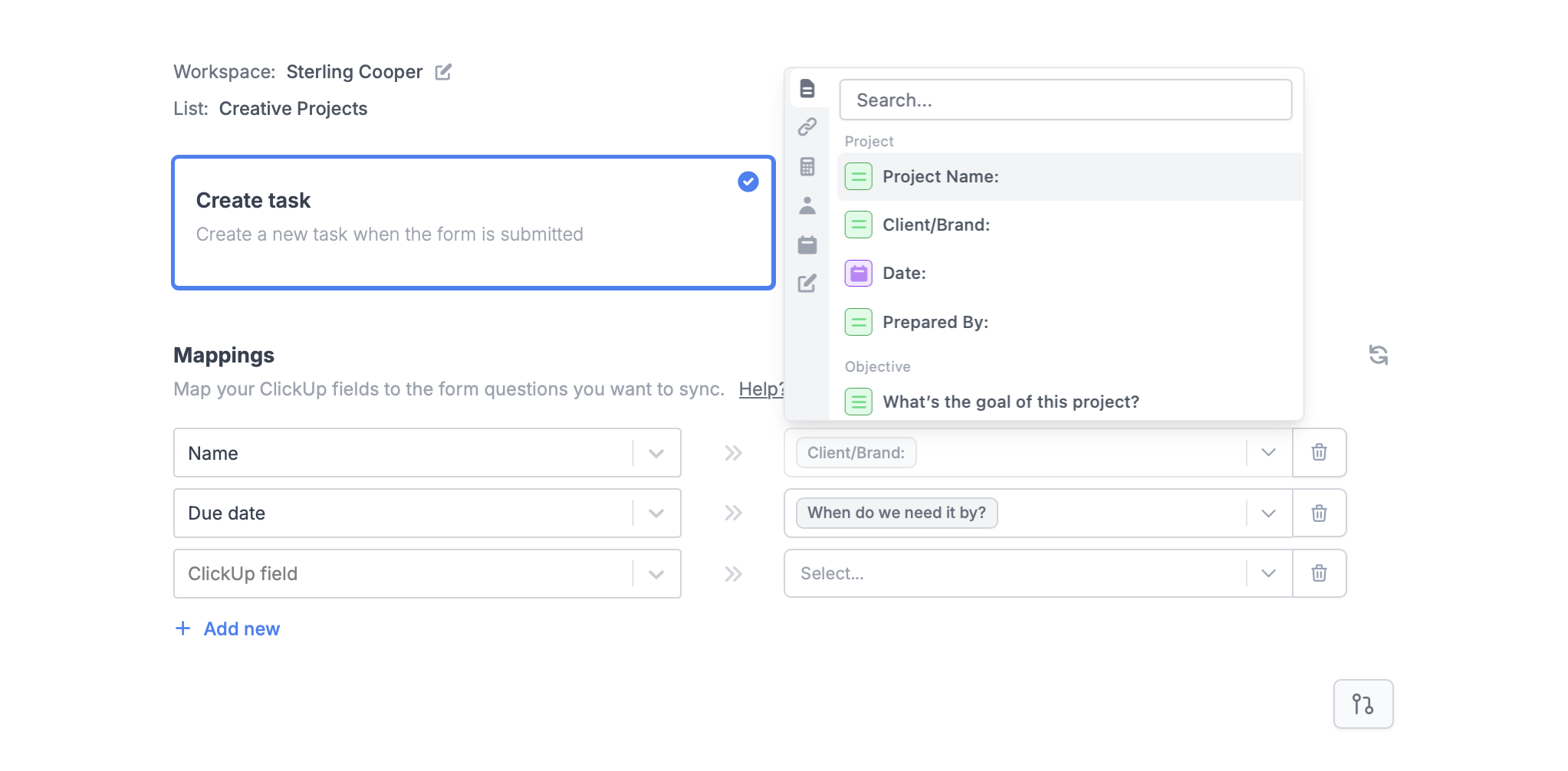 Once your form’s all good, click `Finish setup` on the upper right corner followed by `Publish`. Now, you’ll see a new task in your ClickUp list for every new form submission.
## Create tasks based on conditions
You can choose to create certain types of issues when a condition is met. For example, create cards for different lists depending on what respondents specify in the form. More details [here](/conditional-integration).
## Other similar integrations
Create new cards on Trello with a form.
Use a form to create leads and more.
Create and manage issues with a form.
Once your form’s all good, click `Finish setup` on the upper right corner followed by `Publish`. Now, you’ll see a new task in your ClickUp list for every new form submission.
## Create tasks based on conditions
You can choose to create certain types of issues when a condition is met. For example, create cards for different lists depending on what respondents specify in the form. More details [here](/conditional-integration).
## Other similar integrations
Create new cards on Trello with a form.
Use a form to create leads and more.
Create and manage issues with a form.