> ## Documentation Index
> Fetch the complete documentation index at: https://fillout.com/help/llms.txt
> Use this file to discover all available pages before exploring further.
# Collaborative forms with multiple respondents
> With Fillout, you can send a single, shared form to multiple respondents at once. Responses on the form are synced automatically to allow for collaborative data intake.
export const SupportBanner = () => {
const titleId = React.useId();
return ;
};
This feature is not yet generally available in Fillout but is coming soon. Stay tuned for updates [here](https://zite.com/help/whats-new) and on [LinkedIn](https://www.linkedin.com/company/fillout).
## How to send a collaborative form
Open your form and go to the `Share` tab from the top menu. Click `Send form`.
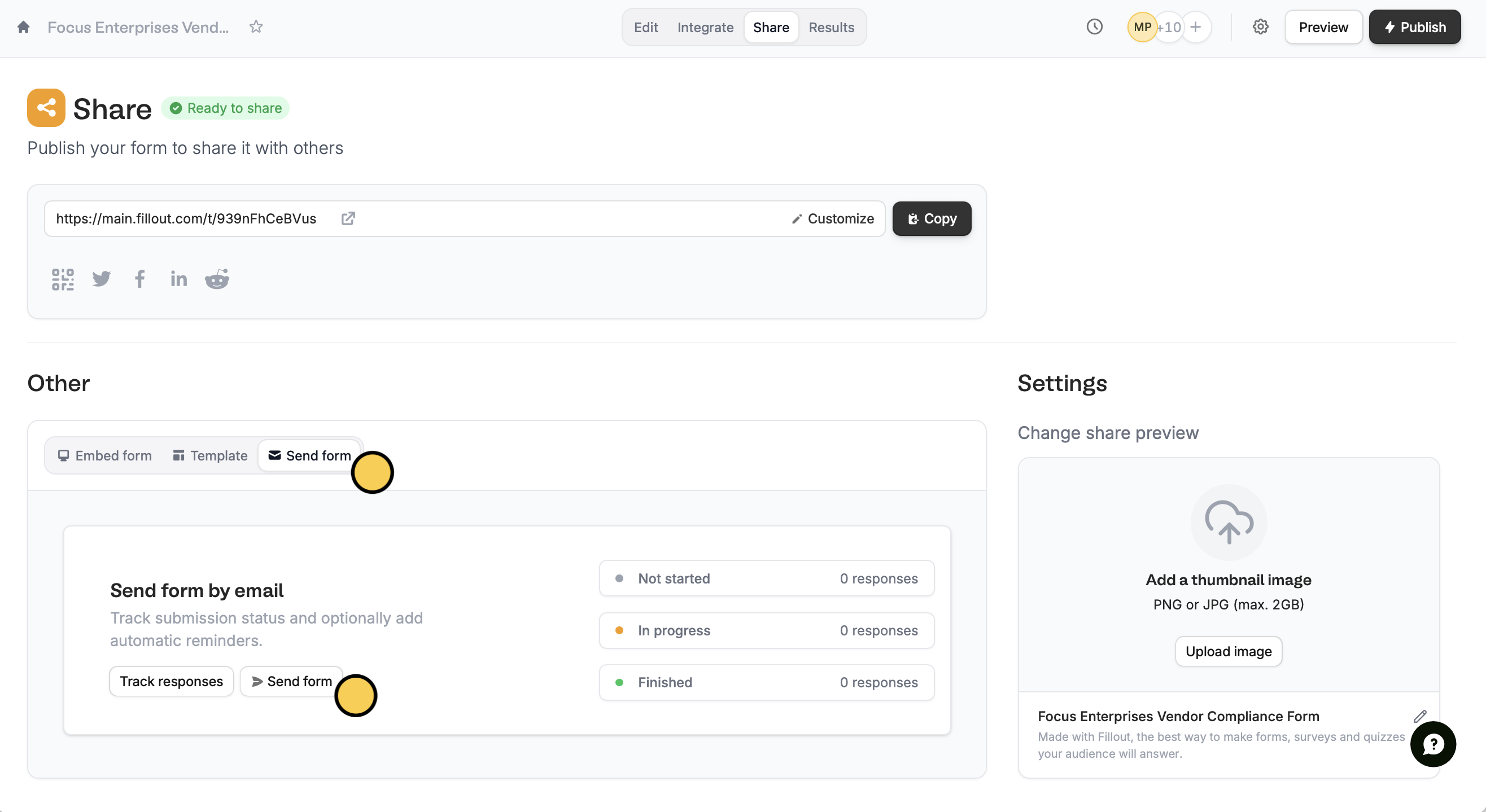 Next, `Set recipients` and enter the emails of your chosen respondents. Here, you can edit the subject, enable reminders, and choose your preferred frequency. Then, click `Send form`.
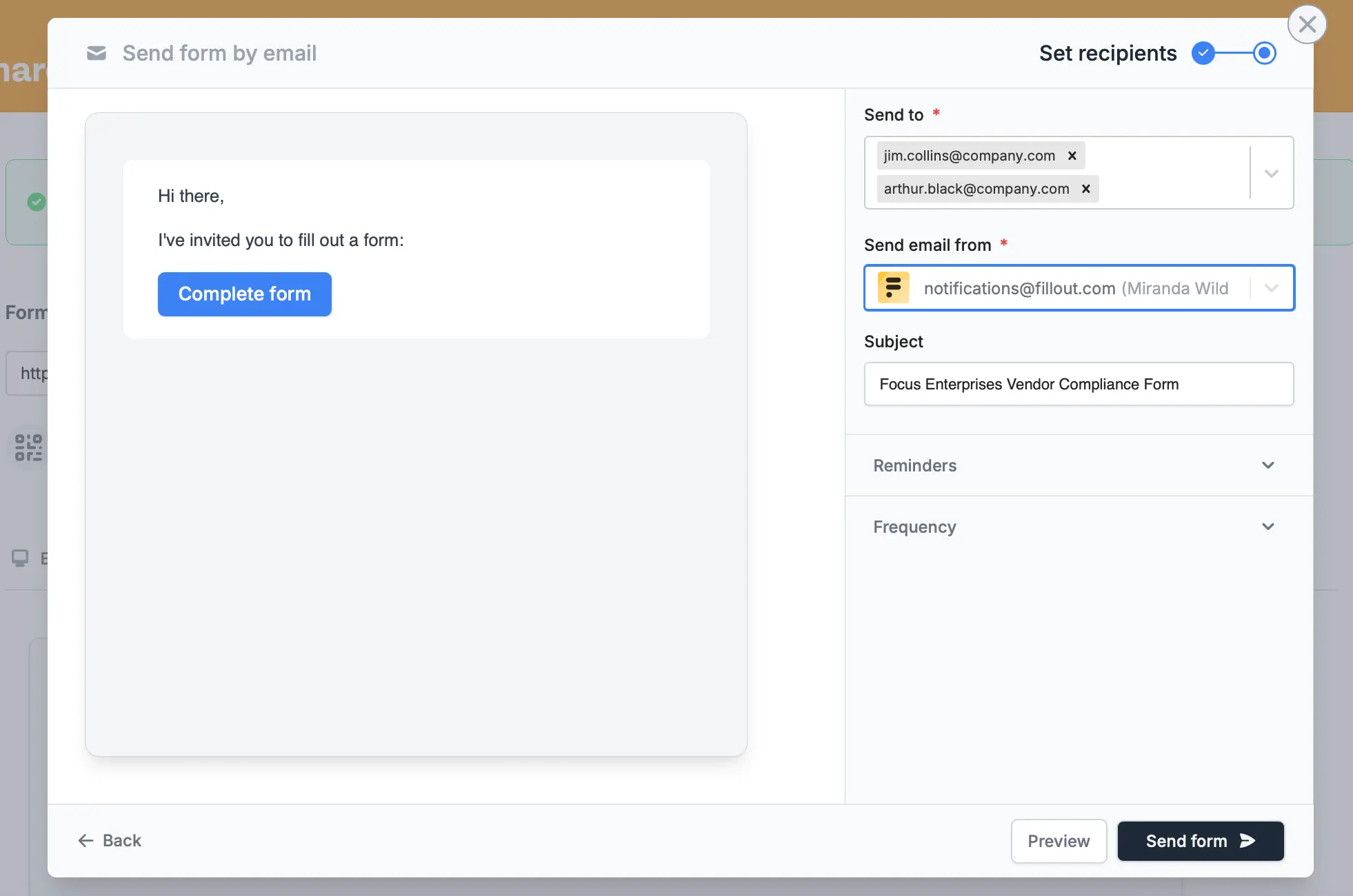 The recipients will receive an authenticated link to the form via email. Any changes made by any of the recipients will be **automatically synced across all the respondents**.
Changes to the form are only synced to integrations (like Airtable, Notion, and SmartSuite) when the form is re-submitted. Partial submissions are viewable on the Results page of your form.
## Tracking results
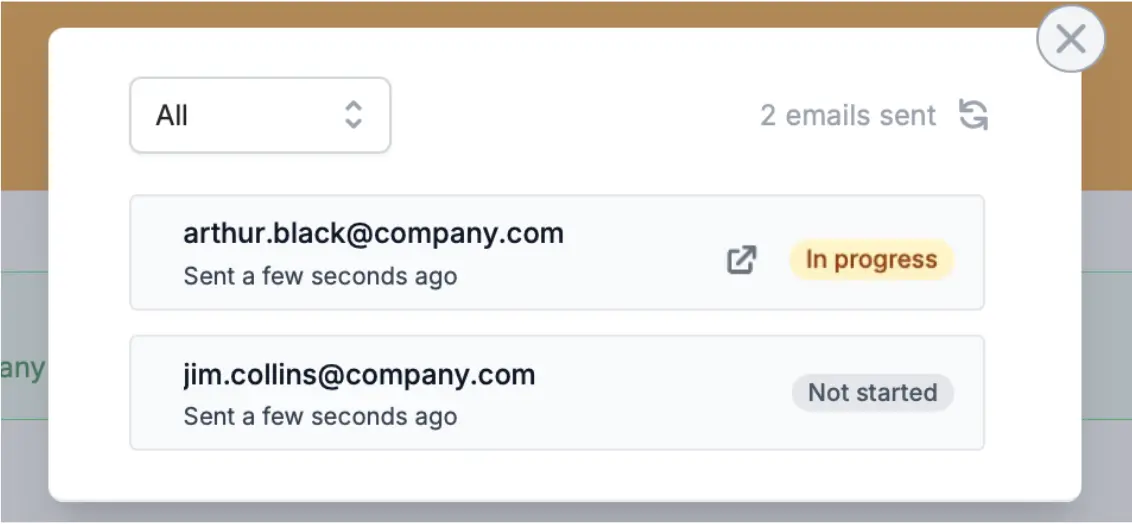
Go back to the `Share page` and click `Track responses` (beside the Share form button). View in-progress or completed submissions, along with respondent details. For partial submissions, you can also see current responses or the authenticated form link.
The recipients will receive an authenticated link to the form via email. Any changes made by any of the recipients will be **automatically synced across all the respondents**.
Changes to the form are only synced to integrations (like Airtable, Notion, and SmartSuite) when the form is re-submitted. Partial submissions are viewable on the Results page of your form.
## Tracking results
Go back to the `Share page` and click `Track responses` (beside the Share form button). View in-progress or completed submissions, along with respondent details. For partial submissions, you can also see current responses or the authenticated form link.
 ## Related articles
Auto-save progress so respondents can resume later.
Review individual submissions, summary, and analytics.
Send a form by email to collect info, and track submissions.
## Related articles
Auto-save progress so respondents can resume later.
Review individual submissions, summary, and analytics.
Send a form by email to collect info, and track submissions.