> ## Documentation Index
> Fetch the complete documentation index at: https://fillout.com/help/llms.txt
> Use this file to discover all available pages before exploring further.
# Combine and repeat forms
> Connect separate forms together or allow respondents to re-submit a form with Fillout.
## Video tutorial
## Auto-redirect to another form
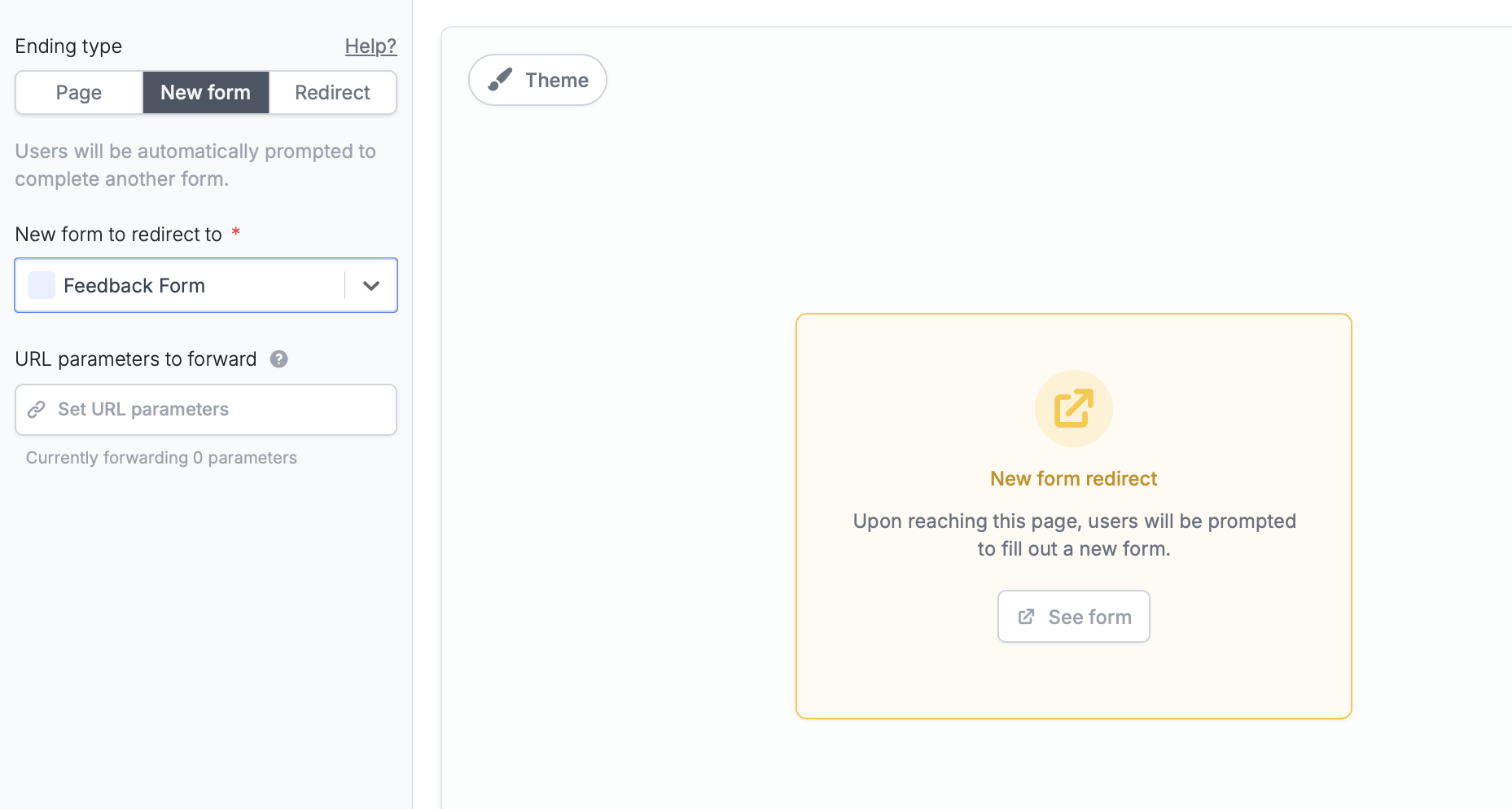
Go to your form's [**Ending page**](/ending-page) and click `New form` in the left-hand panel. Then, select the new form you want to redirect respondents to in the dropdown.
 ### Pass data between forms with URL parameters
Optionally `Set URL parameters` to pre-fill data in the new form. For example, a respondent’s email from the current form can automatically appear in the new form so they don’t have to type it again.
### Pass data between forms with URL parameters
Optionally `Set URL parameters` to pre-fill data in the new form. For example, a respondent’s email from the current form can automatically appear in the new form so they don’t have to type it again.
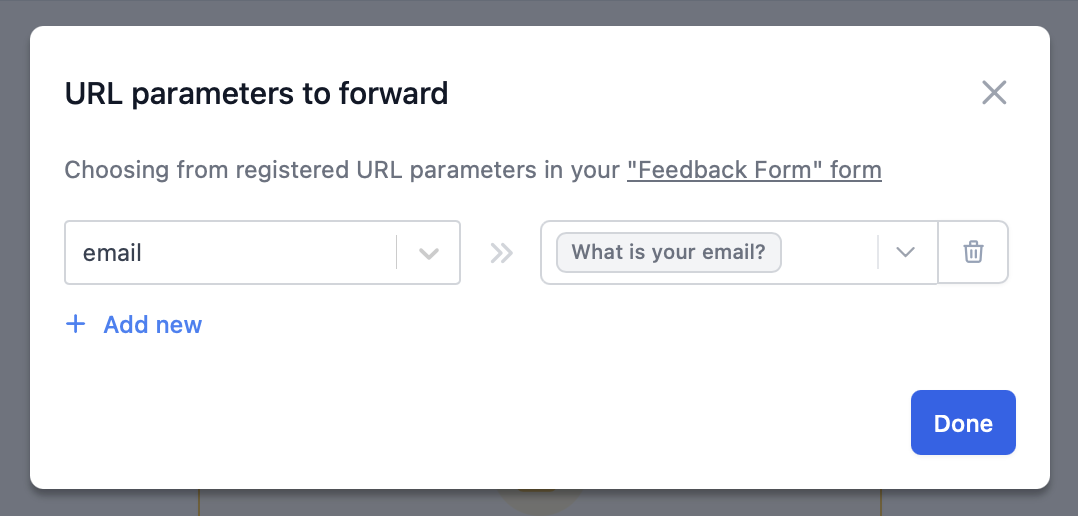 First, make sure you've registered the URL parameter in new form to redirect to. Check out to the steps [here](/url-parameters). Then, click `+ Add new` in the popup to set a URL parameter.
That's it! Make sure to `Publish` both forms when you're ready to go live.
## Allow re-submission
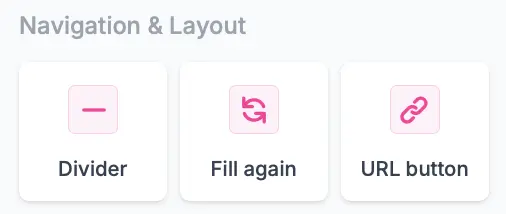
On your form's [**Ending page**](/ending-page) , drag and drop a `Fill again` button from the left-hand panel.
First, make sure you've registered the URL parameter in new form to redirect to. Check out to the steps [here](/url-parameters). Then, click `+ Add new` in the popup to set a URL parameter.
That's it! Make sure to `Publish` both forms when you're ready to go live.
## Allow re-submission
On your form's [**Ending page**](/ending-page) , drag and drop a `Fill again` button from the left-hand panel.
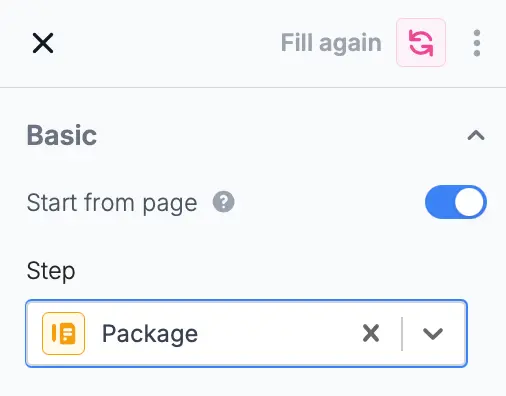
 By default, the form will restart from the first page. To change this, enable the `Start from page` switch in the right-hand panel.
 ## Related articles
Show a thank you page, redirect, or allow re-submission.
Pass URL parameters to your embeds to track data.
Share data between forms with URL parameters.
## Related articles
Show a thank you page, redirect, or allow re-submission.
Pass URL parameters to your embeds to track data.
Share data between forms with URL parameters.