> ## Documentation Index
> Fetch the complete documentation index at: https://fillout.com/help/llms.txt
> Use this file to discover all available pages before exploring further.
# Conditional form integration logic
> Perform an integration only when a certain condition is met. Use conditional logic to create dynamic Fillout forms based on respondents' input.
## What is conditional logic?
**Conditional logic** allows you to make forms that adapt to a respondent's answers. Fillout lets you `Set conditional logic` based on:
* - [previous form inputs](/answer-piping)
* - [URL parameters](/url-parameters)
* - [calculations](https://www.fillout.com/help/calculations#pre-fill-fields-with-a-calculation)
* - [custom dates](/pre-fill-dates)
* - [enriched emails](https://www.fillout.com/help/lead-enrichment#how-to-enrich-emails) with company information
* - [quiz scores](https://www.fillout.com/help/make-a-free-quiz#advanced-quiz-features)
## How to specify a condition
Head to `Integrate` and click your **existing** **connection** or connect to a new tool.
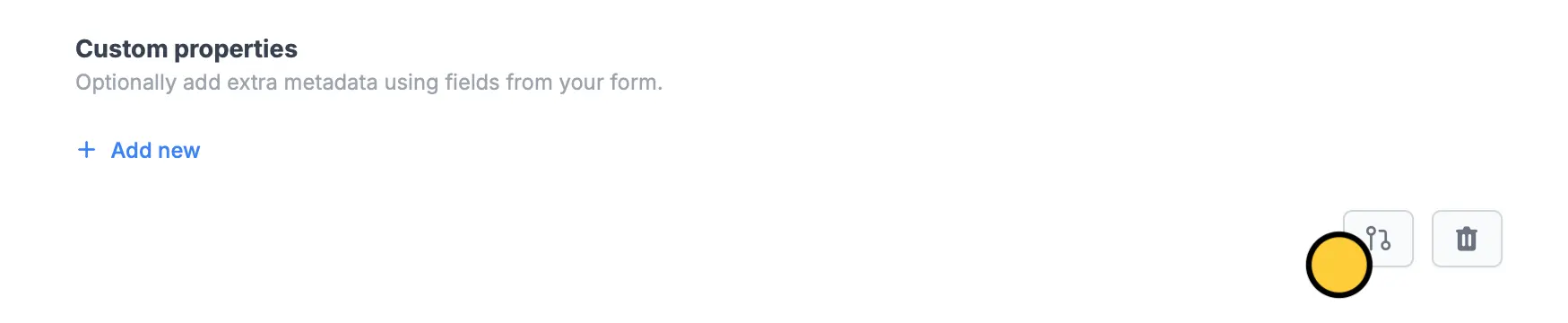
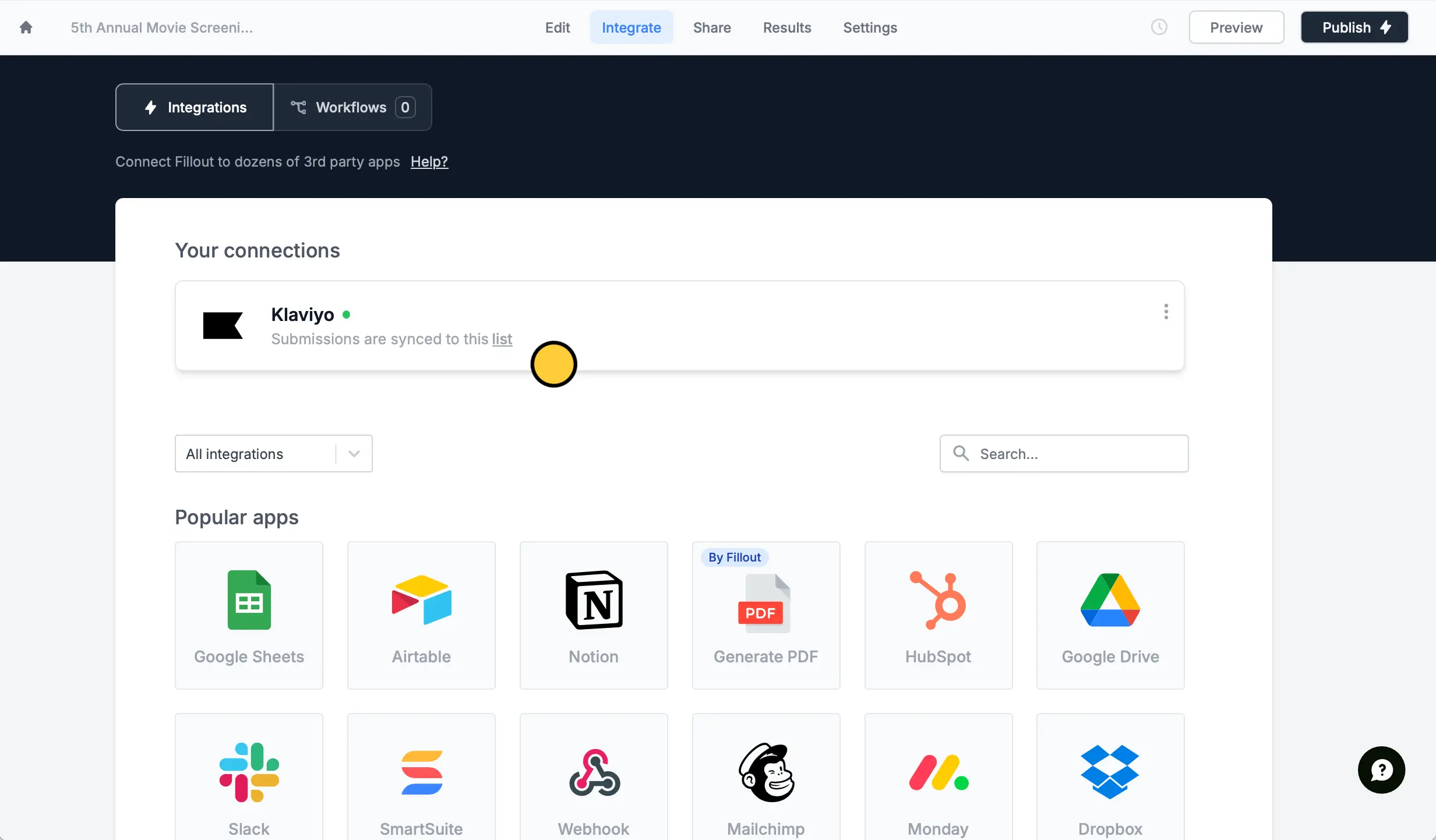 At the bottom, click .
 In this example, we'll only add contacts to our [Klaviyo](/klaviyo) newsletter if they will attend the movie screening. Click `+ Add condition`. Choose the field or question on the left followed by the relevant option on the right.
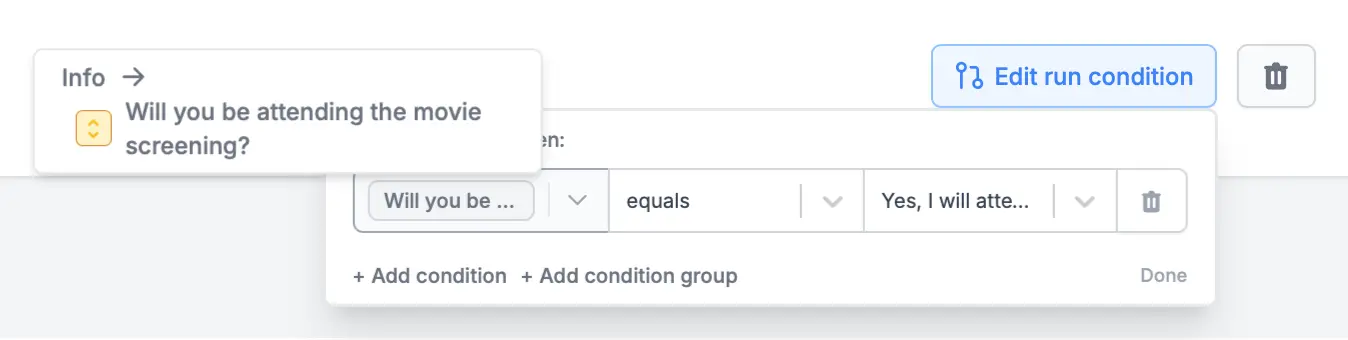 That's it! Now, newsletters will only be sent to those who will attend the screening. Note that you can do this for any integration type, like [Airtable](/airtable), [HubSpot](/hubspot) and [many more](/integrations).
Remember to `Publish` your form to make the latest changes reflect.
## Related articles
Hide or show fields based on answers, URL parameters or data.
Calculate prices for order forms, compute quiz scores, and more.
Show or hide fields based on multiple conditions at once.
That's it! Now, newsletters will only be sent to those who will attend the screening. Note that you can do this for any integration type, like [Airtable](/airtable), [HubSpot](/hubspot) and [many more](/integrations).
Remember to `Publish` your form to make the latest changes reflect.
## Related articles
Hide or show fields based on answers, URL parameters or data.
Calculate prices for order forms, compute quiz scores, and more.
Show or hide fields based on multiple conditions at once.