> ## Documentation Index
> Fetch the complete documentation index at: https://fillout.com/help/llms.txt
> Use this file to discover all available pages before exploring further.
# Copy and paste a question
> Copy and paste your Fillout fields on the same page or across pages.
## How to copy and paste form fields
Select the field you want to copy. Then click `⌘ + C` or `Ctrl + C`. Alternatively, you may click its followed by to `Copy`.
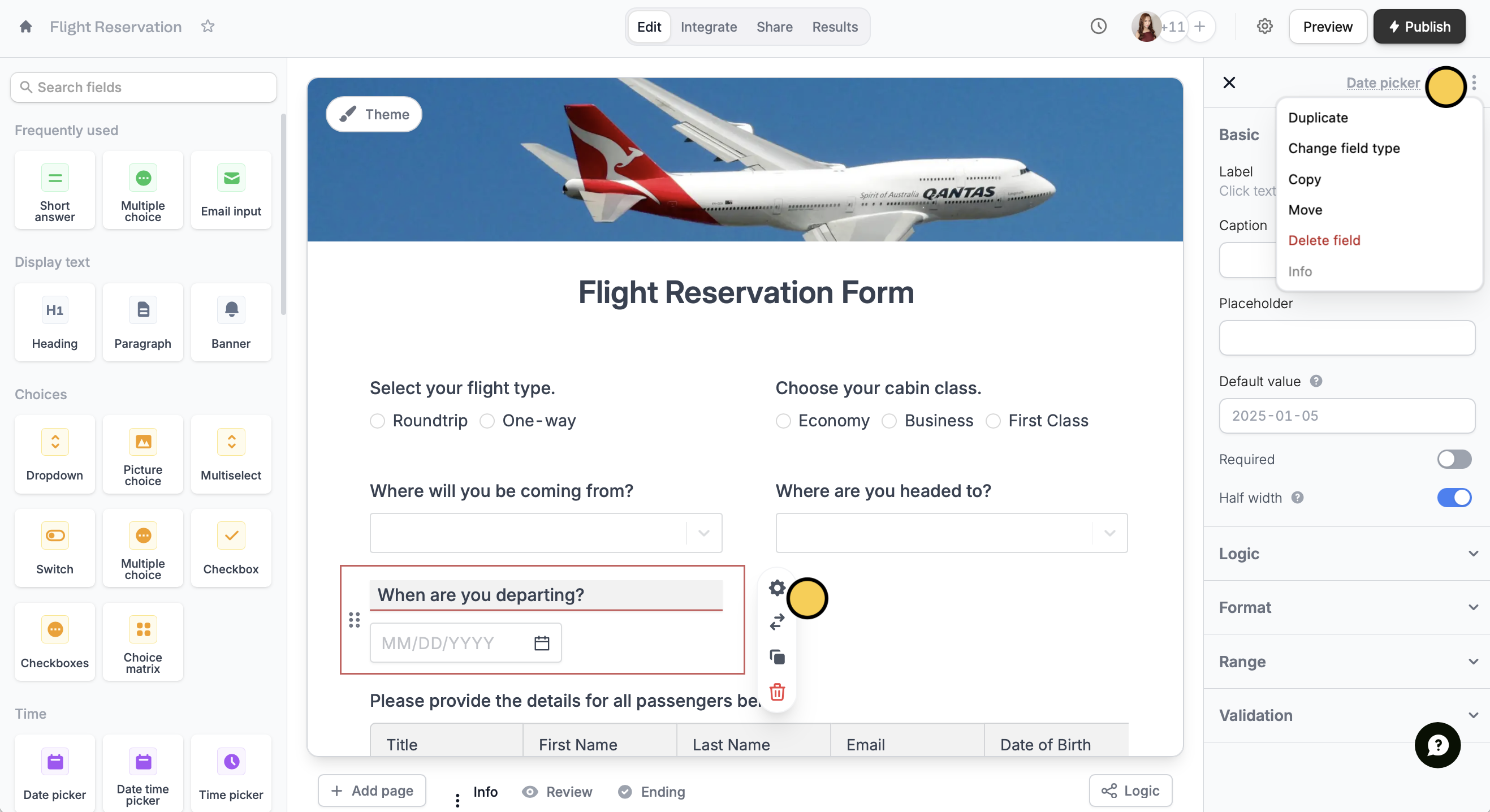 Then, paste anywhere using `⌘ + V` or `Ctrl + V`.
You can paste questions and fields on different pages of your form or even on entirely different forms.
## Related articles
Build forms faster by duplicating questions or fields.
Use an existing form as a starting point for a new form.
Transfer between different accounts.
Then, paste anywhere using `⌘ + V` or `Ctrl + V`.
You can paste questions and fields on different pages of your form or even on entirely different forms.
## Related articles
Build forms faster by duplicating questions or fields.
Use an existing form as a starting point for a new form.
Transfer between different accounts.