> ## Documentation Index
> Fetch the complete documentation index at: https://fillout.com/help/llms.txt
> Use this file to discover all available pages before exploring further.
# Create a Lead Quiz with Fillout
> Fillout’s advanced logic and email notification features make it possible for you to make fun and personalized form outputs, like outcome quizzes.
## Overview
Lead quizzes are a reliable way to collect relevant contacts for your sales or marketing efforts. They work by asking leads a series of questions and generating a personalized scorecard or recommendation based on the answers.
## How to build a lead quiz
Open an existing form or create a [new one](https://build.fillout.com/home/quizzes). Click the `gear icon` on the upper right area.
 Click `Quiz mode` in the left-hand panel to toggle the `Quiz mode enabled` switch.
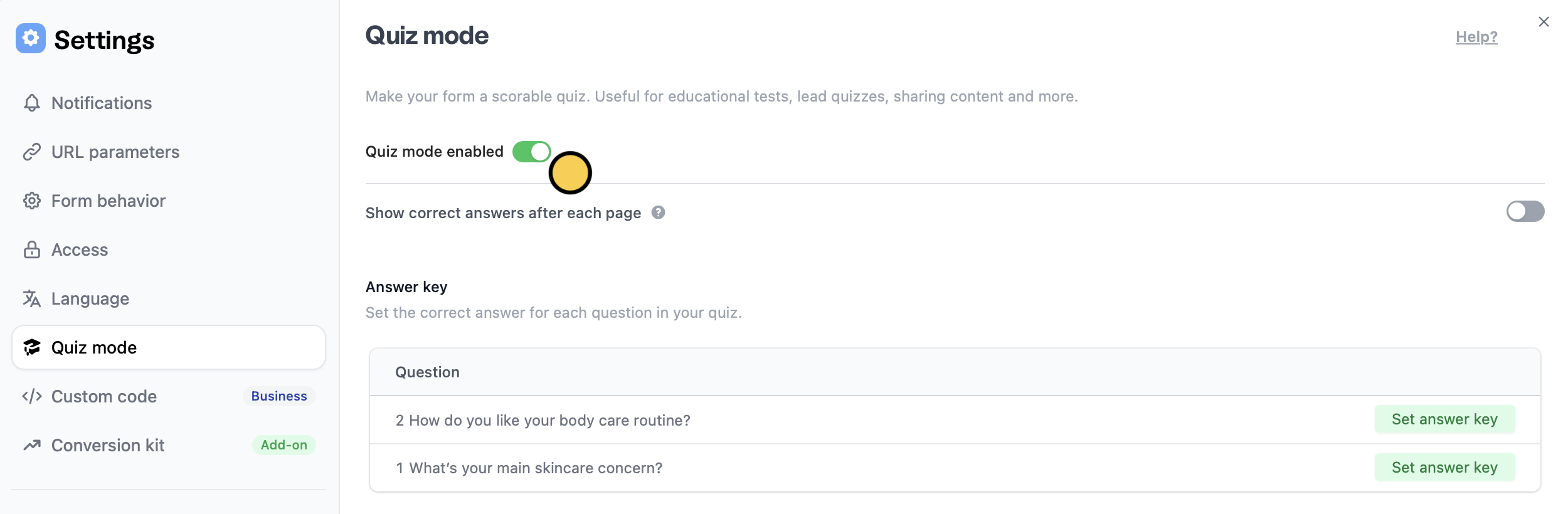 Disable the **Show correct answers after each page** feature to ensure results are only accessible via respondent emails and custom end pages.
Go back to the form editor and add an `Email input` field followed by your preferred quiz question fields.
Disable the **Show correct answers after each page** feature to ensure results are only accessible via respondent emails and custom end pages.
Go back to the form editor and add an `Email input` field followed by your preferred quiz question fields.
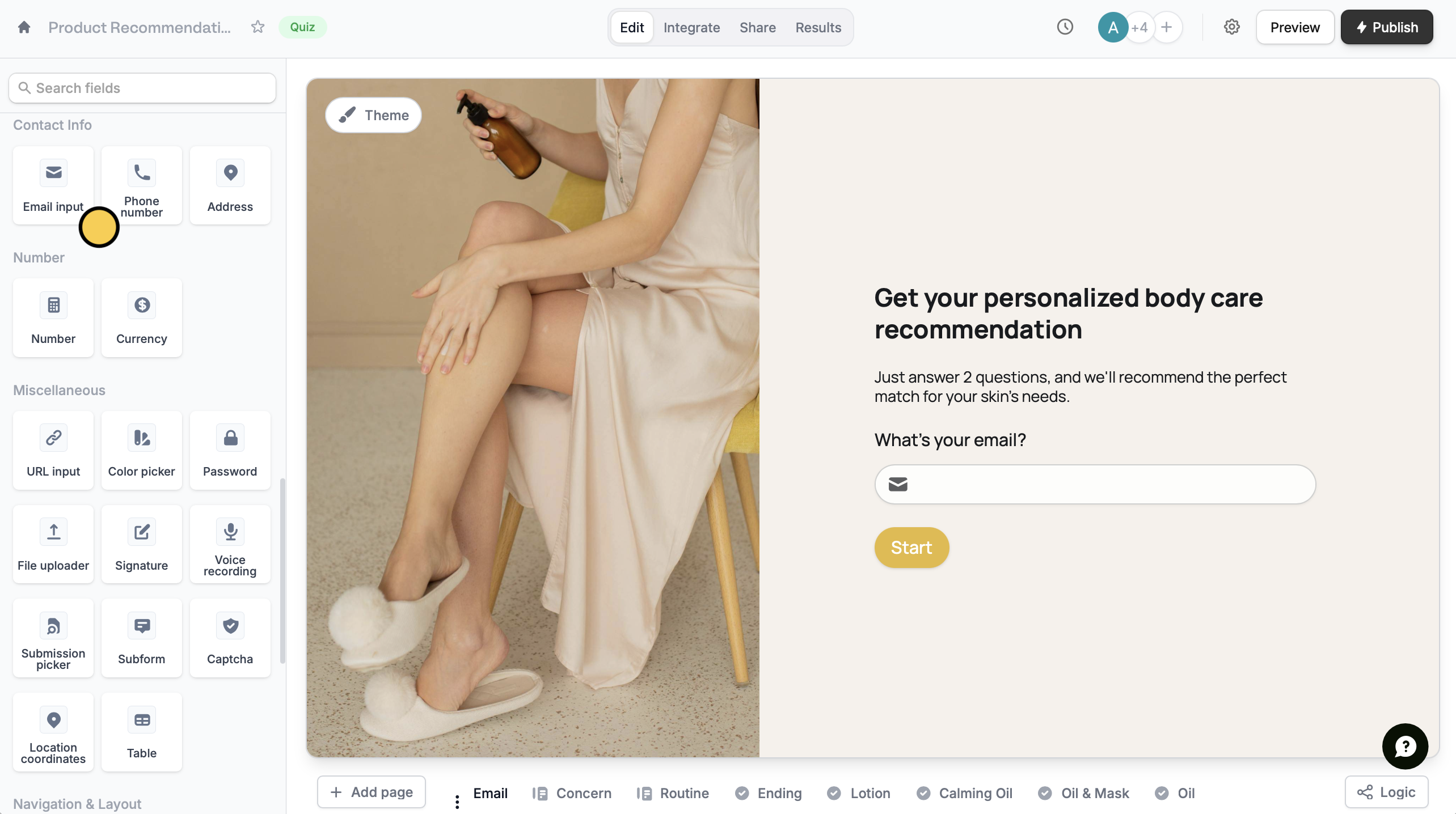 Rename each page as you add fields to make it easier to find them when setting up conditions by clicking .
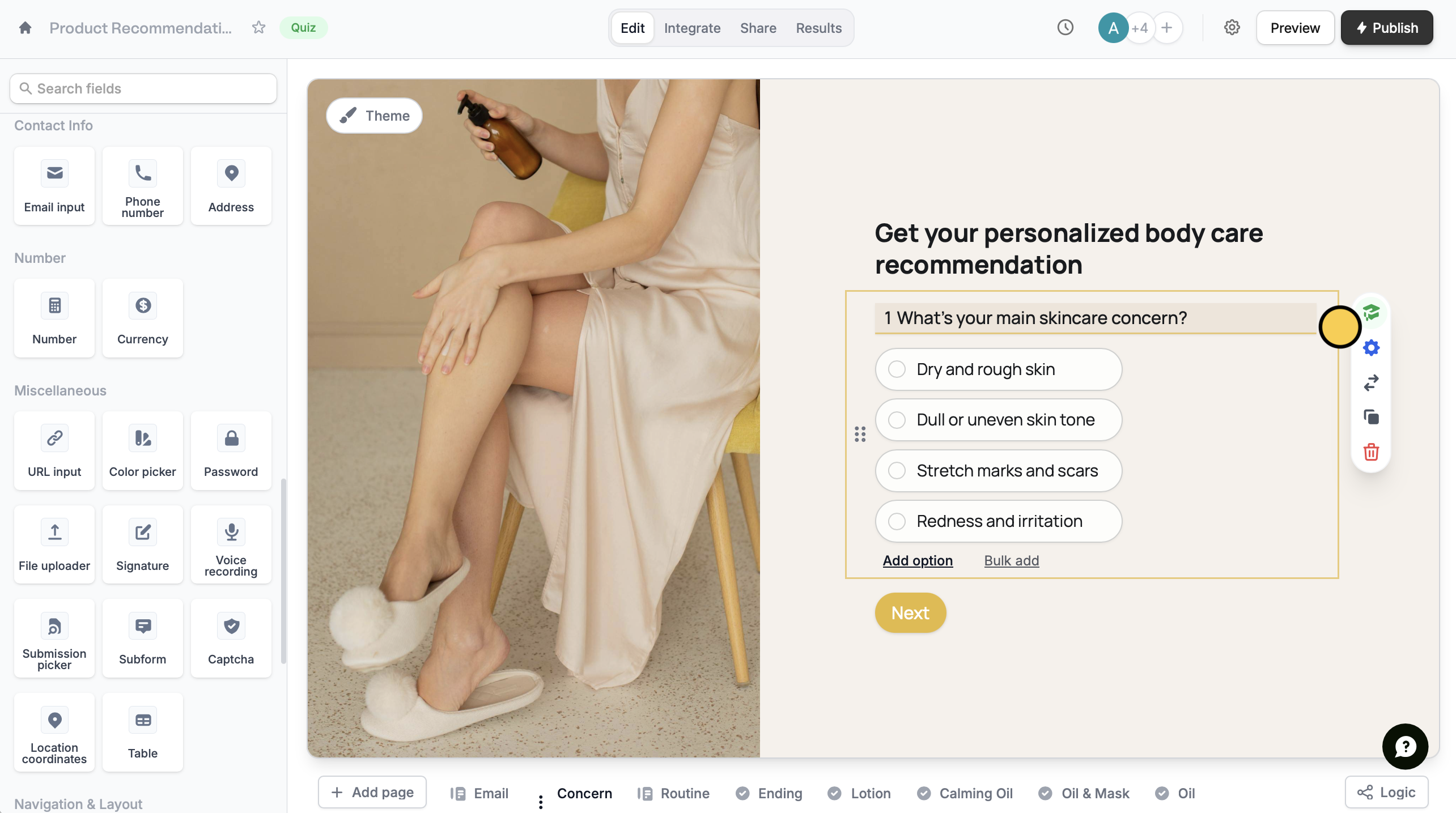
After adding a quiz question or field to a page, click it followed by the `graduation cap icon` to open the answer key window.
Rename each page as you add fields to make it easier to find them when setting up conditions by clicking .
After adding a quiz question or field to a page, click it followed by the `graduation cap icon` to open the answer key window.
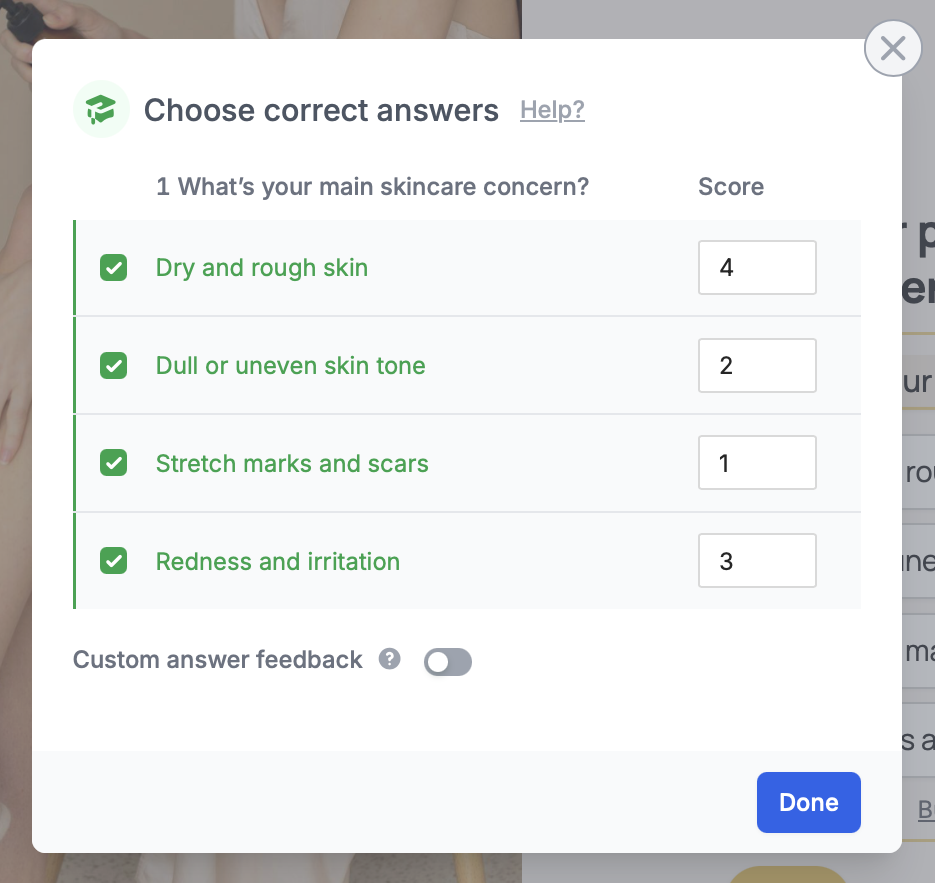
 Add a **tick mark** **✓** next to each correct answer and provide a **Score** value.
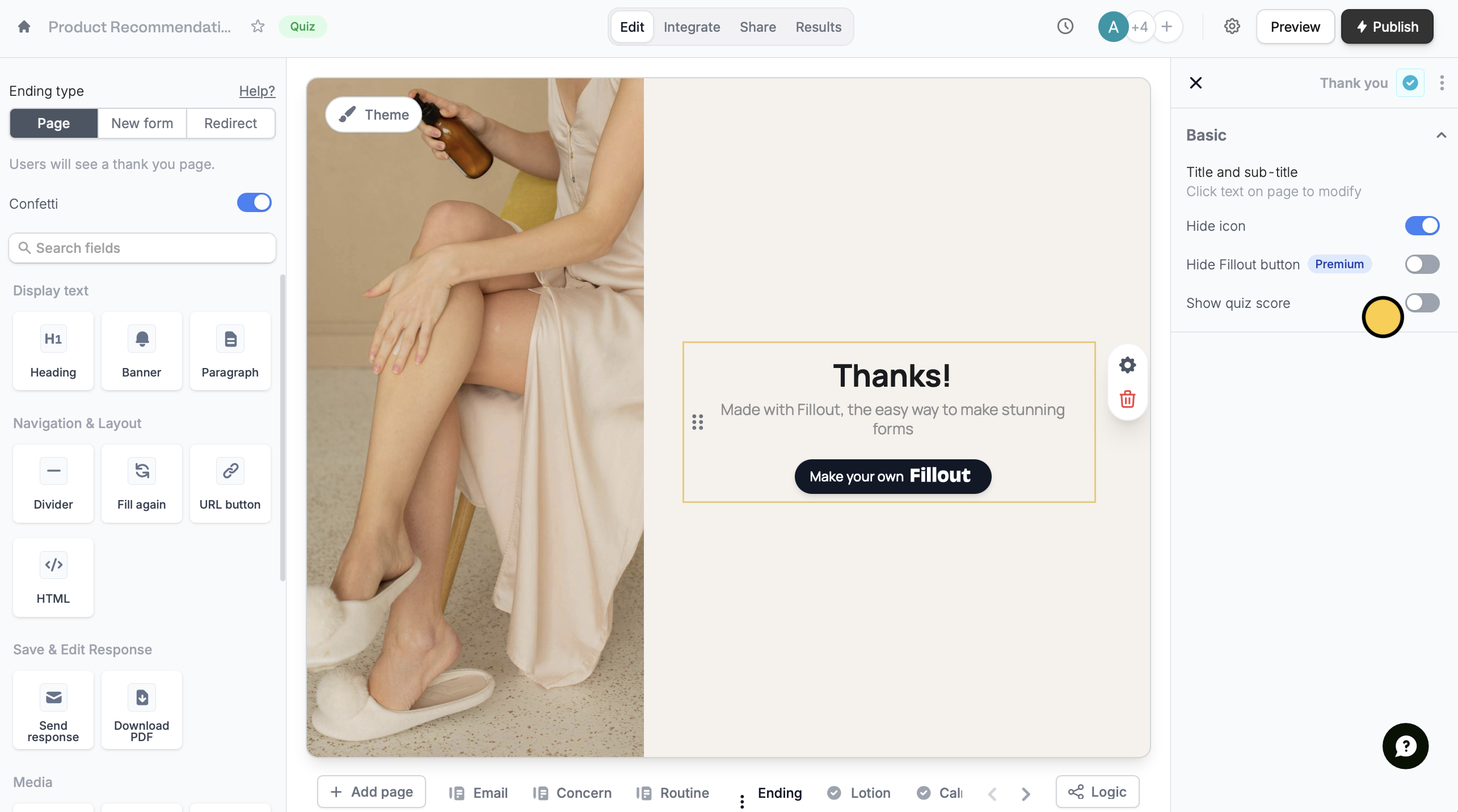
 By default, [ending pages](/ending-page) for quizzes will calculate and display each respondent’s total score. To hide this, click the `gear icon` and disable `Show quiz score`.
 ### Show custom messages
For quizzes without right or wrong answers (e.g. "Which product is right for you?"), you can show specific text or media based on the respondent's answers.
### Show custom messages
For quizzes without right or wrong answers (e.g. "Which product is right for you?"), you can show specific text or media based on the respondent's answers.
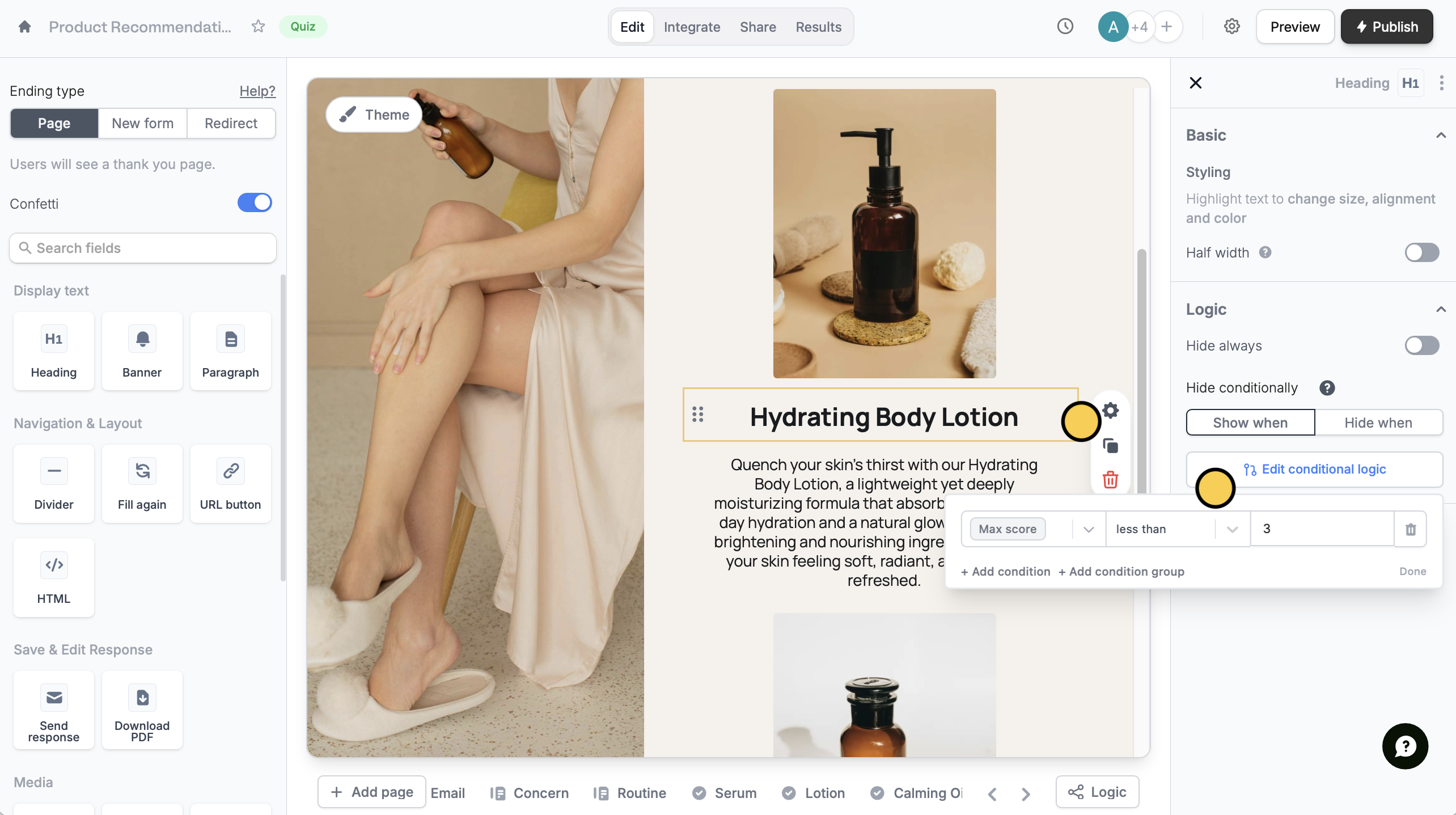 Click a field on the ending page, followed by its `settings` . Under **Logic**, set when to show or hide content based on answers.
### Show custom ending pages
Sometimes, multiple ending pages are easier to manage than one with too many hidden fields.
Click a field on the ending page, followed by its `settings` . Under **Logic**, set when to show or hide content based on answers.
### Show custom ending pages
Sometimes, multiple ending pages are easier to manage than one with too many hidden fields.
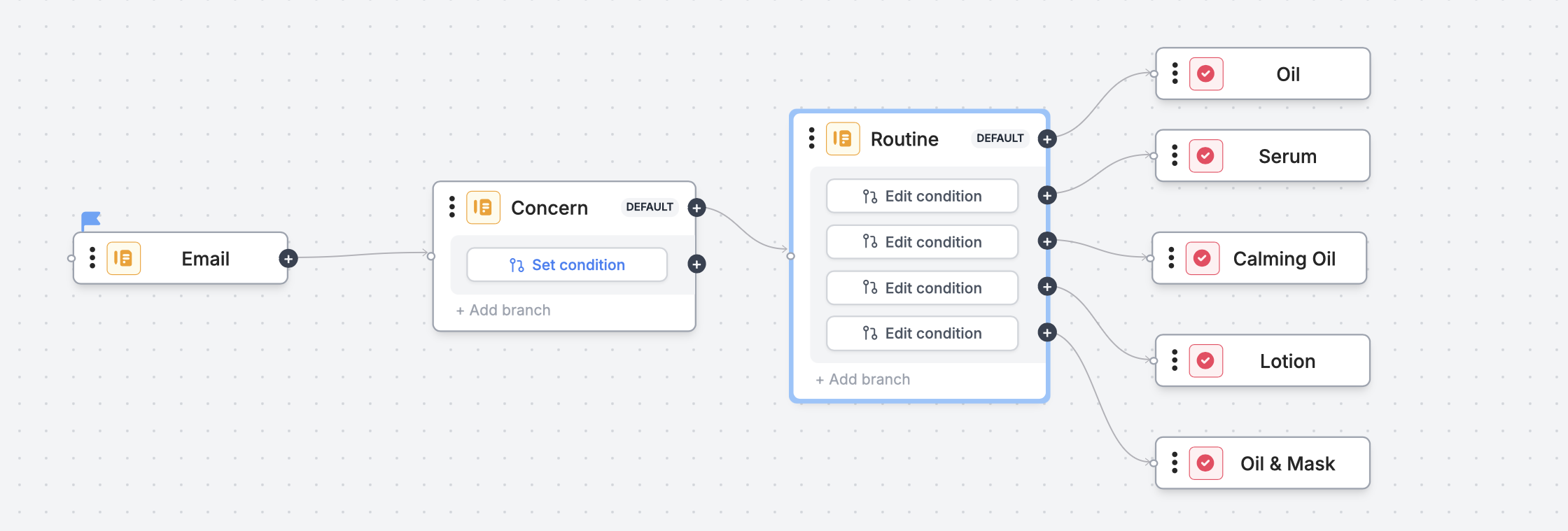 Click `+ Add page` at the bottom to add more ending pages. Then, open [page logic](page-logic). Click the `connector icon` and drag the connector to the corresponding end page to set your conditions.
## Set up custom respondent emails
Open form **settings**.
Then, go to **Custom emails** to choose an [email workflow](/custom-emails). The quickest one is to create a **Thank you email**.
You can edit the default **Subject** and reference fields like score or name by clicking the `plus icon` .
Click `+ Add page` at the bottom to add more ending pages. Then, open [page logic](page-logic). Click the `connector icon` and drag the connector to the corresponding end page to set your conditions.
## Set up custom respondent emails
Open form **settings**.
Then, go to **Custom emails** to choose an [email workflow](/custom-emails). The quickest one is to create a **Thank you email**.
You can edit the default **Subject** and reference fields like score or name by clicking the `plus icon` .
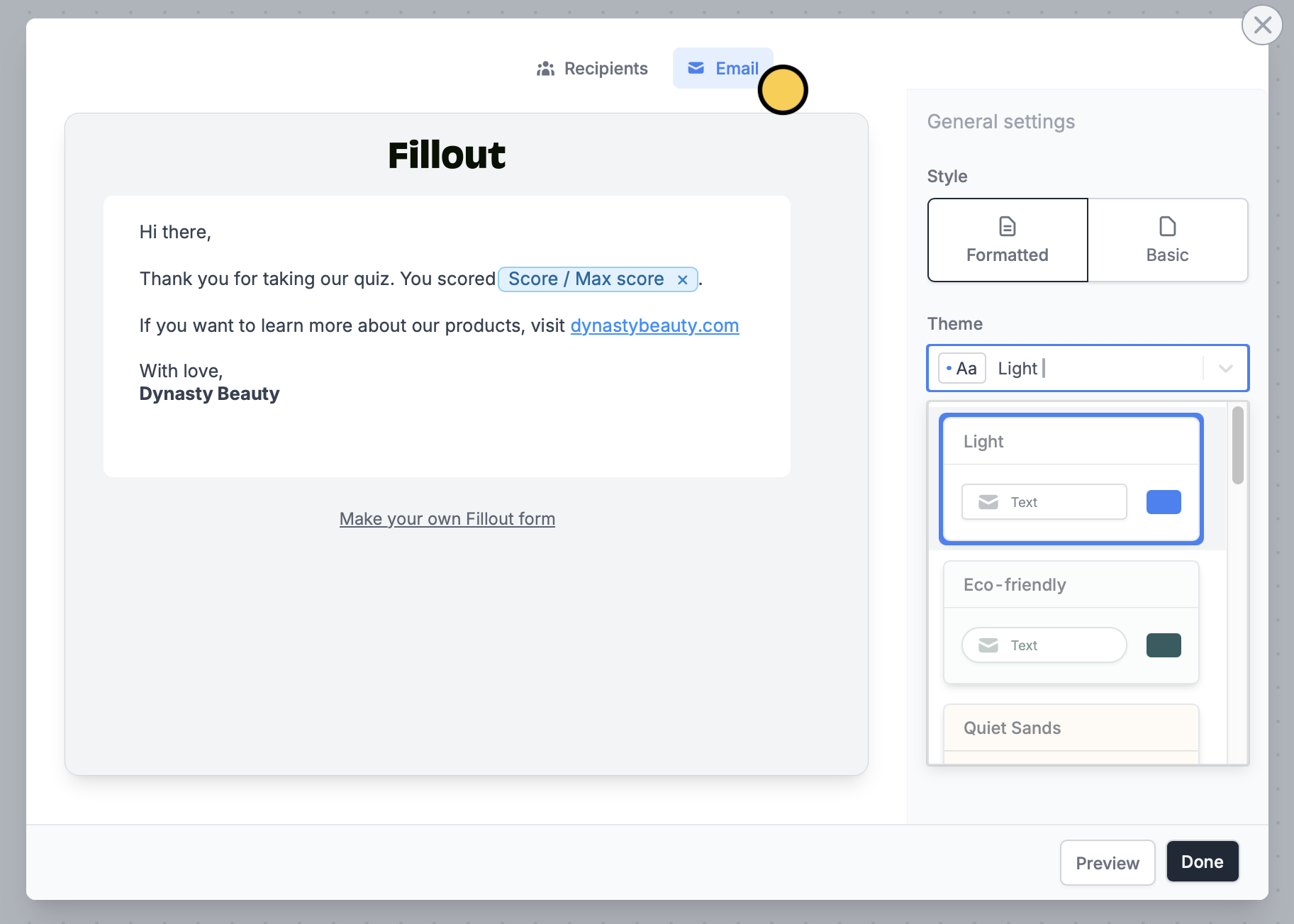
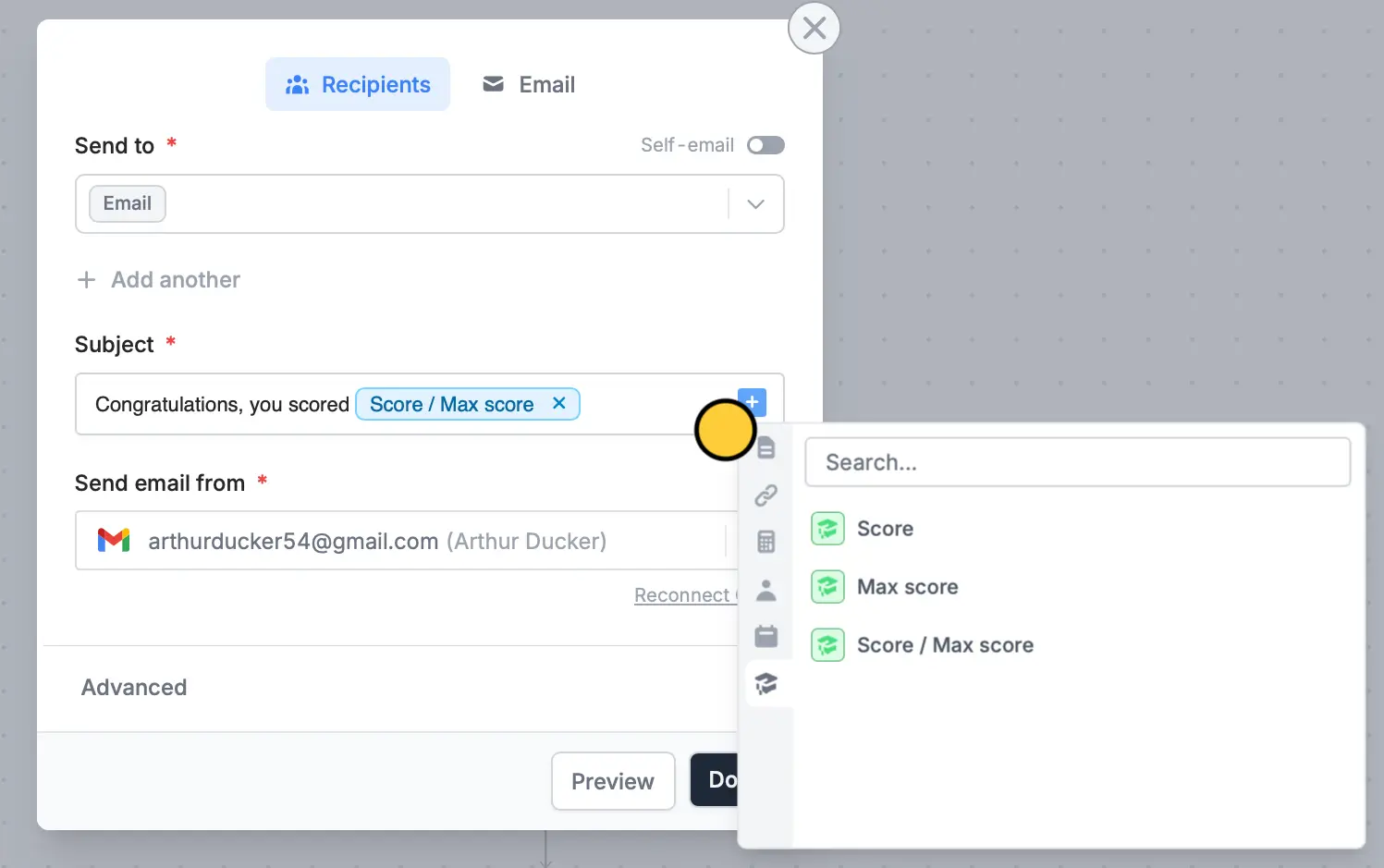 Go to `Email` to edit the default message and reference fields. You can also [customize its style](https://www.fillout.com/help/custom-emails#style-your-email).
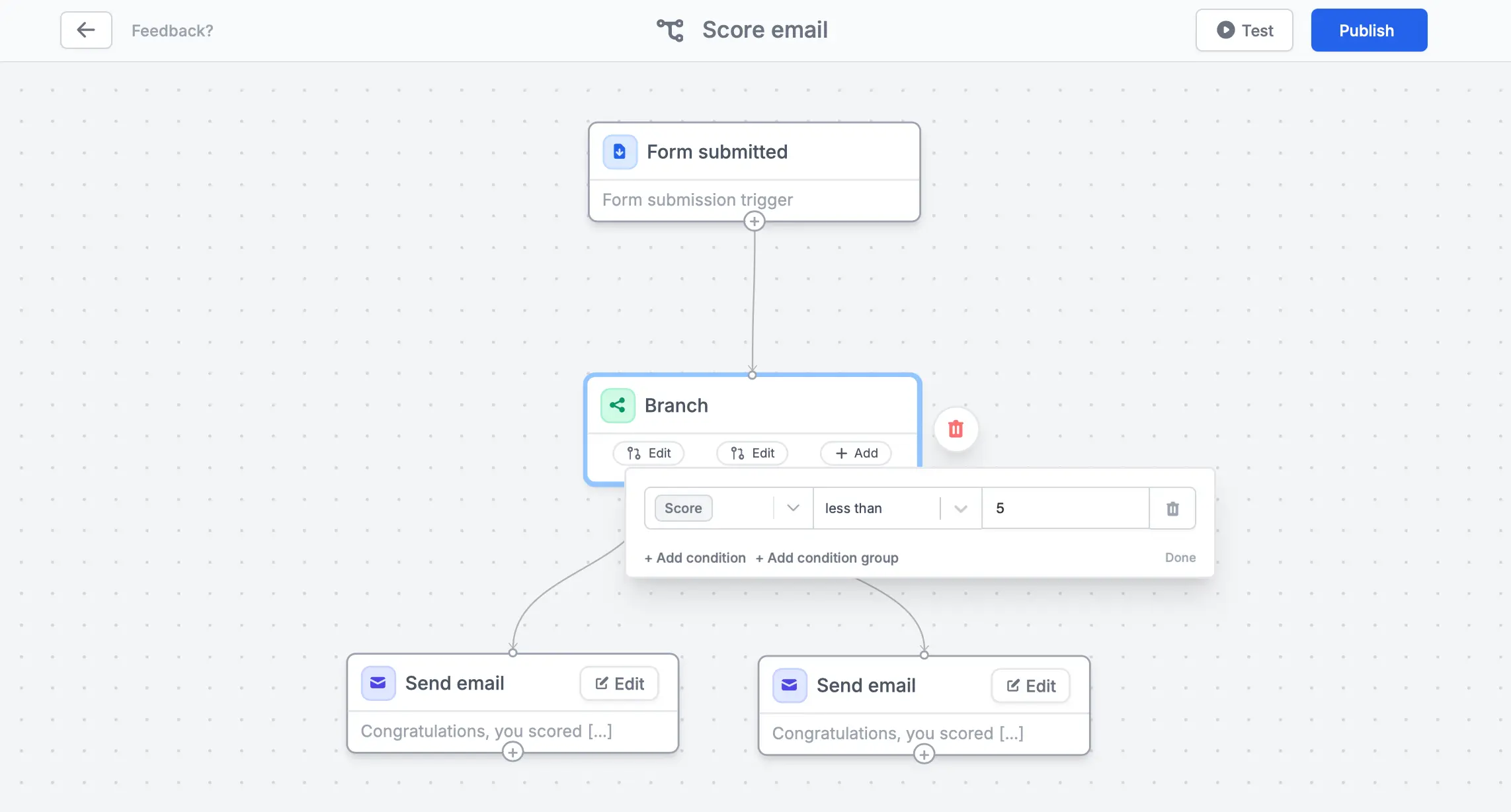
 You can [personalize lead quiz notifications](/filter-branch-workflows#1530ee47667b80b5a331cff31ed5c22a) by sending custom emails depending on the score. First, add a `Branch` action to your workflow, then`Edit` to set up conditions.
 If you prefer to send formatted emails with custom styles, use Fillout’s [Sendgrid](/sendgrid) or [Mailchimp](/mailchimp) integrations.
## Add calculations to ending pages and custom emails
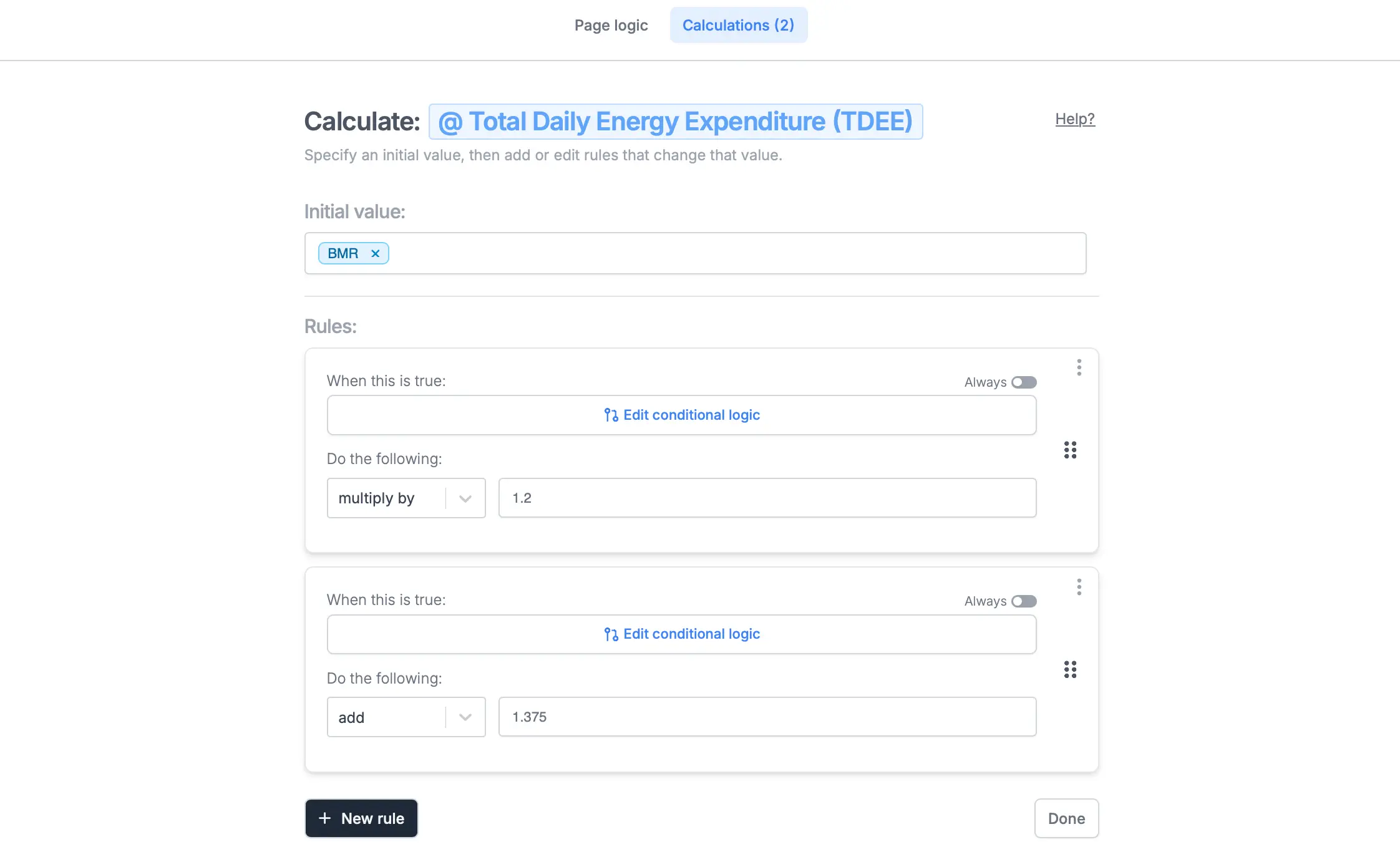
Fillout’s [calculations](/calculations) features let you add, subtract, multiply, divide, or assign values from quiz answers (e.g. suggesting a daily caloric intake based on a respondent’s weight, height, and exercise frequency).
Open `Logic` and click `Calculations` to add dynamic values to an ending page or respondent email.
If you prefer to send formatted emails with custom styles, use Fillout’s [Sendgrid](/sendgrid) or [Mailchimp](/mailchimp) integrations.
## Add calculations to ending pages and custom emails
Fillout’s [calculations](/calculations) features let you add, subtract, multiply, divide, or assign values from quiz answers (e.g. suggesting a daily caloric intake based on a respondent’s weight, height, and exercise frequency).
Open `Logic` and click `Calculations` to add dynamic values to an ending page or respondent email.
 ## AI Quiz Maker
You can create a quiz in a few seconds using a prompt. Check our quick guide [here](https://www.fillout.com/help/ai-quizzes).
## Relevant articles
Automate sending, pipe previous answers, and style your email.
Calculate prices for order forms, compute quiz scores, and more.
Create quizzes with the AI Quiz Maker and use ChatGPT.
## AI Quiz Maker
You can create a quiz in a few seconds using a prompt. Check our quick guide [here](https://www.fillout.com/help/ai-quizzes).
## Relevant articles
Automate sending, pipe previous answers, and style your email.
Calculate prices for order forms, compute quiz scores, and more.
Create quizzes with the AI Quiz Maker and use ChatGPT.