> ## Documentation Index
> Fetch the complete documentation index at: https://fillout.com/help/llms.txt
> Use this file to discover all available pages before exploring further.
# Create multiple Airtable records with a form
> Make a Fillout form that creates multiple Airtable records at once, in different tables. Tie linked records together automatically with your form.
## Option 1: Use a subform
If you want the respondent to choose how many linked records they would like to create, enable `Can create new records` on the linked record picker. More details [here](/help/create-new-linked-records).
You can fully customize the form that appears for adding the linked records.
## Option 2: Combine multiple forms
You can combine multiple Fillout forms into one form and pass information between forms using URL parameters with this [feature](/help/combine-and-repeat-forms). Your respondents won’t know they are filling out multiple forms.
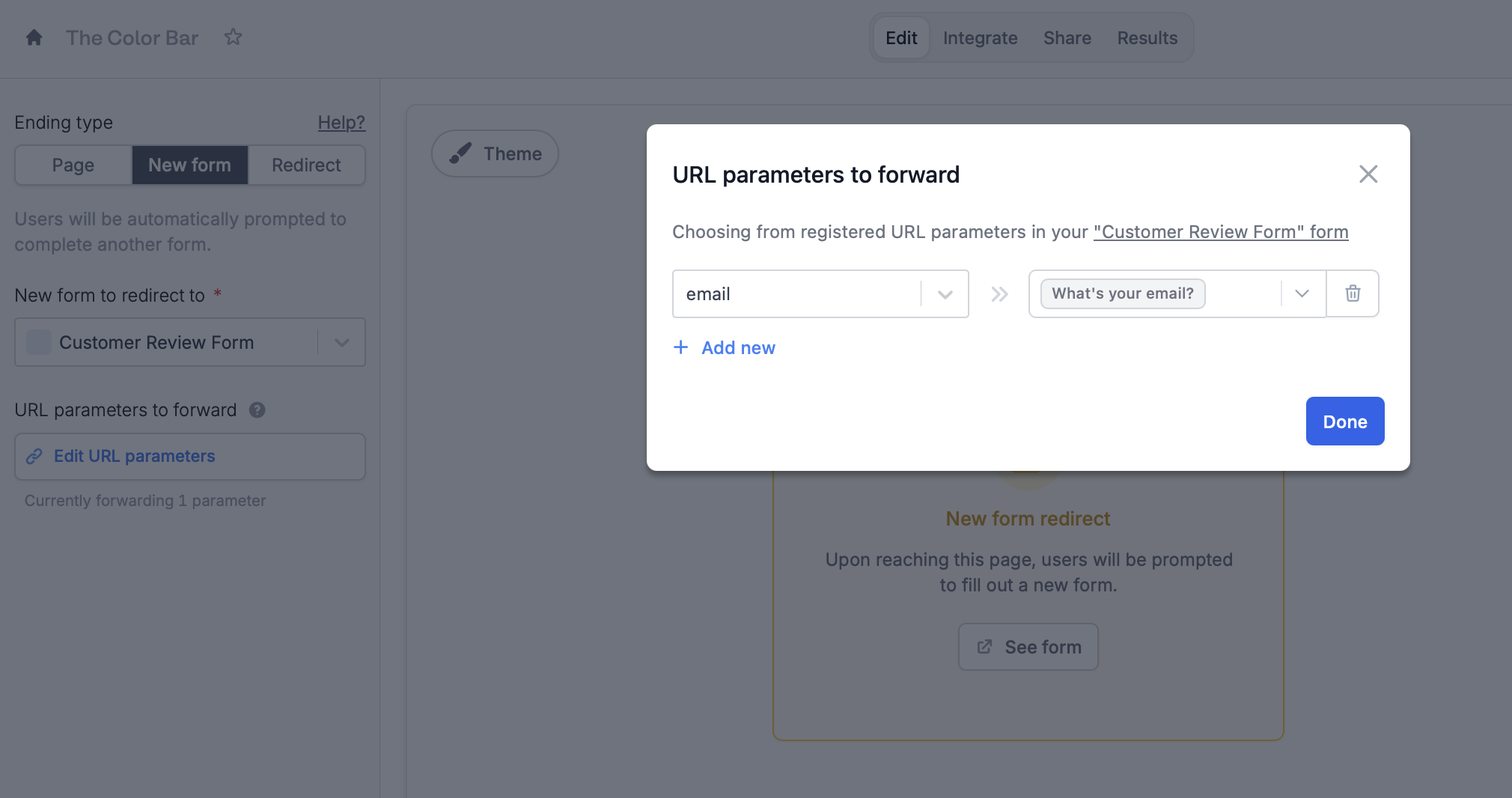 For organizational purposes, you can organize your forms together on the home page using [workspaces](/help/workspaces).
## Option 3: Repeat a form
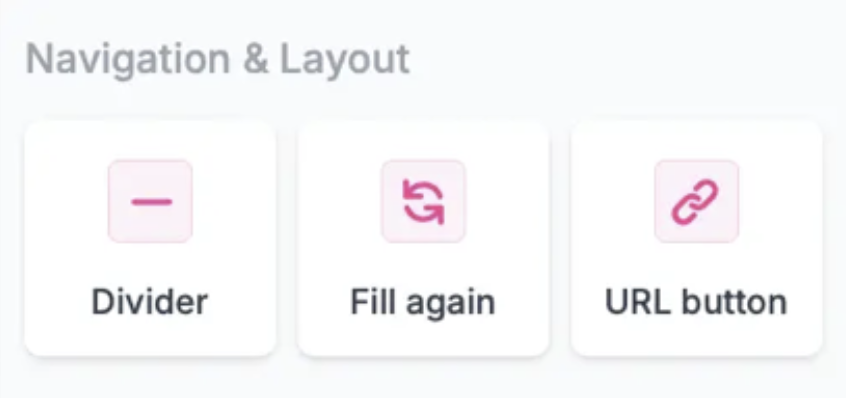
Let respondents choose to restart the form with a `Fill again` button or automatically redirect the user to the start of the form using the `URL button`. Both are found in the **Ending** page on the left-hand panel. More details [here](/help/combine-and-repeat-forms).
For organizational purposes, you can organize your forms together on the home page using [workspaces](/help/workspaces).
## Option 3: Repeat a form
Let respondents choose to restart the form with a `Fill again` button or automatically redirect the user to the start of the form using the `URL button`. Both are found in the **Ending** page on the left-hand panel. More details [here](/help/combine-and-repeat-forms).
 ## Option 4: Use the Webhook integration (Advanced)
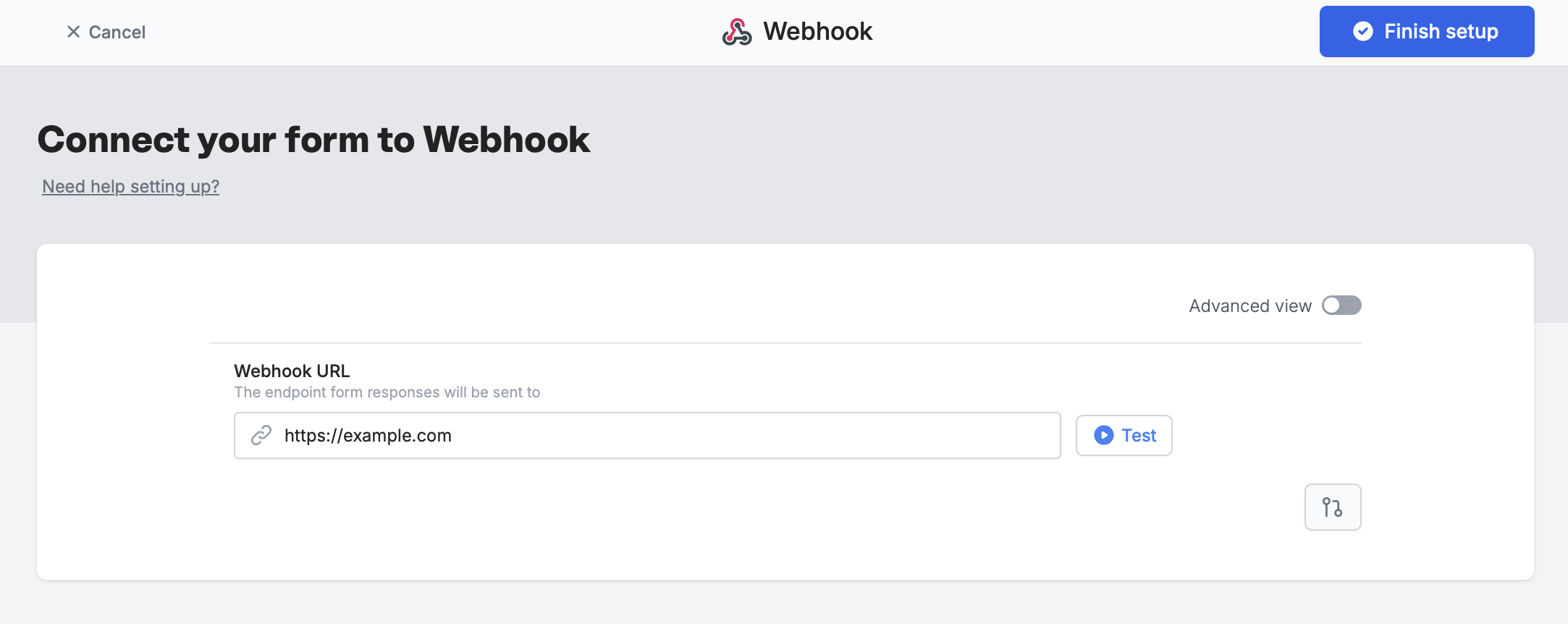
You can always use the [Webhook](/help/webhook) integration to connect to Make or Zapier to create multiple records. We recommend using the other approaches, since those are easier to set up.
## Option 4: Use the Webhook integration (Advanced)
You can always use the [Webhook](/help/webhook) integration to connect to Make or Zapier to create multiple records. We recommend using the other approaches, since those are easier to set up.
 ## Airtable specific guides
Let respondents choose from your form.
Link your record picker and filter records.
Set pre-fills, reference fields, and more.
## Airtable specific guides
Let respondents choose from your form.
Link your record picker and filter records.
Set pre-fills, reference fields, and more.