> ## Documentation Index
> Fetch the complete documentation index at: https://fillout.com/help/llms.txt
> Use this file to discover all available pages before exploring further.
# Use custom domains
> Customize your form's URL to match and promote your brand using Fillout. Host your forms at forms.yourcompany.com or any-subdomain.yourcompany.com.
## What is a custom domain?
A **custom domain** is a unique web address to replace your web form's default URL, enhancing brand visibility and trust. It adds professionalism, improves SEO, and ensures a seamless user experience.
## Video tutorial
## How to add a custom domain
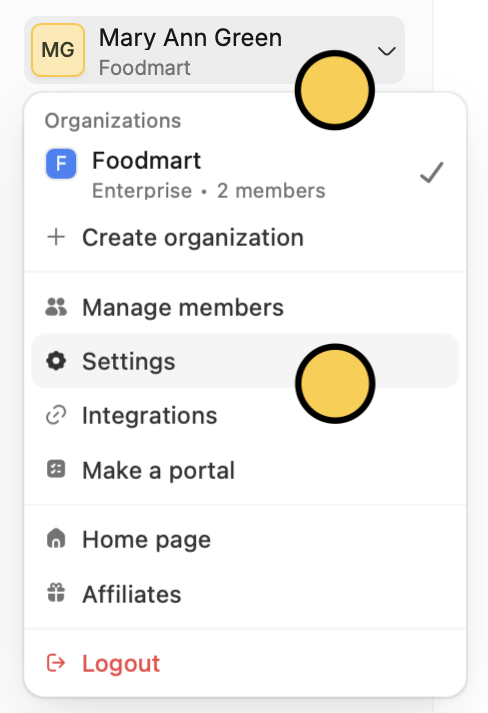
On the Fillout dashboard, click your `Account name` in the upper left corner followed by `Settings`.
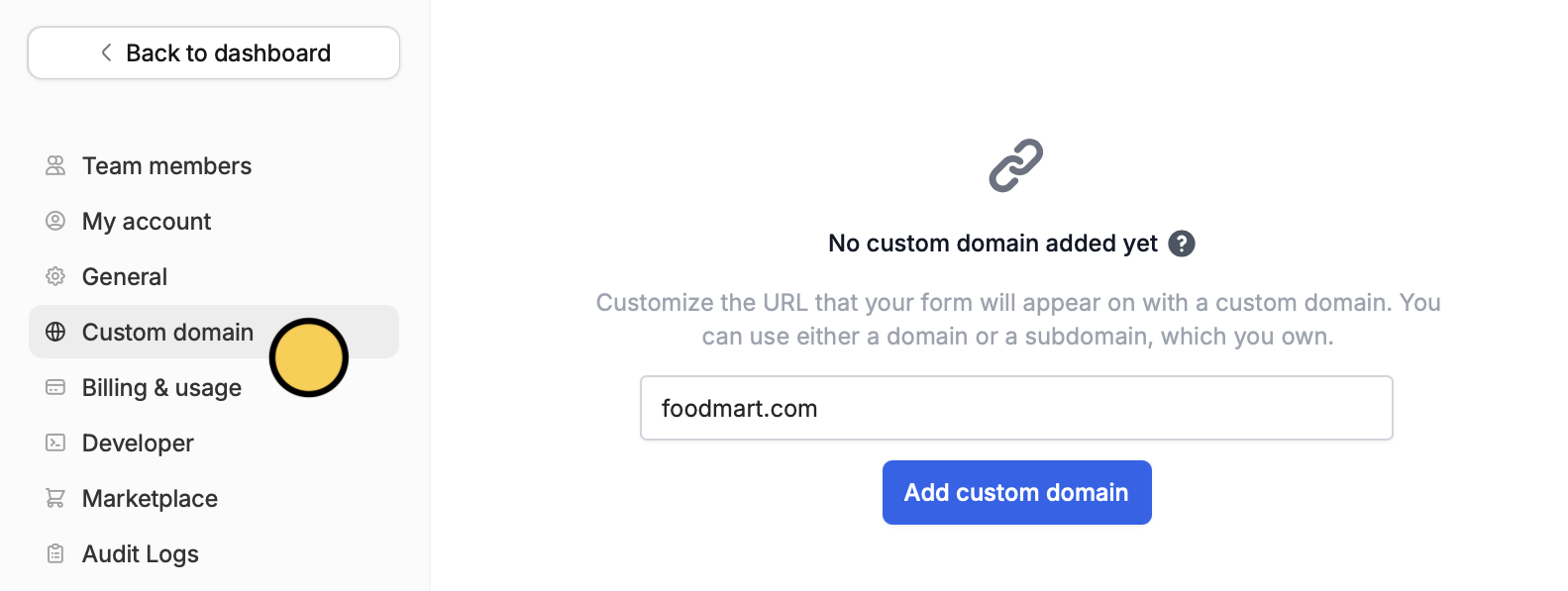
 Navigate to `Custom domain` and enter a **domain** that you own. You can also use a **subdomain** like [forms.mydomainname.com](http://forms.mydomainname.com) or [surveys.mydomainname.com](http://surveys.mydomainname.com).
 1. Log in to your domain provider.
2. Add the CNAME record as instructed in the Fillout dashboard.
3. Wait until the DNS records are verified (this can take anywhere from a few seconds to a few hours). Click Refresh in Fillout to check if your domain has been connected.
You'll know the setup is complete once you see a green checkmark icon .
1. Log in to your domain provider.
2. Add the CNAME record as instructed in the Fillout dashboard.
3. Wait until the DNS records are verified (this can take anywhere from a few seconds to a few hours). Click Refresh in Fillout to check if your domain has been connected.
You'll know the setup is complete once you see a green checkmark icon .
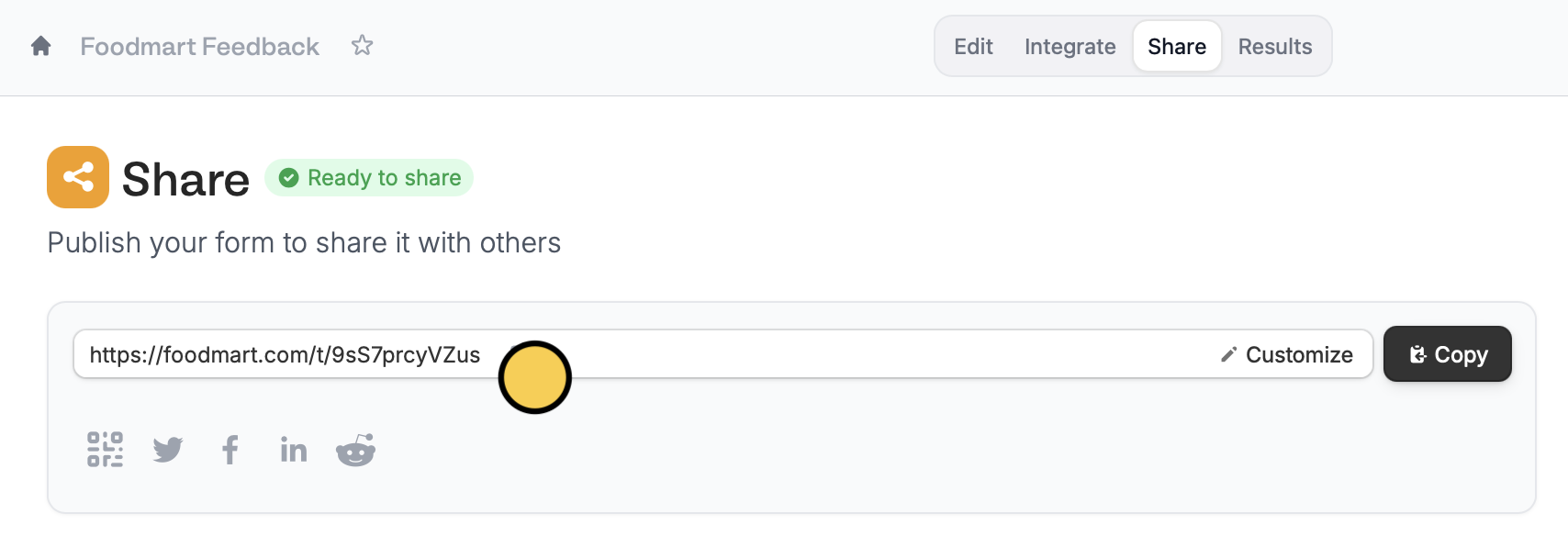
 That's it! Now, all your form links will begin with your **domain name**. You can see this in the `Share` page.
 ## Customize the link ending
You can also change the slug. Check out this quick guide.
## Related articles
Customize your form's share link, subdomain and URL ending.
Add your logo or icon to a browser tab and in link previews.
Remove Fillout buttons on form pages.
## Customize the link ending
You can also change the slug. Check out this quick guide.
## Related articles
Customize your form's share link, subdomain and URL ending.
Add your logo or icon to a browser tab and in link previews.
Remove Fillout buttons on form pages.