> ## Documentation Index
> Fetch the complete documentation index at: https://fillout.com/help/llms.txt
> Use this file to discover all available pages before exploring further.
# Add a record picker to your form
> Allow users to select Zite database records from a Fillout form by linking to existing records.
## How it works
You can add a dropdown to your Fillout form that lets respondents pick existing records from your Zite database. This record picker **only links to the selected record**. It does not update existing records.
If you want respondents to edit records without database access, see [this article](https://www.fillout.com/help/update-with-forms).
### Common use cases
* **Employee Onboarding:** Let HR select a manager, department, or mentor
* **Equipment Checkout:** Allow staff to select equipment or devices from a database
* **Course Enrollment:** Let students pick existing courses or programs in an enrollment form
* **Vendor Requests:** Link purchase requests to existing suppliers or vendors
* **Content Management:** Let authors select an existing category, project, or campaign
## Add a record picker
On your Zite database, link tables by following [these quick steps](https://www.fillout.com/help/database/link-records).
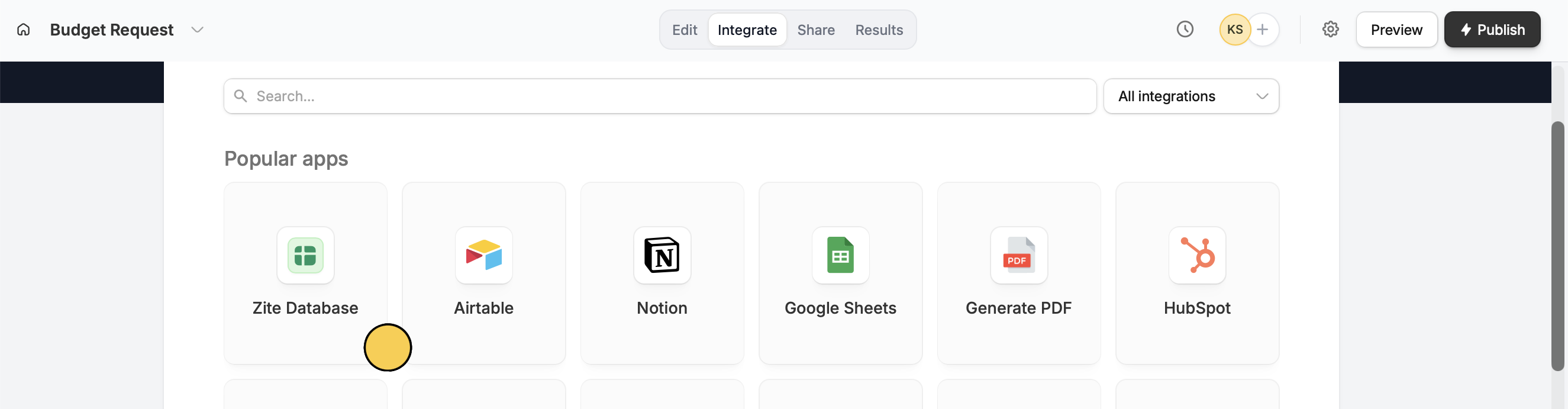
 Open your Fillout form. Go to `Integrate` on top and choose `Zite Database`. Then, set your preferences.
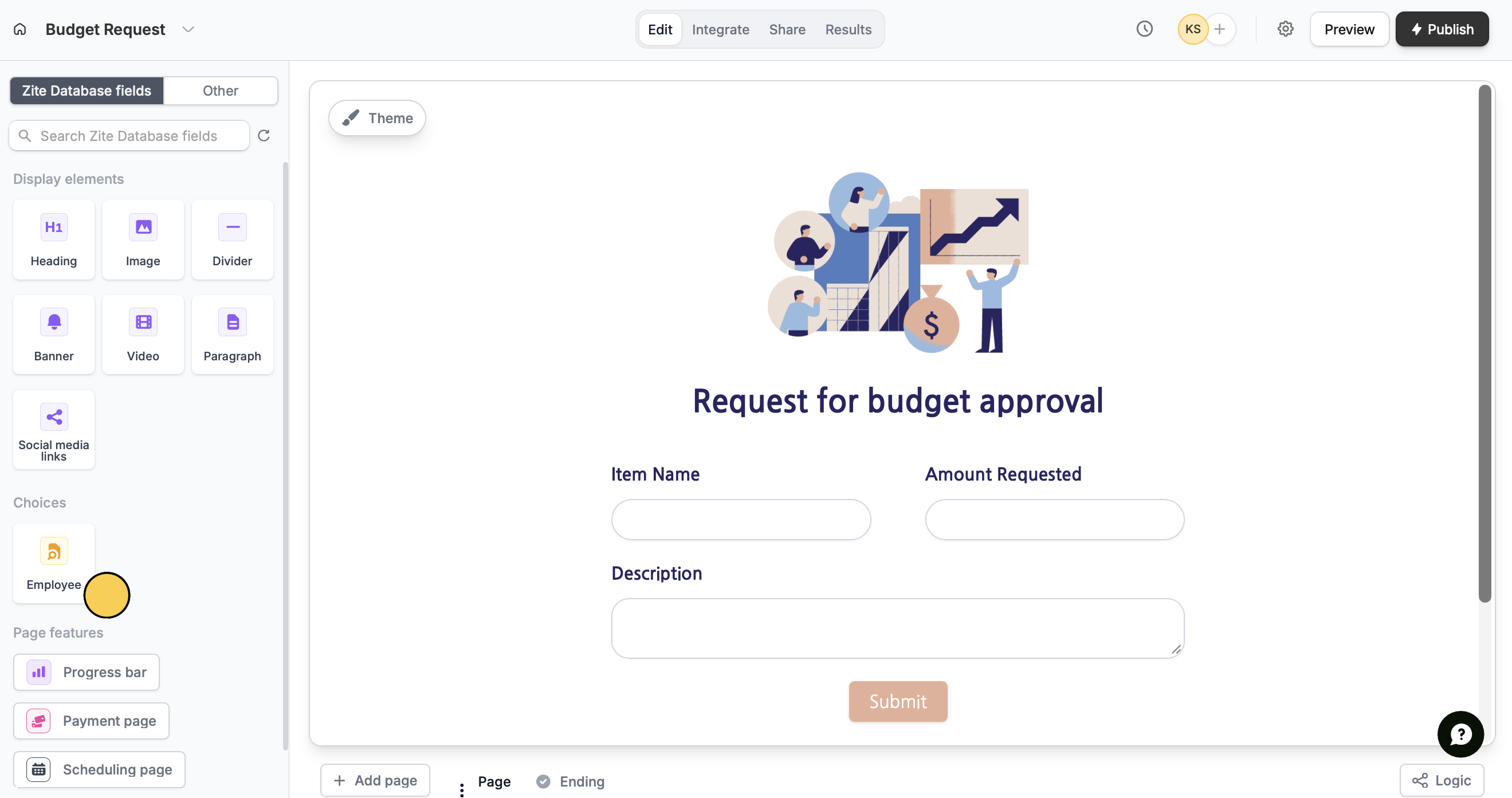
 Zite [automatically maps](https://www.fillout.com/help/map-columns#automatic-column-or-field-mapping) matching fields when available. If not, you can [manually drag](https://www.fillout.com/help/map-columns#automatic-column-or-field-mapping) your database columns (on the left-hand panel) into the form.
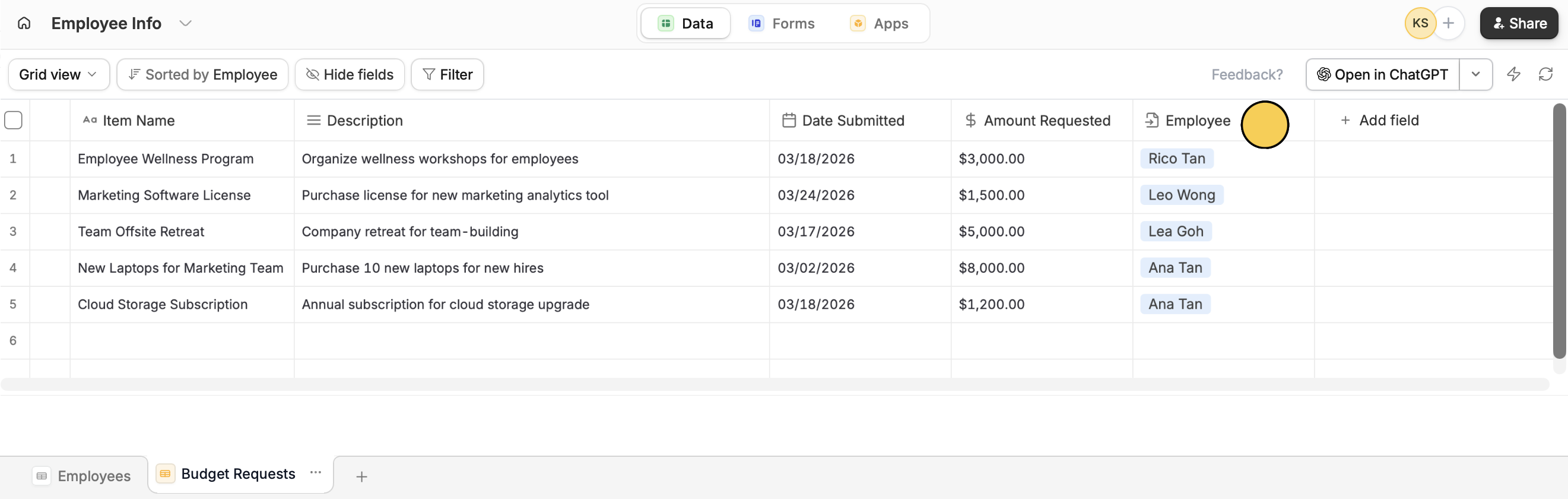
For example, let's allow our employees to request for budget approval through a form. They can select their name from the Employees table. Their response is recorded in the Budget Requests table and linked to them.
Zite [automatically maps](https://www.fillout.com/help/map-columns#automatic-column-or-field-mapping) matching fields when available. If not, you can [manually drag](https://www.fillout.com/help/map-columns#automatic-column-or-field-mapping) your database columns (on the left-hand panel) into the form.
For example, let's allow our employees to request for budget approval through a form. They can select their name from the Employees table. Their response is recorded in the Budget Requests table and linked to them.
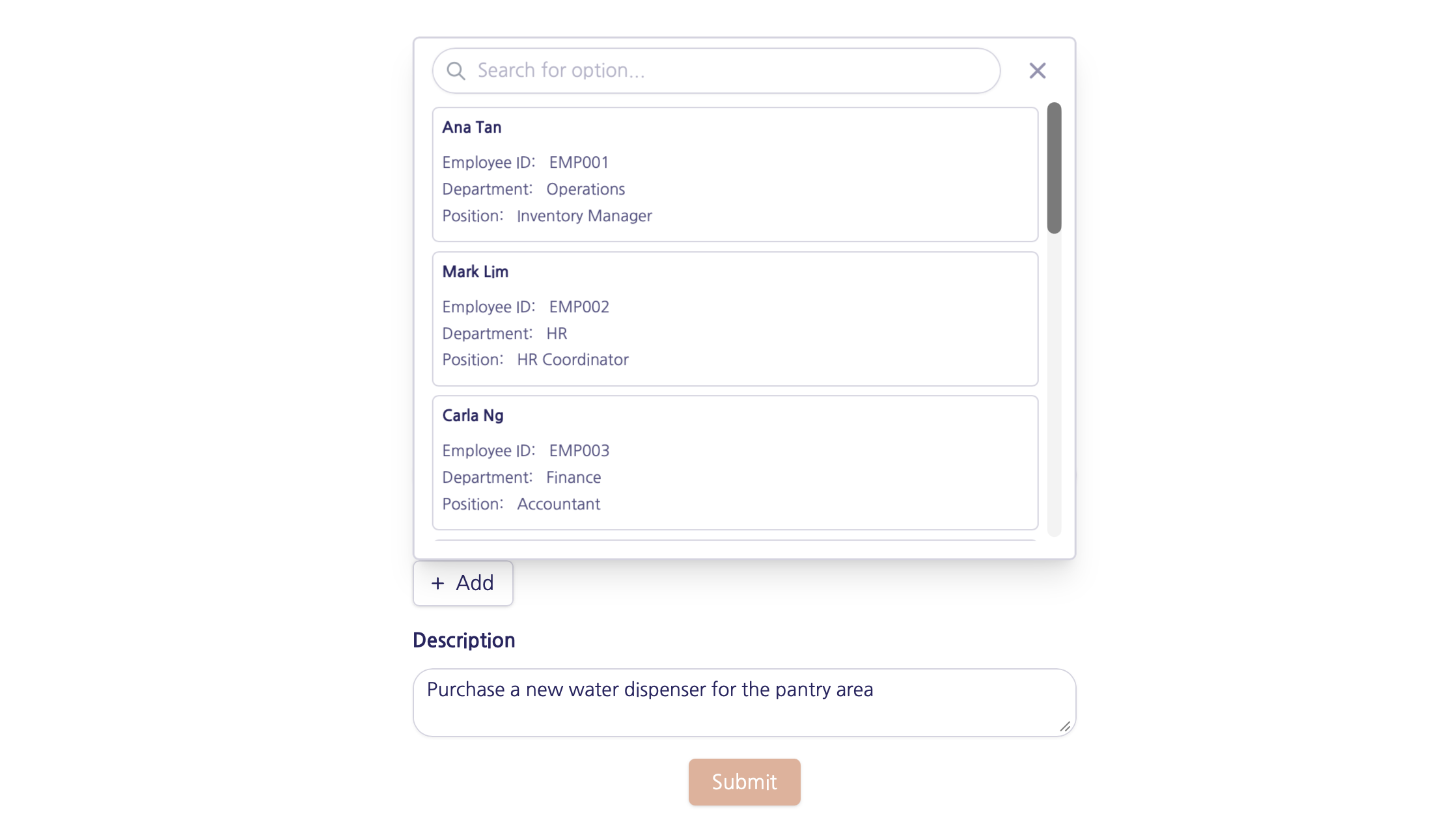
 Drag the `record picker` into your form. This becomes your dropdown for selecting records.
Click `Publish` on the top right to reflect the changes.
That's it! Respondents can now select records from your database.
Drag the `record picker` into your form. This becomes your dropdown for selecting records.
Click `Publish` on the top right to reflect the changes.
That's it! Respondents can now select records from your database.
 ## Advanced features
Open the record picker's settings by clicking to show **Advanced** on the right-hand panel.
## Advanced features
Open the record picker's settings by clicking to show **Advanced** on the right-hand panel.
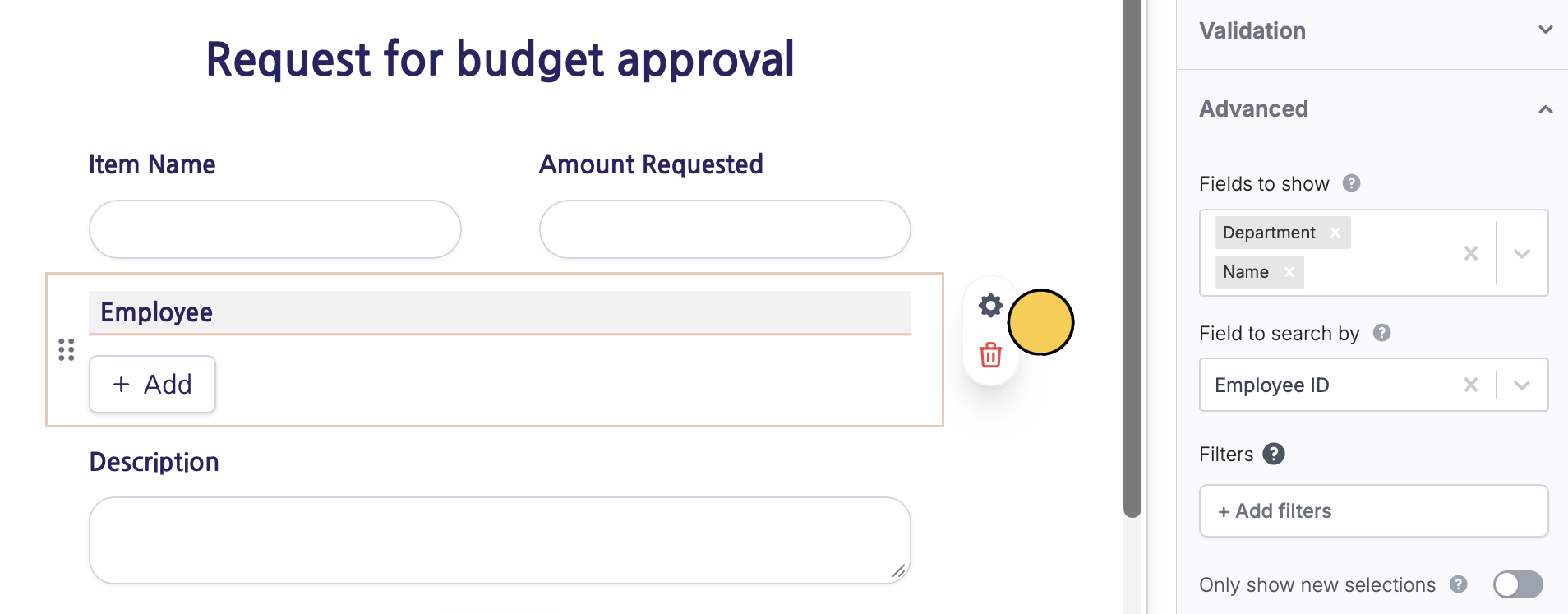 Here, you can set:
* **Fields to show** - choose which database fields are visible instead of showing all record details
* **Field to search by** - allow lookup using a field other than the primary field
* **Filters** - show only selected records based on conditions you set
## Related articles
Link records across tables to assign or reference.
Edit existing Zite database records with a Fillout form.
Here, you can set:
* **Fields to show** - choose which database fields are visible instead of showing all record details
* **Field to search by** - allow lookup using a field other than the primary field
* **Filters** - show only selected records based on conditions you set
## Related articles
Link records across tables to assign or reference.
Edit existing Zite database records with a Fillout form.