> ## Documentation Index
> Fetch the complete documentation index at: https://fillout.com/help/llms.txt
> Use this file to discover all available pages before exploring further.
# Delete & Restore Forms
> Delete or restore forms, and empty your trash.
export const SupportBanner = () => {
const titleId = React.useId();
return ;
};
## How it works
When you delete a form, it's first moved to the **Trash** instead of being permanently deleted. This lets you restore the form later along with the results.
A form is only permanently deleted after it's removed from the Trash. Once deleted, the form and all of its data can't be recovered. If you think you'll need this information later, we recommend [downloading your responses](https://www.fillout.com/help/view-responses#export-submissions) and [summary](https://www.fillout.com/help/summary#print-summary) first.
## How to delete a form
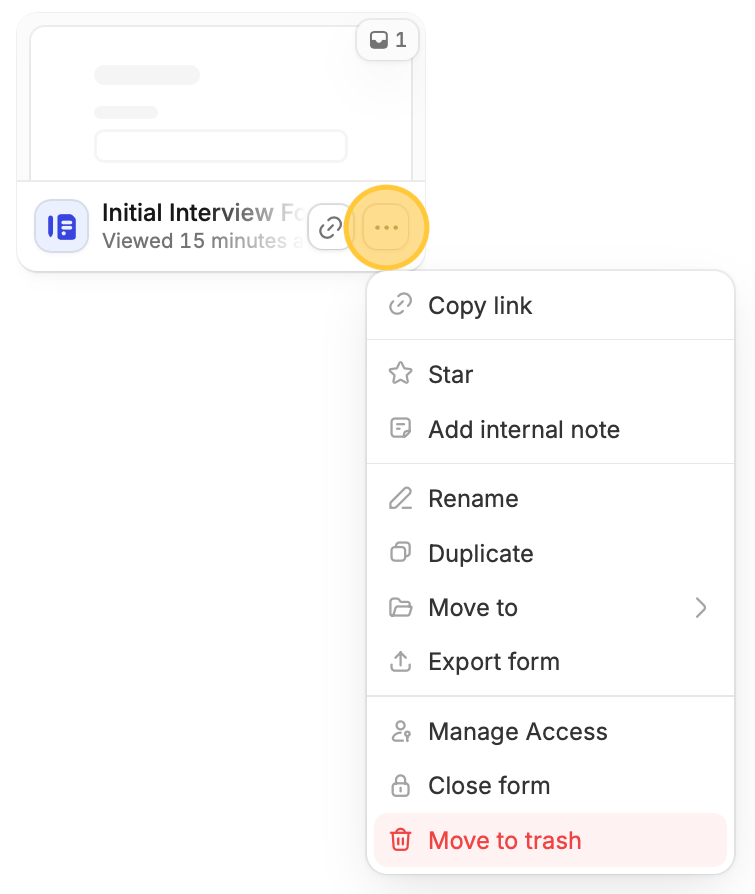
**Hover** over the form you'd like to delete, and click the `ellipsis` followed by `Move to trash`.
 This only moves your form to the Trash. To permanently delete it, [remove it from the Trash](/help/delete-and-restore-forms#how-to-empty-trash).
## How to restore a form
Go to `Trash` at the bottom left of your dashboard. Locate the form you want to recover, then click `Restore`.
This only moves your form to the Trash. To permanently delete it, [remove it from the Trash](/help/delete-and-restore-forms#how-to-empty-trash).
## How to restore a form
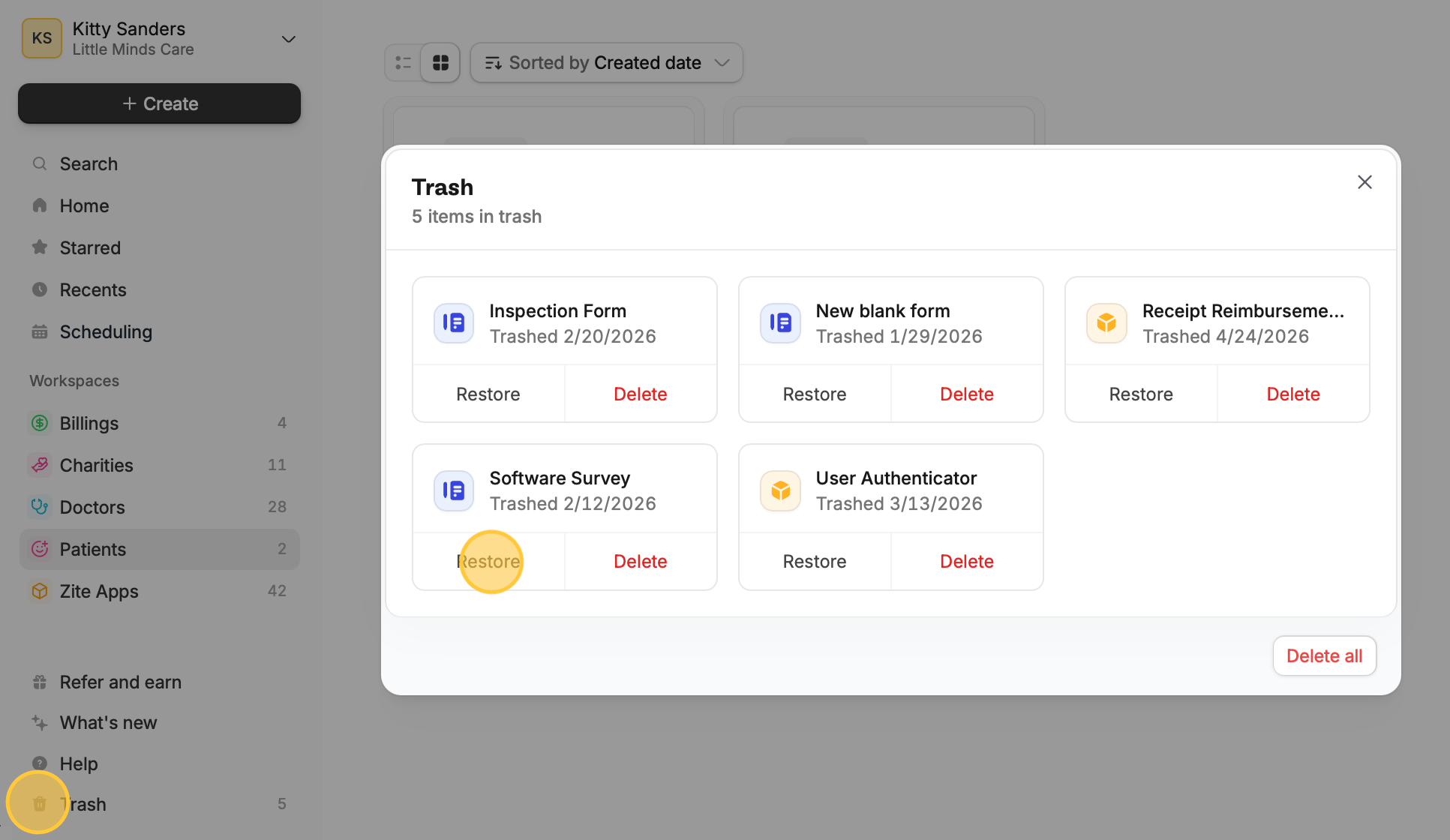
Go to `Trash` at the bottom left of your dashboard. Locate the form you want to recover, then click `Restore`.
 Submissions you received prior to deleting including the summary will also be restored.
## How to empty trash
At the bottom left of your dashboard, click `Trash` followed by `Delete all`.
Submissions you received prior to deleting including the summary will also be restored.
## How to empty trash
At the bottom left of your dashboard, click `Trash` followed by `Delete all`.