> ## Documentation Index
> Fetch the complete documentation index at: https://fillout.com/help/llms.txt
> Use this file to discover all available pages before exploring further.
# Duplicate a form
> Duplicate an existing form as a starting point for a new form.
## Overview
Duplicating an entire form can be useful if you want to keep all of your fields and just make a few adjustments, or make a new version of your form without updating the old one.
## How to duplicate a form
From your dashboard, hover over the form you want to duplicate and click to `Duplicate`.
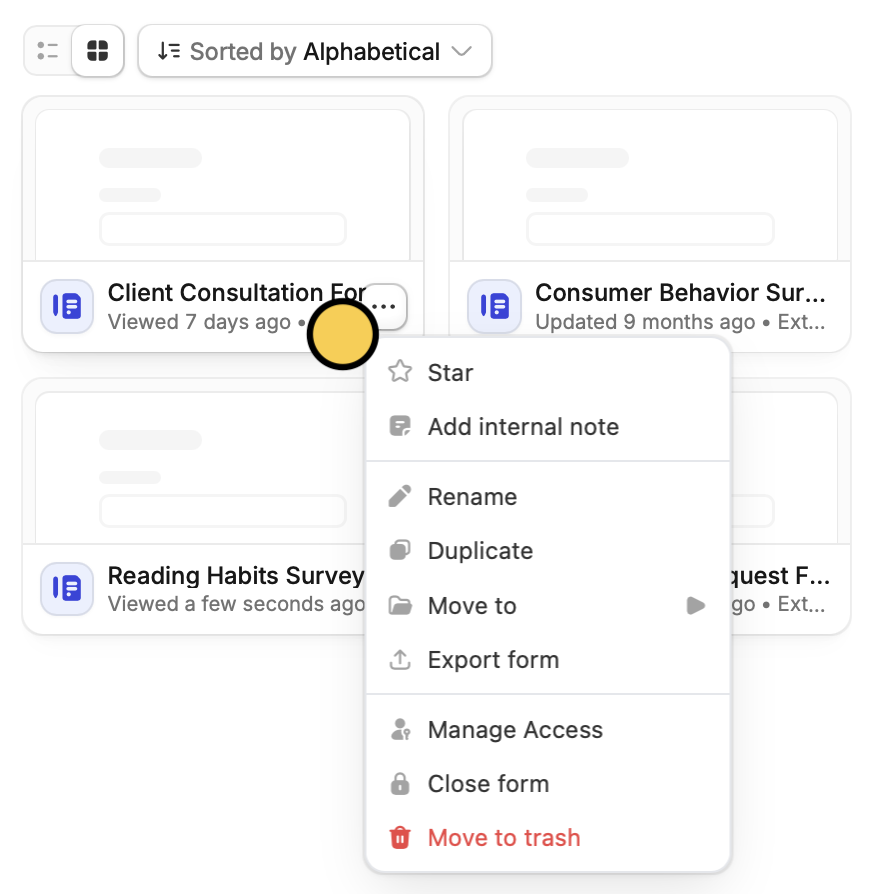 That’s it! You will now have two identical forms, with different unique links.\
From here, you can also `Rename` your form. Alternatively, if your form is already open in the editor, you can edit the default name in the upper-left corner next to the home icon.
## Related articles
Transfer between different accounts.
Copy and paste fields on any Fillout form.
Build forms faster by duplicating questions or fields.
That’s it! You will now have two identical forms, with different unique links.\
From here, you can also `Rename` your form. Alternatively, if your form is already open in the editor, you can edit the default name in the upper-left corner next to the home icon.
## Related articles
Transfer between different accounts.
Copy and paste fields on any Fillout form.
Build forms faster by duplicating questions or fields.