> ## Documentation Index
> Fetch the complete documentation index at: https://fillout.com/help/llms.txt
> Use this file to discover all available pages before exploring further.
# Email your form
> Send a form by email to request feedback, survey users or collect responses. Track form submissions from form opened to completion.
## Video tutorial
## How to send your form via email
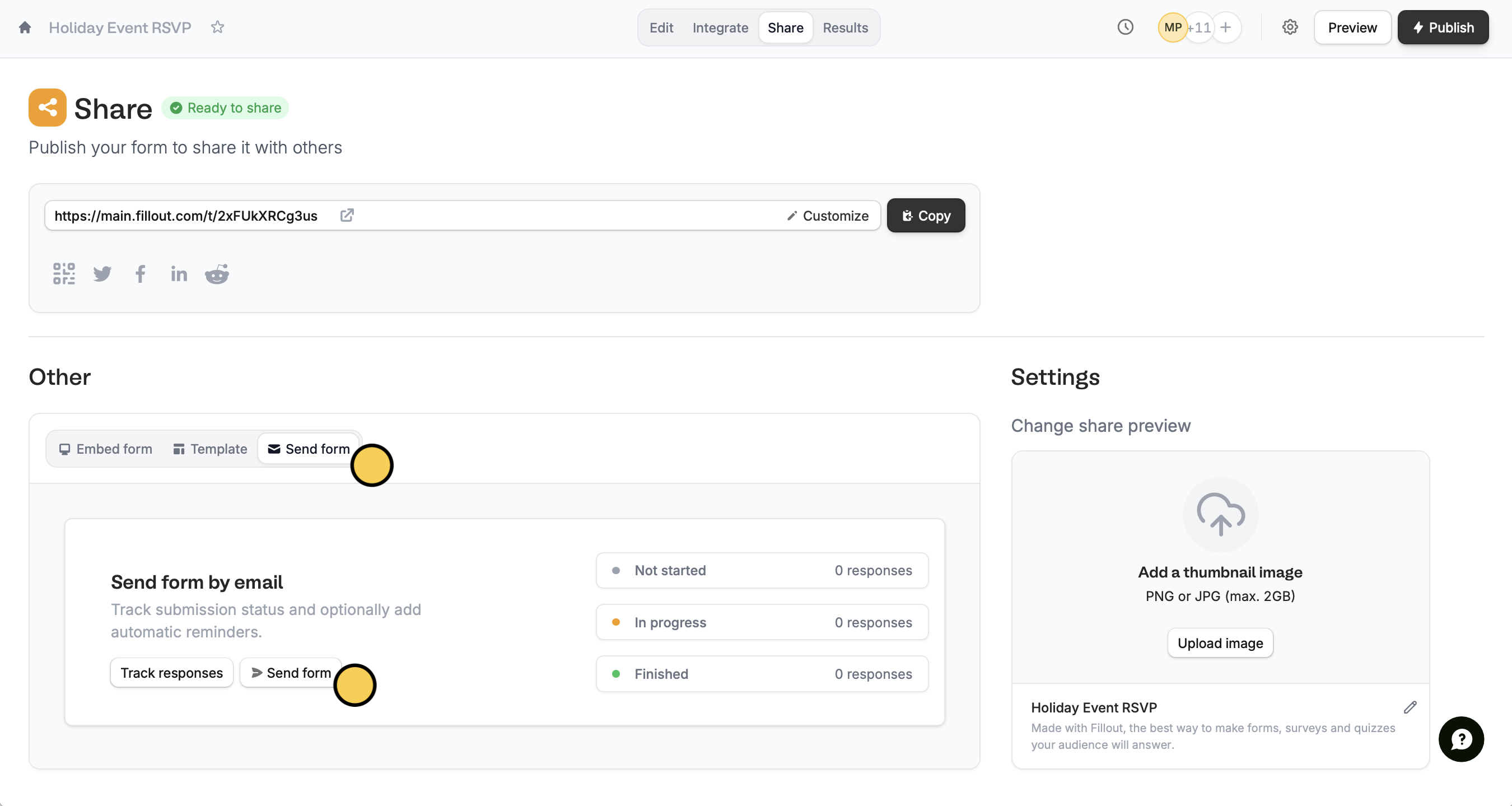
Click `Share` on the top menu followed by `Send form`.
 Click `Set recipients` at the lower left of the popup to enter emails of the people whom you would like to send the form to. You can also edit the default email and [style](https://www.fillout.com/help/custom-emails#style-your-email) it.
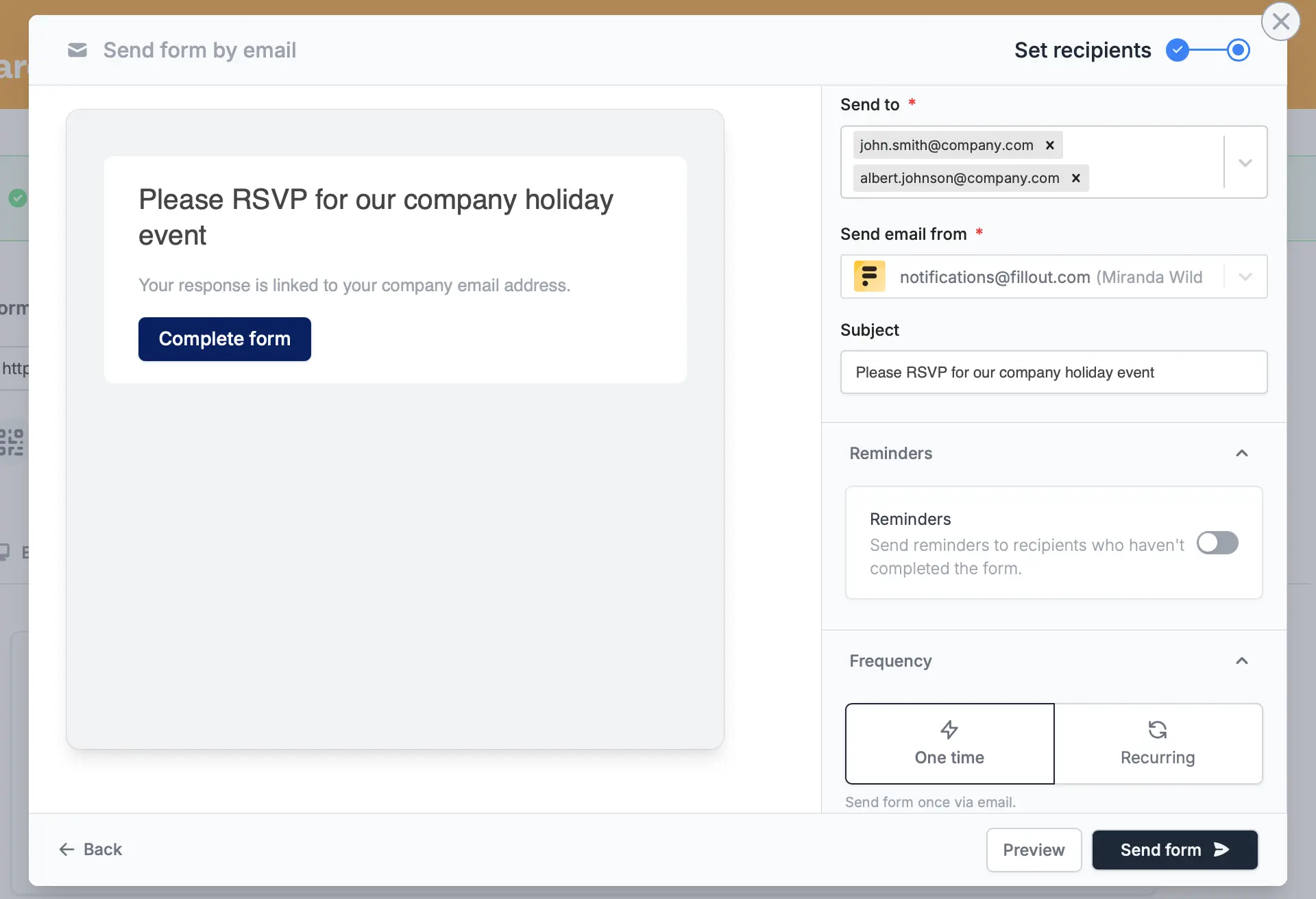 Here, you can also enable `Reminders` and set your preferred **Frequency**.
You can add up to 50 email addresses per hour as recipients in unverified accounts. If you [verify your account](https://main.fillout.com/verify-your-fillout-account), you can add up to 250 email addresses per hour.
When everything's all set, `Publish` your form to reflect the changes.
## Track submissions
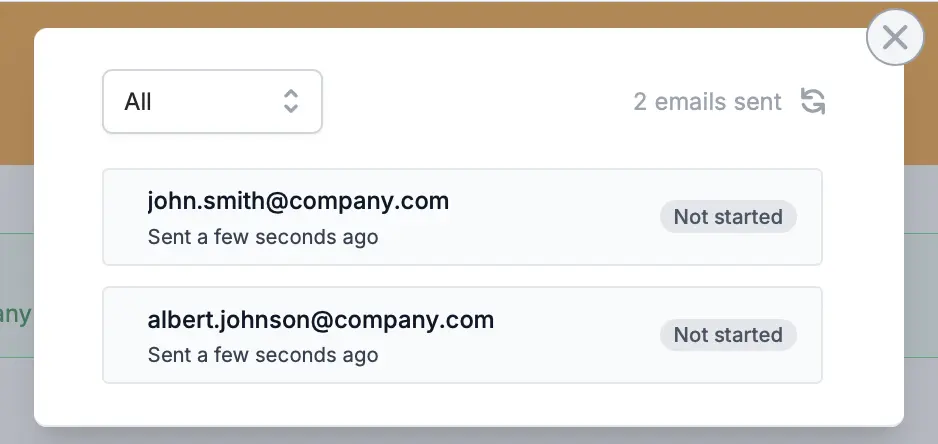
After sending your form, you'll be able to `Track responses` in the same pop-up.
Alternatively, you can go back to the `Share` page to do this. Here, you'll see if a recipient has **Not started**, is **In progress**, or has **Completed** your form.
Here, you can also enable `Reminders` and set your preferred **Frequency**.
You can add up to 50 email addresses per hour as recipients in unverified accounts. If you [verify your account](https://main.fillout.com/verify-your-fillout-account), you can add up to 250 email addresses per hour.
When everything's all set, `Publish` your form to reflect the changes.
## Track submissions
After sending your form, you'll be able to `Track responses` in the same pop-up.
Alternatively, you can go back to the `Share` page to do this. Here, you'll see if a recipient has **Not started**, is **In progress**, or has **Completed** your form.
 ## Automate form sending with Zapier
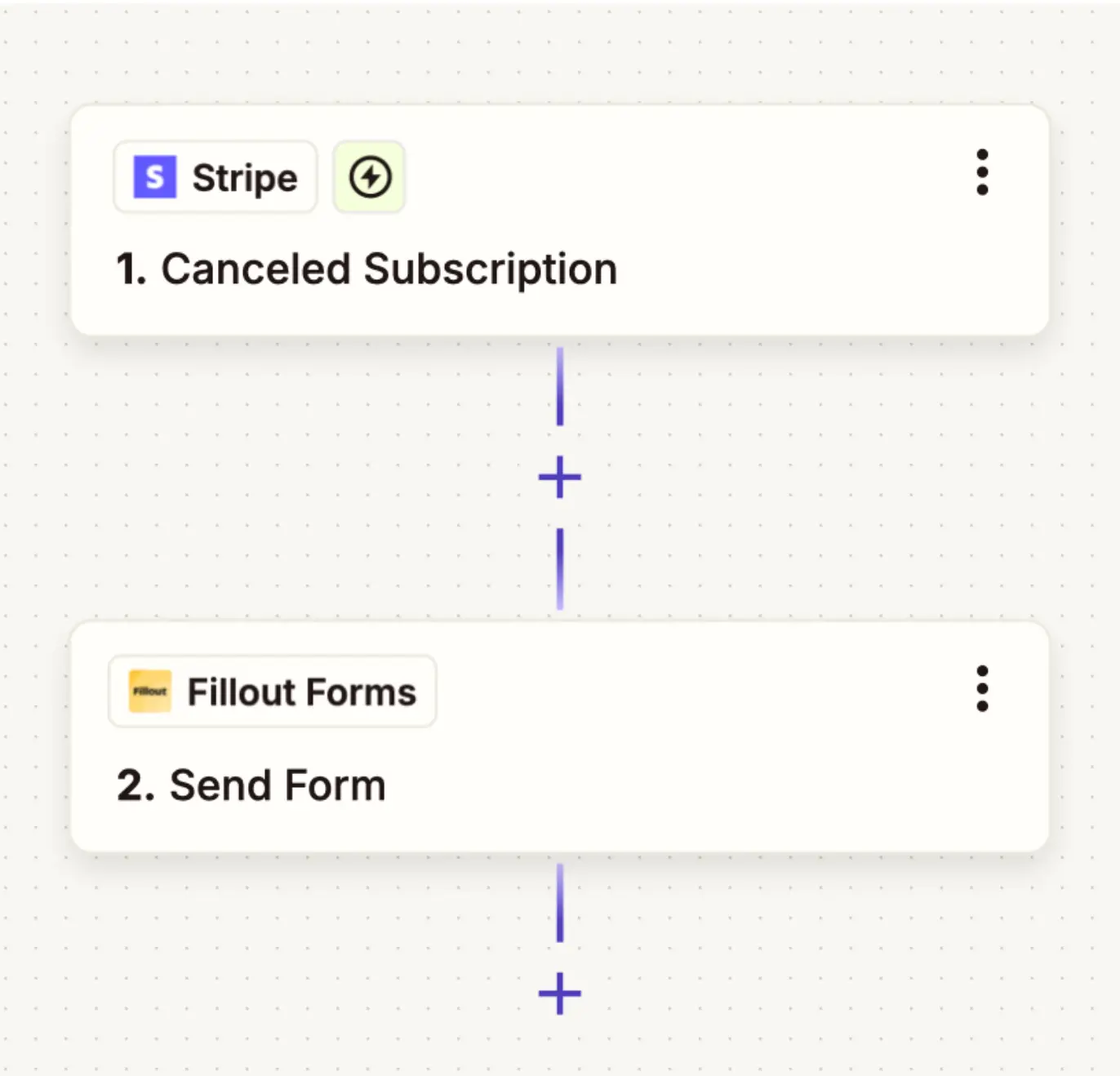
You can [create a Zap](/zapier) to automate emailing forms. After connecting the necessary apps, select a **Trigger**.
In this example, when a user cancels their subscription in Stripe, we'll send a Fillout form, which would be the **Action**. Click `Publish` when everything’s set.
## Automate form sending with Zapier
You can [create a Zap](/zapier) to automate emailing forms. After connecting the necessary apps, select a **Trigger**.
In this example, when a user cancels their subscription in Stripe, we'll send a Fillout form, which would be the **Action**. Click `Publish` when everything’s set.
 That's it! Any user who cancels will automatically receive the Fillout form.
## Related articles
Get alerts for submissions or integration issues.
Notify and email respondents a copy of their editable answers.
Connect your Fillout form to hundreds of apps.
That's it! Any user who cancels will automatically receive the Fillout form.
## Related articles
Get alerts for submissions or integration issues.
Notify and email respondents a copy of their editable answers.
Connect your Fillout form to hundreds of apps.