> ## Documentation Index
> Fetch the complete documentation index at: https://fillout.com/help/llms.txt
> Use this file to discover all available pages before exploring further.
# Email notifications
> Get notified via email when someone submits your form, or encounters an integration-related issue.
## How to turn on email notifications
Open your form. Then, click settings in the upper right section.
 Next, toggle the `Self-email notifications` switch and enter your email.
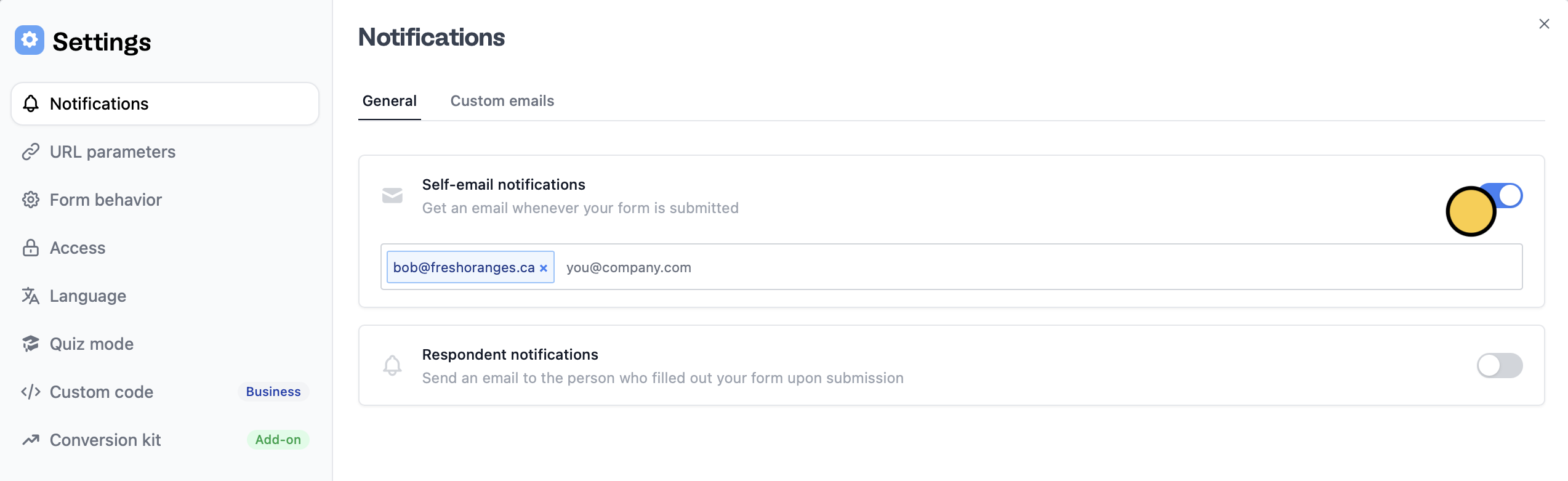 That's it! `Publish` and share your form. You'll now receive an email each time someone submits your form.
## Notify colleagues or clients
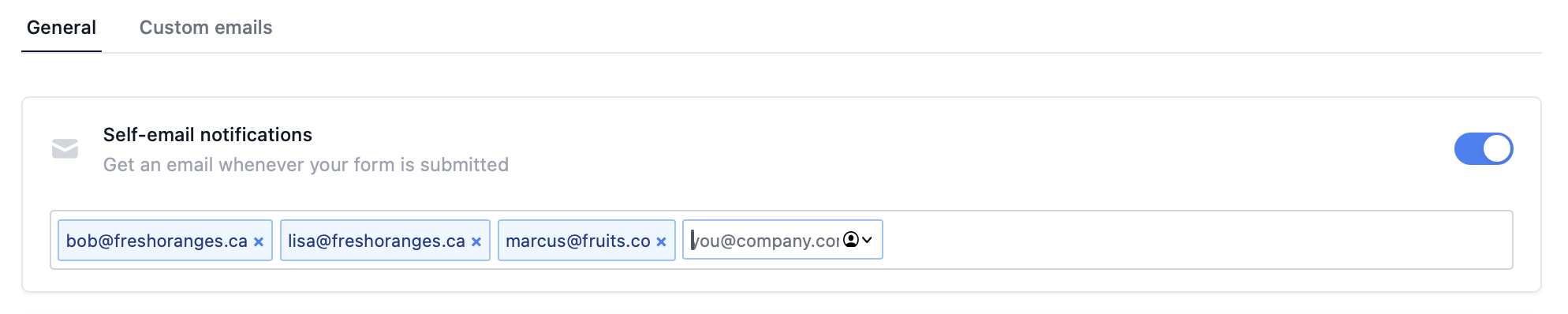
You can also send your email notifications to two or more people. Simply add their emails.
That's it! `Publish` and share your form. You'll now receive an email each time someone submits your form.
## Notify colleagues or clients
You can also send your email notifications to two or more people. Simply add their emails.
 ## Enable integration error notifications
Sometimes, using third-party integrations can lead to unexpected errors. For example, their service might be down or take too long to respond. Fillout will still save all form responses, and it can also email you with details about the error!
From your dashboard, click your `Account name` at the upper left corner followed by `Settings`.
## Enable integration error notifications
Sometimes, using third-party integrations can lead to unexpected errors. For example, their service might be down or take too long to respond. Fillout will still save all form responses, and it can also email you with details about the error!
From your dashboard, click your `Account name` at the upper left corner followed by `Settings`.
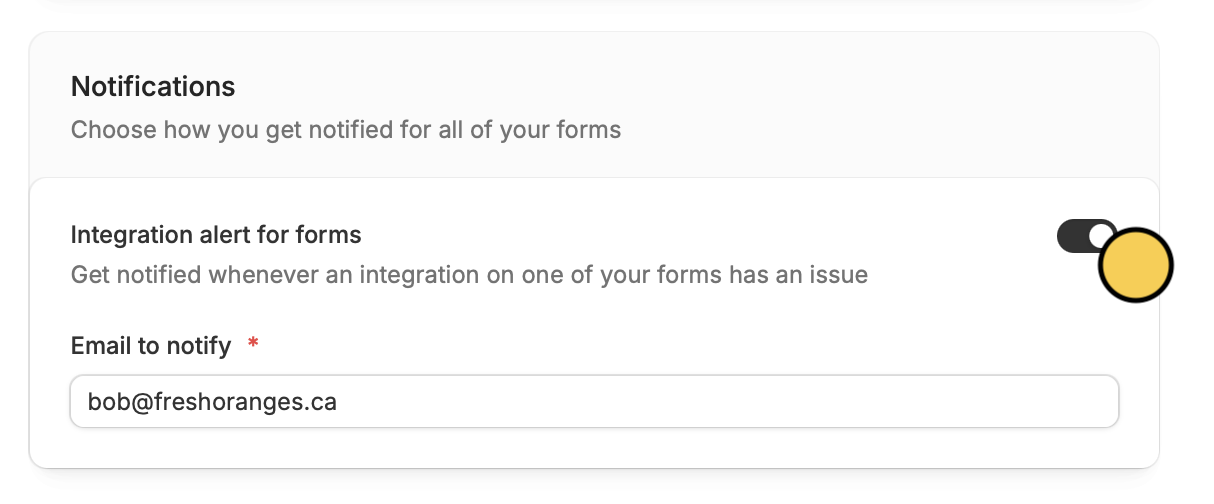 Scroll down and toggle `Integration alert for forms` to enter your email.
## Send custom emails to respondents
You can also notify respondents when they submit your form. Check out this [guide](/respondent-emails).
## Other notification features
Get a Slack notification for every new form submission.
Automate sending, pipe previous answers, and style your email.
Notify and email respondents a copy of their editable answers.
Scroll down and toggle `Integration alert for forms` to enter your email.
## Send custom emails to respondents
You can also notify respondents when they submit your form. Check out this [guide](/respondent-emails).
## Other notification features
Get a Slack notification for every new form submission.
Automate sending, pipe previous answers, and style your email.
Notify and email respondents a copy of their editable answers.