> ## Documentation Index
> Fetch the complete documentation index at: https://fillout.com/help/llms.txt
> Use this file to discover all available pages before exploring further.
# Embed Fillout forms on Squarespace
> Use embed blocks to add your Fillout form to a new or existing Squarespace website.
## What is Squarespace?
[Squarespace](https://www.squarespace.com/) is a popular website builder for online portfolios, blogs, and eCommerce shops. The platform includes some built-in form functionality, especially for newsletter signup and product checkout forms, but design options are limited and there are no advanced logic or multi-page options.
## Video tutorial
## How to embed your form
Start by clicking `Publish` in the upper right corner of the Fillout form editor. A popup will show up where you can pick an **embed style**.
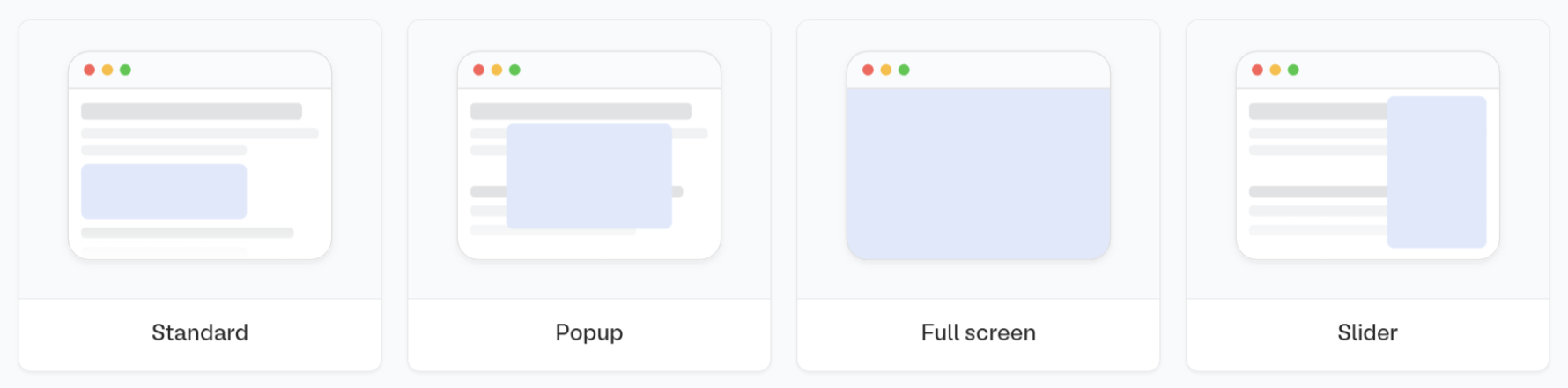 If you've already published your form, click `Share` in the top middle or top right. Adjust your embed style settings to fit your use case. Then, `Get the code`
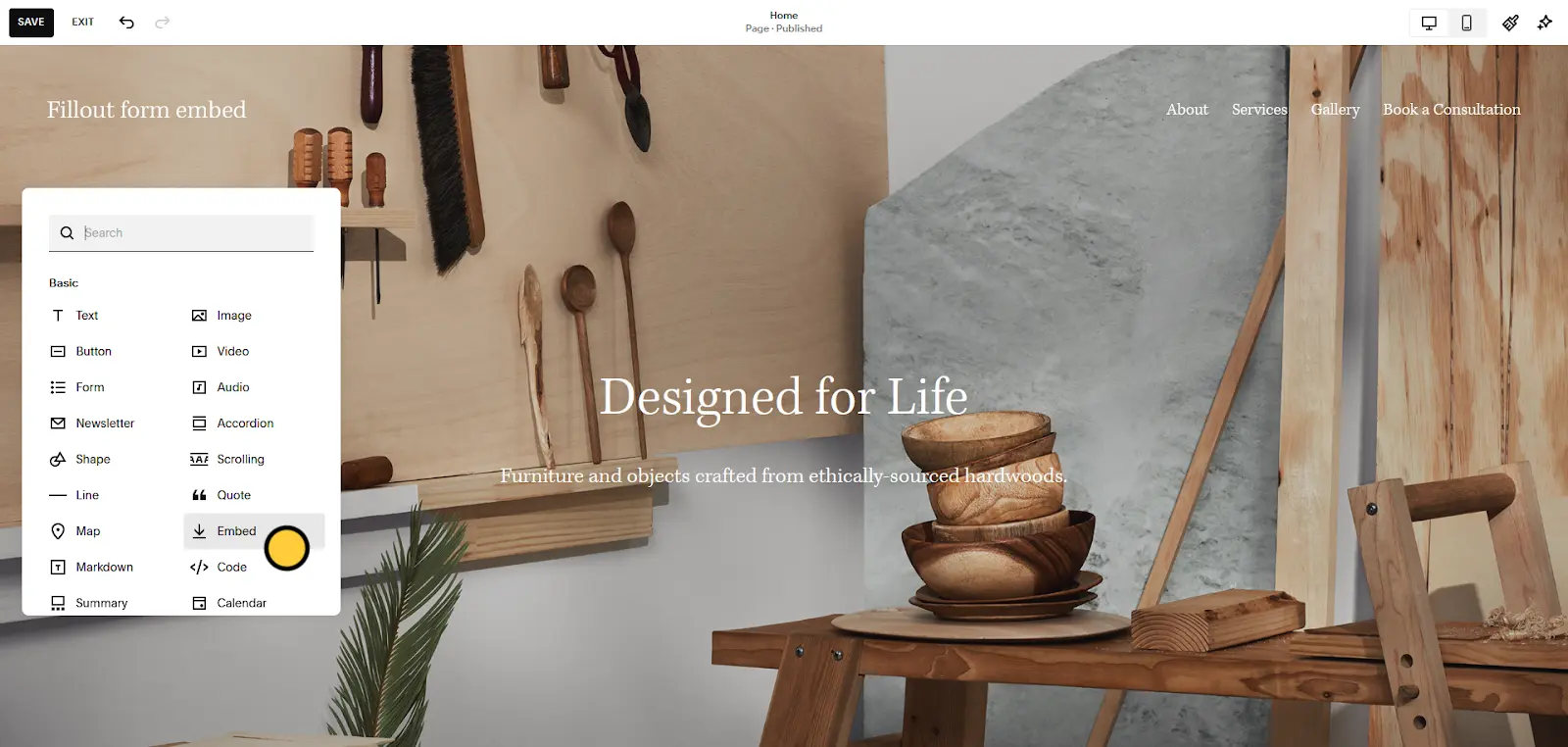
Inside the Squarespace drag-and-drop editor, hover your mouse over the section where you want to embed your form and click `+ Add Block`. Scroll to or search for the `Embed` block and click and drag it onto the page.
If you've already published your form, click `Share` in the top middle or top right. Adjust your embed style settings to fit your use case. Then, `Get the code`
Inside the Squarespace drag-and-drop editor, hover your mouse over the section where you want to embed your form and click `+ Add Block`. Scroll to or search for the `Embed` block and click and drag it onto the page.
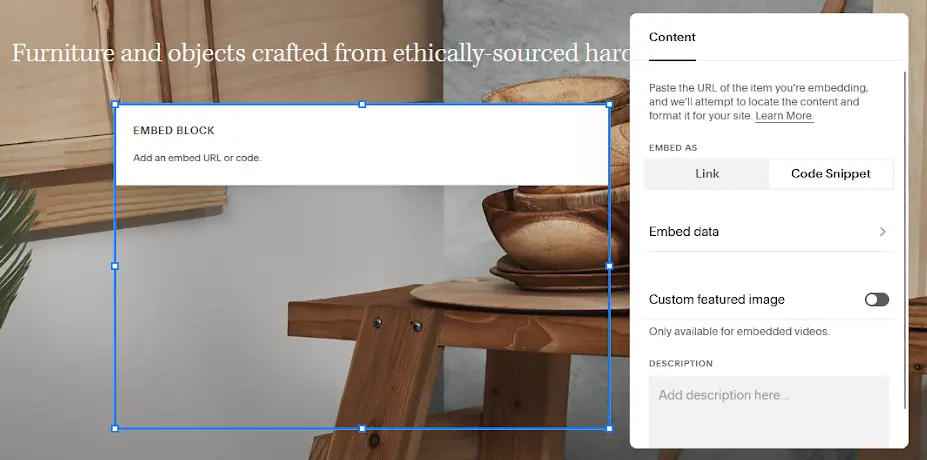
 Double-click the `Embed` block, open the **Code Snippet** tab from the block editor, and click the `Embed data` button. Paste your Fillout **embed code** into the code editor and click `Back`.
 Hit `Save` in the upper left corner of the page editor and press Ctrl + Shift + P to preview the updated page (or click the button from the site’s Home Menu).
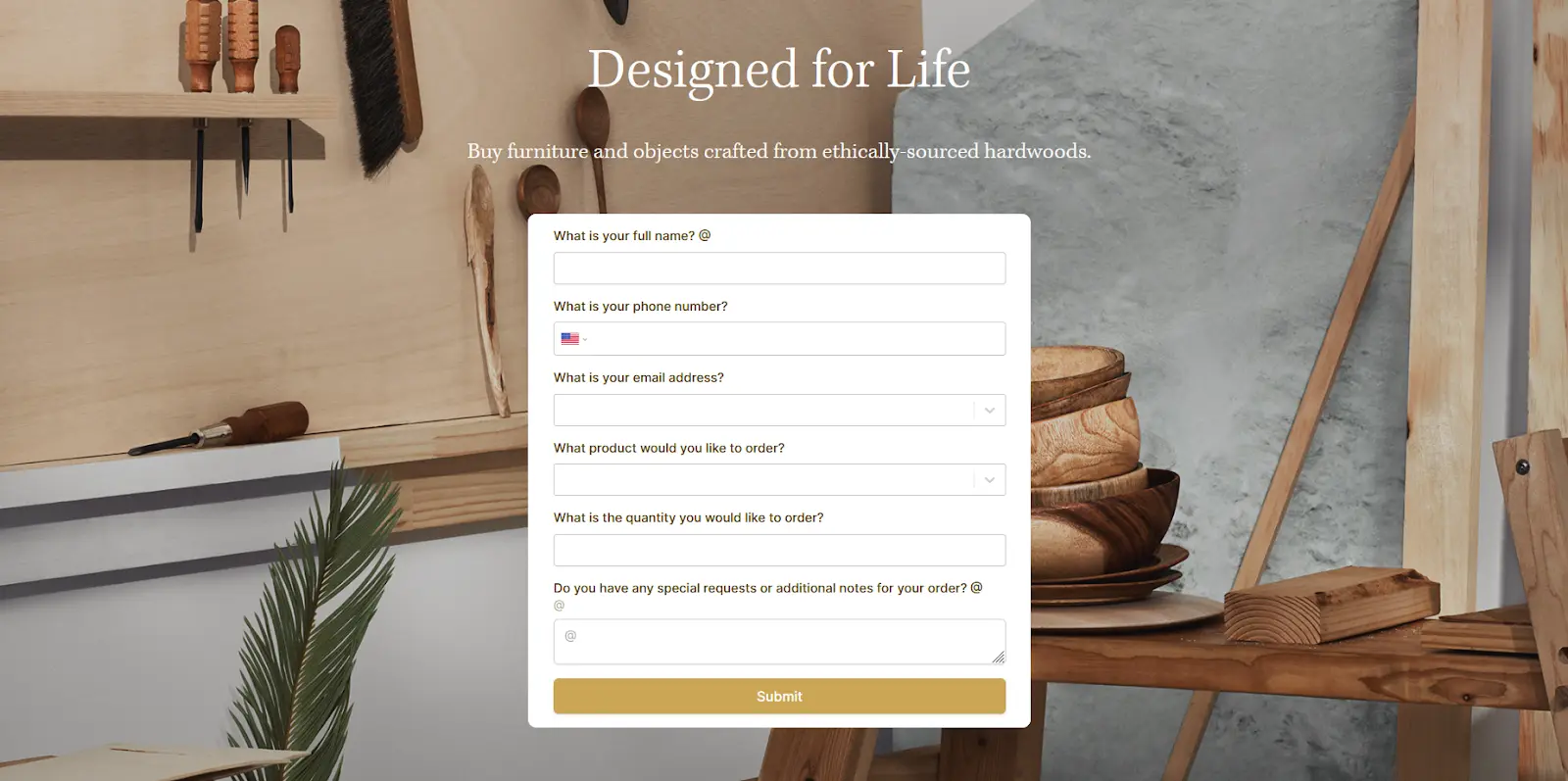 You can also paste your Fillout **embed code** into a **Code** block if you’re on a Squarespace Business plan or higher.
## Add a full screen embed
If you’re adding a **Full screen** Fillout embed to a Squarespace site, you may need to use code injection to prevent the sitewide header and footer from rendering on top of your form.
From your site’s Home Menu, open the **Website** tab. Click + next to either **Main Navigation** or **Not Linked** and choose `Blank Page`.
You can also paste your Fillout **embed code** into a **Code** block if you’re on a Squarespace Business plan or higher.
## Add a full screen embed
If you’re adding a **Full screen** Fillout embed to a Squarespace site, you may need to use code injection to prevent the sitewide header and footer from rendering on top of your form.
From your site’s Home Menu, open the **Website** tab. Click + next to either **Main Navigation** or **Not Linked** and choose `Blank Page`.
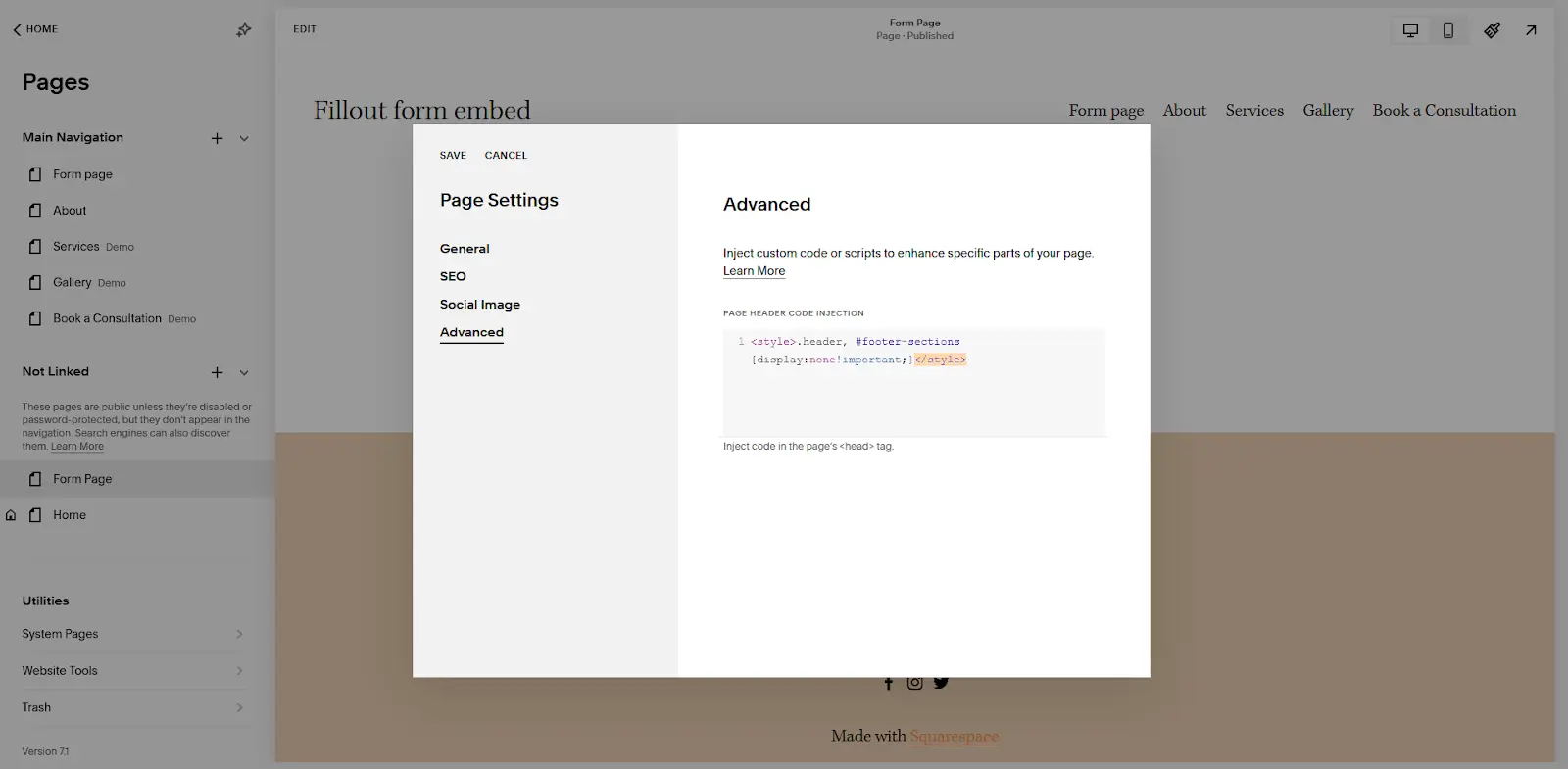 After giving the page a name, click next to it and open the **Advanced** tab. Paste `` into the **Page Header Code Injection** textbox and click `Save`.
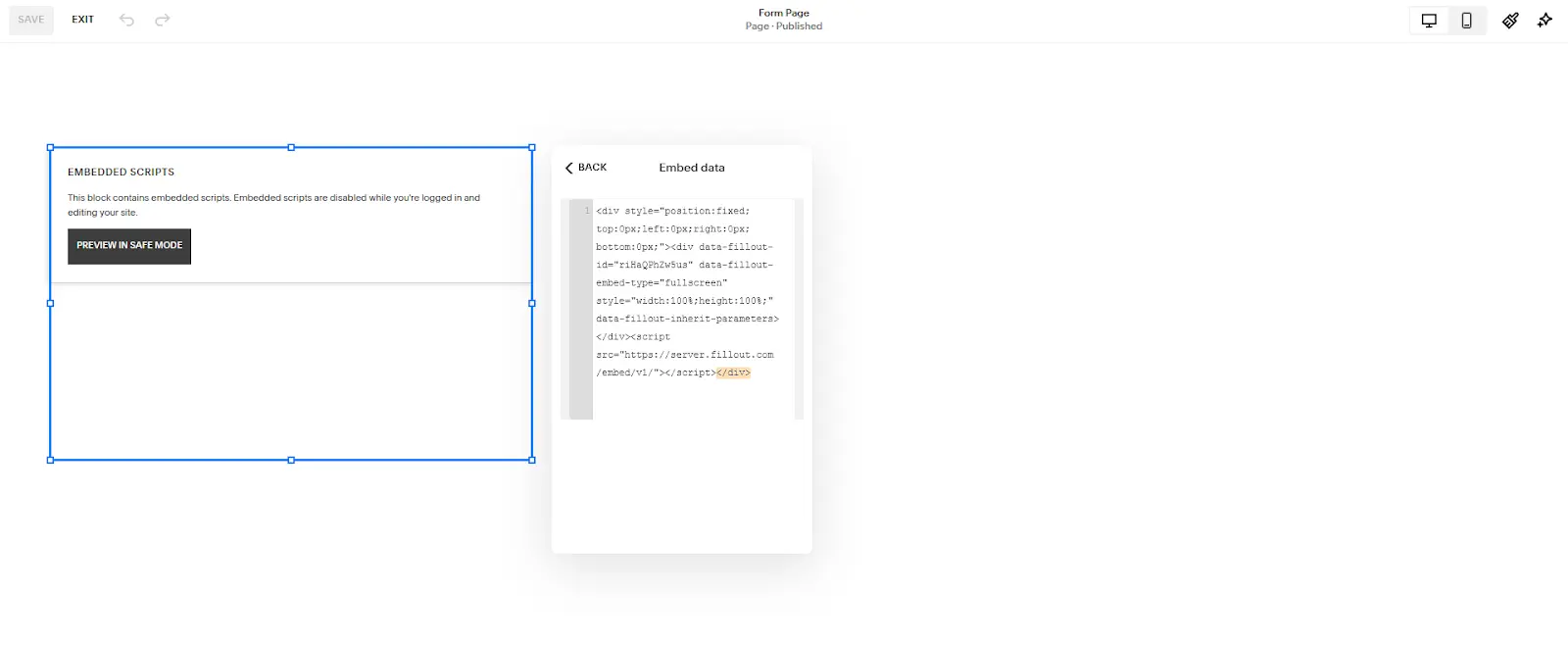 Now that the header and footer are removed, add a **blank section** to the page, then add an `Embed` block with your **Full screen embed code,** anywhere on the page.
## Related article
Share your form by link or embed it on your website.
Now that the header and footer are removed, add a **blank section** to the page, then add an `Embed` block with your **Full screen embed code,** anywhere on the page.
## Related article
Share your form by link or embed it on your website.