> ## Documentation Index
> Fetch the complete documentation index at: https://fillout.com/help/llms.txt
> Use this file to discover all available pages before exploring further.
# Embed Fillout forms on WordPress
> Learn how to embed a Fillout form in WordPress. You can add the HTML code directly to your site or use a WordPress Embed block to add a form to a webpage.
## Overview
[WordPress](https://wordpress.com) released form blocks, and their logic features and results tracking aren’t as powerful as those that come with a dedicated form builder.
There are three basic ways to embed a Fillout form in WordPress:
* Add a Fillout Form URL to an Embed block using the Visual editor
* Add a Fillout embed code to a Custom HTML block using the Visual editor
* Add a Fillout embed code to your page’s HTML code using the Code editor
## Add a Fillout Form URL to an Embed block
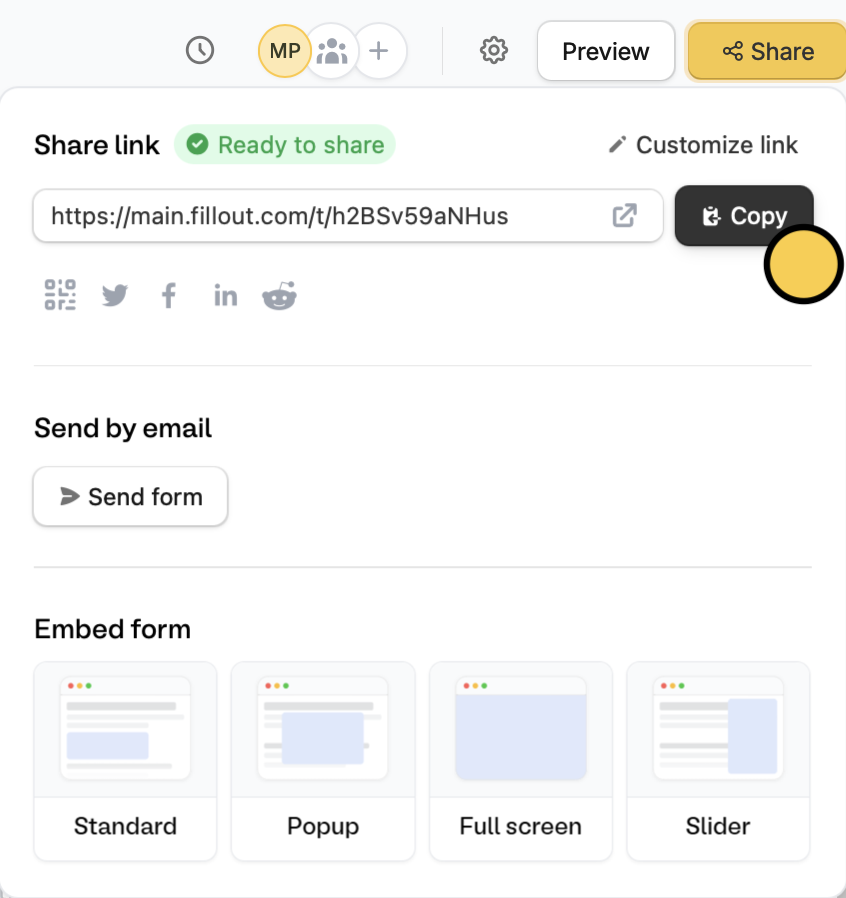
First, `Publish` your form and `Copy` the link. Alternatively, you can go to the `Share` tab.
 In WordPress, open the page where you want to embed the form. Click `+` in the upper left corner of the page editor to open the **Block Inserter** in the left side (or press Ctrl + Alt + Y to insert a block below your cursor’s current position) and search for the `Embed` block.
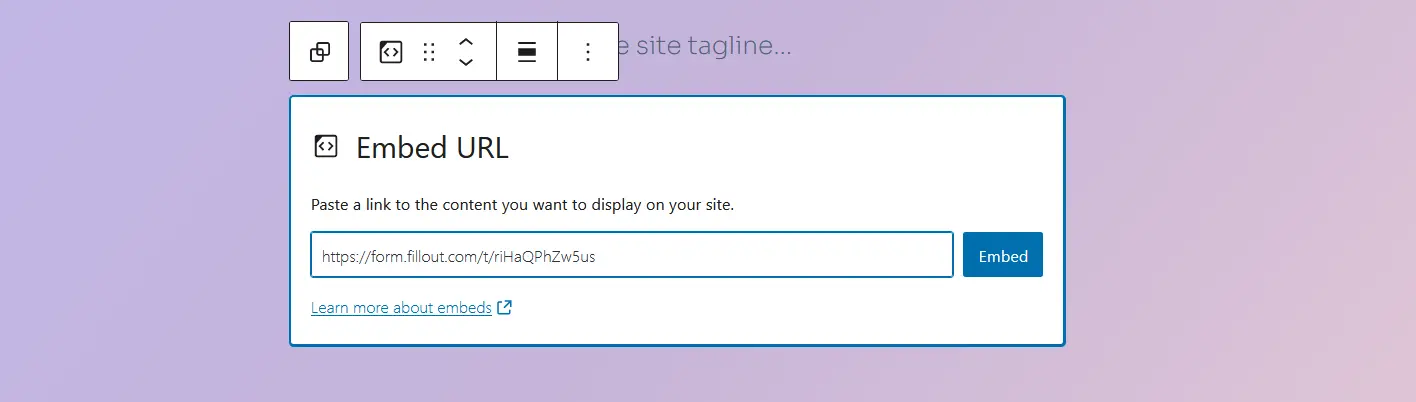 Paste the `Form Link` into the block’s text field and click `Embed`.
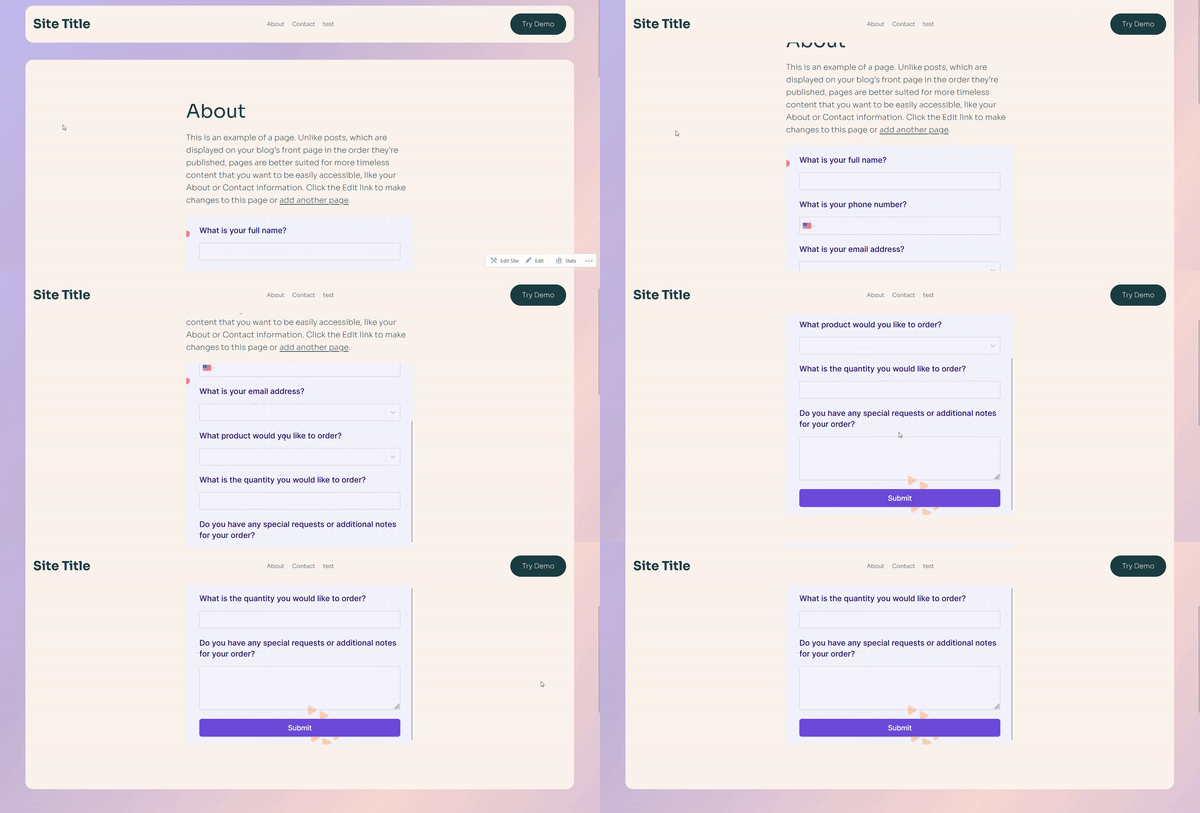 This is the quickest way to embed a Fillout form in WordPress, but it offers limited design and layout control, including the block’s size and positioning.
## Add a Fillout embed code to a Custom HTML block (Recommended)
The best way to add a Fillout form to your WordPress website is by using one of the embed codes since it gives you more control over the layout and often looks better on the page than using the `Form Link`.
Start by clicking `Publish` in the upper right corner of the Fillout form editor. A popup will show up where you can pick an **embed style**.
This is the quickest way to embed a Fillout form in WordPress, but it offers limited design and layout control, including the block’s size and positioning.
## Add a Fillout embed code to a Custom HTML block (Recommended)
The best way to add a Fillout form to your WordPress website is by using one of the embed codes since it gives you more control over the layout and often looks better on the page than using the `Form Link`.
Start by clicking `Publish` in the upper right corner of the Fillout form editor. A popup will show up where you can pick an **embed style**.
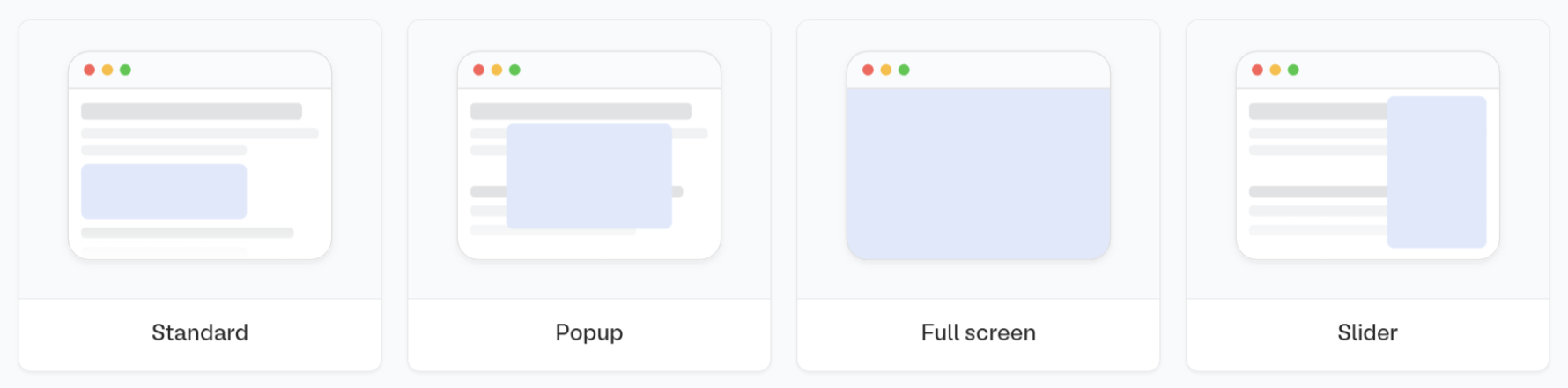 If you've already published your form, click `Share` in the top middle or top right. Adjust your embed style settings to fit your use case. Then, `Get the code`
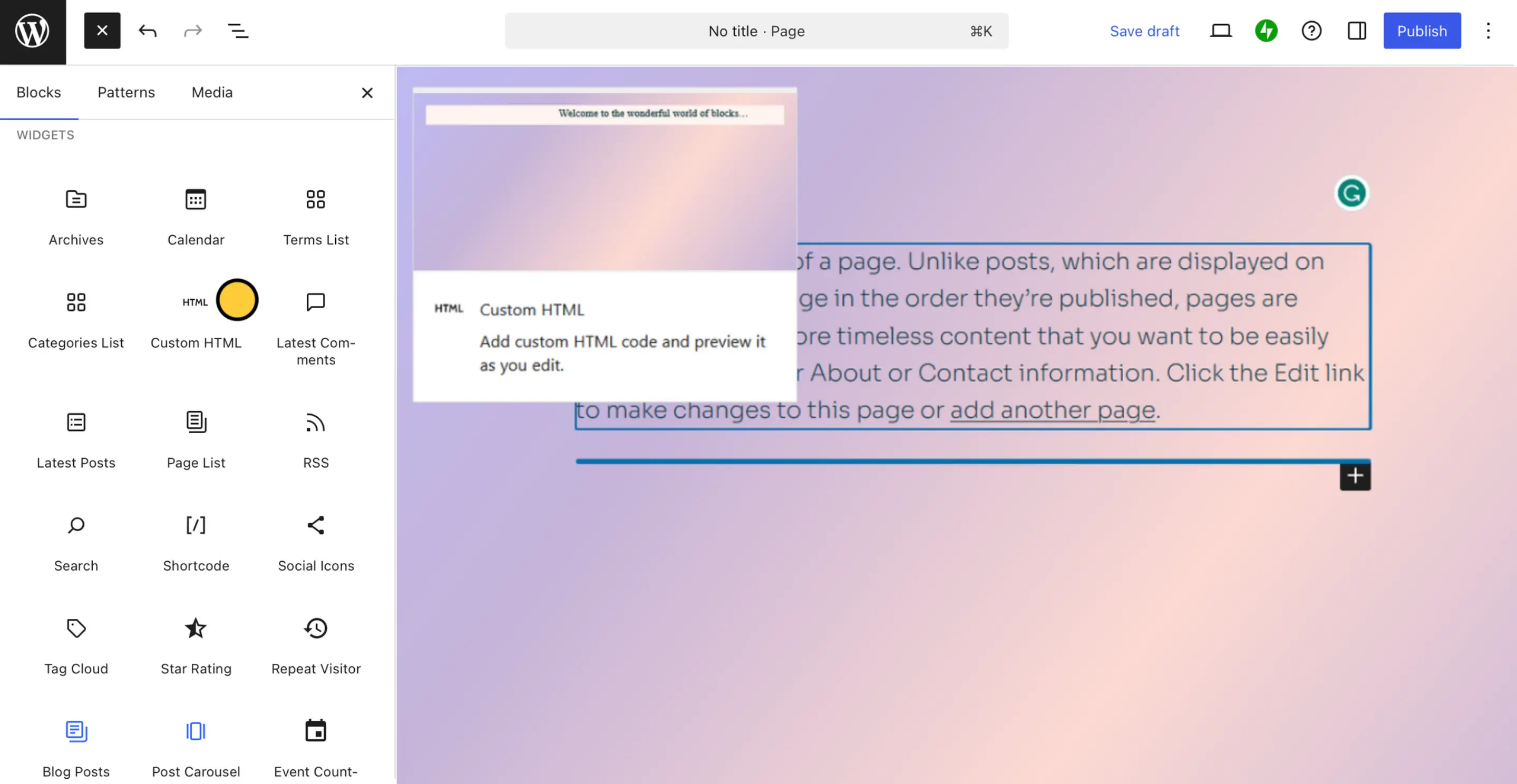
On the WordPress page where you want to embed the form, click `+` in the upper left corner of the page editor to open the **Block Inserter** in the left side (or press Ctrl + Alt + Y to insert a block below your cursor’s current position) and search for the `Custom HTML` block.
If you've already published your form, click `Share` in the top middle or top right. Adjust your embed style settings to fit your use case. Then, `Get the code`
On the WordPress page where you want to embed the form, click `+` in the upper left corner of the page editor to open the **Block Inserter** in the left side (or press Ctrl + Alt + Y to insert a block below your cursor’s current position) and search for the `Custom HTML` block.
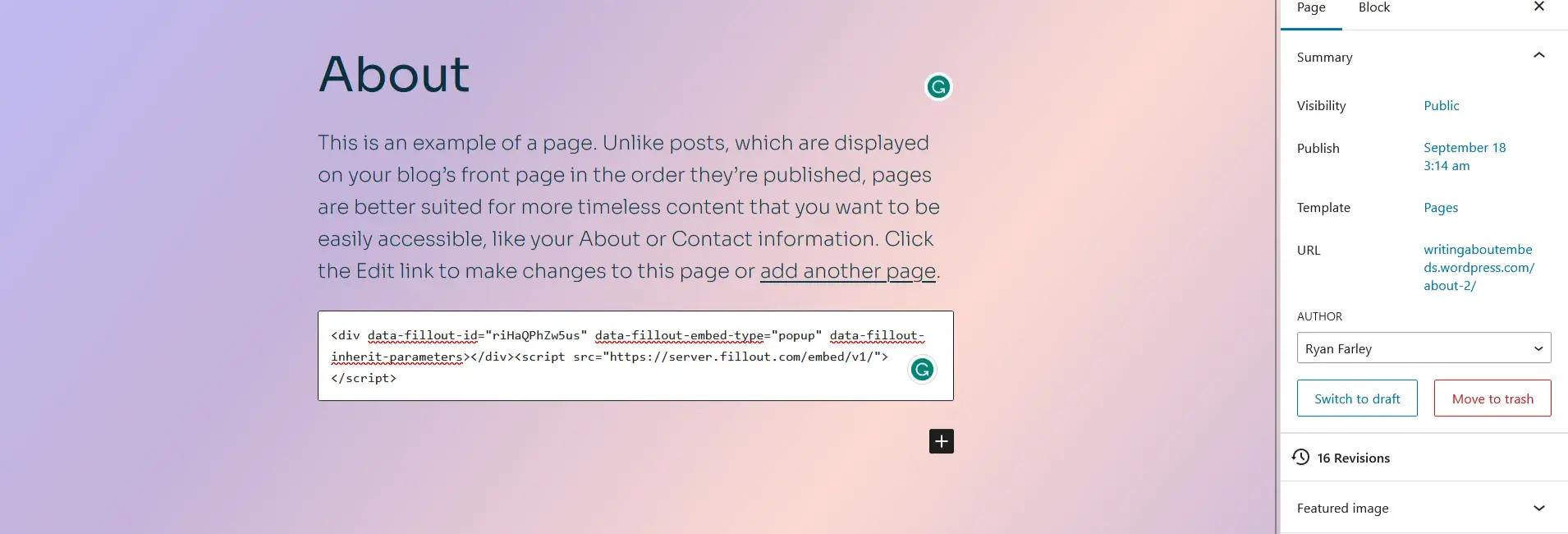
 Paste the embed code from Fillout into the block’s text field and click `Update`.
 ## Add a Fillout embed code to your page’s HTML code
If you want or need to see all of a page’s HTML before adding your embed code, you need to switch to WordPress’s **Code editor**. This will help you make granular adjustments or troubleshoot code or style-related issues.
Start by clicking `Publish` in the upper right corner of the Fillout form editor. A popup will show up where you can pick an **embed style**.
If you've already published your form, click `Share` in the top middle or top right. Adjust your embed style settings to fit your use case. Then, `Get the code`
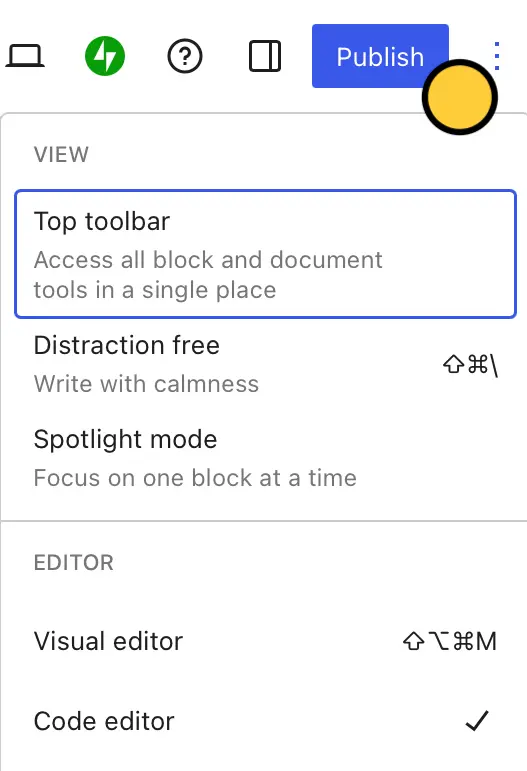
In WordPress, use the visual editor first to open the page where you want to embed your form. Then, click in the upper right corner of the screen, followed by `Code Editor` (or press Ctrl+Shift+Alt+M from anywhere in the visual editor).
## Add a Fillout embed code to your page’s HTML code
If you want or need to see all of a page’s HTML before adding your embed code, you need to switch to WordPress’s **Code editor**. This will help you make granular adjustments or troubleshoot code or style-related issues.
Start by clicking `Publish` in the upper right corner of the Fillout form editor. A popup will show up where you can pick an **embed style**.
If you've already published your form, click `Share` in the top middle or top right. Adjust your embed style settings to fit your use case. Then, `Get the code`
In WordPress, use the visual editor first to open the page where you want to embed your form. Then, click in the upper right corner of the screen, followed by `Code Editor` (or press Ctrl+Shift+Alt+M from anywhere in the visual editor).
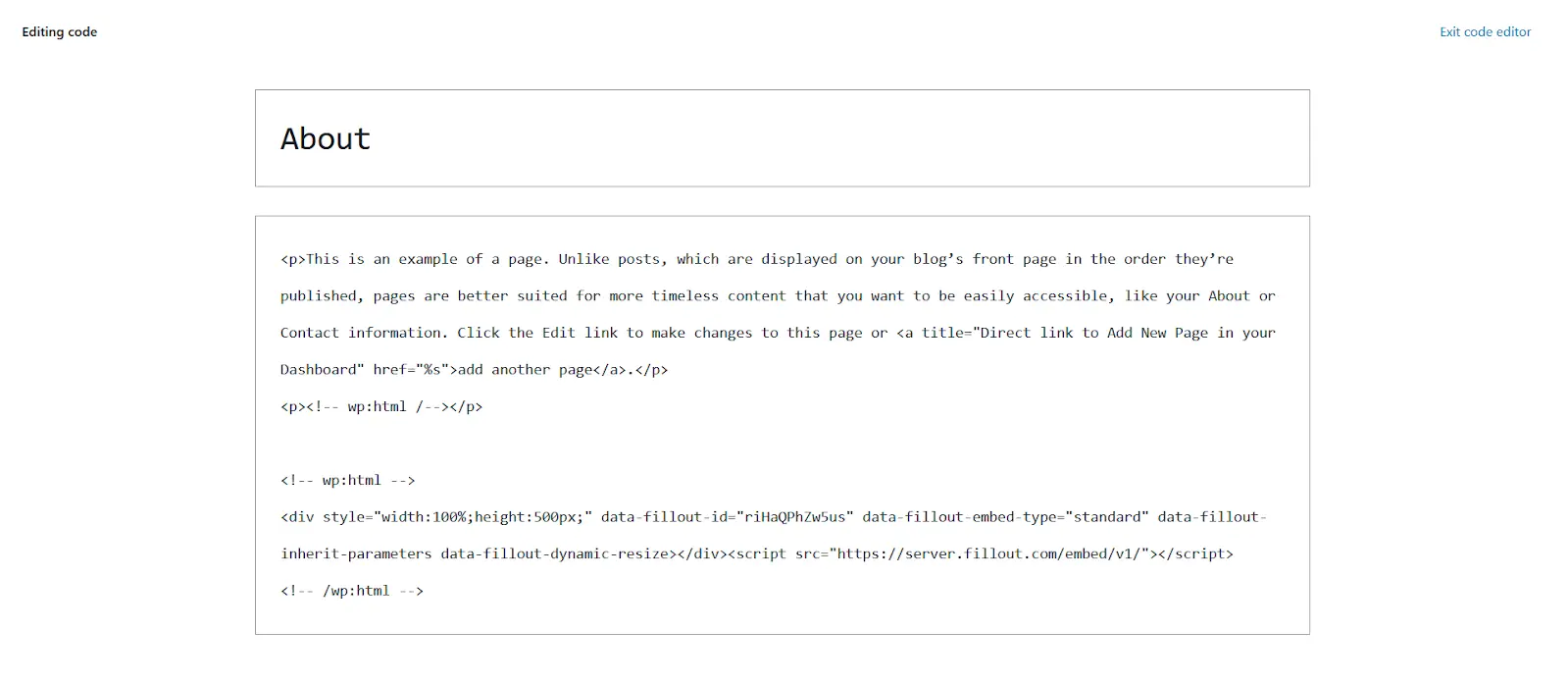
 Paste the embed code from Fillout into the block’s text field and click `Update`.
 ## Related article
Share your form by link or embed it on your website.
## Related article
Share your form by link or embed it on your website.