> ## Documentation Index
> Fetch the complete documentation index at: https://fillout.com/help/llms.txt
> Use this file to discover all available pages before exploring further.
# File uploads
> Collect files or attachments of any kind. Optionally restrict to certain file types or maximum file sizes.
## How to add a file upload field
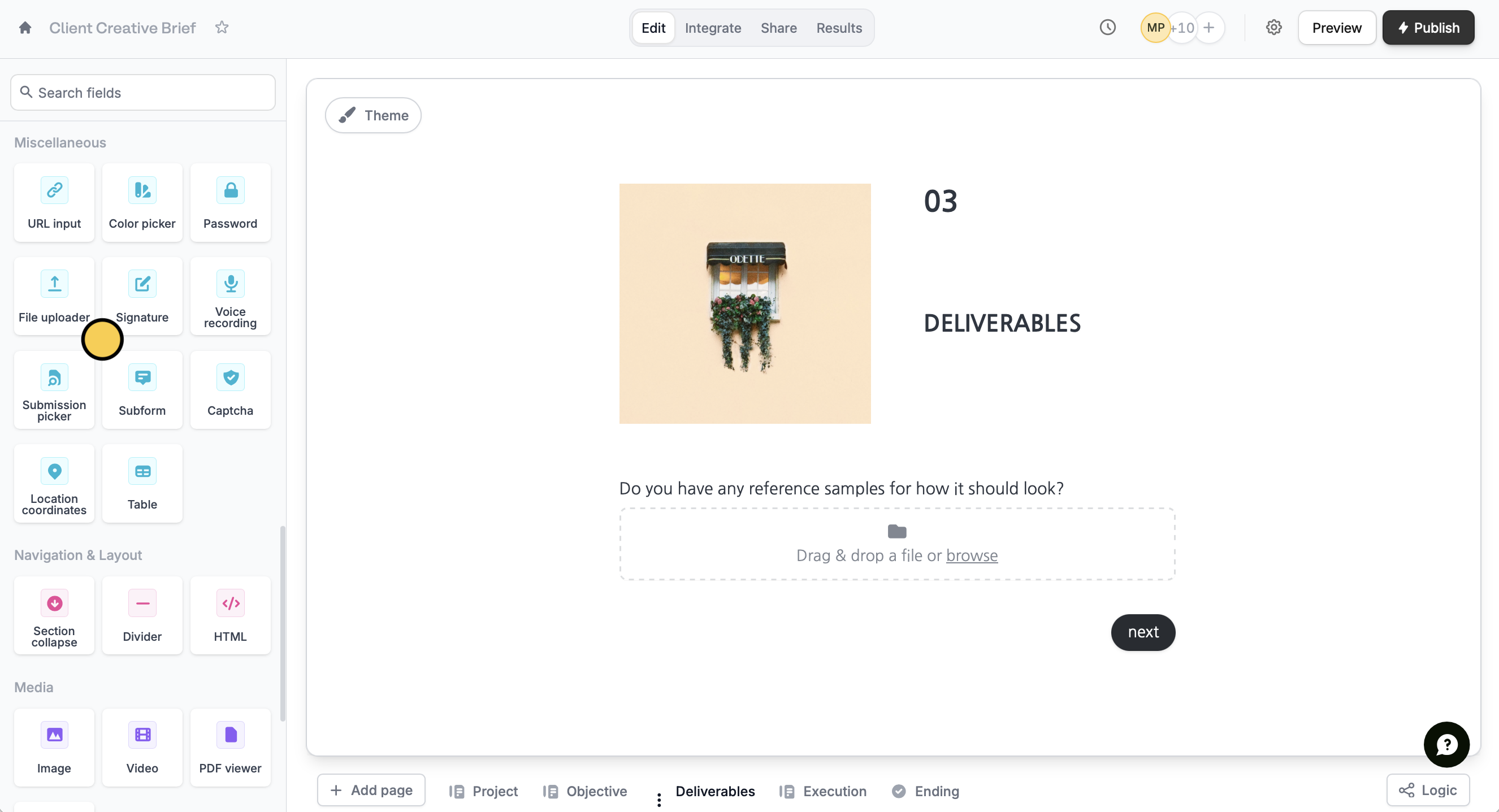
Drag and drop the `File uploader` field onto your form.
 ### Upload limits
The size limitations per individual file uploads vary per plan, however there is no restriction on total files uploaded, as long as usage is within our [**fair use policy**](https://www.fillout.com/help/fair-use-policy).
| | **Free** | **Starter** | **Pro** | **Business** | Enterprise | Team |
| --------------------------- | ----------- | ----------- | ----------- | ------------ | ---------- | ---------- |
| Max size per file upload | Up to 20 MB | Up to 20 MB | Up to 20 MB | Up to 1 GB | Up to 5 GB | Up to 1 GB |
| No. of file uploads allowed | Unlimited | Unlimited | Unlimited | Unlimited | Unlimited | Unlimited |
## Set file restrictions
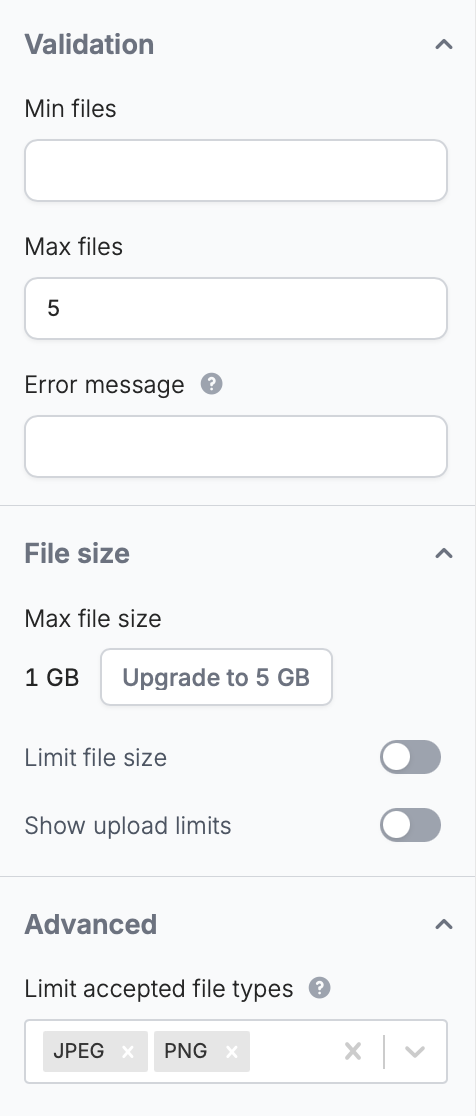
Click your file upload question followed by . In the right-hand panel, you can:
* Set the min and max no. of files allowed per submission
* Limit file size
* Limit accepted file types
### Upload limits
The size limitations per individual file uploads vary per plan, however there is no restriction on total files uploaded, as long as usage is within our [**fair use policy**](https://www.fillout.com/help/fair-use-policy).
| | **Free** | **Starter** | **Pro** | **Business** | Enterprise | Team |
| --------------------------- | ----------- | ----------- | ----------- | ------------ | ---------- | ---------- |
| Max size per file upload | Up to 20 MB | Up to 20 MB | Up to 20 MB | Up to 1 GB | Up to 5 GB | Up to 1 GB |
| No. of file uploads allowed | Unlimited | Unlimited | Unlimited | Unlimited | Unlimited | Unlimited |
## Set file restrictions
Click your file upload question followed by . In the right-hand panel, you can:
* Set the min and max no. of files allowed per submission
* Limit file size
* Limit accepted file types
 ## Viewing uploaded files
You can view uploaded files from any submission on the `Results` page from the top menu.
If you prefer, integrate your form with [Dropbox](/dropbox) or [Google Drive](/google-drive) to send all file uploads to a specific external directory.
## Related articles
Automatically upload files with a form.
Automatically upload files with a form.
Review individual submissions, summary, and analytics.
## Viewing uploaded files
You can view uploaded files from any submission on the `Results` page from the top menu.
If you prefer, integrate your form with [Dropbox](/dropbox) or [Google Drive](/google-drive) to send all file uploads to a specific external directory.
## Related articles
Automatically upload files with a form.
Automatically upload files with a form.
Review individual submissions, summary, and analytics.