> ## Documentation Index
> Fetch the complete documentation index at: https://fillout.com/help/llms.txt
> Use this file to discover all available pages before exploring further.
# Fill again button
> Let respondents fill out your form multiple times. Only available on ending pages.
## How to add a fill again button
On your **Ending** page, drag the `Fill again` button from the left-hand-panel.
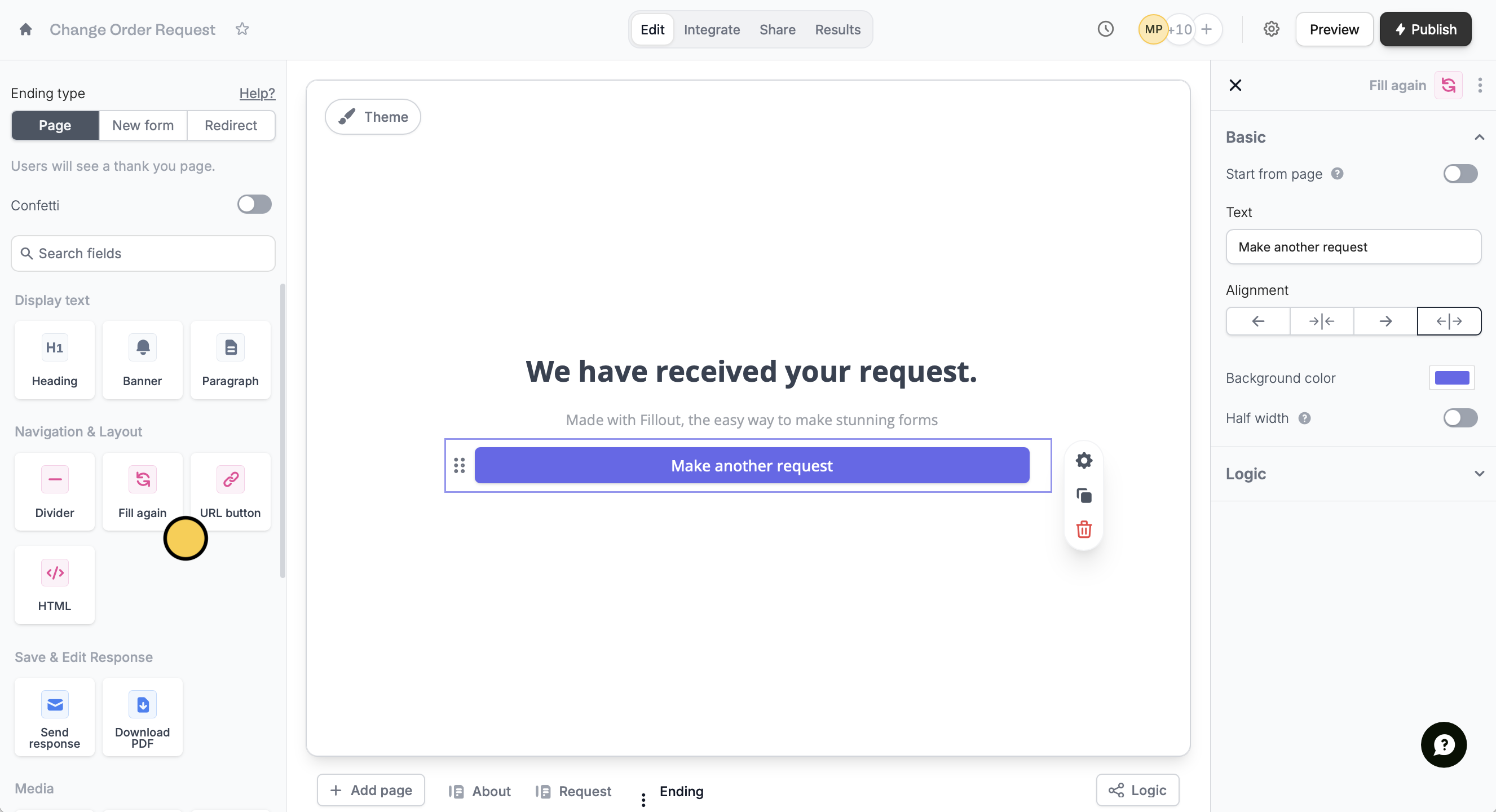 You can edit your button in the right-hand panel by clicking its .
The Fill again button is only available on [ending pages](/ending-page).
## Restart the form from a specific page
You can set the first page respondents see when they refill the form. Click the button on your form followed by the . In the right-hand panel, toggle `Start from page` and choose a page under **Step**. Skipped pages will auto-fill with their previous responses.
You can edit your button in the right-hand panel by clicking its .
The Fill again button is only available on [ending pages](/ending-page).
## Restart the form from a specific page
You can set the first page respondents see when they refill the form. Click the button on your form followed by the . In the right-hand panel, toggle `Start from page` and choose a page under **Step**. Skipped pages will auto-fill with their previous responses.
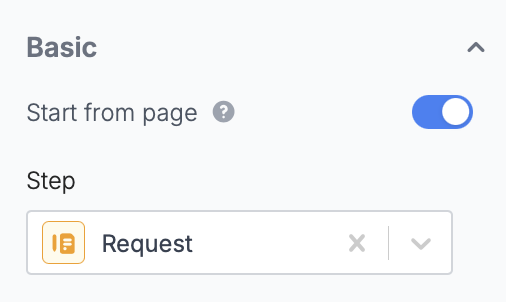 Skipped pages will auto-fill with their previous responses.
## Related article
Show a thank you page, redirect, or allow re-submission.
Skipped pages will auto-fill with their previous responses.
## Related article
Show a thank you page, redirect, or allow re-submission.