> ## Documentation Index
> Fetch the complete documentation index at: https://fillout.com/help/llms.txt
> Use this file to discover all available pages before exploring further.
# Set your availability in Fillout Scheduling
> Specify your available hours in Google or Outlook Calendar for bookings through Fillout Scheduling forms. Add multiple availabilities to better organize or categorize your time.
## How to set up via settings
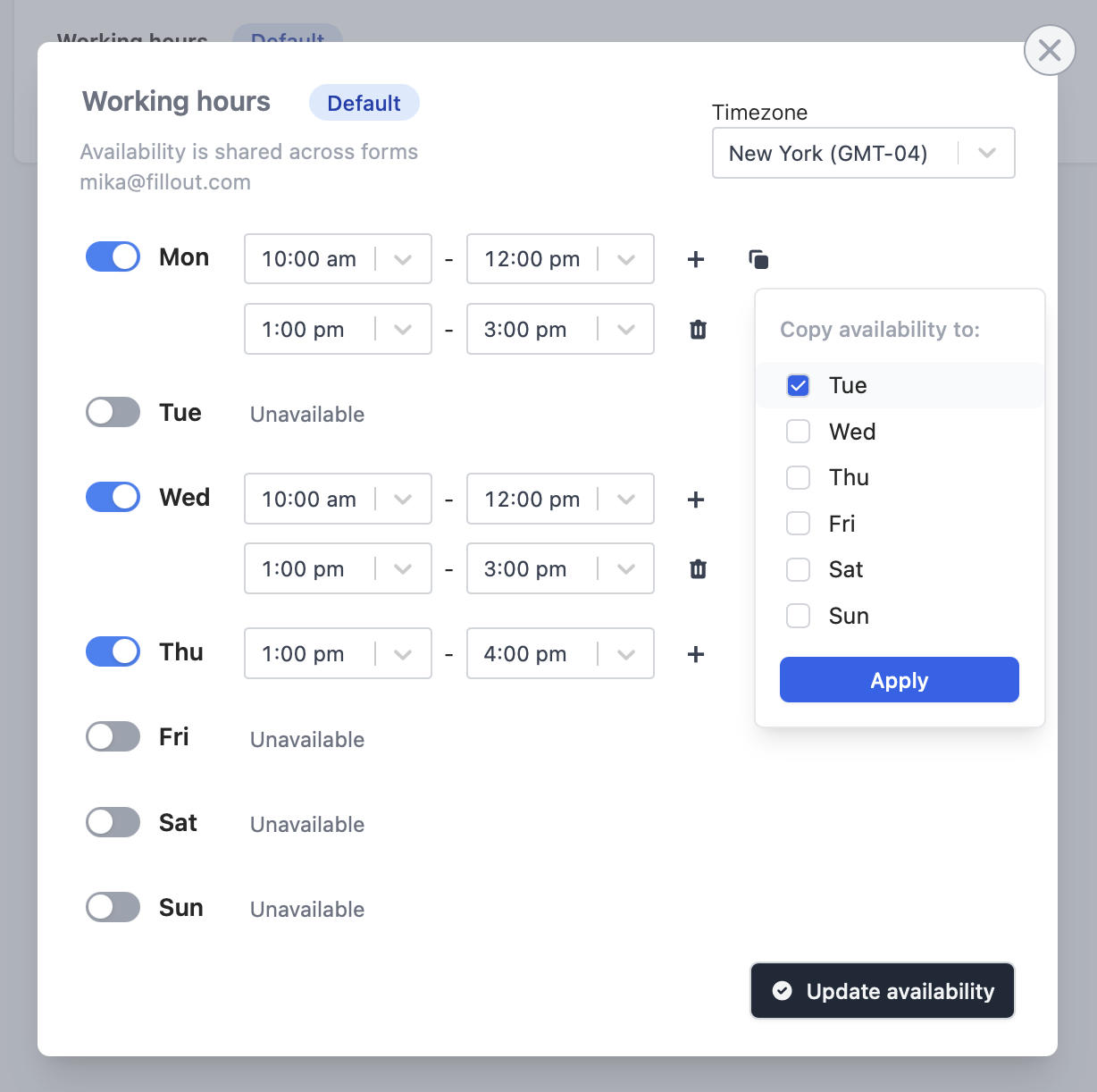
On your dashboard, open `Scheduling` settings from the left-hand panel to edit your default **Working hours**.
Edit each day’s availability individually, or click **+** beside a day to split your availability and leave a buffer for a lunch break, for example. You can quickly copy your availability to a different day by clicking and change your preferred **Timezone**.
 Fillout Scheduling shares availability across all your forms. Any changes made to your available hours will update availability settings on all forms.
## Add multiple availabilities
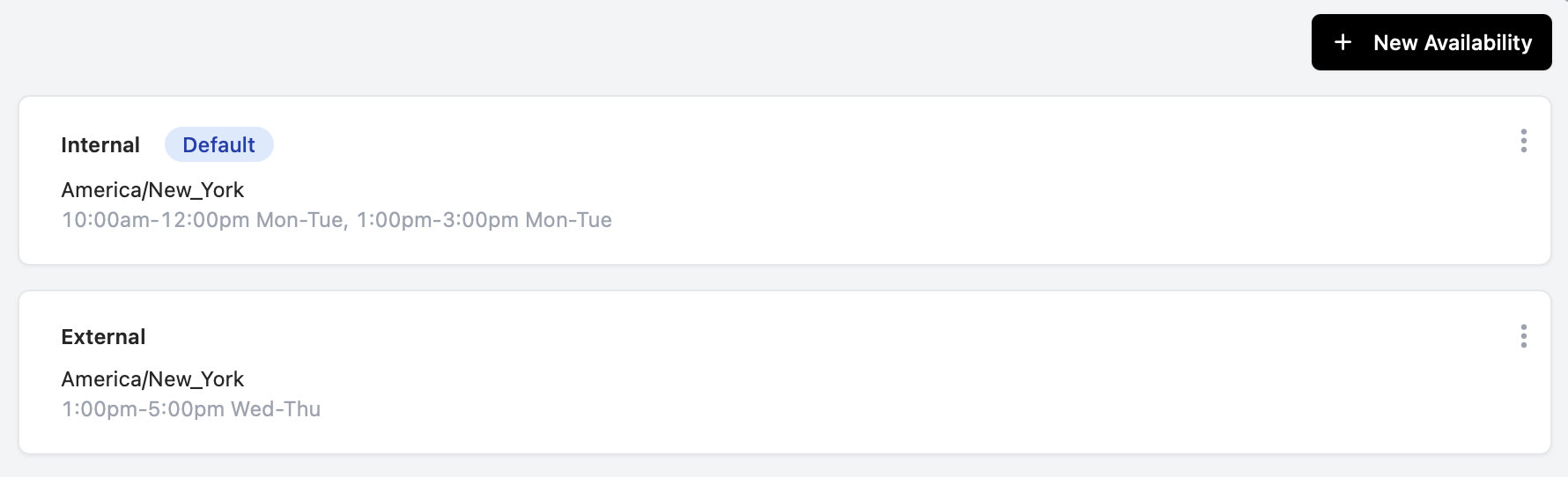
You can add more availabilities to organize your time better. In your `Scheduling` settings, click `+ New Availability` to get started.
Fillout Scheduling shares availability across all your forms. Any changes made to your available hours will update availability settings on all forms.
## Add multiple availabilities
You can add more availabilities to organize your time better. In your `Scheduling` settings, click `+ New Availability` to get started.
 ## Set up via form editor
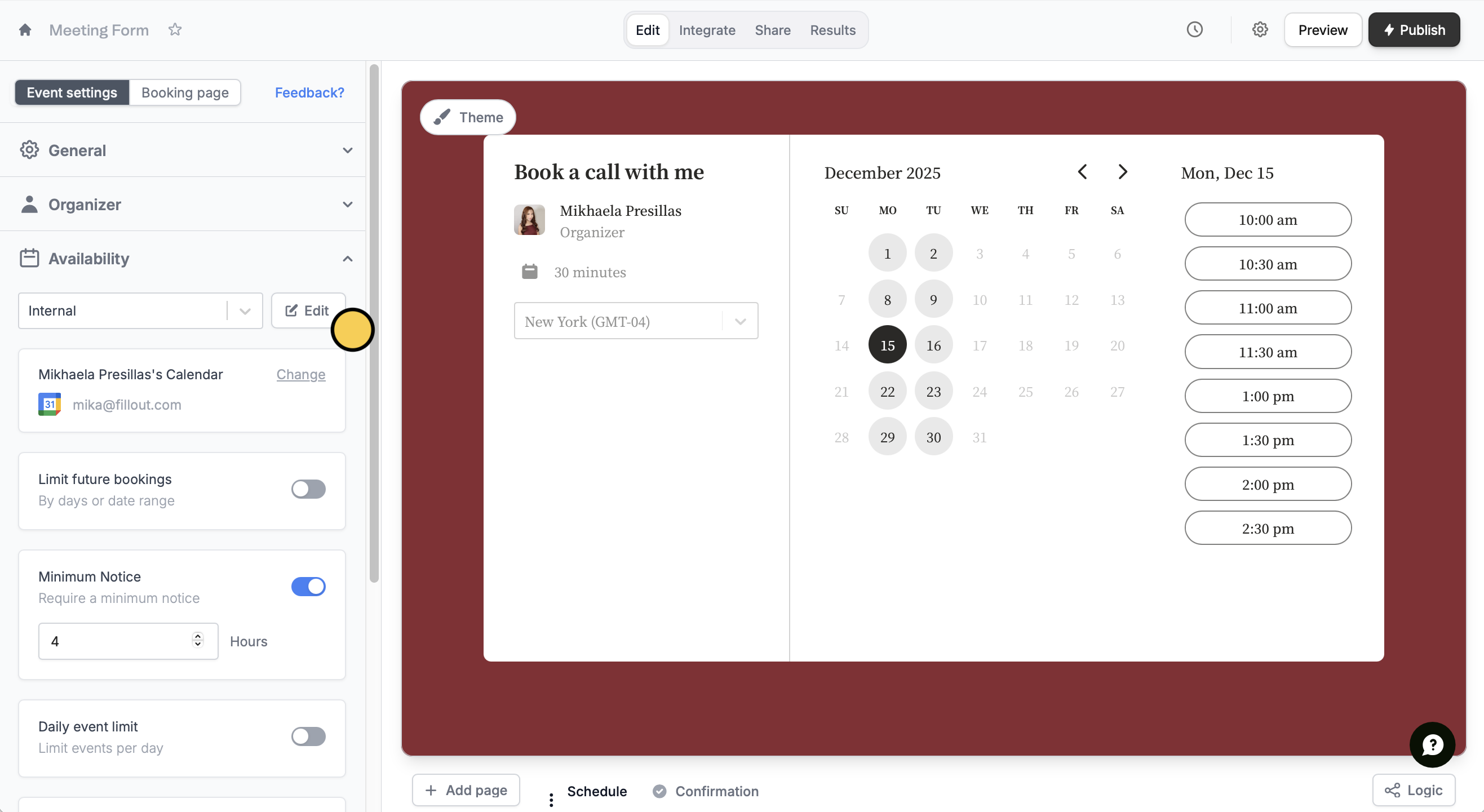
You can also tweak your schedule preferences while building a form. On the left-hand panel, `Edit` your availability.
## Set up via form editor
You can also tweak your schedule preferences while building a form. On the left-hand panel, `Edit` your availability.
 You can't set availability for a specific date. To adjust, block the day in your Google or Outlook Calendar, or temporarily update your weekly hours in Fillout and revert them later.
## Related article
Set the farthest available date, and add more limitations.
You can't set availability for a specific date. To adjust, block the day in your Google or Outlook Calendar, or temporarily update your weekly hours in Fillout and revert them later.
## Related article
Set the farthest available date, and add more limitations.