> ## Documentation Index
> Fetch the complete documentation index at: https://fillout.com/help/llms.txt
> Use this file to discover all available pages before exploring further.
# Make a scheduling form
> Make a scheduling form with Fillout Scheduling for free. Build from scratch or add your calendar to an existing Fillout form.
## How to set up
Go to `Scheduling` settings by clicking .
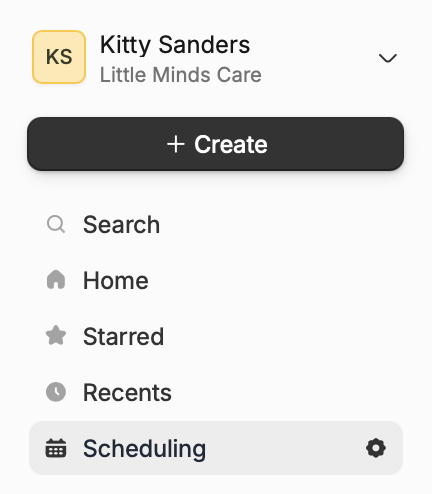 In the popup, go to `Connected Calendars` and add your Google or Outlook calendar.
 Fillout Scheduling syncs availability across all connected calendars.
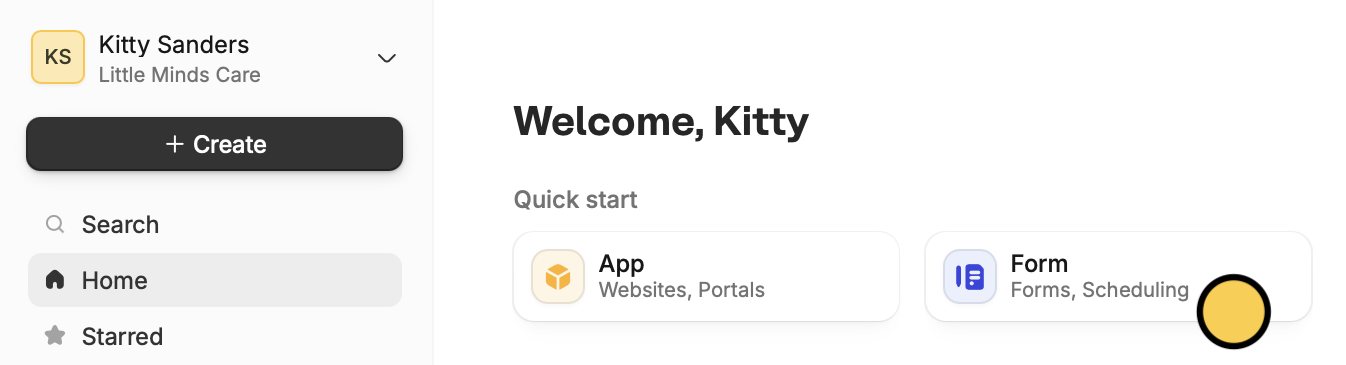
Go back to `Home` and click `Form`. Alternatively, you may click `Create` followed by `Scheduling`.
Fillout Scheduling syncs availability across all connected calendars.
Go back to `Home` and click `Form`. Alternatively, you may click `Create` followed by `Scheduling`.
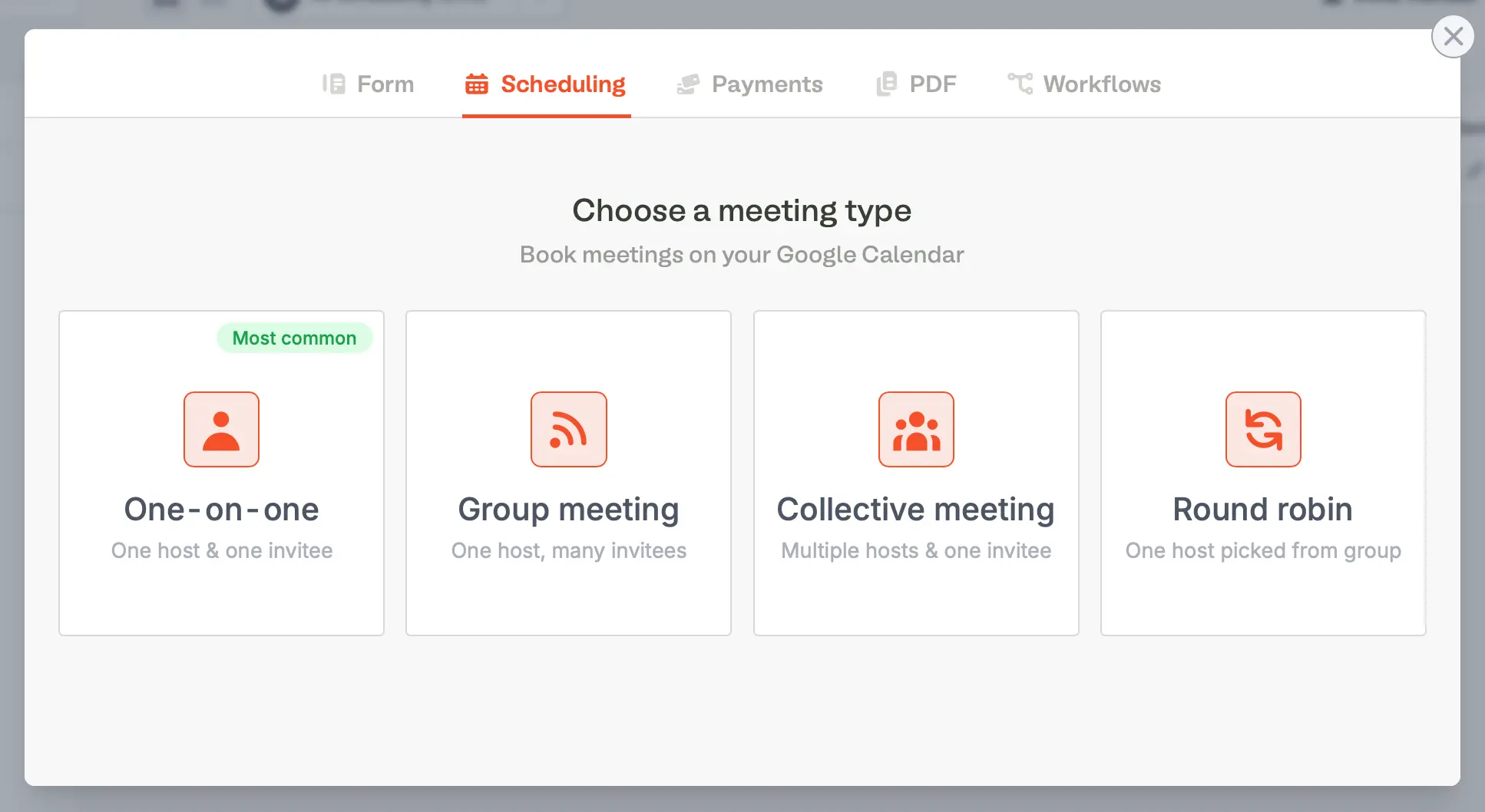
 Choose `Scheduling` followed by your preferred [meeting type](/event-types).
 Add your meeting details, and optionally **+ Add meeting location** to include a physical location, phone number, or a Google Meet or Zoom link for the meeting.
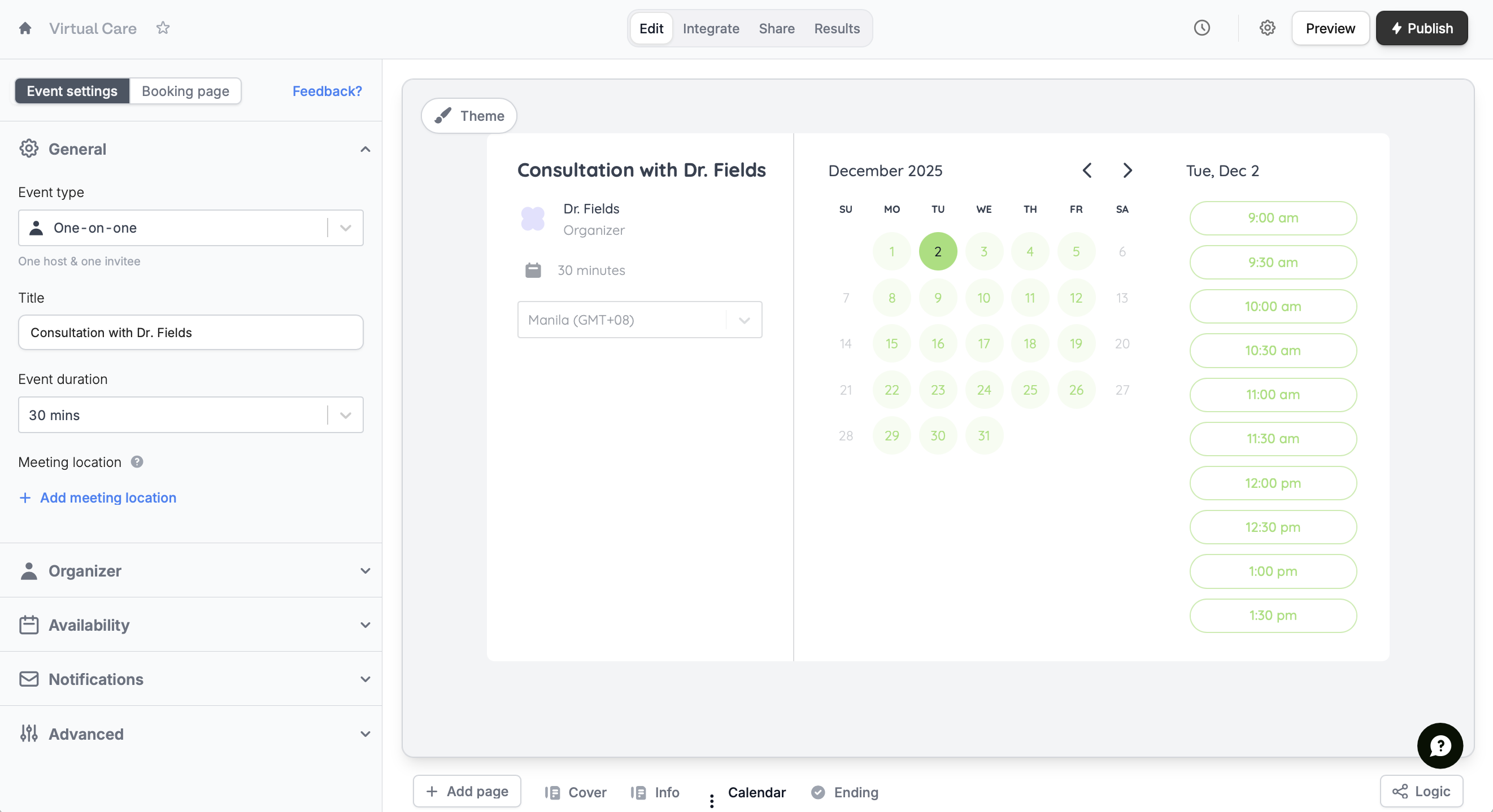 On the left-hand panel, you can also customize the ff:
* **Availability** - choose a calendar, [set your working hours](/fillout-scheduling-availability) (the default is 9 AM–5 PM, Monday to Friday, but you can adjust them to any time), add a minimum notice period, set buffer times, and [limit bookings](/limit-bookings) per day
* **Notifications** - send a customizable automated [email reminder](https://www.fillout.com/help/email-reminder)
* **Advanced** - customize Google Calendar event details, time increments, and share link
Go to [Theme](/customize-fillout-scheduling) to edit your form's design. You can even [change your avatar](https://www.fillout.com/help/customize-fillout-scheduling#change-your-avatar) to your logo to match your brand and edit the button label.
That’s it! `Publish` your form and share the link or embed it anywhere.
## Add a calendar to a standard Fillout form
Fillout's core form editor also includes an option to add a [Scheduling page](/scheduling-page) to any form. Open an existing form, and click `+ Add Page` at the bottom followed by `Scheduling`.
On the left-hand panel, you can also customize the ff:
* **Availability** - choose a calendar, [set your working hours](/fillout-scheduling-availability) (the default is 9 AM–5 PM, Monday to Friday, but you can adjust them to any time), add a minimum notice period, set buffer times, and [limit bookings](/limit-bookings) per day
* **Notifications** - send a customizable automated [email reminder](https://www.fillout.com/help/email-reminder)
* **Advanced** - customize Google Calendar event details, time increments, and share link
Go to [Theme](/customize-fillout-scheduling) to edit your form's design. You can even [change your avatar](https://www.fillout.com/help/customize-fillout-scheduling#change-your-avatar) to your logo to match your brand and edit the button label.
That’s it! `Publish` your form and share the link or embed it anywhere.
## Add a calendar to a standard Fillout form
Fillout's core form editor also includes an option to add a [Scheduling page](/scheduling-page) to any form. Open an existing form, and click `+ Add Page` at the bottom followed by `Scheduling`.
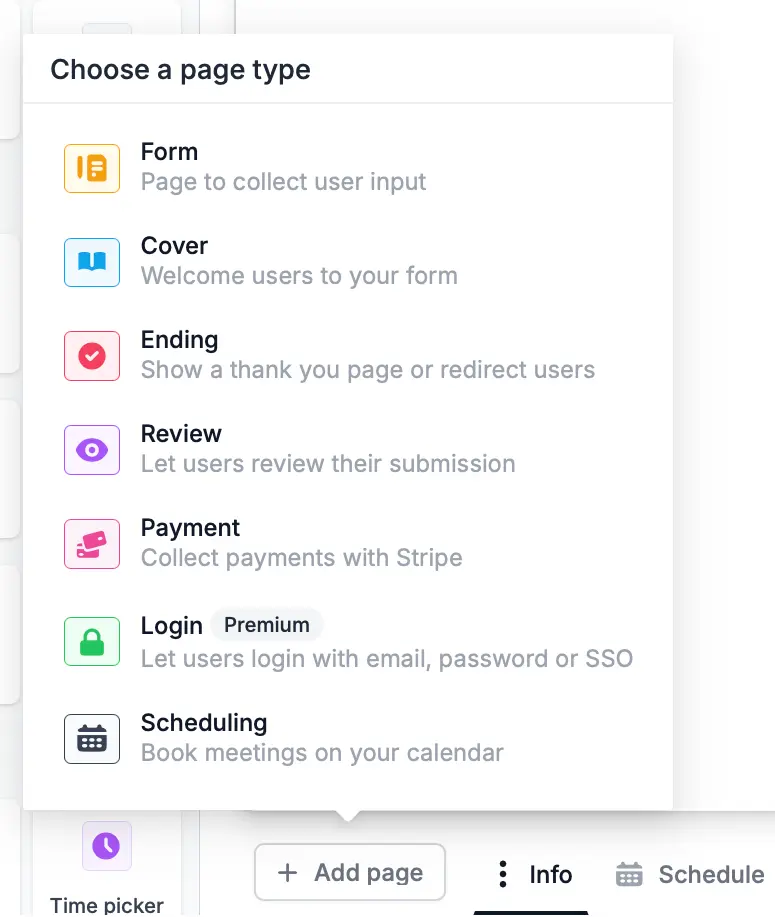 You'll get the same functionalities as in standalone Fillout Scheduling forms, inside your multi-page form with your other existing Fillout form questions.
Or, if you already use Calendly or Cal.com, you can select them and [add your existing scheduling calendar to Fillout](/scheduling-page).
## How Fillout Scheduling Works
[Fillout Scheduling](https://www.fillout.com/scheduling) forms let people book available slots on your calendar while ensuring the time works for you. The forms show a calendar, meeting details, and organizer info by default.
You'll get the same functionalities as in standalone Fillout Scheduling forms, inside your multi-page form with your other existing Fillout form questions.
Or, if you already use Calendly or Cal.com, you can select them and [add your existing scheduling calendar to Fillout](/scheduling-page).
## How Fillout Scheduling Works
[Fillout Scheduling](https://www.fillout.com/scheduling) forms let people book available slots on your calendar while ensuring the time works for you. The forms show a calendar, meeting details, and organizer info by default.
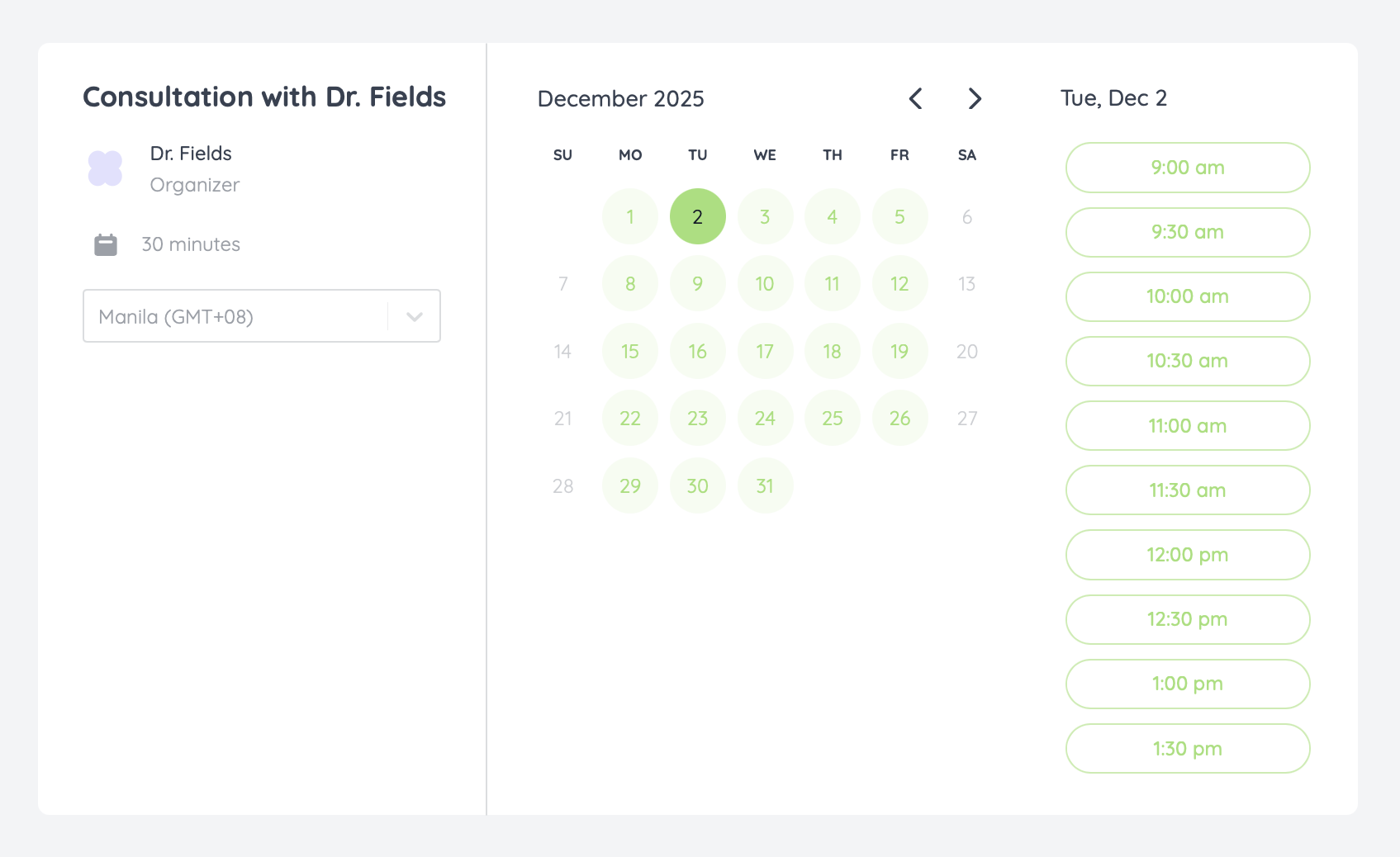 Respondents can select their timezone to view slots in local time.
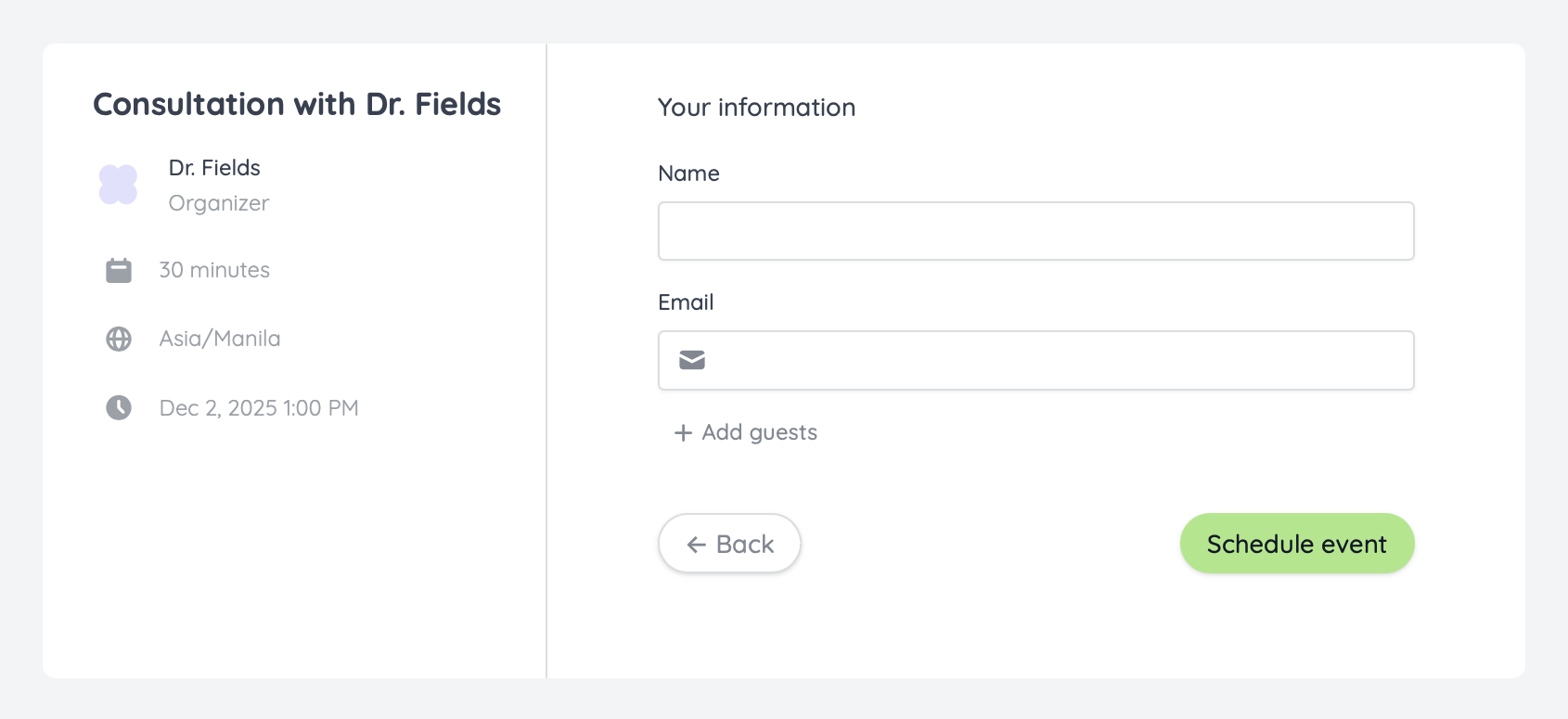
Fillout will prompt for their name and email. After clicking `Schedule event`, respondents will receive an email containing the details and a reschedule link. Events are automatically added to Google and Outlook calendars.
Respondents can select their timezone to view slots in local time.
Fillout will prompt for their name and email. After clicking `Schedule event`, respondents will receive an email containing the details and a reschedule link. Events are automatically added to Google and Outlook calendars.
 ## Related articles
Select the event type that best fits your agenda.
Specify your available hours and buffer times through forms.
Tweak your form’s design, link, and avatar to match your brand.
## Related articles
Select the event type that best fits your agenda.
Specify your available hours and buffer times through forms.
Tweak your form’s design, link, and avatar to match your brand.