> ## Documentation Index
> Fetch the complete documentation index at: https://fillout.com/help/llms.txt
> Use this file to discover all available pages before exploring further.
# Reduce form abandonment
> Remind respondents who exit your form without submitting to come back with Fillout's Conversion Kit. Also, receive alerts when a respondent doesn't complete your form.
## What is form abandonment
**Form abandonment** occurs when respondents start filling out a form but exit before reaching the last page. When respondents abandon forms, it indicates a lost opportunity for capturing valuable leads or completing transactions. Addressing your [page drop-off rate](https://www.fillout.com/help/analytics#check-page-drop-off-rates) is crucial for improving overall conversion rates, enhancing customer satisfaction, and maximizing business outcomes.
## Send a reminder email
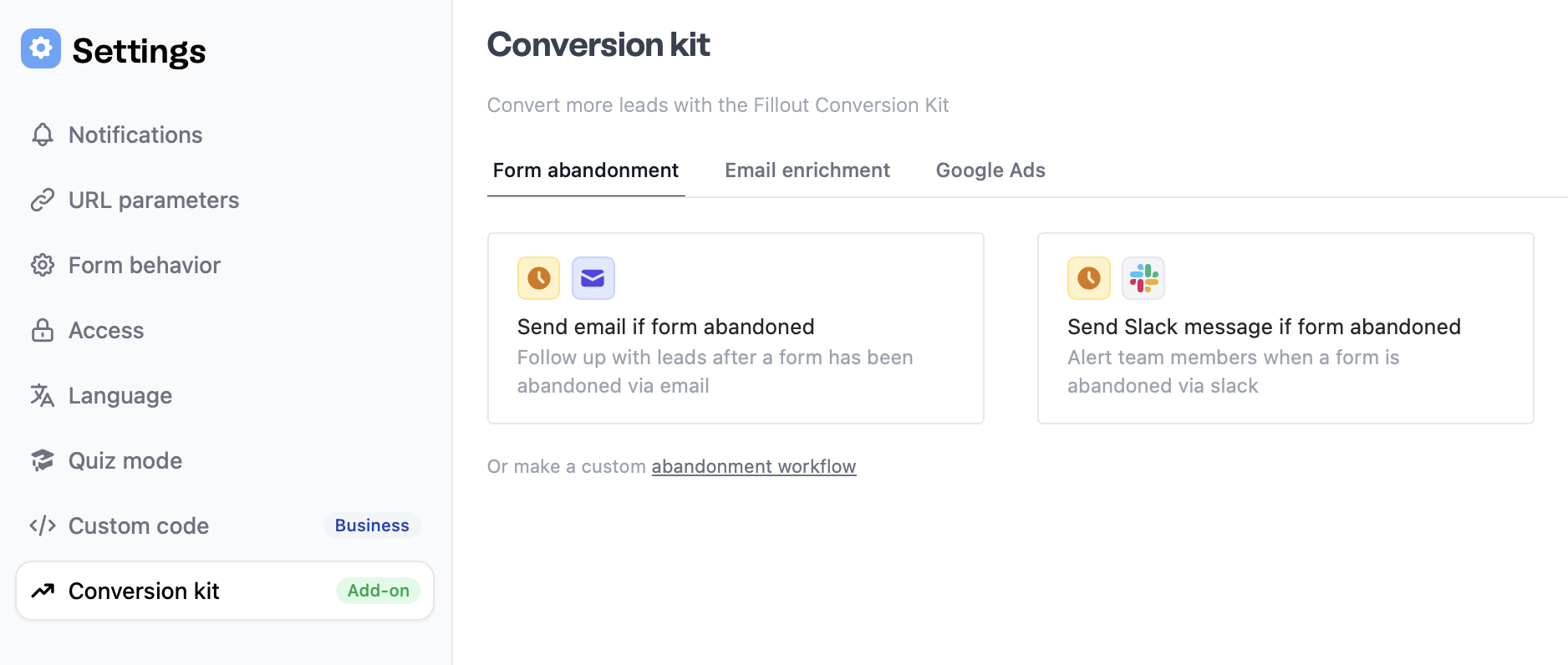
Click in the upper right area followed by `Conversion kit` on the left side.
 Pick your preferred template. In this example, we'll send an email if a form has been abandoned.
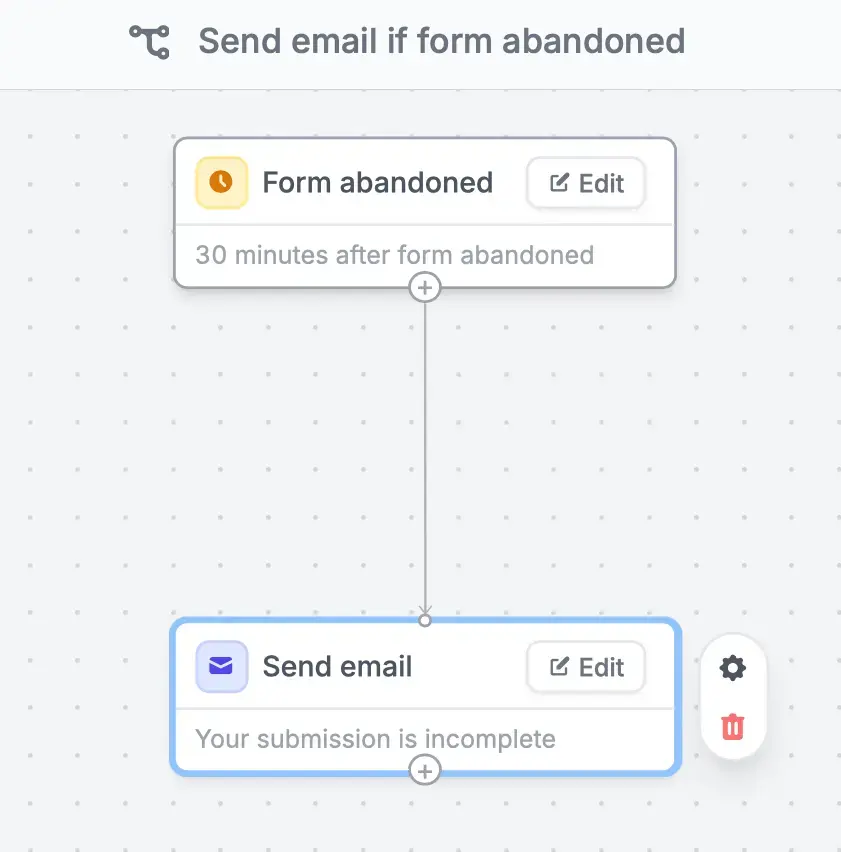
 The default time frame for a message to be sent is 30 minutes after the form is abandoned. `Edit` to change the time frame.
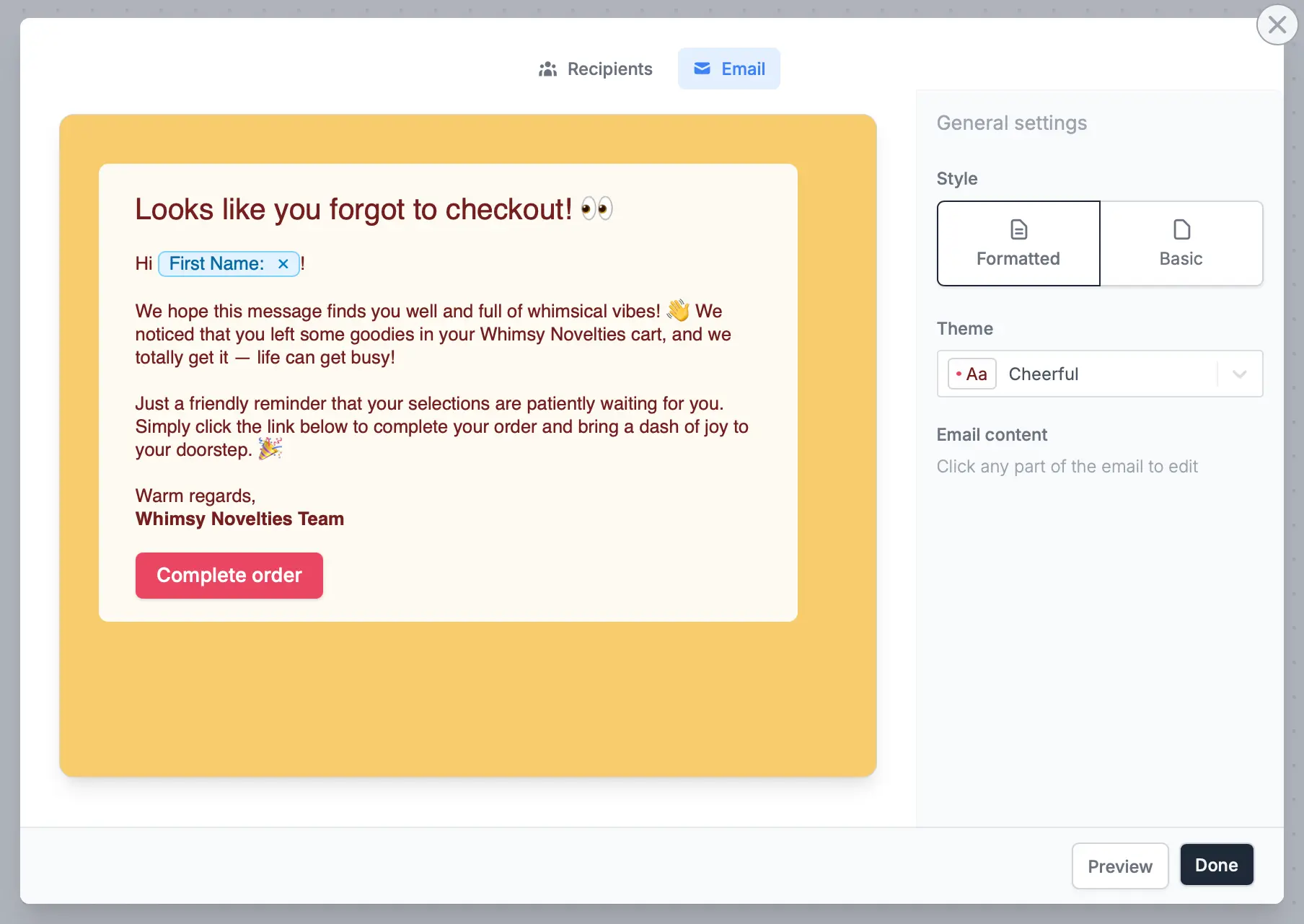
 `Edit` the contents of your email. You can also add attachments, copy colleagues, and more under **Advanced**. More info [here](https://www.fillout.com/help/custom-emails).
You must have at least one email field in your form to use this feature.
Click `Email` on top to format the style of your message. Check [this section](https://www.fillout.com/help/custom-emails#style-your-email) to learn more.
`Edit` the contents of your email. You can also add attachments, copy colleagues, and more under **Advanced**. More info [here](https://www.fillout.com/help/custom-emails).
You must have at least one email field in your form to use this feature.
Click `Email` on top to format the style of your message. Check [this section](https://www.fillout.com/help/custom-emails#style-your-email) to learn more.
 `Test` your workflow through the upper right corner, then click `Publish` when you're good with it. Respondents will now receive a link to their [partial submission](/partial-submissions), allowing them to continue their submission on any device.
To [edit this workflow](https://www.fillout.com/help/workflows#edit-an-existing-workflow), go to `Integrate` from the top menu.
### Send via Slack message
`Edit` Slack action to connect your Fillout account to your Slack workspace.
`Test` your workflow through the upper right corner, then click `Publish` when you're good with it. Respondents will now receive a link to their [partial submission](/partial-submissions), allowing them to continue their submission on any device.
To [edit this workflow](https://www.fillout.com/help/workflows#edit-an-existing-workflow), go to `Integrate` from the top menu.
### Send via Slack message
`Edit` Slack action to connect your Fillout account to your Slack workspace.
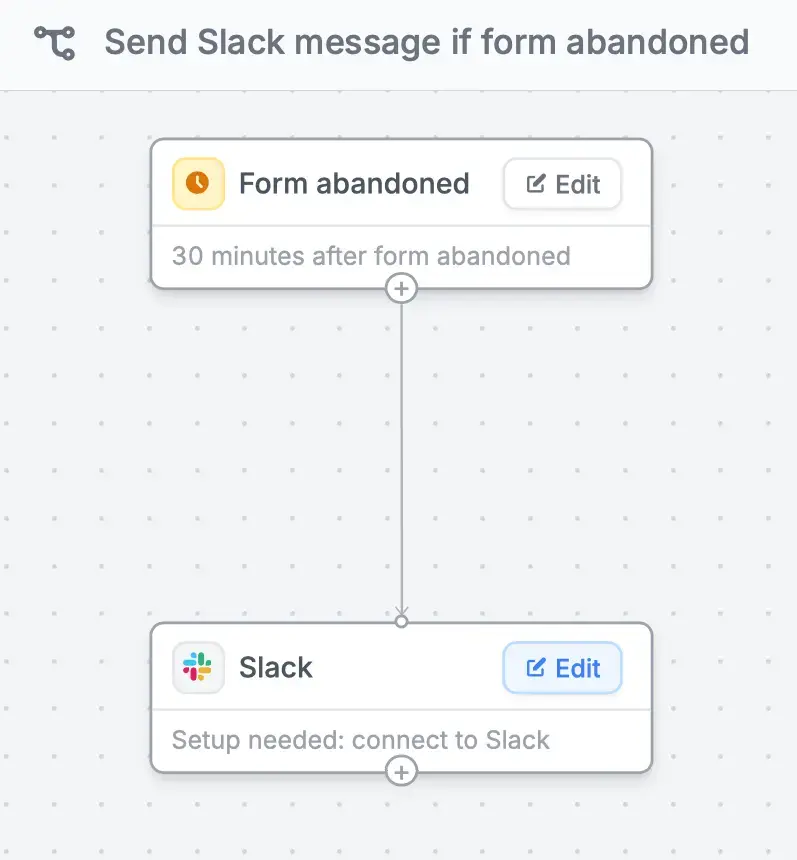 Select a **channel**. This will automatically send a response summary in a formatted message. You can also opt to [customize the message](https://www.fillout.com/help/slack#send-a-custom-message-to-slack).
## Receive notifications when a respondent abandons your form
Toggle the `Self-email` notifications switch. The email linked to your Fillout account serves as the default receiving address. This can be changed by clicking **x** and entering a different email.
Select a **channel**. This will automatically send a response summary in a formatted message. You can also opt to [customize the message](https://www.fillout.com/help/slack#send-a-custom-message-to-slack).
## Receive notifications when a respondent abandons your form
Toggle the `Self-email` notifications switch. The email linked to your Fillout account serves as the default receiving address. This can be changed by clicking **x** and entering a different email.
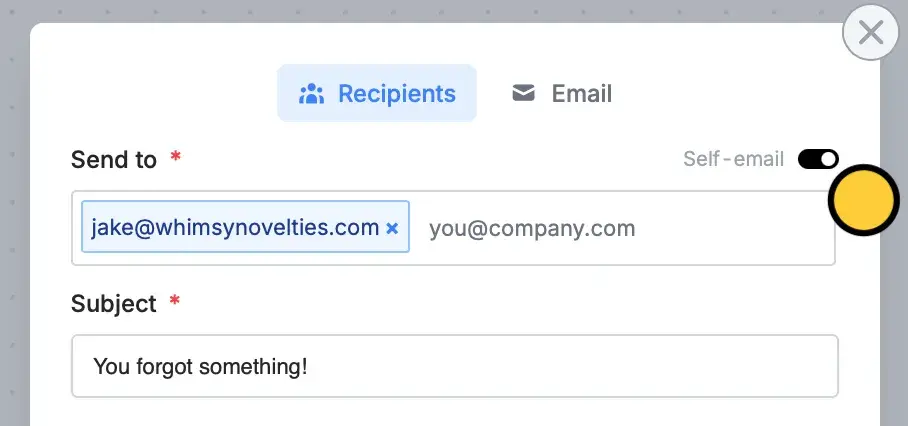 You can also add more receiving addresses as you see fit.
## Related articles
Enrich and validate emails, route leads, and more.
Auto-save progress so respondents can resume later.
Route leads to different pages based on company details.
You can also add more receiving addresses as you see fit.
## Related articles
Enrich and validate emails, route leads, and more.
Auto-save progress so respondents can resume later.
Route leads to different pages based on company details.