> ## Documentation Index
> Fetch the complete documentation index at: https://fillout.com/help/llms.txt
> Use this file to discover all available pages before exploring further.
# Group meeting
> Arrange a call with one host and multiple invitees through Fillout Scheduling for free. Edit the host’s availability and add buffer times.
## What is a group meeting
Group scheduling allows multiple participants to join the same call hosted by a single person. This is ideal for webinars, courses, and other group events.
## How to set up
From your dashboard `Create` a `Group meeting` form. Follow the quick steps [here](/fillout-scheduling-intro).
On the left-hand panel, edit the details as you see fit. You can also [customize avatars](https://www.fillout.com/help/customize-fillout-scheduling#change-your-avatar) to maintain brand consistency by clicking `Booking page` on top.
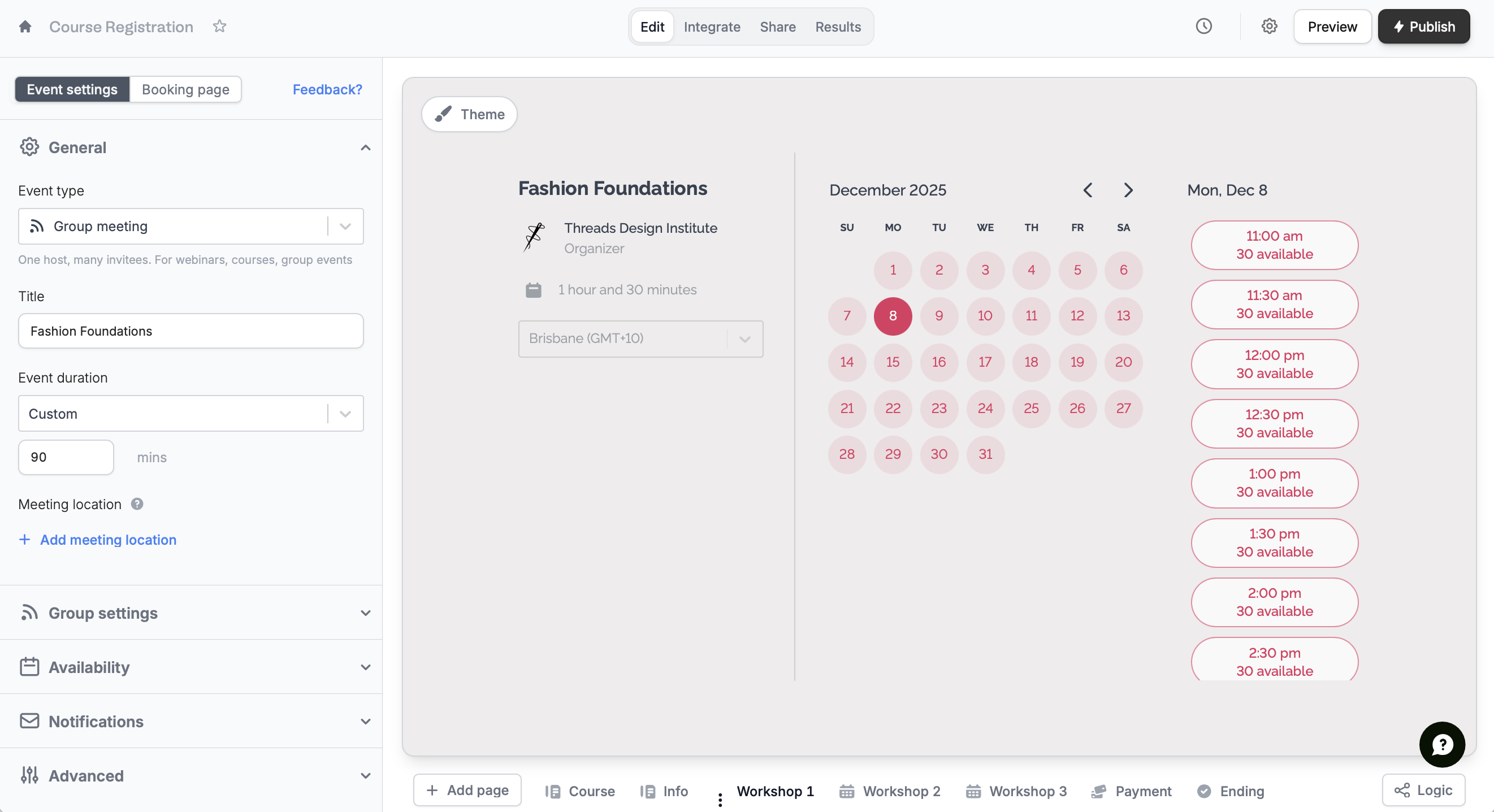 That's it! `Publish` your form and share the link or embed it anywhere.
## Set the maximum attendee limit
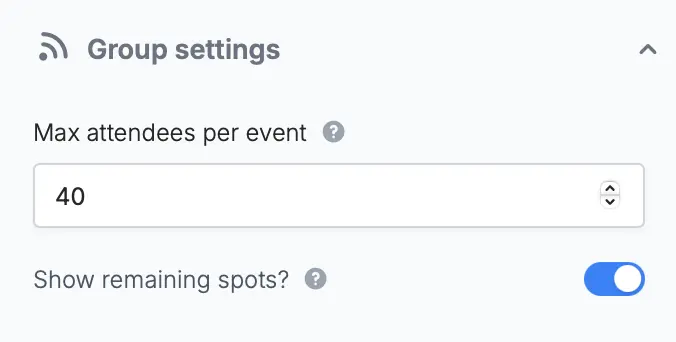
On the left-hand panel, input a number for **Max attendees per event**.
That's it! `Publish` your form and share the link or embed it anywhere.
## Set the maximum attendee limit
On the left-hand panel, input a number for **Max attendees per event**.
 ## Related articles
Select the event type that best fits your agenda.
Automate reminders to your meeting guests via email.
Specify your available hours and buffer times through forms.
## Related articles
Select the event type that best fits your agenda.
Automate reminders to your meeting guests via email.
Specify your available hours and buffer times through forms.