> ## Documentation Index
> Fetch the complete documentation index at: https://fillout.com/help/llms.txt
> Use this file to discover all available pages before exploring further.
# Add images or GIFs to your form
> Create visually appealing forms that stand out with images. Add individual images or GIFs, a background image, multiple picture choices or a combination of these.
## How to add an image or GIF
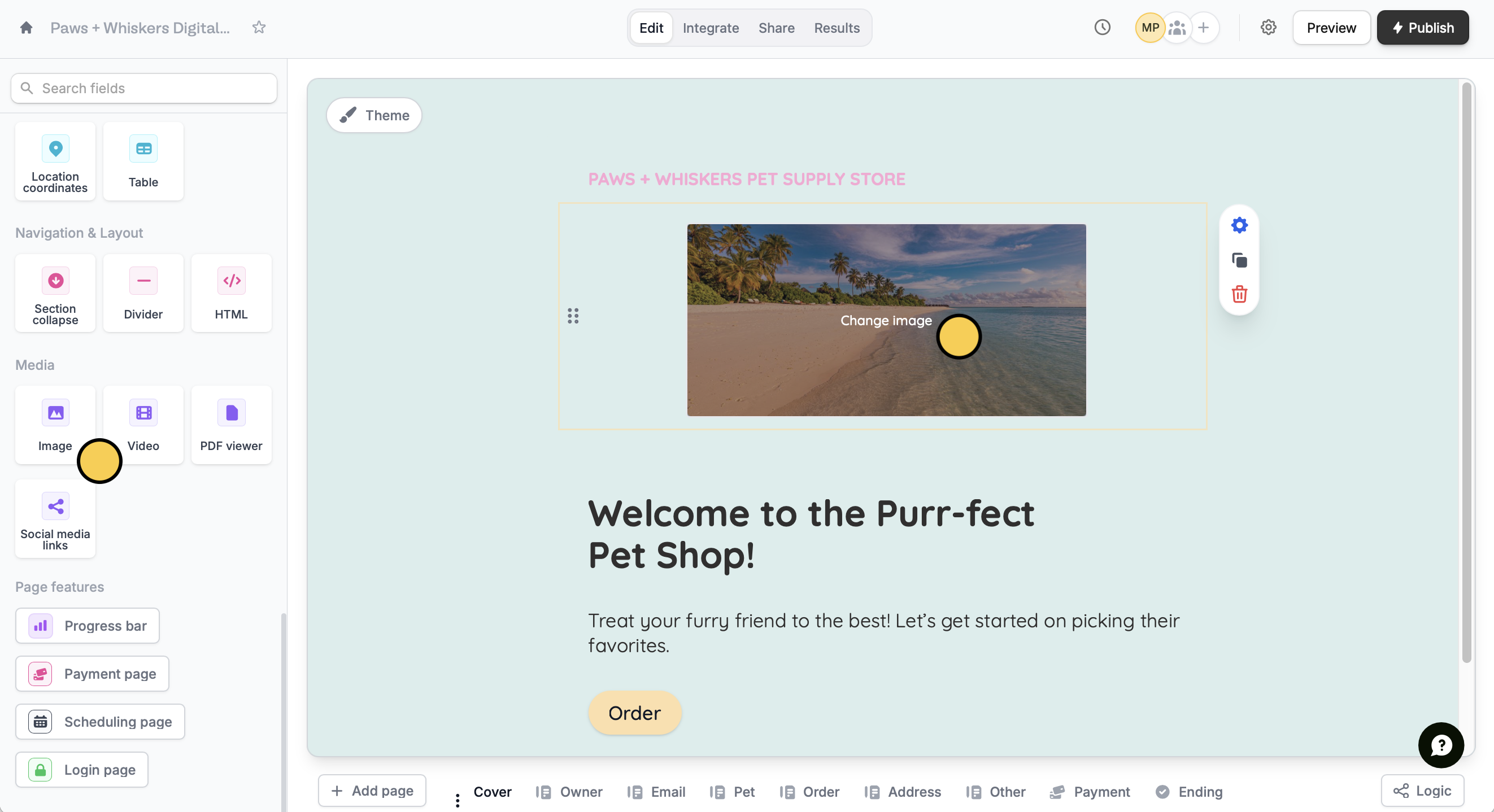
Click `Image` in the field choices. Next, click **Change image** in the center of your screen.
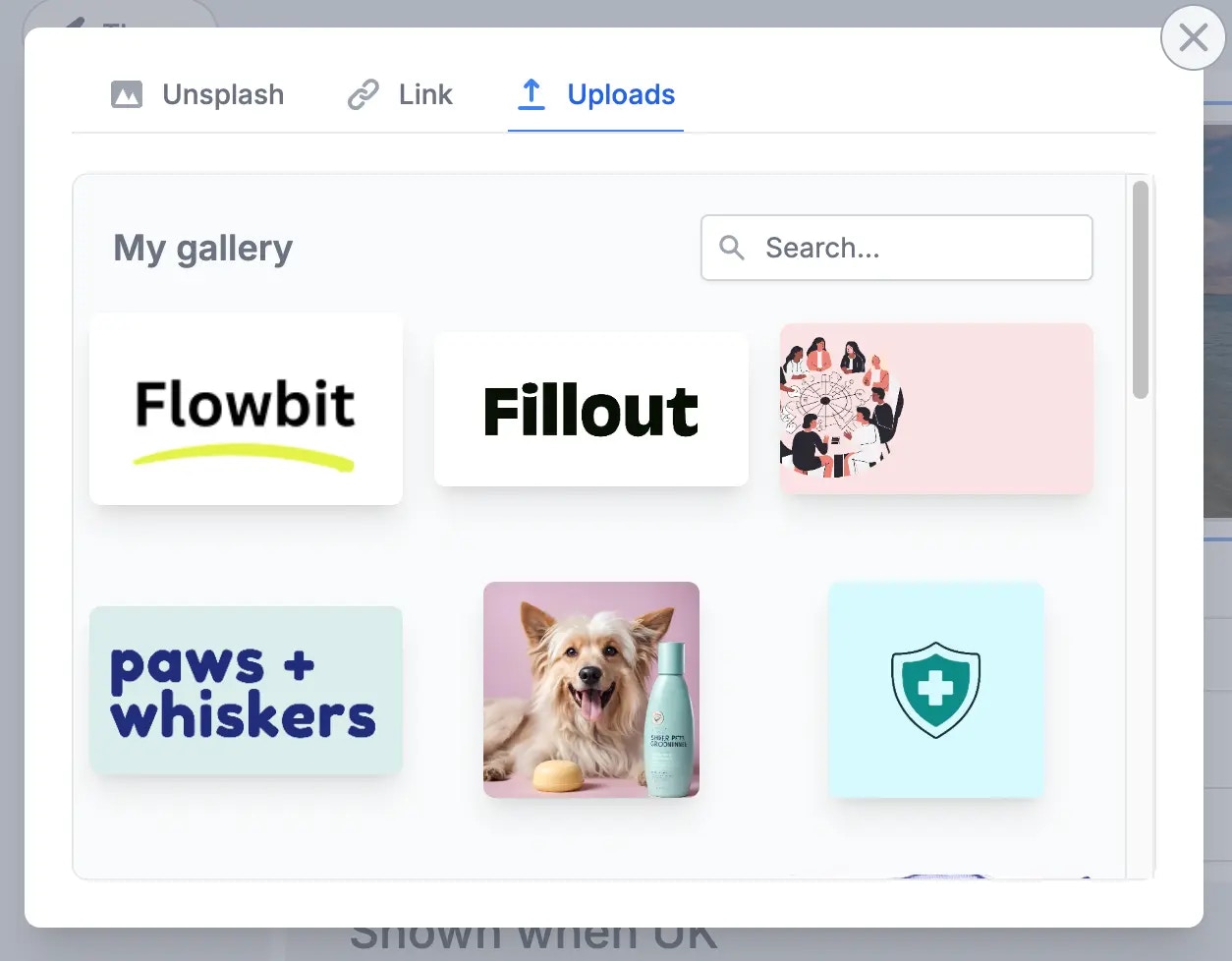
 You can select an image from **Unsplash**, copy and paste an image's **Link** or **Upload** an image from your desktop.
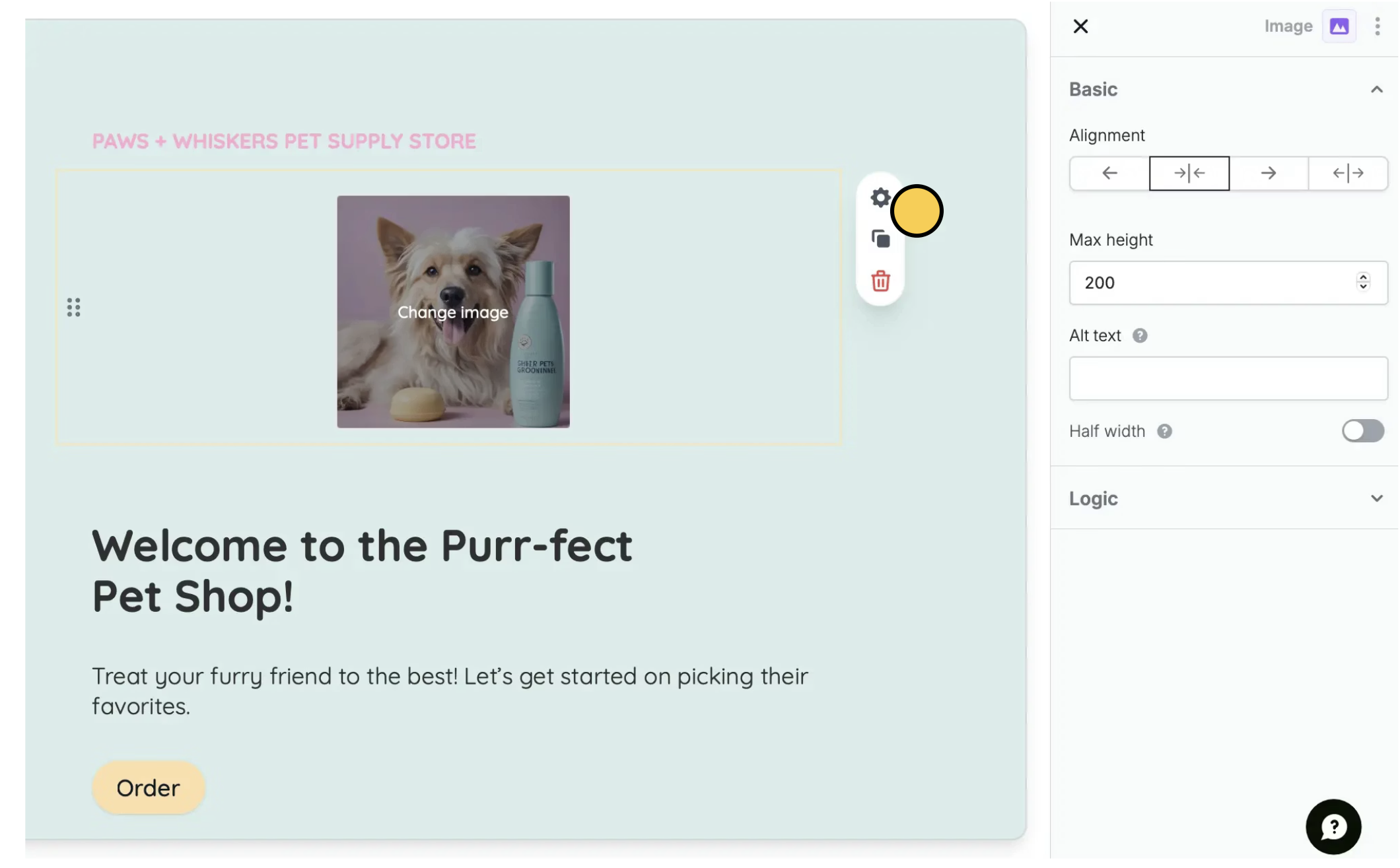
 To change the **Max height** and **Alignment** of your image, click its .
 ## Set a background image
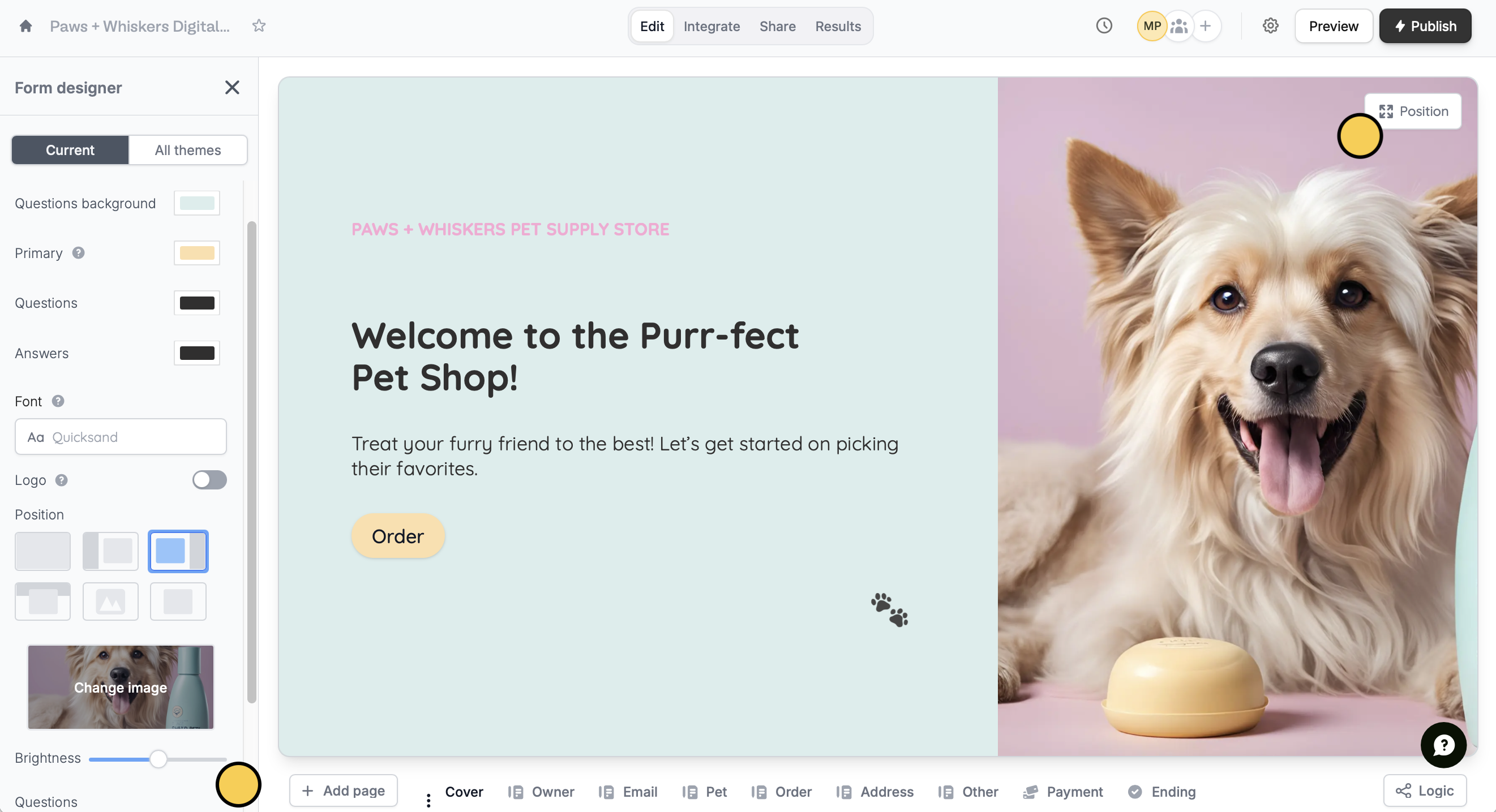
Click `Theme` to open the **Form designer**. Then, click `Add image`.
## Set a background image
Click `Theme` to open the **Form designer**. Then, click `Add image`.
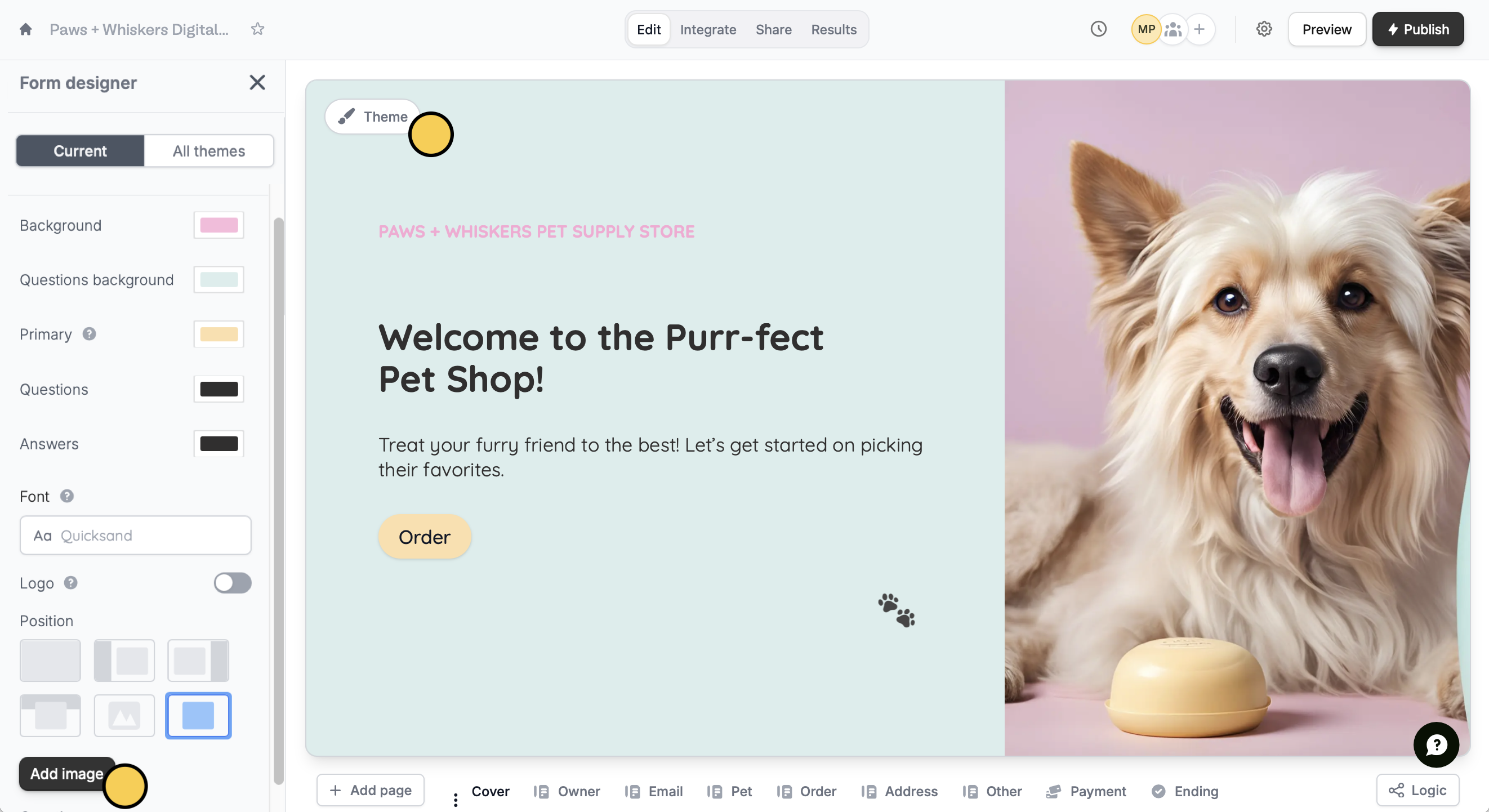 **Upload** the image from your desktop, choose an image from **Unsplash** or paste an image's **Link**.
The top left form position doesn't allow adding a background image.
That's it! Your image will now be shown on every page, except for cover pages (if applicable).
### Adjust image view
To adjust which part of the image is visible, hover over it and click `Position`. You can also edit the brightness of your image in the left-hand panel.
**Upload** the image from your desktop, choose an image from **Unsplash** or paste an image's **Link**.
The top left form position doesn't allow adding a background image.
That's it! Your image will now be shown on every page, except for cover pages (if applicable).
### Adjust image view
To adjust which part of the image is visible, hover over it and click `Position`. You can also edit the brightness of your image in the left-hand panel.
 For a full page image, generally 16:9 is best or 1280 x 720. For side-by-side layouts, 512 x 720 is the ideal size.
## Add images to choices
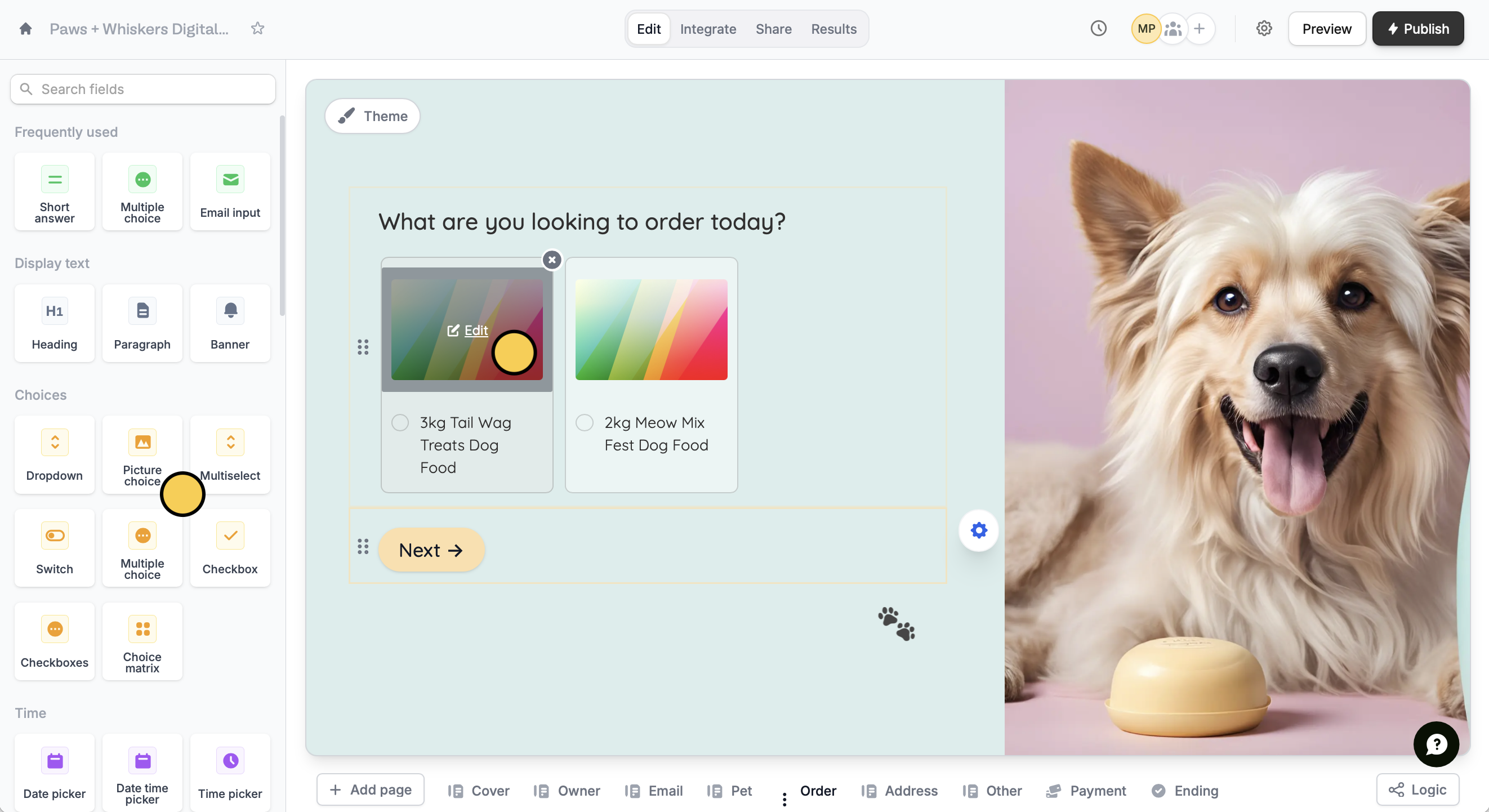
Click the `Picture choice` field. Next, hover over one of the choices and click **Edit** followed by **Change image**. Repeat this for the rest of the choices.
For a full page image, generally 16:9 is best or 1280 x 720. For side-by-side layouts, 512 x 720 is the ideal size.
## Add images to choices
Click the `Picture choice` field. Next, hover over one of the choices and click **Edit** followed by **Change image**. Repeat this for the rest of the choices.
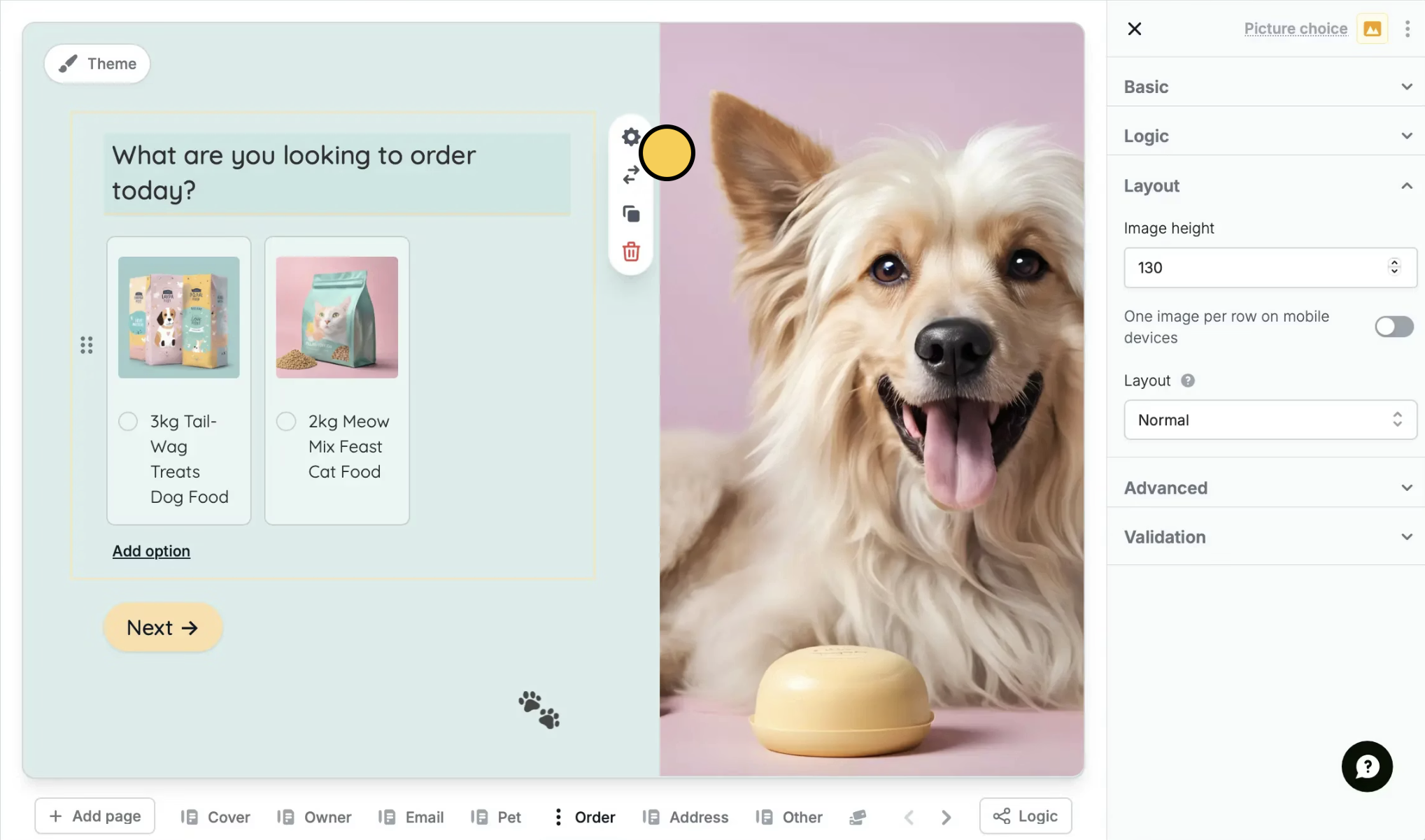
 You can change each image’s **Height** in the right-hand panel by clicking its . In the right-hand panel, go to **Layout**.
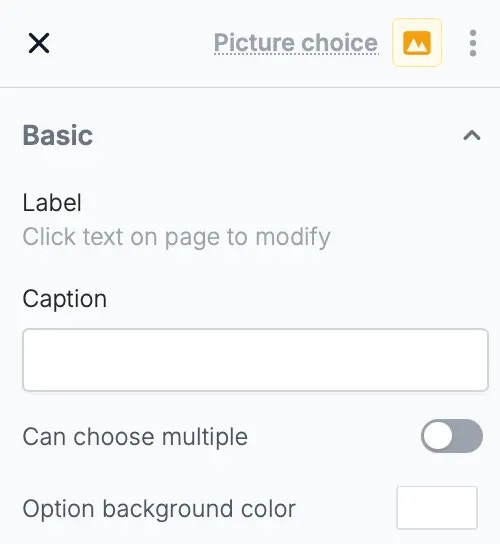
 You can also change the default white **Option background color** under **Basic**.
 ## Related articles
Add a professional touch and create strong brand identity.
Edit the position of your form's fields and background image.
Select from hundreds of themes or create your own.
## Related articles
Add a professional touch and create strong brand identity.
Edit the position of your form's fields and background image.
Select from hundreds of themes or create your own.