> ## Documentation Index
> Fetch the complete documentation index at: https://fillout.com/help/llms.txt
> Use this file to discover all available pages before exploring further.
# Form validation
> Collect accurate information from your respondents by validating form inputs. Define validation rules using logic conditions, regular expressions or out-of-the-box validation rules.
## What is form validation?
**Data validation** in form building or simply **form validation** ensures that responses match certain predefined criteria before the form is submitted. This maintains the accuracy of the data and enhances security by avoiding the submission of incorrect, incomplete or harmful data.
## Set a validation rule
Click on the question or field's to open the right-hand panel. The **Validation** section lets you set the ff:
* **Min length** - enter a minimum no. of allowed characters for text fields
* **Max length** - enter a maximum no. of allowed characters for text fields
* **Error message** - customize the default warning shown when validation rules are not met
* **Validation pattern** - set a criteria to ensure response meets a certain requirement
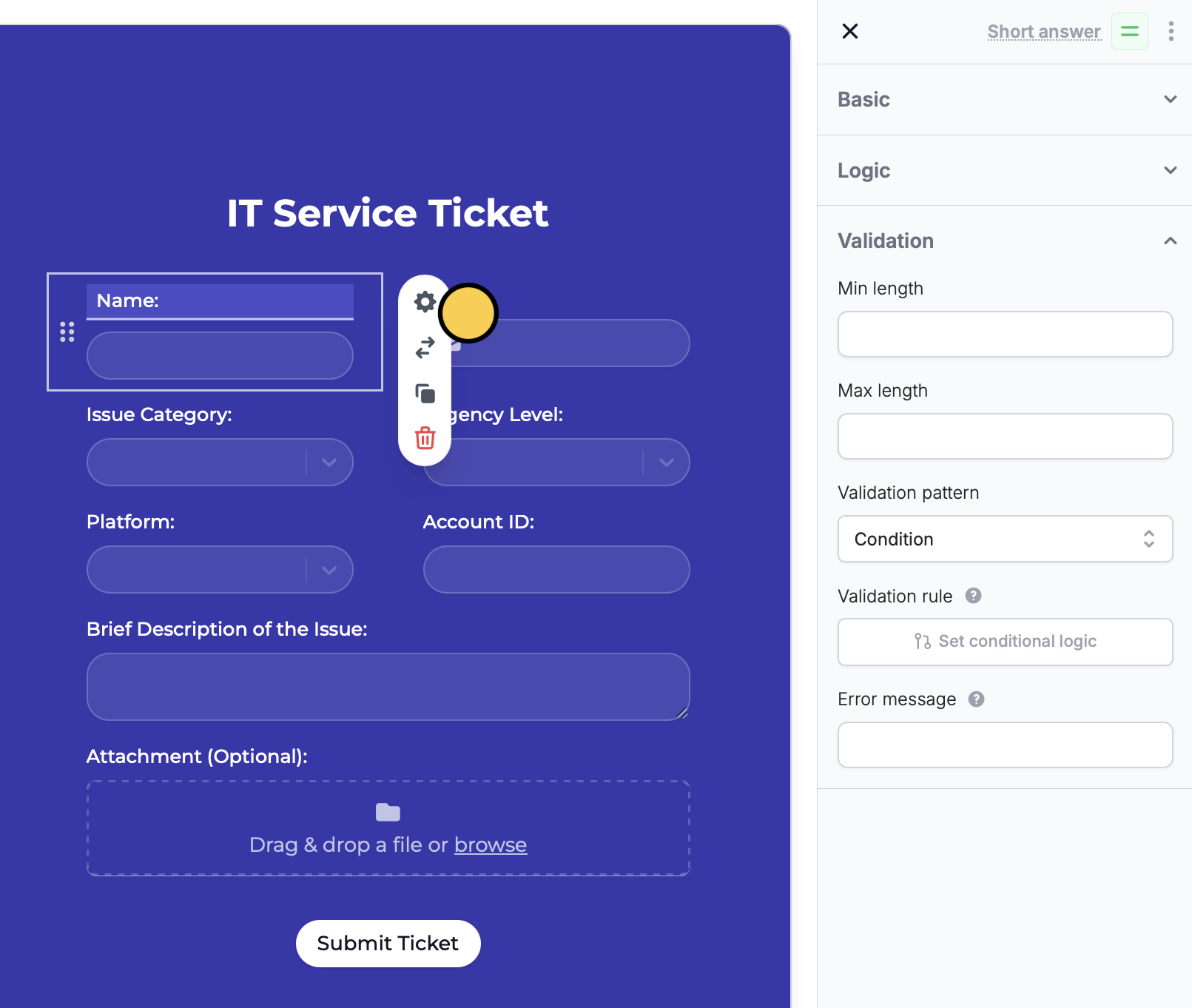 You can choose between two validation patterns, **Regex** and **Condition**.
### Regular Expressions (Regex)
Choose `Regex` to validate a response with a pattern or formula used to check text. This lets you set rules for the type of response you want to accept.
See [here](https://digitalfortress.tech/tips/top-15-commonly-used-regex/) for a list of popular regular expressions. Here are some examples:
| Purpose | Regex |
| -------------------------- | --------------------------------------------------------------------------------------------- |
| Whole numbers | ^\d+\$ |
| Alphanumeric without space | ^\[a-zA-Z0-9]\*\$ |
| Alphanumeric with space | ^\[a-zA-Z0-9 ]\*\$ |
| URL | https?:\\/\\/(www\\.)?\[-a-zA-Z0-9@:%.*\\+\~#=]\\.\[a-z]\b(\[-a-zA-Z0-9@:%*\\+.\~#()?&//=]\*) |
| Decimal numbers | ^\d\*\\.\d+\$ |
| Whole and decimal numbers | ^\d\*(\\.\d+)?\$ |
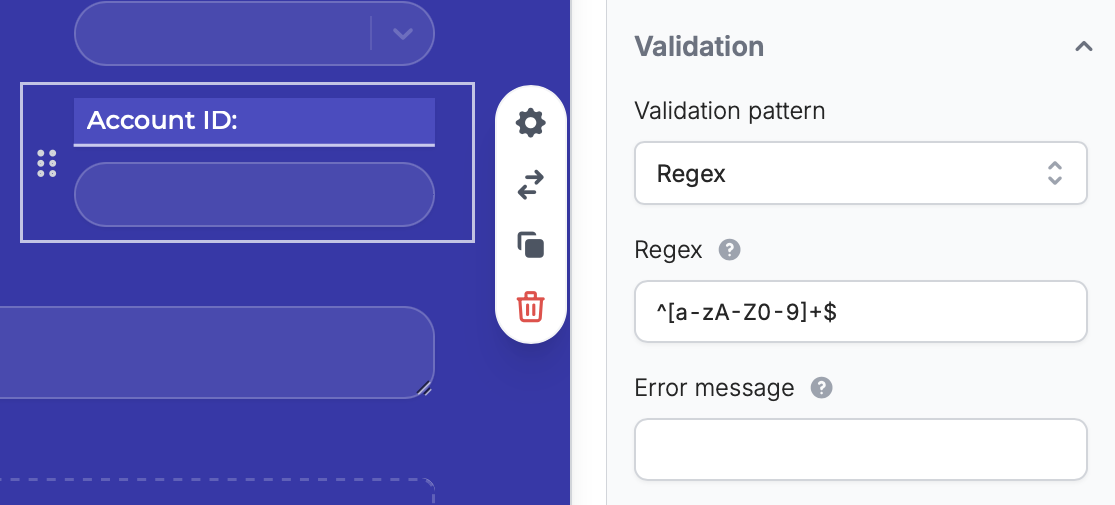
Copy and paste your **Regex**. For example, for an "Account ID" with no spaces or special characters, use `^[a-zA-Z0-9]*$` to allow only letters and numbers.
You can choose between two validation patterns, **Regex** and **Condition**.
### Regular Expressions (Regex)
Choose `Regex` to validate a response with a pattern or formula used to check text. This lets you set rules for the type of response you want to accept.
See [here](https://digitalfortress.tech/tips/top-15-commonly-used-regex/) for a list of popular regular expressions. Here are some examples:
| Purpose | Regex |
| -------------------------- | --------------------------------------------------------------------------------------------- |
| Whole numbers | ^\d+\$ |
| Alphanumeric without space | ^\[a-zA-Z0-9]\*\$ |
| Alphanumeric with space | ^\[a-zA-Z0-9 ]\*\$ |
| URL | https?:\\/\\/(www\\.)?\[-a-zA-Z0-9@:%.*\\+\~#=]\\.\[a-z]\b(\[-a-zA-Z0-9@:%*\\+.\~#()?&//=]\*) |
| Decimal numbers | ^\d\*\\.\d+\$ |
| Whole and decimal numbers | ^\d\*(\\.\d+)?\$ |
Copy and paste your **Regex**. For example, for an "Account ID" with no spaces or special characters, use `^[a-zA-Z0-9]*$` to allow only letters and numbers.
 Regex can help make conditions case insensitive. To do this, create your own Regex.
### Condition
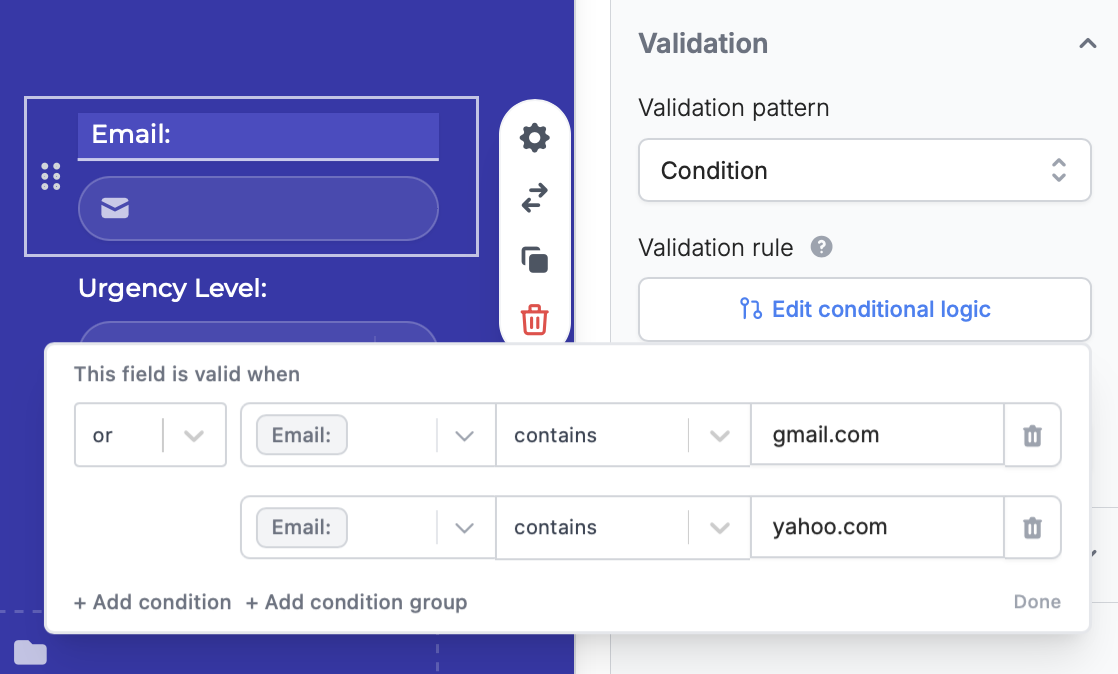
Choose `Condition` to validate a response based on an arbitrary condition. `Set conditional logic` and `+ Add condition`.
For example, we only want to accept "gmail or yahoo emails".
Regex can help make conditions case insensitive. To do this, create your own Regex.
### Condition
Choose `Condition` to validate a response based on an arbitrary condition. `Set conditional logic` and `+ Add condition`.
For example, we only want to accept "gmail or yahoo emails".
 Test your validation logic by clicking `Preview` on the upper right of your form editor. Enter a response and click the `Next` or `Submit` button. You’ll see a warning message appear if your inputs don’t match your validation rules.