> ## Documentation Index
> Fetch the complete documentation index at: https://fillout.com/help/llms.txt
> Use this file to discover all available pages before exploring further.
# Write a static value to an integration
> Send a fixed value to Airtable, Notion or another integration for any field, using static values. Prevent respondents from editing the default value.
export const SupportBanner = () => {
const titleId = React.useId();
return ;
};
## Overview
In certain cases, you may want to save a fixed value to an integration instead of letting your respondents input answers to a field. For example, you might have a **single select** field in Airtable or Notion that should always be marked as completed when submitted.
## How to add static values (Recommended approach)
First, navigate to the `Integrate` tab on top and click Airtable or Notion.
Go to **Mappings** section and link Airtable (or Notion) fields on the left to the Fillout fields on the right. In our example, we'll choose the Status field on Airtable.
Then, select to type a value you would like to use. We'll type Finished for this example.
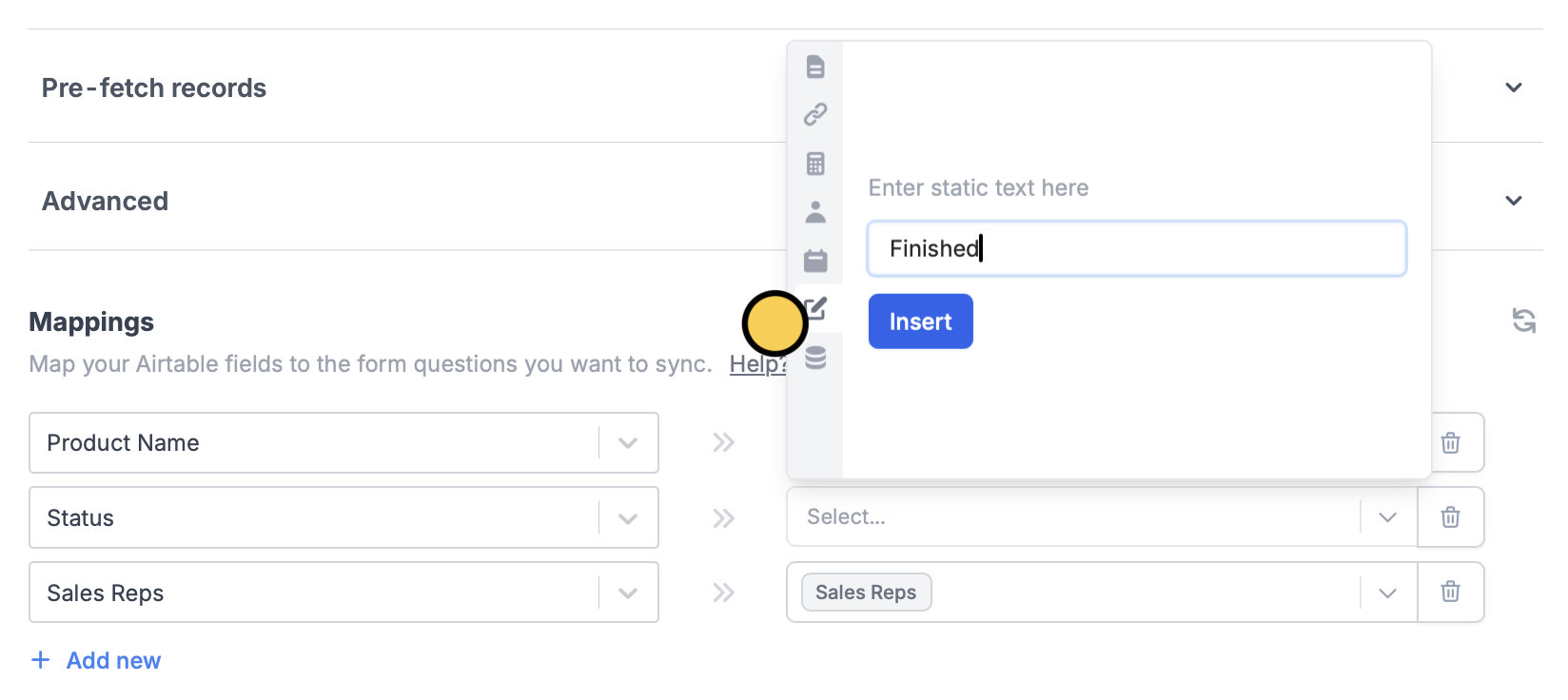 That’s it! Your form is good to go.
Remember to `Publish` your form to make the changes reflect.
## Hide field
Another option is to go back to `Edit` from the top menu. Click the field's to open the right-hand panel. Under **Logic**, toggle `Hide always`.
That’s it! Your form is good to go.
Remember to `Publish` your form to make the changes reflect.
## Hide field
Another option is to go back to `Edit` from the top menu. Click the field's to open the right-hand panel. Under **Logic**, toggle `Hide always`.
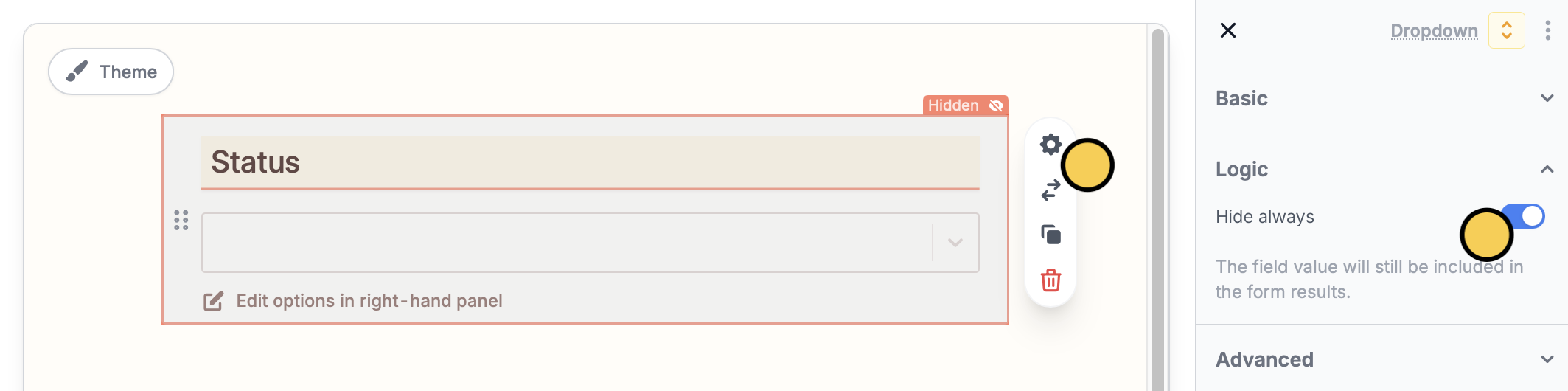 Now, the Status question containing the answer, Finished, will no longer be visible to respondents.
If you’re creating an **update** form, you’ll need to use the **static value** approach described above instead.
Now, the Status question containing the answer, Finished, will no longer be visible to respondents.
If you’re creating an **update** form, you’ll need to use the **static value** approach described above instead.