> ## Documentation Index
> Fetch the complete documentation index at: https://fillout.com/help/llms.txt
> Use this file to discover all available pages before exploring further.

# Integrations

> Create powerful forms with native and 3rd party integrations. Fillout integrates with dozens of external services and any service with a REST API.

export const Arcade = ({src}) => {
  const fullSrc = src.startsWith('http') ? src : `https://demo.arcade.software/${src}?embed&embed_mobile=tab&embed_desktop=inline&show_copy_link=true`;
  return <div style={{
    position: "relative",
    paddingBottom: "calc(56.111111% + 41px)",
    height: "0px",
    width: "100%"
  }}>
      <iframe src={fullSrc} title="build.fillout.com" frameBorder="0" loading="lazy" webkitallowfullscreen="true" mozallowfullscreen="true" allowFullScreen allow="clipboard-write" style={{
    position: "absolute",
    top: "0",
    left: "0",
    width: "100%",
    height: "100%",
    colorScheme: "light"
  }} />
    </div>;
};

## Interactive demo

<Arcade src="QqJuhnF1IpHSY0Vt3Ysq" />

## Spreadsheet & database

<CardGroup cols={2}>
  <Card title="Create an Airtable form" color="#FFC738" icon="table-layout" iconType="regular" href="/airtable">
    Make new or update existing Airtable bases with a custom Fillout form.
  </Card>

  <Card title="Sync responses to Microsoft Excel" color="#FFC738" icon="file-excel" iconType="regular" href="/microsoft-excel">
    Enable automatic syncing of form responses to an Excel sheet online.
  </Card>

  <Card title="Create a Google Sheets form" color="#FFC738" icon="file-spreadsheet" iconType="solid" href="/google-sheets">
    Sync responses from your Fillout form to a Google Sheet in under 30 seconds.
  </Card>

  <Card title="Sync form responses to Monday" color="#FFC738" icon="columns-3" iconType="regular" href="/monday">
    Create leads, orders, projects and custom objects in Monday.
  </Card>

  <Card title="Create a Notion form" color="#FFC738" icon="notion" iconType="regular" href="/notion">
    Create or update existing Notion databases and embed your forms.
  </Card>

  <Card title="Create a SmartSuite form" color="#FFC738" icon="table-list" iconType="regular" href="/smartsuite">
    Automatically send responses from your form to a SmartSuite solution.
  </Card>
</CardGroup>

## CRM

<CardGroup cols={2}>
  <Card title="Create an Attio form" color="#FFC738" icon="address-book" iconType="regular" href="/attio">
    Save Attio contacts, companies, deals and custom CRM records with a form.
  </Card>

  <Card title="Create a HubSpot form" color="#FFC738" icon="hubspot" iconType="regular" href="/hubspot">
    Create or update existing HubSpot contacts and embed your forms.
  </Card>

  <Card title="Create a Salesforce form" color="#FFC738" icon="salesforce" iconType="solid" href="/salesforce">
    Add or update your Salesforce records with a Fillout form.
  </Card>

  <Card title="Sync deals and leads to Pipedrive" color="#FFC738" icon="handshake" iconType="regular" href="/pipedrive">
    Make deals, people, and organizations in Pipedrive with a Fillout form.
  </Card>
</CardGroup>

## Social media

<CardGroup cols={2}>
  <Card title="Track submissions with Meta Pixels" color="#FFC738" icon="facebook" iconType="regular" href="/meta-pixel">
    Use a pixel to track when respondents open your form, click pages, and more.
  </Card>
</CardGroup>

## File sharing

<CardGroup cols={2}>
  <Card title="Sync file uploads to Amazon S3" color="#FFC738" icon="amazon" iconType="regular" href="/amazon-s3">
    Upload file submissions automatically to an Amazon S3 bucket.
  </Card>

  <Card title="Sync file uploads to Dropbox" color="#FFC738" icon="dropbox" iconType="regular" href="/dropbox">
    Upload file submissions automatically to a Dropbox folder with your form.
  </Card>

  <Card title="Upload files to Google Drive" color="#FFC738" icon="google-drive" iconType="regular" href="/google-drive">
    Automatically upload files in a Google Drive folder through a Fillout form.
  </Card>

  <Card title="Sync files to OneDrive" color="#FFC738" icon="cloud-arrow-up" iconType="regular" href="/microsoft-onedrive">
    Upload file submissions automatically to a OneDrive folder with your form.
  </Card>
</CardGroup>

## Messaging

<CardGroup cols={2}>
  <Card title="Send messages to Discord channels" color="#FFC738" icon="discord" iconType="regular" href="/discord">
    See an overview of form responses or choose a custom message.
  </Card>

  <Card title="Send notifications to Teams" color="#FFC738" icon="users" iconType="regular" href="/microsoft-teams">
    View a summary of responses within the Teams app.
  </Card>

  <Card title="Connect to Slack" color="#FFC738" icon="slack" iconType="regular" href="/slack">
    Get a formatted notification or custom message upon form submissions.
  </Card>

  <Card title="Send messages with Twilio" color="#FFC738" icon="message-sms" iconType="regular" href="/twilio">
    Automate SMS updates and notifications to respondents.
  </Card>
</CardGroup>

## Customer support

<CardGroup cols={2}>
  <Card title="Create new Intercom tickets" color="#FFC738" icon="intercom" iconType="regular" href="/intercom">
    Make new messages in Intercom from a form, and create or update leads.
  </Card>

  <Card title="Create new Zendesk tickets" color="#FFC738" icon="z" iconType="solid" href="/zendesk">
    Make new Zendesk support tickets associated with new leads from a form.
  </Card>
</CardGroup>

## Analytics

<CardGroup cols={2}>
  <Card title="Track conversion data in Google Ads" color="#FFC738" icon="google-plus-g" iconType="regular" href="/google-ads-conversions">
    Upload address, phone number, GCLID and email to optimize Ad bidding.
  </Card>

  <Card title="Track data with Google Tag Manager" color="#FFC738" icon="tags" iconType="regular" href="/google-tag-manager">
    Check conversions and ROI through form responses in your website.
  </Card>
</CardGroup>

## Email marketing

<CardGroup cols={2}>
  <Card title="Connect to ActiveCampaign" color="#FFC738" icon="square-chevron-right" iconType="solid" href="/activecampaign">
    Add new and update existing ActiveCampaign contacts from a form.
  </Card>

  <Card title="Create new contacts in Brevo" color="#FFC738" icon="b" iconType="regular" href="/brevo">
    Add new contacts in Brevo or update existing ones with a Fillout form.
  </Card>

  <Card title="Connect to Klaviyo" color="#FFC738" icon="flag-swallowtail" iconType="solid" href="/klaviyo">
    Add new Klaviyo contacts and update existing ones from a Fillout form.
  </Card>

  <Card title="Connect to Mailchimp" color="#FFC738" icon="mailchimp" iconType="regular" href="/mailchimp">
    Add and update new and existing Mailchimp contacts from a Fillout form.
  </Card>

  <Card title="Notify using SendGrid" color="#FFC738" icon="game-board-simple" iconType="regular" href="/sendgrid">
    Send customizable email notifications after respondents submit your form.
  </Card>
</CardGroup>

## Project management

<CardGroup cols={2}>
  <Card title="Connect to ClickUp" color="#FFC738" icon="angles-up-down" iconType="regular" href="/clickup">
    Automatically create and manage tasks in ClickUp upon form submissions.
  </Card>

  <Card title="Connect to Linear" color="#FFC738" icon="message-exclamation" iconType="regular" href="/linear">
    Create new issues on Linear with a form. Set the priority, status, and more.
  </Card>

  <Card title="Sync form responses to Monday" color="#FFC738" icon="columns-3" iconType="regular" href="/monday">
    Create leads, orders, projects and custom objects in Monday.
  </Card>

  <Card title="Connect to Trello" color="#FFC738" icon="square-kanban" iconType="solid" href="/trello">
    Create new cards on Trello whenever someone submits your Fillout form.
  </Card>
</CardGroup>

## Others

<CardGroup cols={2}>
  <Card title="Create Google Docs" color="#FFC738" icon="file-lines" iconType="solid" href="/google-docs">
    Generate custom Google Docs every time your form is completed.
  </Card>

  <Card title="Generate PDFs" color="#FFC738" icon="file-pdf" iconType="regular" href="/pdfs">
    Autofill and sign PDFs + documents with form submissions.
  </Card>

  <Card title="Send form submissions to a webhook" color="#FFC738" icon="webhook" iconType="regular" href="/webhook">
    Send responses to automation tools or any other Webhook endpoint.
  </Card>
</CardGroup>

See all integrations [here](https://www.fillout.com/integrations).

<Tip>
  You can also use the most trusted automation tools, [**Zapier**](https://zapier.com/apps/fillout/integrations), [**Make**](https://www.make.com/en/integrations/fillout), and [Relay](https://www.relay.app/apps/fillout/integrations) to connect Fillout with your favorite apps and services.
</Tip>

## Integration guides

Guides for getting the most out of the Fillout integrations.

<CardGroup cols={2}>
  <Card title="Manage integrations" color="#FFC738" icon="list-tree" iconType="regular" href="/manage-integrations">
    Edit or remove connections in your organization.
  </Card>

  <Card title="Update linked records" color="#FFC738" icon="file-plus-minus" iconType="regular" href="/linked-record-update">
    Let respondents update linked records in databases.
  </Card>

  <Card title="Use dynamic data" color="#FFC738" icon="arrow-down-right" iconType="regular" href="/fetch-dynamic-data">
    Display dynamic content and use it to hide, validate and pre-fill fields.
  </Card>

  <Card title="Pre-fetch dynamic data" color="#FFC738" icon="arrow-turn-down-right" iconType="regular" href="/pre-fetch-data">
    Fetch information from Airtable, Notion or any service before your form loads.
  </Card>

  <Card title="Update database records" color="#FFC738" icon="square-pen" iconType="regular" href="/update-forms">
    Use a pre-filled form to update based on existing responses.
  </Card>

  <Card title="Write a static value to an integration" color="#FFC738" icon="pencil" iconType="regular" href="/integration-static-values">
    Send a fixed value to Airtable, Notion or another integration for any field.
  </Card>

  <Card title="Map Fillout fields to integrations" color="#FFC738" icon="right-left" iconType="regular" href="/additional-integration-mappings">
    Configure form fields and values to send to database integrations.
  </Card>

  <Card title="Working with form submission IDs" color="#FFC738" icon="id-card" iconType="regular" href="/form-submission-id">
    Link submissions back to Fillout by referencing its Submission ID.
  </Card>
</CardGroup>

## Enable integration error notifications

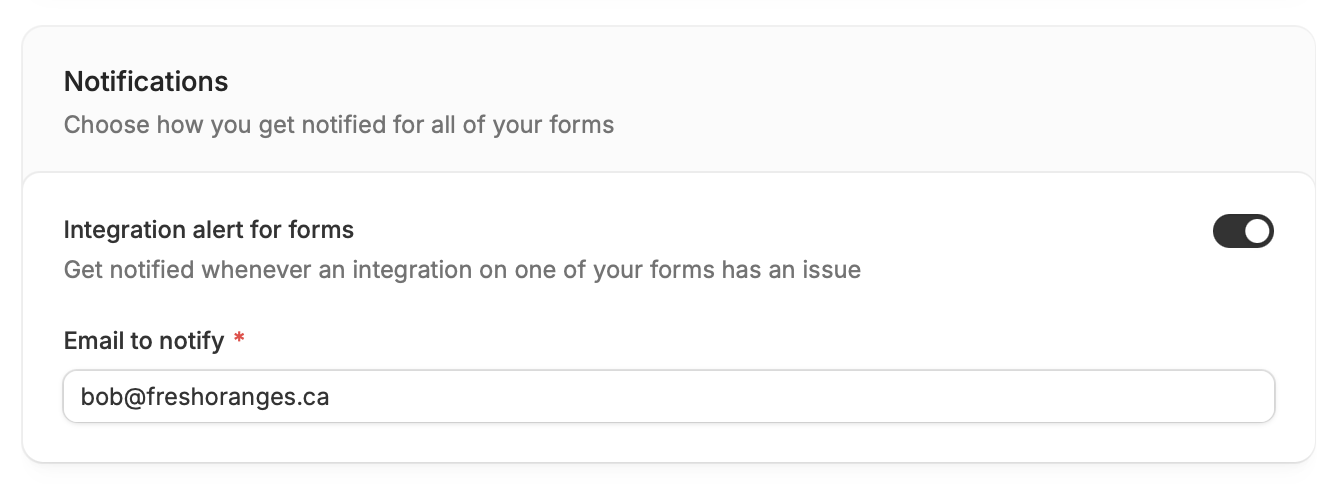
Sometimes, using third-party integrations can lead to unexpected errors. For example, their service might be down or take too long to respond. Fillout will still save all form responses, and it can also email you with details about the error!

From your dashboard, click your `Account name` at the upper left corner followed by `Settings`.
<img src="https://mintcdn.com/fillout-005a867b/07o45egqmR6lpcaD/images/Screenshot-2026-05-04-at-4.07.36-PM.png?fit=max&auto=format&n=07o45egqmR6lpcaD&q=85&s=9c37190781bf16481aa466619e8a9805" alt="Screenshot 2026 05 04 At 4 07 36 PM" title="Screenshot 2026 05 04 At 4 07 36 PM" style={{ width:"60%" }} width="1342" height="484" data-path="images/Screenshot-2026-05-04-at-4.07.36-PM.png" />

Scroll down and toggle `Integration alert for forms` to enter your email.

## Limit integration access

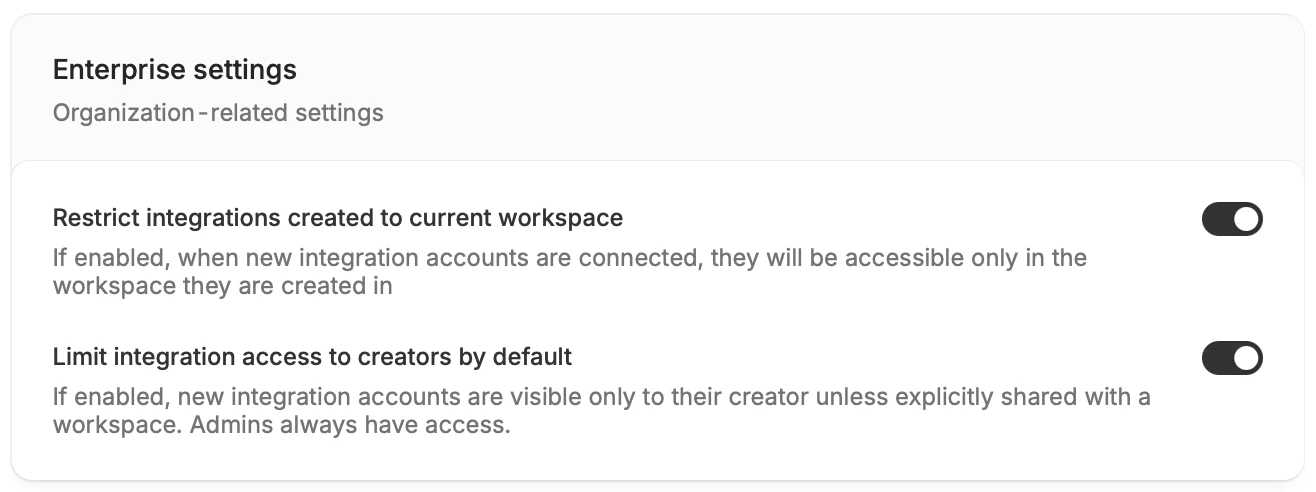
An integration (like Airtable, Google Sheets, or Slack) can have **multiple accounts connected**. By default, all connected accounts in an integration can be used by everyone in your organization across any form.

If you want more control, you can turn on `Limit integration access to creators` at the bottom of the [Settings](https://build.fillout.com/home/settings/general) page. This means only the person who connected a specific account (and admins) can use that account in forms.
<img src="https://mintcdn.com/fillout-005a867b/cGbcB4Q-CgLma9WN/images/Screenshot-2026-05-06-at-2.43.39-PM.png?fit=max&auto=format&n=cGbcB4Q-CgLma9WN&q=85&s=4e4aedcd4f221c1d2ab6751fc3878e45" alt="Screenshot 2026 05 06 At 2 43 39 PM" title="Screenshot 2026 05 06 At 2 43 39 PM" style={{ width:"71%" }} width="1316" height="492" data-path="images/Screenshot-2026-05-06-at-2.43.39-PM.png" />

Here, you can also `Restrict integrations created to current workspace` . When enabled, connected accounts can only be used in forms created within the same [workspace](https://www.fillout.com/help/workspaces).

<Info>
  This feature is only available to **Enterprise** users. To learn more, click [here](https://www.zite.com/enterprise).
</Info>
