> ## Documentation Index
> Fetch the complete documentation index at: https://fillout.com/help/llms.txt
> Use this file to discover all available pages before exploring further.
# Connect your form to Intercom
> Create new messages from a Fillout form, and automatically create or update associated contacts/leads directly in Intercom.
export const SupportBanner = () => {
const titleId = React.useId();
return ;
};
## What is Intercom?
[Intercom](https://www.intercom.com/) is a customer communication platform that integrates various messaging services to facilitate business-to-customer interactions. It allows companies to manage support, sales, and marketing communications through live chat, bots, and personalized messaging.
## How it works
Open the form you want to `Integrate` with Intercom.
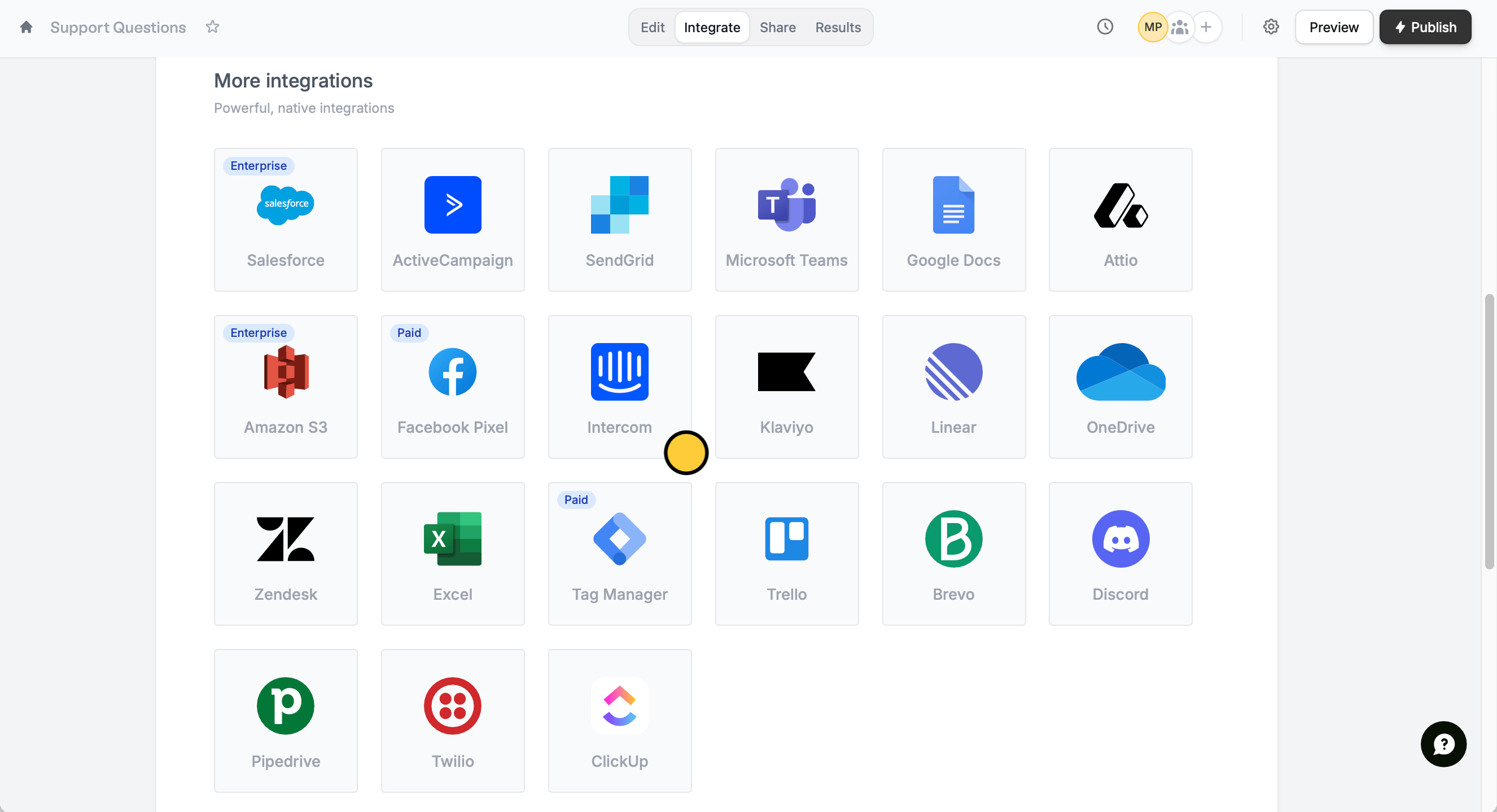 Then, enter an **account name** to connect.
[Match the fields](https://www.fillout.com/help/additional-integration-mappings#how-to-map-fields-manually) in your Fillout form to the corresponding fields in Intercom for the new message. Make sure to include the contact's **email** and the **message** content.
Then, enter an **account name** to connect.
[Match the fields](https://www.fillout.com/help/additional-integration-mappings#how-to-map-fields-manually) in your Fillout form to the corresponding fields in Intercom for the new message. Make sure to include the contact's **email** and the **message** content.
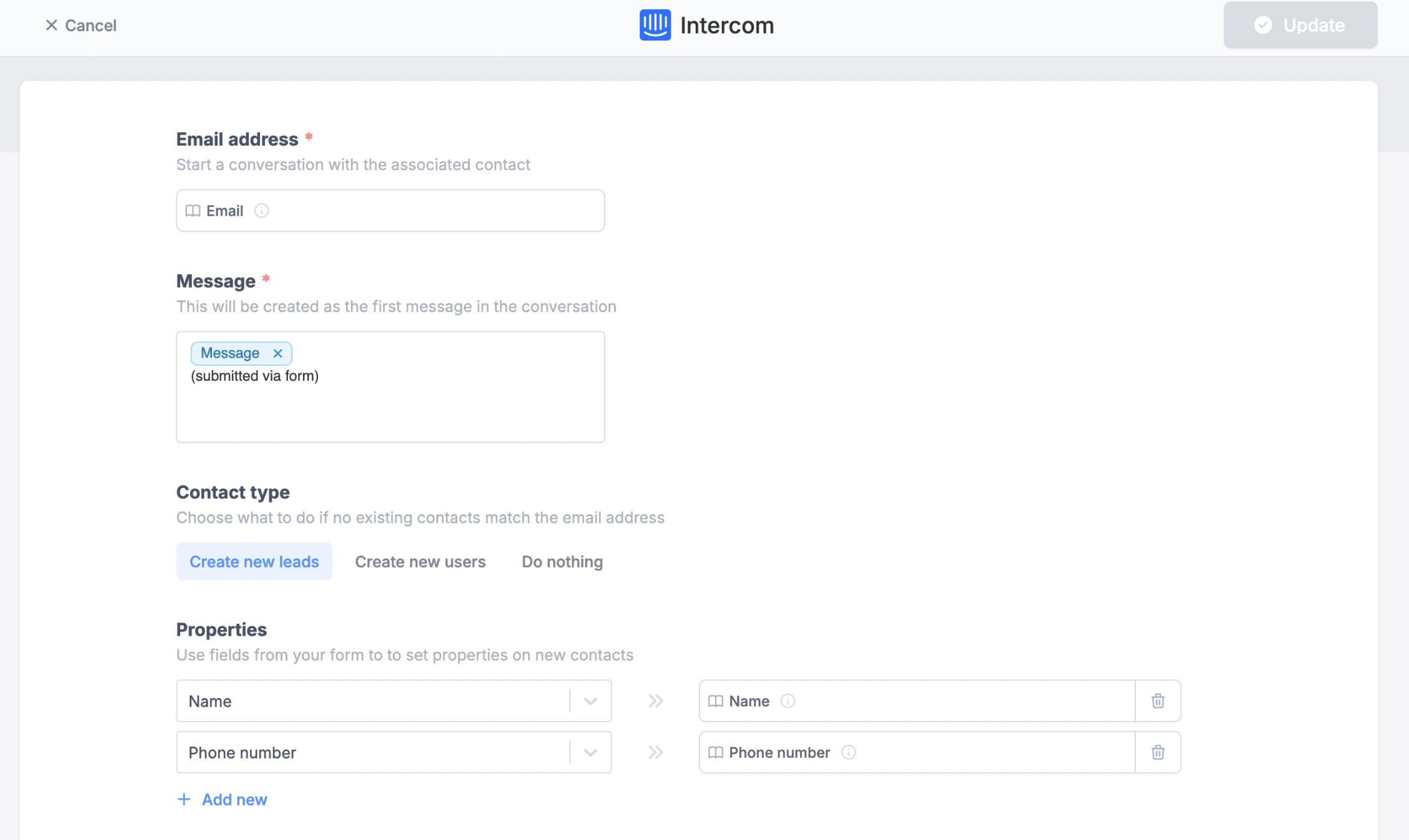 You can also choose to `Create new leads` or `users` if they don’t exist with the email in question, and associate answers in the form to the user.
New conversations (or form submissions) are created as chats, not emails.
Once everything is set, click `Finish setup` on the upper right corner followed by `Publish`.
New form submissions will now create new messages, and optionally new leads/users directly in your Intercom!
## Specify a condition
You can run your integration only when a specific condition is met. Check out this [guide](/help/conditional-integration).
## Related articles
Perform an integration only when a certain condition is met.
Add and update contacts with a form.
Create and manage issues with a form.
You can also choose to `Create new leads` or `users` if they don’t exist with the email in question, and associate answers in the form to the user.
New conversations (or form submissions) are created as chats, not emails.
Once everything is set, click `Finish setup` on the upper right corner followed by `Publish`.
New form submissions will now create new messages, and optionally new leads/users directly in your Intercom!
## Specify a condition
You can run your integration only when a specific condition is met. Check out this [guide](/help/conditional-integration).
## Related articles
Perform an integration only when a certain condition is met.
Add and update contacts with a form.
Create and manage issues with a form.