> ## Documentation Index
> Fetch the complete documentation index at: https://fillout.com/help/llms.txt
> Use this file to discover all available pages before exploring further.
# Disable internal storage
> Prevent Fillout from storing responses submitted through your form.
## Overview
**Disabling internal storage** is available for users who prefer to have control over where their data is stored. When this option is enabled, Fillout will not store any form submission data on its servers—either temporarily or long-term. This ensures that submission data is passed directly to your configured integrations or webhooks, without being saved by Fillout.
This option may be useful for organizations with strict data residency, compliance, or privacy requirements that prohibit storing data on third-party servers, such as those in regulated industries or handling highly sensitive information.
This feature is available on the [**Enterprise Plan**](https://www.fillout.com/enterprise). If you're interested, please fill out [**this form**](https://main.fillout.com/enterprise) to speak directly to someone on our sales team.
## Limitations
Disabling internal storage will limit access to several features that rely on Fillout's servers to temporarily hold or process data:
* [**Results page**](/results) - completed submissions can't be recorded in Fillout
* [**Partial submissions**](/partial-submissions) - partially completed responses can't be tracked or saved
* [**PDF generation**](/pdfs) - PDFs can't be created
* [**Fillout Scheduling**](/scheduling) - features related to scheduling (e.g., [time slot availability](/fillout-scheduling-availability) and calendar syncing) will be unavailable
* [**Approvals**](/approval-workflows) - approval workflows and status tracking will be disabled
## **How to use this feature**
Click on the upper right area.
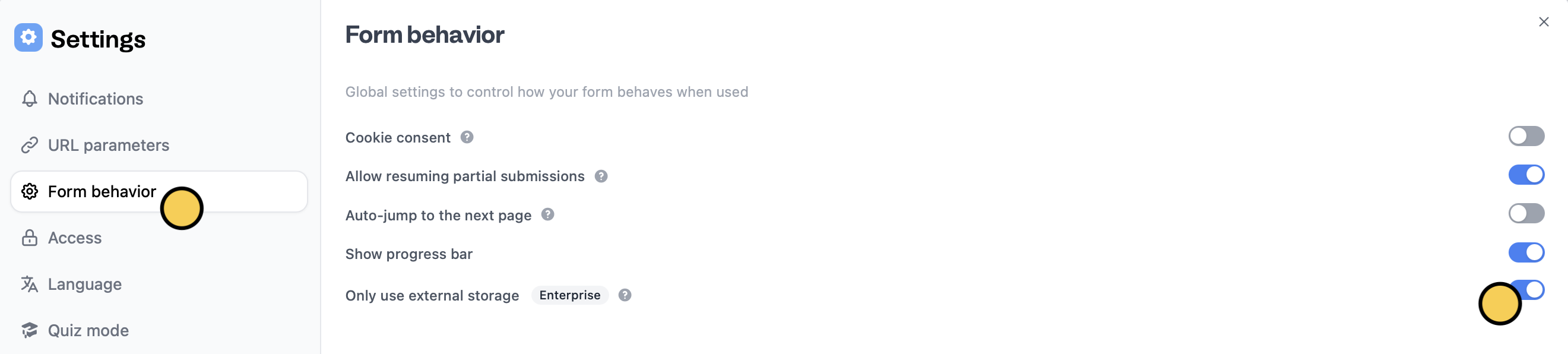
 Go to `Form behavior` and toggle the `Only use external storage` switch.
 File uploads are still stored on AWS S3 as many of Fillout's 3rd party integrations require an external link to uploaded files.
## Related articles
Review individual submissions, summary, and analytics.
Book meetings on your Google or Outlook calendars with a form.
Automate approvals, requests, applications, and others.
File uploads are still stored on AWS S3 as many of Fillout's 3rd party integrations require an external link to uploaded files.
## Related articles
Review individual submissions, summary, and analytics.
Book meetings on your Google or Outlook calendars with a form.
Automate approvals, requests, applications, and others.