> ## Documentation Index
> Fetch the complete documentation index at: https://fillout.com/help/llms.txt
> Use this file to discover all available pages before exploring further.
# Connect your form to Klaviyo
> Add new Klaviyo contacts and update existing ones from a Fillout form to grow your email and SMS audience. Set fields based on conditions in your form.
## What is Klaviyo?
[Klaviyo](https://www.klaviyo.com/) is an e-commerce marketing platform that helps businesses manage and optimize their email and SMS marketing efforts to drive sales and customer engagement.
## How it works
Open your form, then go to `Integrate` and click `Klaviyo`.
 When creating your form, make sure to set the email, name, and other fields you would like to link to your Klaviyo list to **required**.
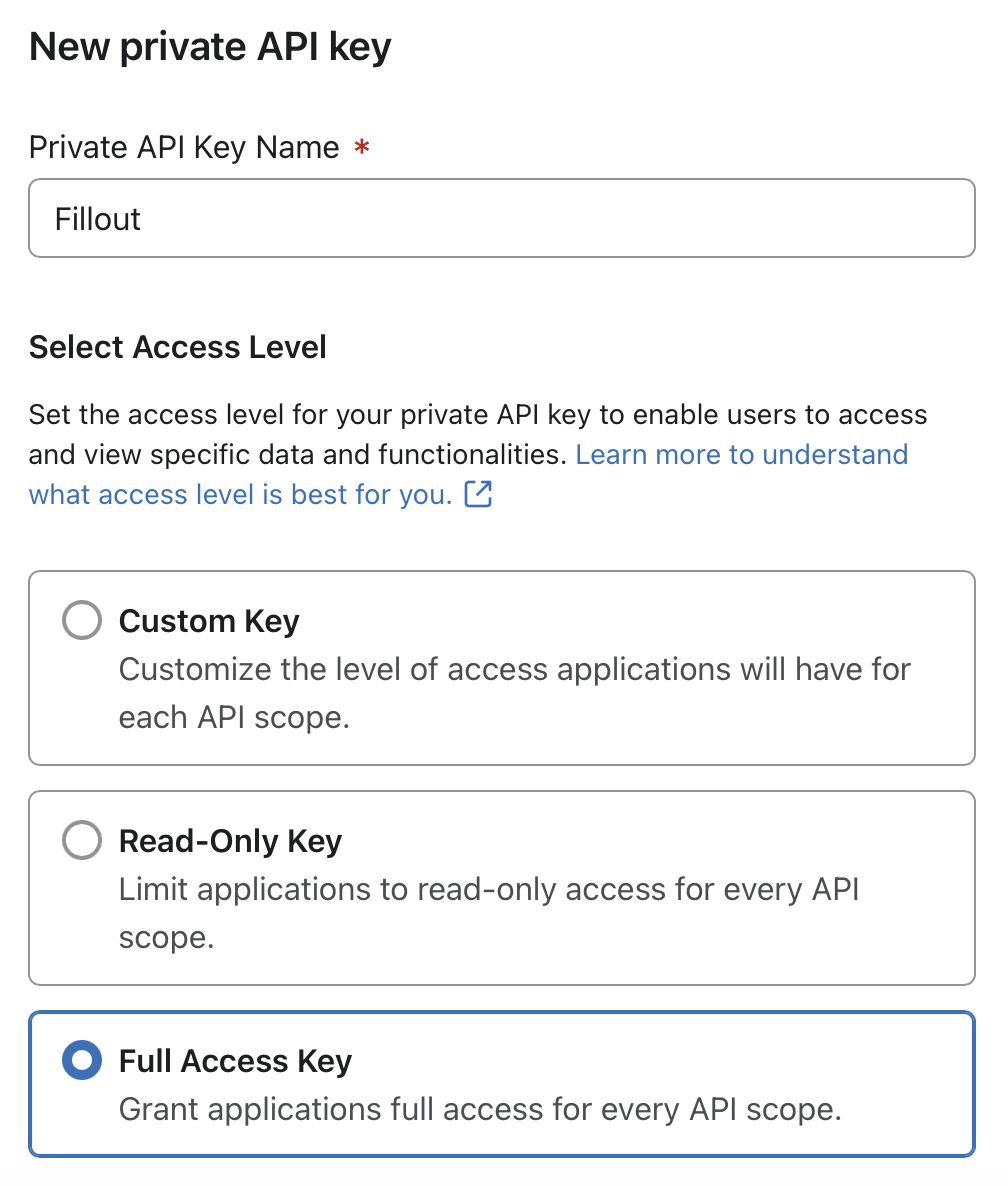
Enter your **Private API Key**. Click the link in the banner shown to get redirected to the page containing the key. `Create Private API Key` in the new tab. Enter a **name** and choose `Full Access Key`.
When creating your form, make sure to set the email, name, and other fields you would like to link to your Klaviyo list to **required**.
Enter your **Private API Key**. Click the link in the banner shown to get redirected to the page containing the key. `Create Private API Key` in the new tab. Enter a **name** and choose `Full Access Key`.
 Then, select a **List** in Klaviyo you’d like to connect your form to.
[Match the fields](https://www.fillout.com/help/additional-integration-mappings#how-to-map-fields-manually) in your Fillout form to the corresponding fields in your Klaviyo audience. For example, link the email address to its respective field.
Then, select a **List** in Klaviyo you’d like to connect your form to.
[Match the fields](https://www.fillout.com/help/additional-integration-mappings#how-to-map-fields-manually) in your Fillout form to the corresponding fields in your Klaviyo audience. For example, link the email address to its respective field.
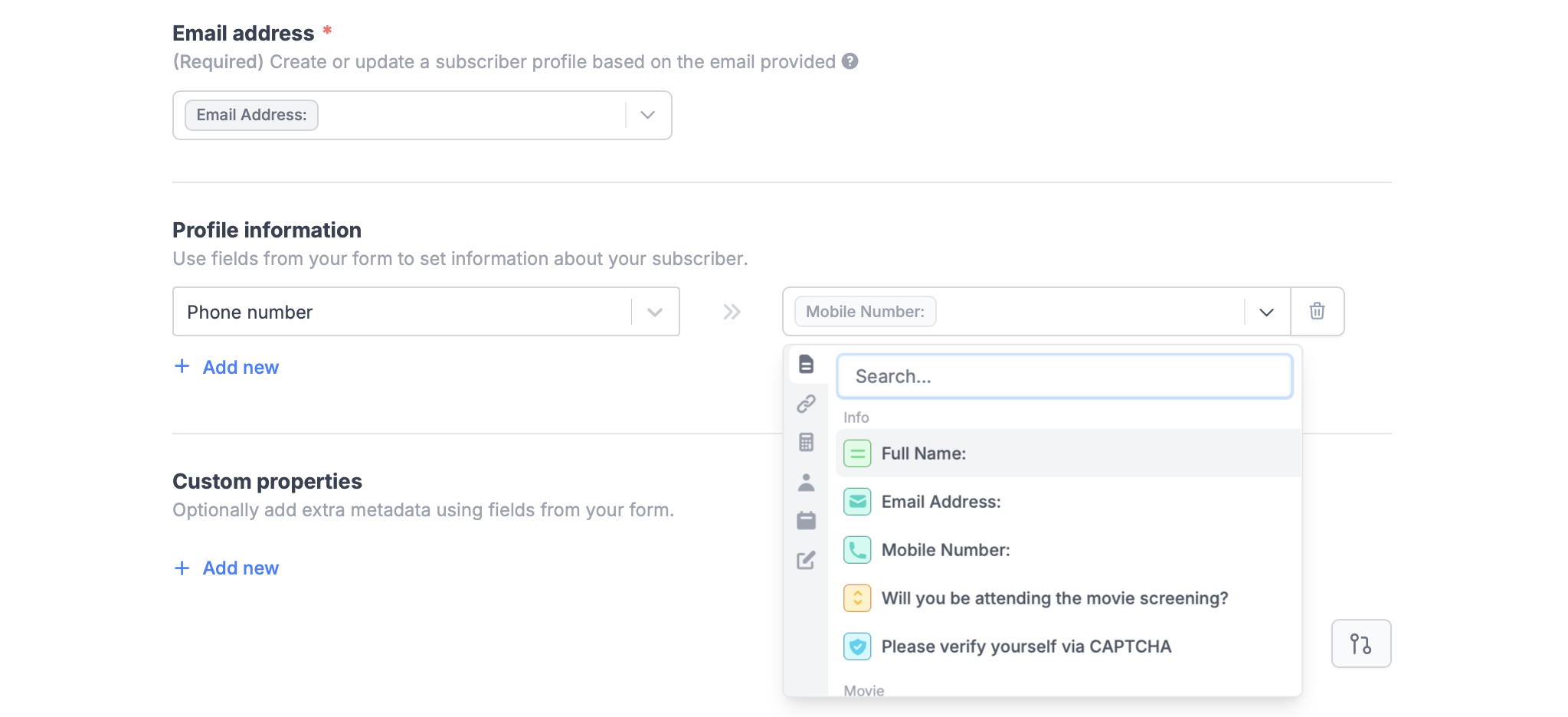 You can use other **Fields**, such as name, number, address, and more in your form to update your contacts' details.
Once everything is set, click `Finish setup` on the upper right corner followed by `Publish`.
That's it! Answers to mapped fields from new submissions will now appear in your Klaviyo audience list.
If a contact with the provided email address already exists, Fillout will automatically update the existing contact's information.
## Add custom properties
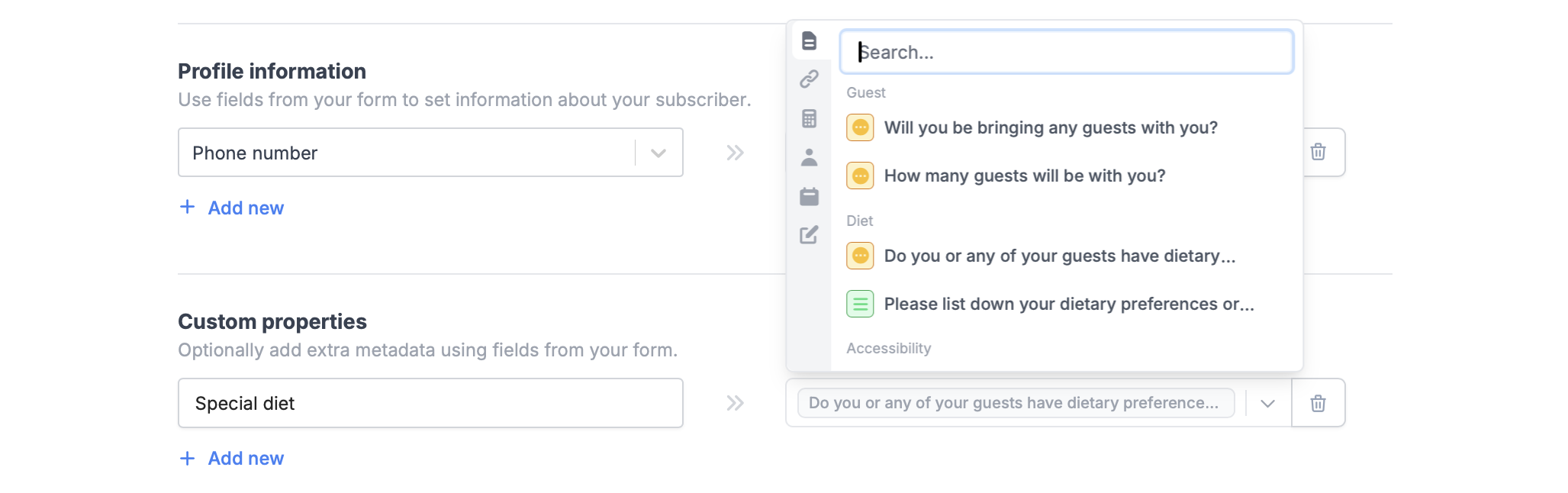
You can add extra metadata using other fields in your form using the same steps above. For example, we'll match "Special diet" to "Do you or any of your guests have dietary preferences?"
You can use other **Fields**, such as name, number, address, and more in your form to update your contacts' details.
Once everything is set, click `Finish setup` on the upper right corner followed by `Publish`.
That's it! Answers to mapped fields from new submissions will now appear in your Klaviyo audience list.
If a contact with the provided email address already exists, Fillout will automatically update the existing contact's information.
## Add custom properties
You can add extra metadata using other fields in your form using the same steps above. For example, we'll match "Special diet" to "Do you or any of your guests have dietary preferences?"
 Remember to click `Publish` after making any changes to the integration.
## Specify a condition
You can run your integration only when a specific condition is met. Check out the quick guide [here](/conditional-integration).
## Related articles
Perform an integration only when a certain condition is met.
Show or hide fields based on multiple conditions at once.
Calculate prices for order forms, compute quiz scores, and more.
Remember to click `Publish` after making any changes to the integration.
## Specify a condition
You can run your integration only when a specific condition is met. Check out the quick guide [here](/conditional-integration).
## Related articles
Perform an integration only when a certain condition is met.
Show or hide fields based on multiple conditions at once.
Calculate prices for order forms, compute quiz scores, and more.