> ## Documentation Index
> Fetch the complete documentation index at: https://fillout.com/help/llms.txt
> Use this file to discover all available pages before exploring further.
# Edit form page layout
> Customize your form page's layout or position with Fillout. Choose where you want to showcase a background image or opt for a clean layout.
## How to change the layout
Click `Theme` to open the **Form designer** in the left-hand panel. Navigate to **Position** and select your preferred one.
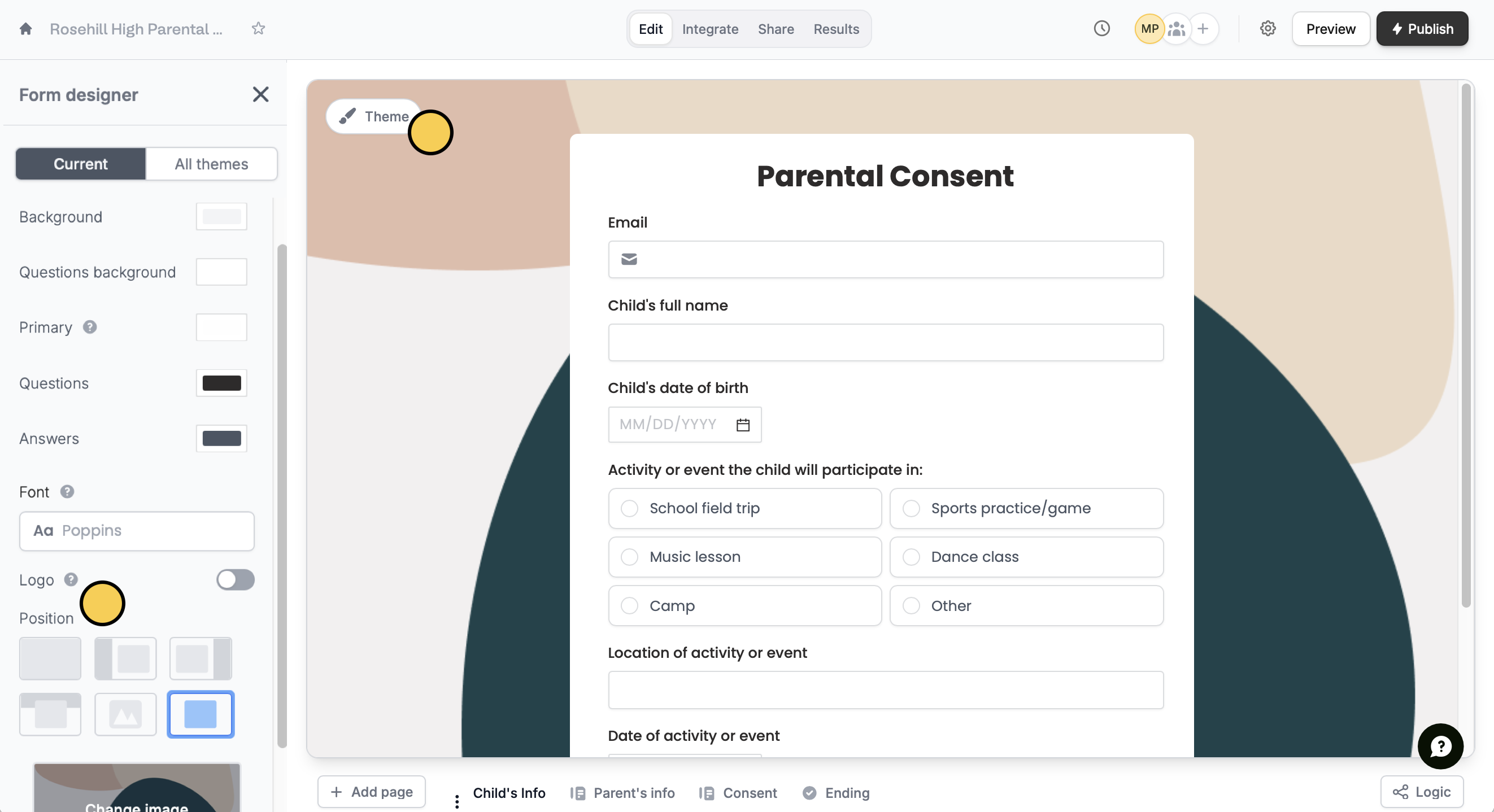 Your chosen layout will be automatically applied to the rest of the pages. Currently, only the cover page supports having a different layout to the rest of the form.
You can choose from the following layouts (listed from top-left to bottom-right):
* **Clean** - no image, but background color can be changed
* **Right** - fields on the right + image on the left
* **Left** - fields on the left + image on the right
* **Under** - fields under a cover image
* **Through** - fields through image
* **Over** - fields in a container on top of the image
For full page images, generally 16:9 is best or 1280 x 720. For side-by-side layouts, 512 x 720 is the ideal size, however you can use any size because the positioning can be [adjusted](https://www.fillout.com/help/image-gif#adjust-image-view).
## Edit animations
Certain positions come with subtle animations or page transitions out of the box. Click `Preview` to see automatic animations based on your chosen position. You can edit this in the [Advanced designer](https://www.fillout.com/help/advanced-designer).
## Related articles
Choose from thousands of Google fonts or upload one.
Use images, GIFs, picture choices, or combine them.
Add a custom CSS, edit button style, change text padding, and more.
Your chosen layout will be automatically applied to the rest of the pages. Currently, only the cover page supports having a different layout to the rest of the form.
You can choose from the following layouts (listed from top-left to bottom-right):
* **Clean** - no image, but background color can be changed
* **Right** - fields on the right + image on the left
* **Left** - fields on the left + image on the right
* **Under** - fields under a cover image
* **Through** - fields through image
* **Over** - fields in a container on top of the image
For full page images, generally 16:9 is best or 1280 x 720. For side-by-side layouts, 512 x 720 is the ideal size, however you can use any size because the positioning can be [adjusted](https://www.fillout.com/help/image-gif#adjust-image-view).
## Edit animations
Certain positions come with subtle animations or page transitions out of the box. Click `Preview` to see automatic animations based on your chosen position. You can edit this in the [Advanced designer](https://www.fillout.com/help/advanced-designer).
## Related articles
Choose from thousands of Google fonts or upload one.
Use images, GIFs, picture choices, or combine them.
Add a custom CSS, edit button style, change text padding, and more.