> ## Documentation Index
> Fetch the complete documentation index at: https://fillout.com/help/llms.txt
> Use this file to discover all available pages before exploring further.
# Enrich Fillout leads
> Enrich emails with Apollo. Conditionally route leads to different pages based on company size, industry, company type and more. Auto-fill or auto-hide fields based on available enrichment data.
## Tutorial video
Lead enrichment is part of the conversion kit paid add-on. Fillout covers the costs for external APIs like Clearbit and Google Maps - **no API key needed**. Get started [here](https://www.fillout.com/conversion-kit).
## Enriching leads and conditional routing
If you enable `Enrich with Apollo` in the right-hand panel, you’ll receive access to the following properties after a respondent fills out their email:
* **Employee count** - total number of employees that work at the company
* **Employment name** - name of the company the person works for
* **Employment domain** - domain of the company the person works for
* **Employment role** - a person’s standardized role at the company they work for based on their title.
* **Company traffic rank** - a company’s standing in a global rank of company website traffic as calculated by Apollo.
* **Company employee range** - number of employees that work at the company by range. Useful for segmenting companies by size.
* **Company estimated annual revenue** - estimate of the company’s annual revenue by range.
Common use cases include:
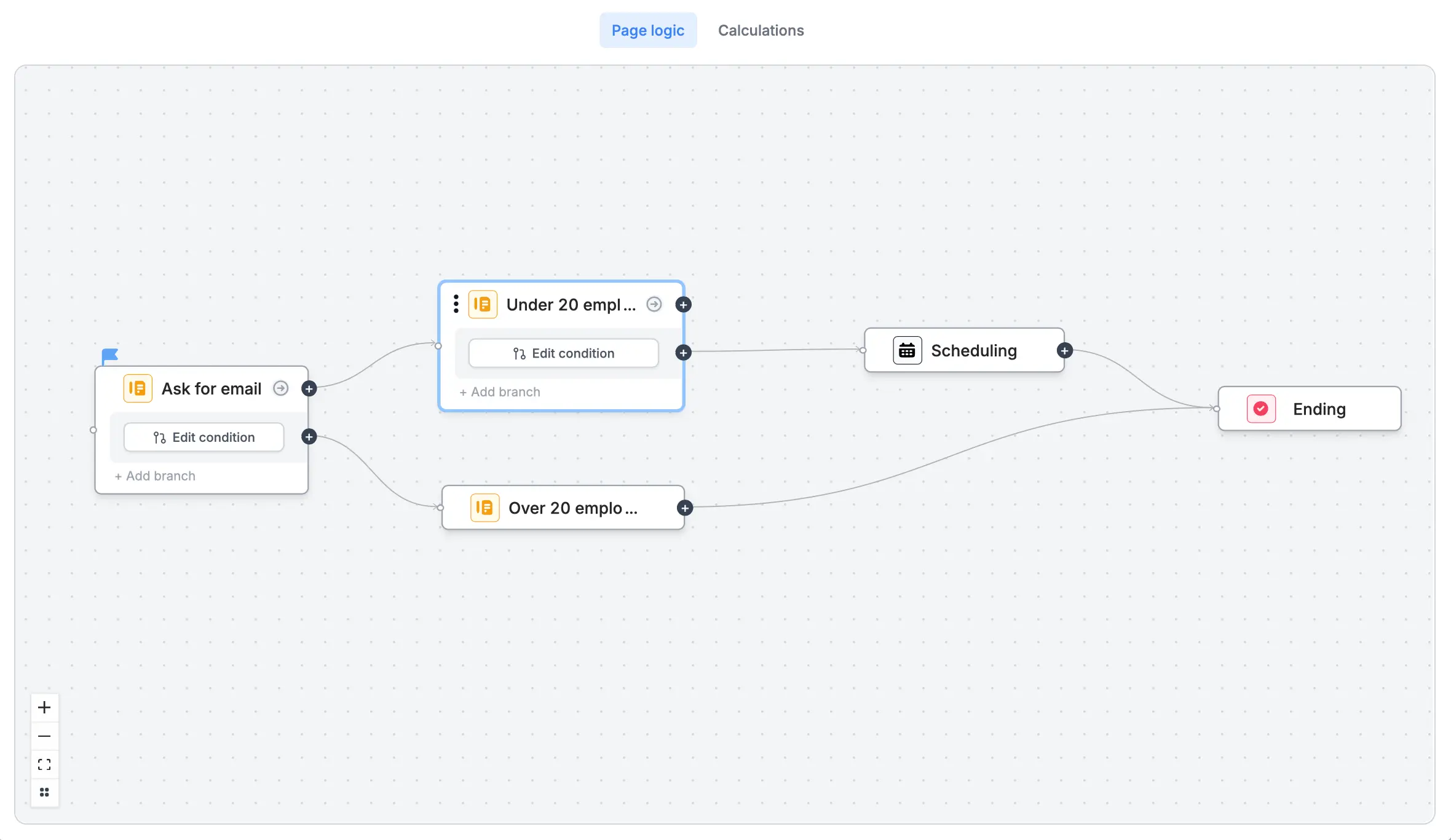
* Routing leads with over x employees to a [scheduling page](/scheduling-page) with your enterprise team
* Creating multiple scheduling pages to route leads based on region, industry or company size
## How to enrich emails
Simply click your email field's and enable `Enrich with Apollo` in the right-hand panel.
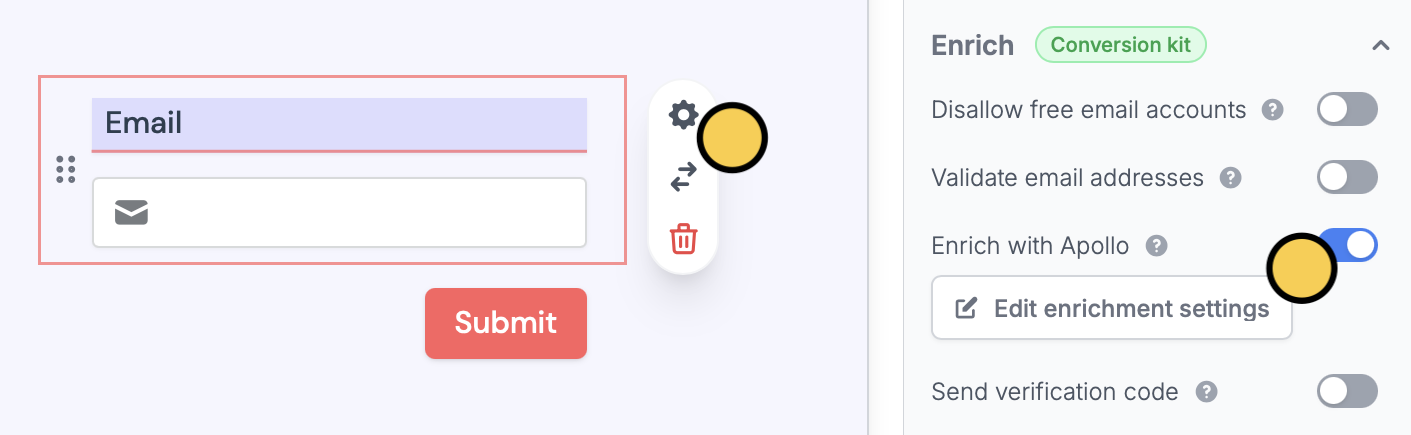 That's it! Now, when respondents enter their email in your form, you'll see their company details automatically collected in the [Results page](https://www.fillout.com/help/view-responses).
With [page logic](/page-logic), you can conditionally route leads based on the data obtained from the email field.
That's it! Now, when respondents enter their email in your form, you'll see their company details automatically collected in the [Results page](https://www.fillout.com/help/view-responses).
With [page logic](/page-logic), you can conditionally route leads based on the data obtained from the email field.
 Lastly, you can send enriched data to [any integration](/integrations) by setting up [additional mappings](https://www.fillout.com/help/additional-integration-mappings) on the `Integrations` tab.
## Related articles
Hide or show pages or custom endings based on respondent input.
Book meetings on your Google or Outlook calendars with a form.
Lastly, you can send enriched data to [any integration](/integrations) by setting up [additional mappings](https://www.fillout.com/help/additional-integration-mappings) on the `Integrations` tab.
## Related articles
Hide or show pages or custom endings based on respondent input.
Book meetings on your Google or Outlook calendars with a form.