> ## Documentation Index
> Fetch the complete documentation index at: https://fillout.com/help/llms.txt
> Use this file to discover all available pages before exploring further.
# Limit bookings
> Set the farthest date respondents can book an event in your Google or Outlook Calendar with Fillout Scheduling. Optionally, add a minimum notice period, limit daily events, and put buffer times.
## Manage future bookings
On the left-hand panel of your form, scroll down to **Availability**. Toggle `Limit future bookings` to specify how many **Days into the future** respondents can reserve time slots in your calendar, or add a **Date range**.
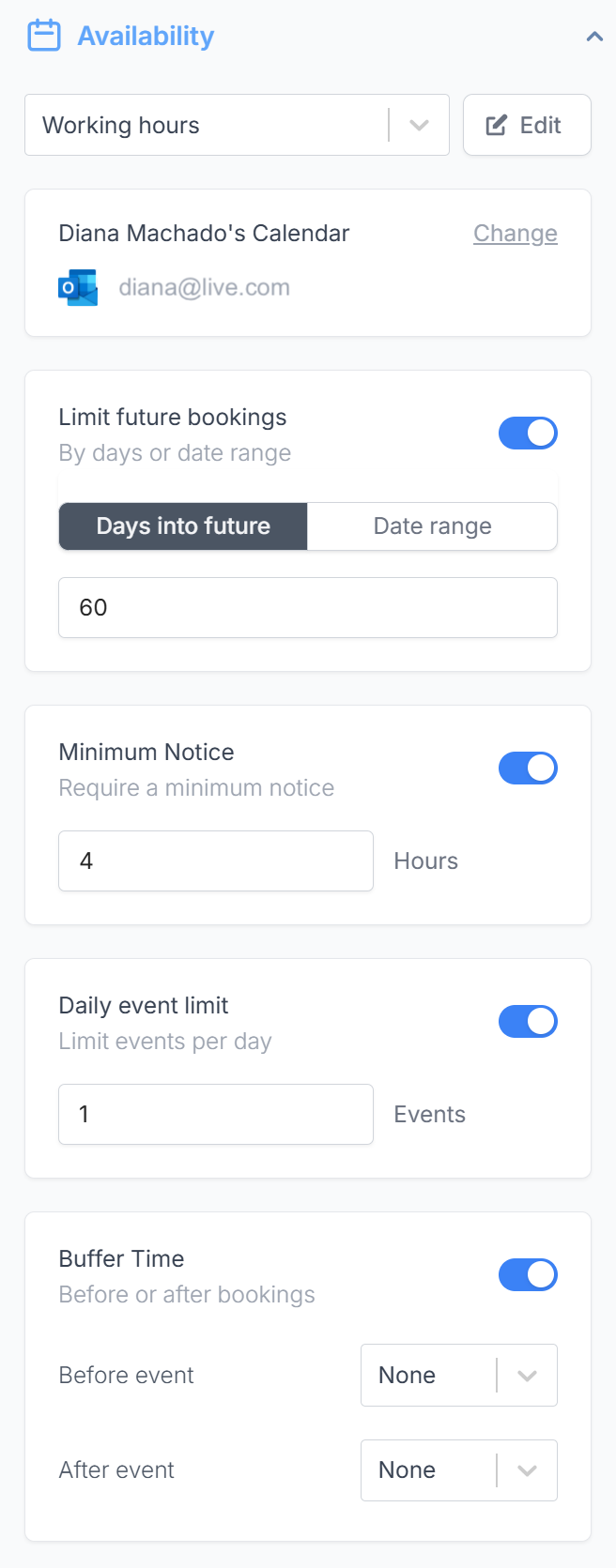 You can also enable these features:
* **Minimum Notice** - to prevent last minute bookings
* **Daily event limit**- to prevent overbooking
* **Buffer Time** - to help you prepare for the next event or wrap up the previous one
Daily event limits are only applicable to one-on-one meetings.
## Related article
Specify your available hours and add multiple availabilities.
You can also enable these features:
* **Minimum Notice** - to prevent last minute bookings
* **Daily event limit**- to prevent overbooking
* **Buffer Time** - to help you prepare for the next event or wrap up the previous one
Daily event limits are only applicable to one-on-one meetings.
## Related article
Specify your available hours and add multiple availabilities.