> ## Documentation Index
> Fetch the complete documentation index at: https://fillout.com/help/llms.txt
> Use this file to discover all available pages before exploring further.
# Connect your form to Linear
> Create new issues on Linear with a Fillout form. Set the priority, status, project, and more dynamically based on the form submission.
## What is Linear?
[Linear](https://linear.app/?ref=fillout-forms-helparticle) lets you easily create and manage issues, sprints and product roadmaps. It streamlines your workflow with a fast, intuitive interface designed for modern teams.
## How it works
On a Fillout form, head to the `Integrate` tab and look for `Linear`.
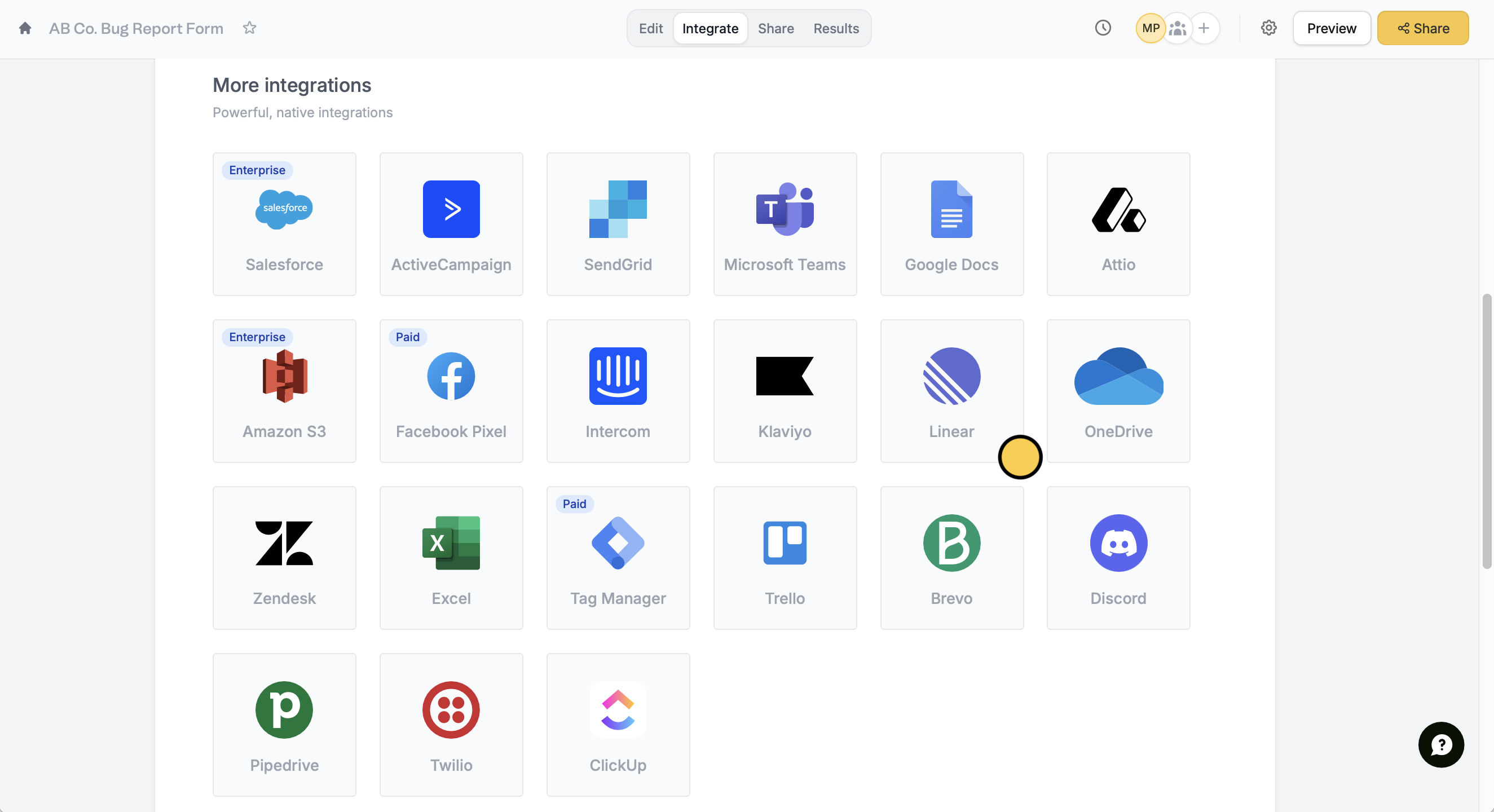 Then, enter your **account name** to connect.
First, select a **Team**. [Reference any fields](https://www.fillout.com/help/additional-integration-mappings#how-to-map-fields-manually) in your form by clicking or typing **@**. You can also type a fixed text for the **Issue title** and **Issue description**, if needed.
Then, enter your **account name** to connect.
First, select a **Team**. [Reference any fields](https://www.fillout.com/help/additional-integration-mappings#how-to-map-fields-manually) in your form by clicking or typing **@**. You can also type a fixed text for the **Issue title** and **Issue description**, if needed.
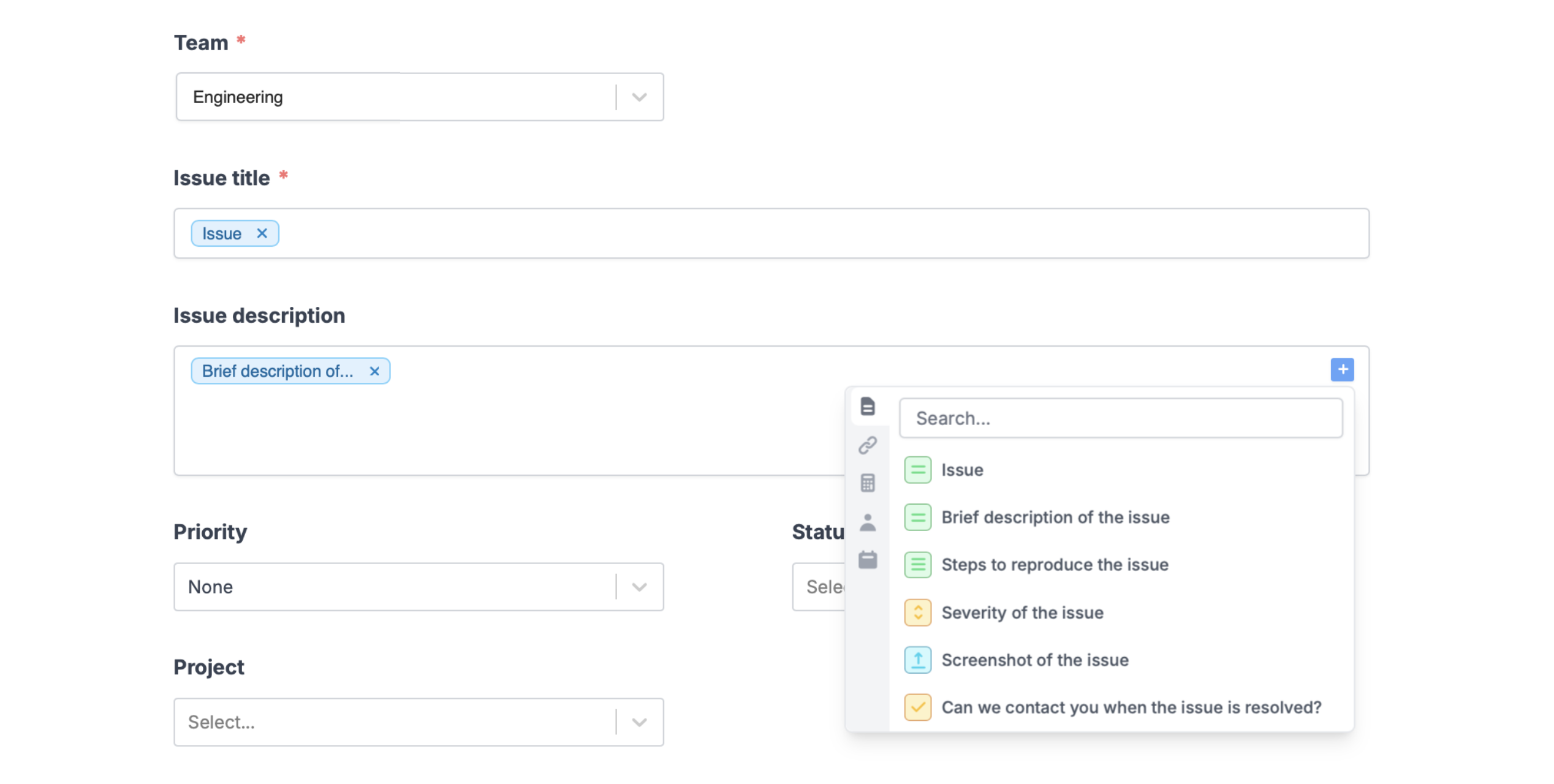 Optionally select the **priority**, **status**, and **project** to create the Linear issue with.
Once you’re ready, click `Finish setup` on the upper right corner and `Publish` your form.
Now, you’ll see a new issue created in your Linear workspace every time someone completes your form.
## Create issues based on conditions
You can choose to create certain types of issues only when a condition is met. For example, create issues in different projects depending on what respondents specify in the form. More details [here](/conditional-integration).
## Other similar integrations
Create new tickets from a form.
Create new tickets and leads from a form.
Create new cards on Trello with a form.
Optionally select the **priority**, **status**, and **project** to create the Linear issue with.
Once you’re ready, click `Finish setup` on the upper right corner and `Publish` your form.
Now, you’ll see a new issue created in your Linear workspace every time someone completes your form.
## Create issues based on conditions
You can choose to create certain types of issues only when a condition is met. For example, create issues in different projects depending on what respondents specify in the form. More details [here](/conditional-integration).
## Other similar integrations
Create new tickets from a form.
Create new tickets and leads from a form.
Create new cards on Trello with a form.