> ## Documentation Index
> Fetch the complete documentation index at: https://fillout.com/help/llms.txt
> Use this file to discover all available pages before exploring further.
# Update linked records
> Let respondents choose records to update in Airtable, Notion, Smartsuite, and other databases.
## How to enable update mode
**Only allow editing for records whose full data those respondents should be able to see.** Editing a linked record acts as a key to the entire record: respondents who can open it can view every field on that record, even fields that don't appear as questions in the subform. This is what lets the subform use any record field for pre-filling, [answer piping](/answer-piping), show/hide [logic](/conditional-hiding), and [calculations](/calculations). To limit what's loaded, you can [restrict prefilled data](/update-forms#restrict-prefilled-data) so the subform only loads fields mapped to questions.
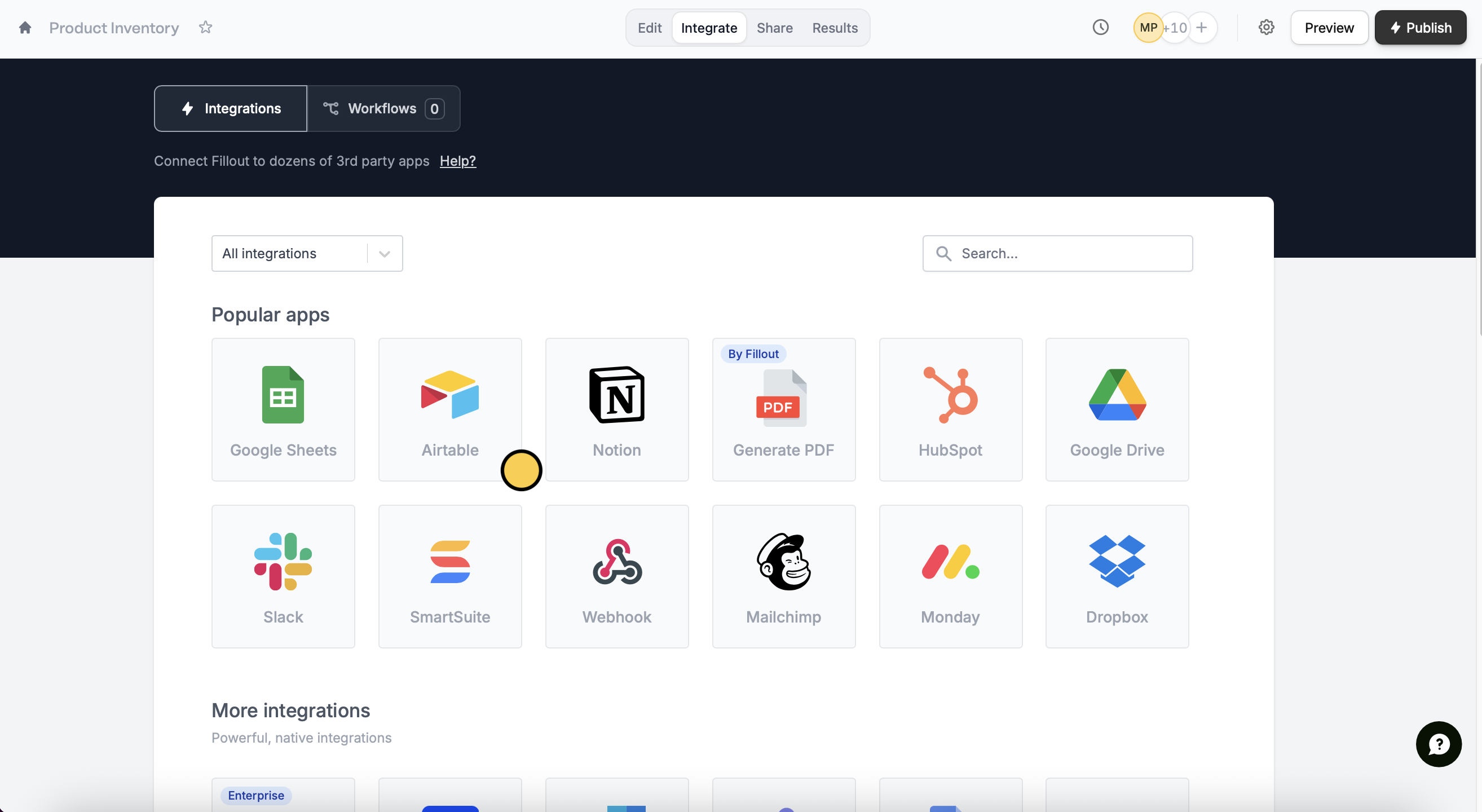
On your Fillout form, navigate to `Integrate` in the top menu to connect to your preferred database. In this example, we'll choose Airtable.
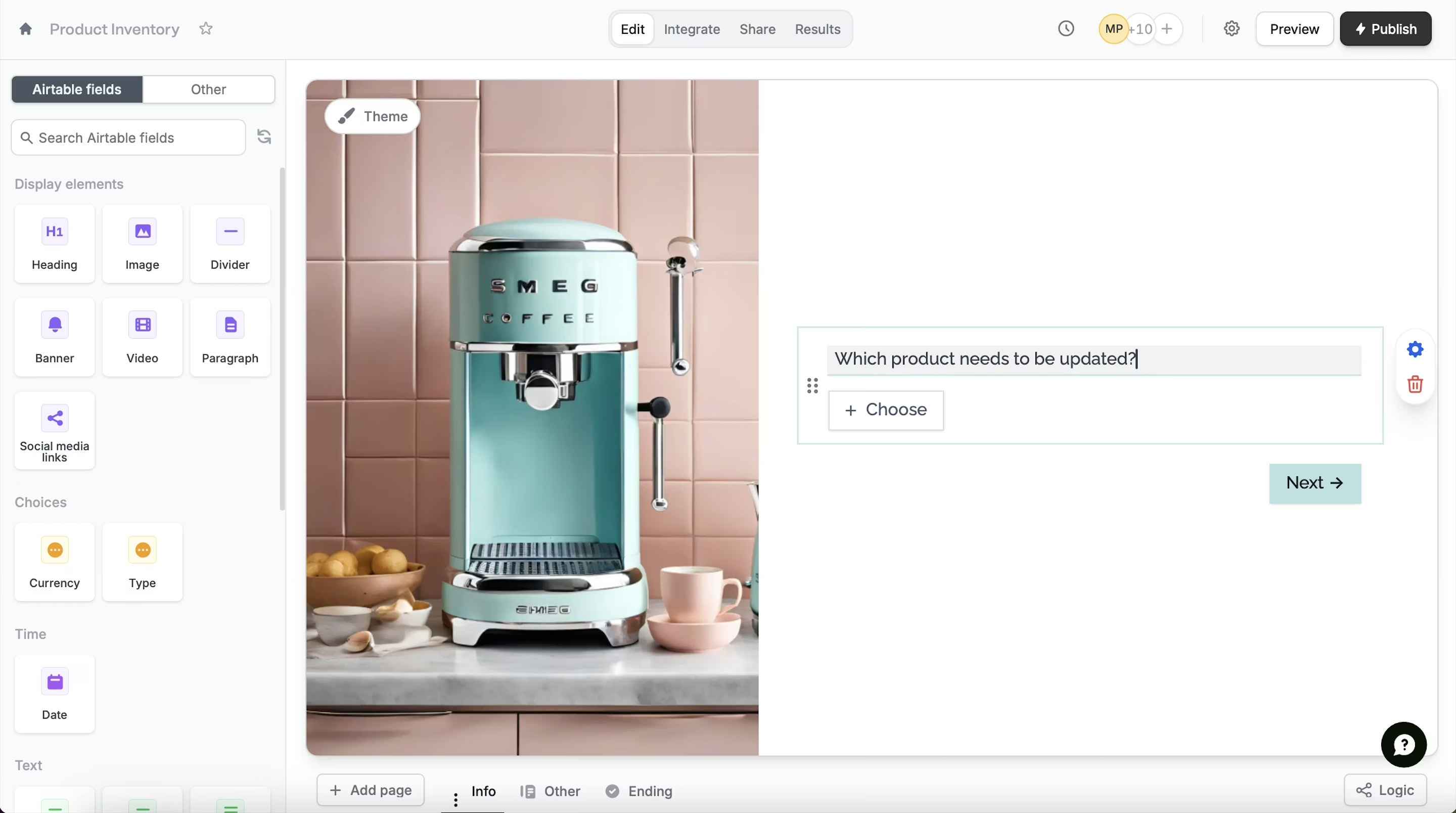
 Once connected, fields from your database will appear in the left-hand panel. Drag and drop the linked record field to your form.
 Click the field's to toggle the `Allow editing records` switch.
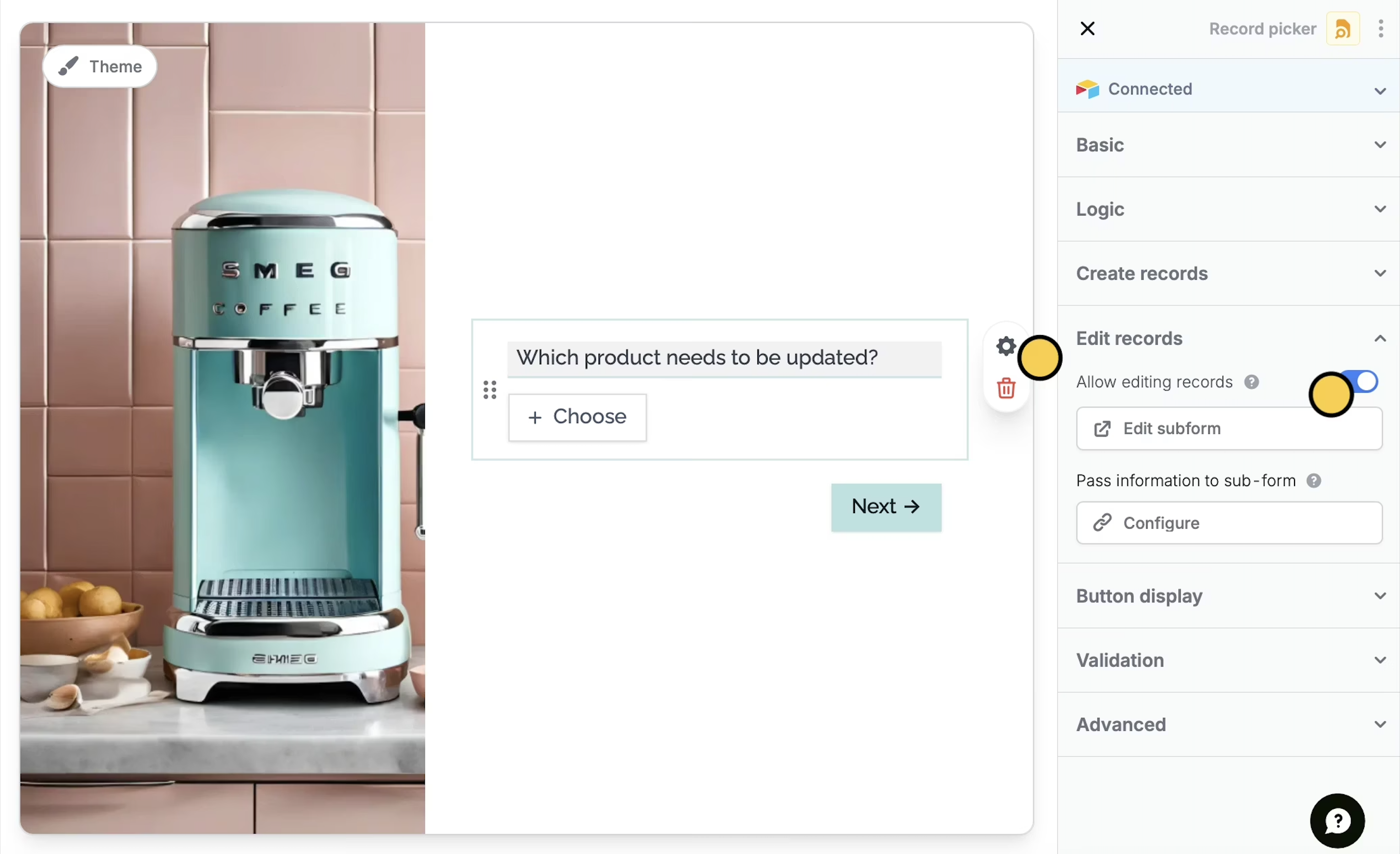 The default label button for linked record fields is "Add". To edit this, go to Button display in the right-hand panel.
To edit the form used for creating linked records, simply click `Edit subform`.
Click `Publish` in the upper right corner and share or embed your form.
The default label button for linked record fields is "Add". To edit this, go to Button display in the right-hand panel.
To edit the form used for creating linked records, simply click `Edit subform`.
Click `Publish` in the upper right corner and share or embed your form.
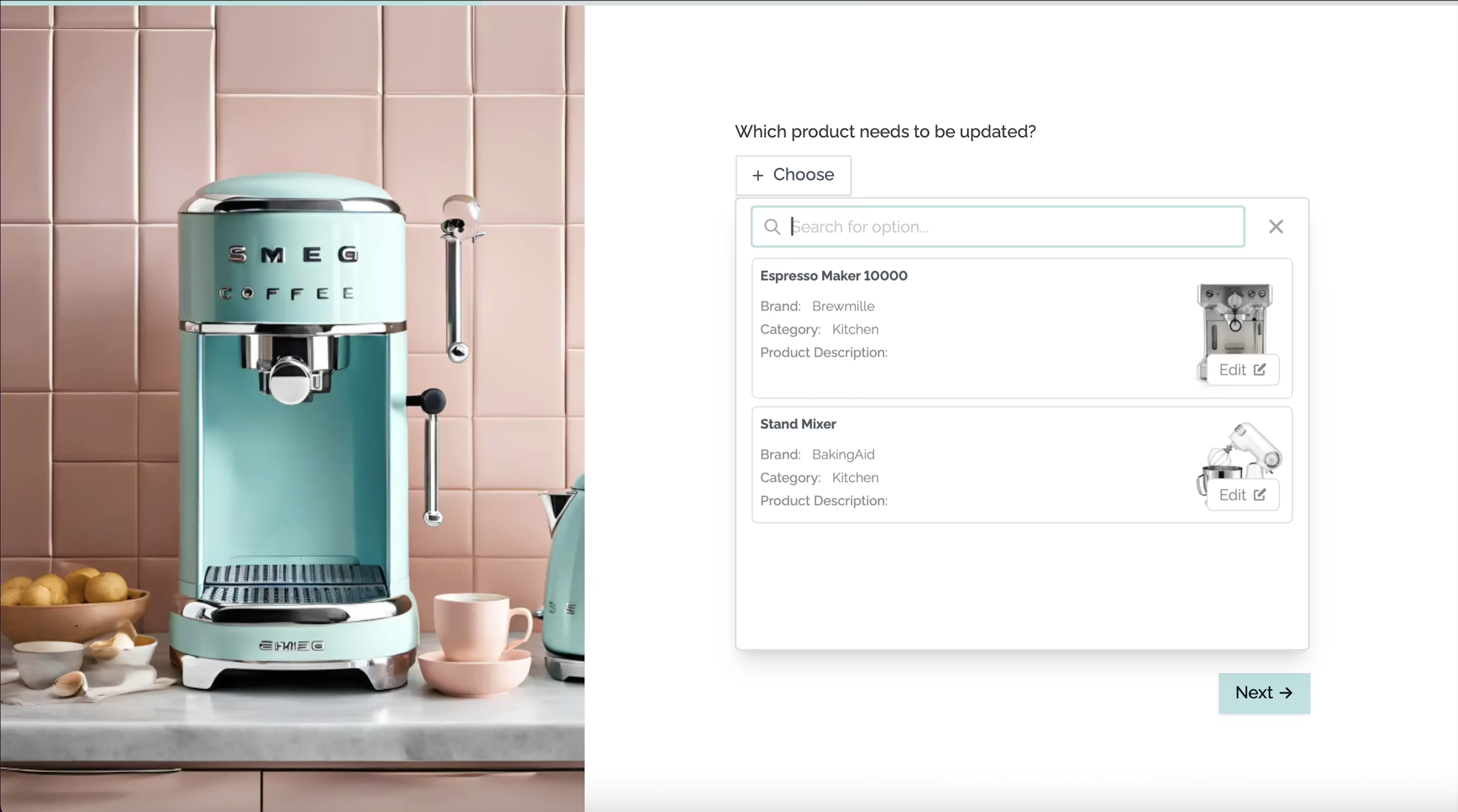 That's it! Now, respondents can update linked records in your database quickly with your Fillout form.
## Relevant articles
Let respondents create from a record picker.
Set pre-fills, reference fields, and more.
That's it! Now, respondents can update linked records in your database quickly with your Fillout form.
## Relevant articles
Let respondents create from a record picker.
Set pre-fills, reference fields, and more.