> ## Documentation Index
> Fetch the complete documentation index at: https://fillout.com/help/llms.txt
> Use this file to discover all available pages before exploring further.
# Login page
> Require respondents to verify their email or enter a password. Restrict logins to just your company's domain or a specific list in a database. Optionally limit to 1 submission or let respondents edit their previous submission.
## Video overview
## Add a login page
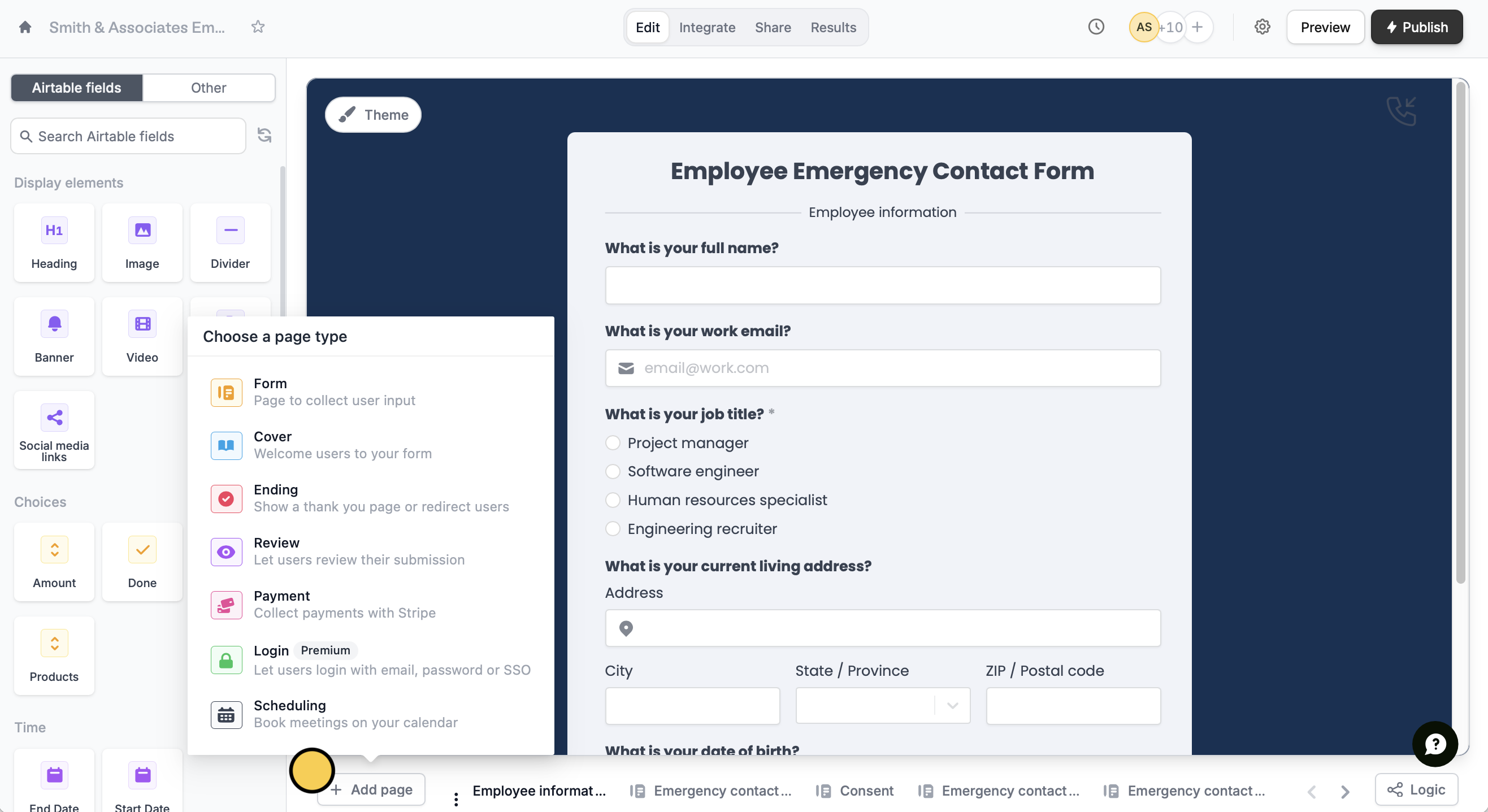
**Login pages** can be used to secure your form behind a password, or verify that the provided email is valid (and that they own it). Click `+ Add page`, and choose **Login**.
 This feature is available on **Starter**, **Pro**, **Business**, and **Enterprise** plans. Learn more about our pricing plans and advanced features [**here**](https://www.fillout.com/pricing).
## Login page types
In the left-hand panel, you can choose between **Email**, **Password**, and **Single Sign-On (SSO)**.
### Email login
This is the default **Verification type**, which requires respondents to enter an email and verify it with a code sent to their inbox.
This feature is available on **Starter**, **Pro**, **Business**, and **Enterprise** plans. Learn more about our pricing plans and advanced features [**here**](https://www.fillout.com/pricing).
## Login page types
In the left-hand panel, you can choose between **Email**, **Password**, and **Single Sign-On (SSO)**.
### Email login
This is the default **Verification type**, which requires respondents to enter an email and verify it with a code sent to their inbox.
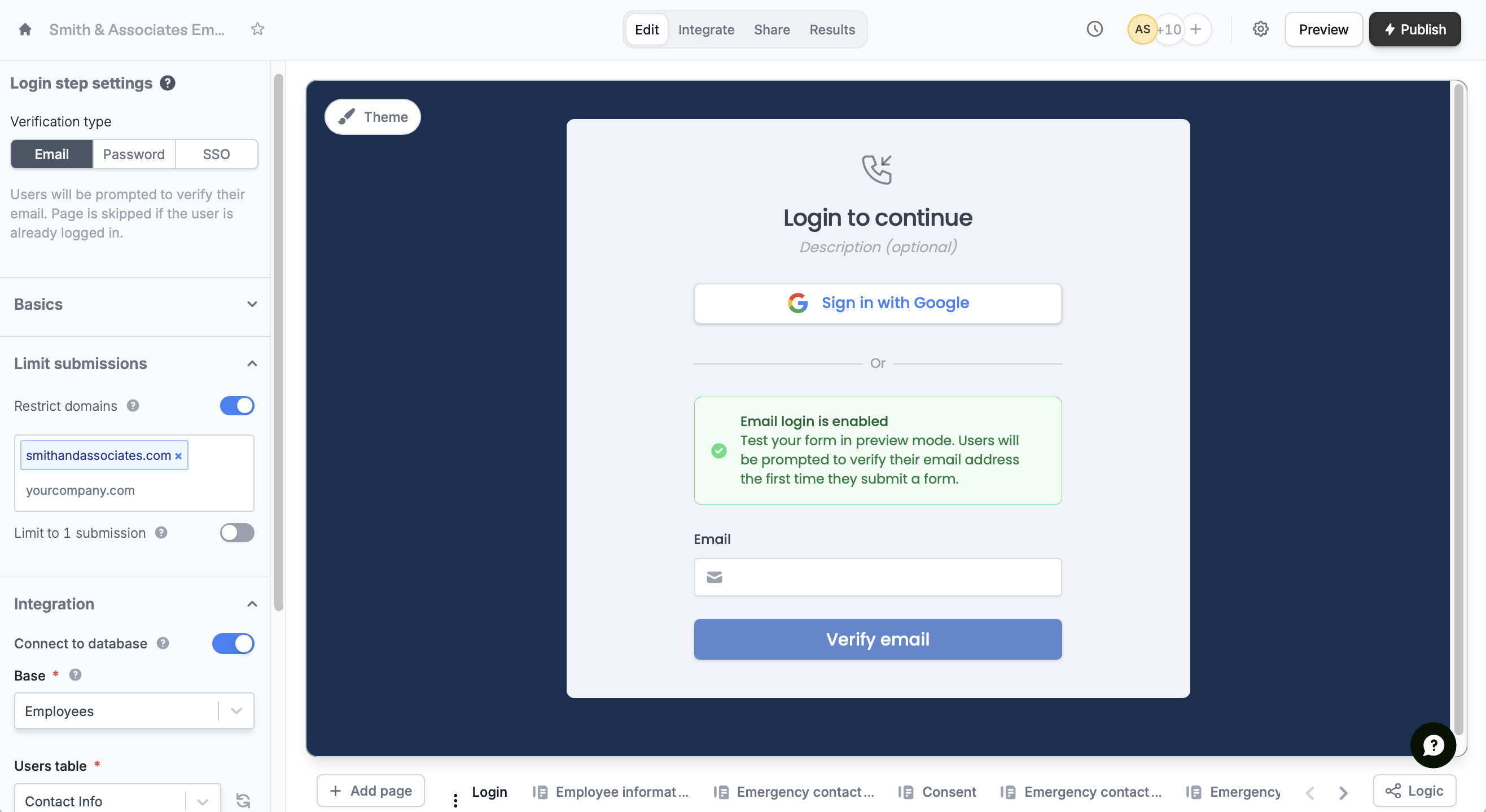 In the left-hand panel, you can add more restrictions such as:
* **Restrict domains** – allow only specific email domains, such as your company’s domain
* **Limit to 1 submission** – restrict each respondent to a single form submission
### **Password login**
Switch to `Password` and enter your preferred single passcode in the left-hand panel. You can edit this later on.
In the left-hand panel, you can add more restrictions such as:
* **Restrict domains** – allow only specific email domains, such as your company’s domain
* **Limit to 1 submission** – restrict each respondent to a single form submission
### **Password login**
Switch to `Password` and enter your preferred single passcode in the left-hand panel. You can edit this later on.
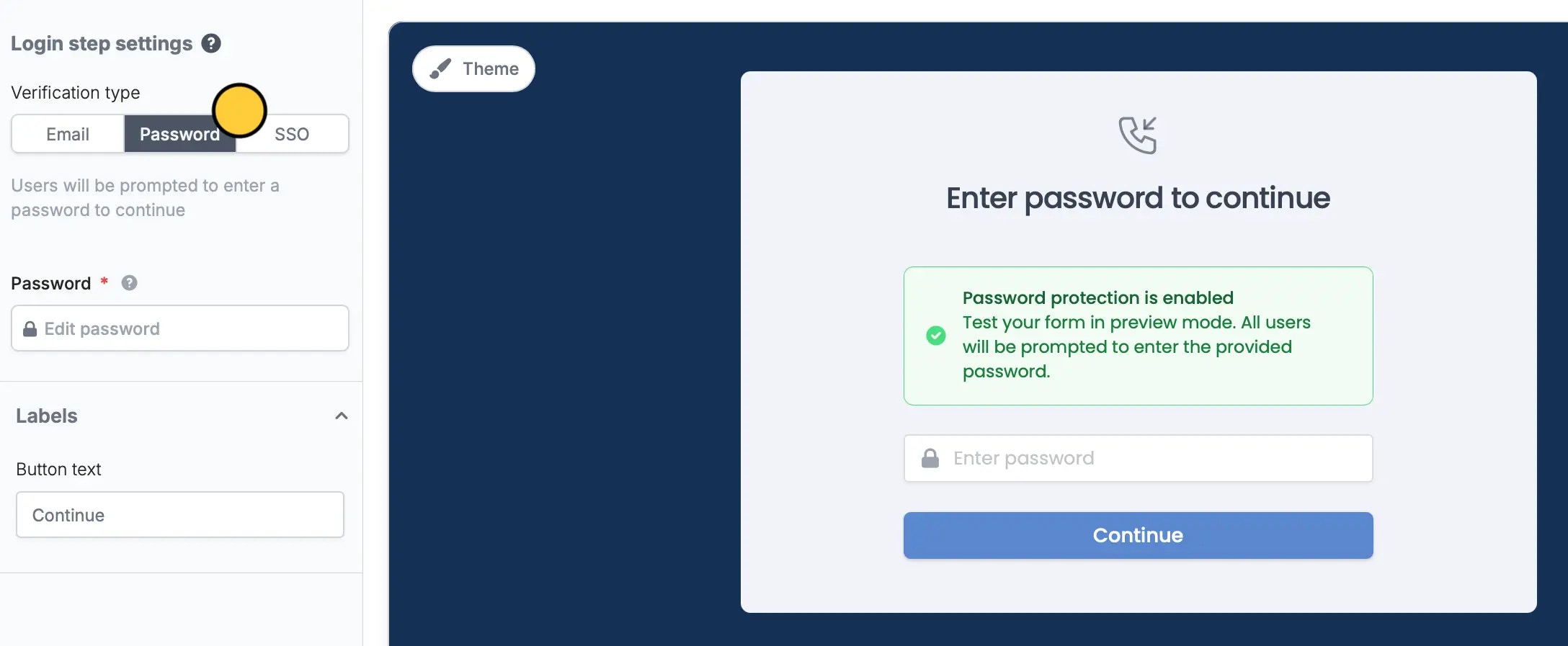 Remember to `Publish` your form after entering or changing the password, otherwise respondents will not be able to access your form.
### Single Sign-On login (SSO)
You can also opt for `SSO`. Add Microsoft, OneLogin, Google Workspaces, Okta and other types of SSO login to your form. Learn more [here](/sso-form-login).
## Connect to a database
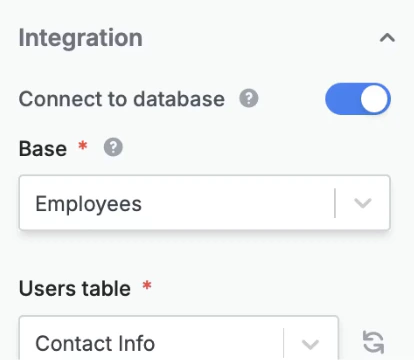
Limit logins to users listed in a specific database to log in, and retrieve their records for use in the form. On the left-hand panel, toggle `Connect to database` and choose your **Base** and **Users table**.
Remember to `Publish` your form after entering or changing the password, otherwise respondents will not be able to access your form.
### Single Sign-On login (SSO)
You can also opt for `SSO`. Add Microsoft, OneLogin, Google Workspaces, Okta and other types of SSO login to your form. Learn more [here](/sso-form-login).
## Connect to a database
Limit logins to users listed in a specific database to log in, and retrieve their records for use in the form. On the left-hand panel, toggle `Connect to database` and choose your **Base** and **Users table**.
 ## Allow respondents to edit past submissions
Some forms may need to be updated or edited after submitting them. Under **Basics** in the left-hand panel, toggle the `Can edit existing responses` switch.
## Allow respondents to edit past submissions
Some forms may need to be updated or edited after submitting them. Under **Basics** in the left-hand panel, toggle the `Can edit existing responses` switch.
 ## Related articles
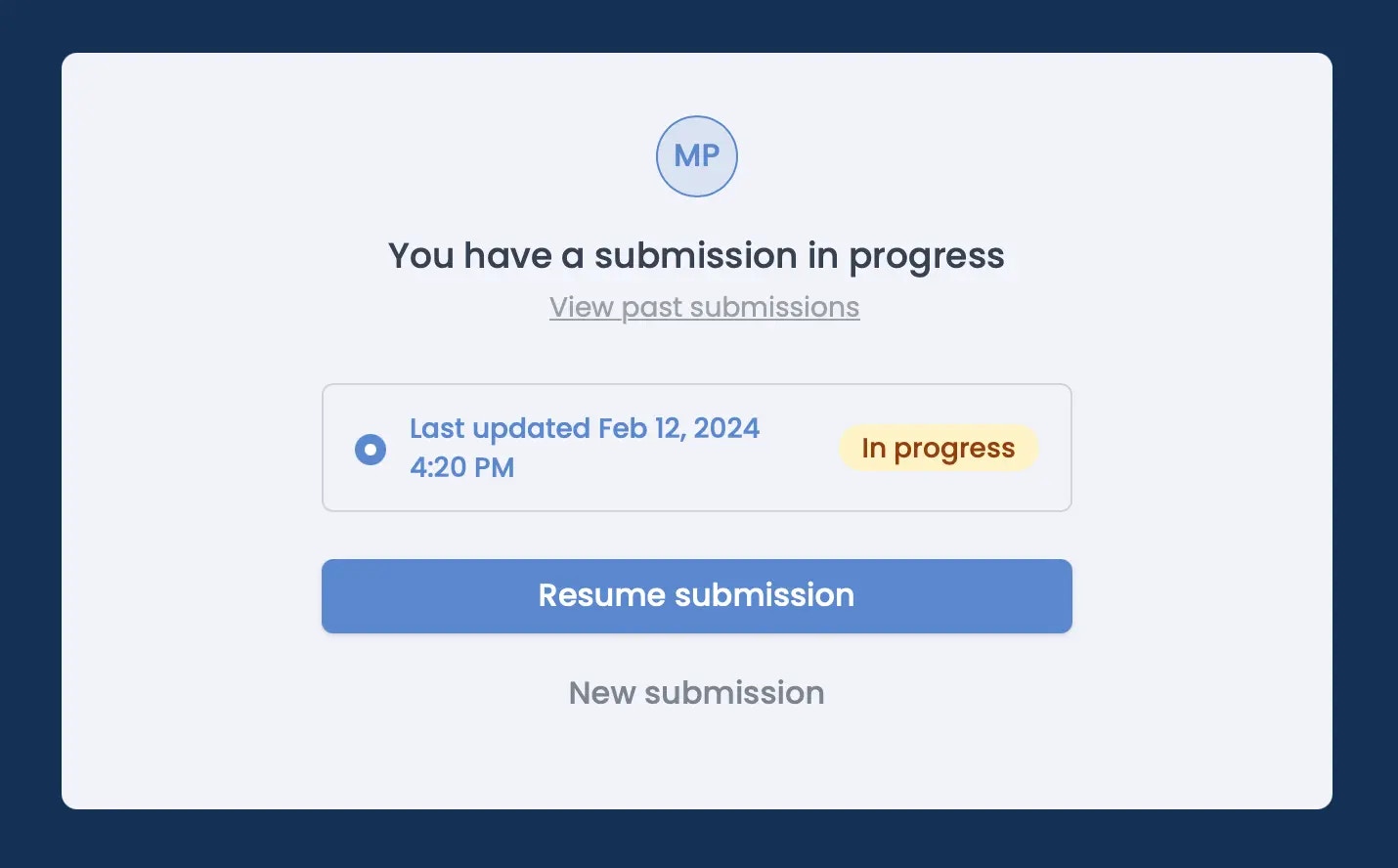
Auto-save progress so respondents can resume later.
Keep form responses updated.
Use a form to create or update Airtable bases.
## Related articles
Auto-save progress so respondents can resume later.
Keep form responses updated.
Use a form to create or update Airtable bases.