> ## Documentation Index
> Fetch the complete documentation index at: https://fillout.com/help/llms.txt
> Use this file to discover all available pages before exploring further.
# Connect your form to Mailchimp
> Add new Mailchimp contacts and update existing ones from a Fillout form to grow your newsletter audience. Set audience fields and add tags to contacts based on conditions in your form.
## What is Mailchimp?
[Mailchimp](http://mailchimp.com/) is an all-in-one marketing platform that helps businesses and individuals design, create, and manage email campaigns, build landing pages, automate marketing processes, and analyze audience engagement to reach their marketing goals effectively.
## Video tutorial
## How it works
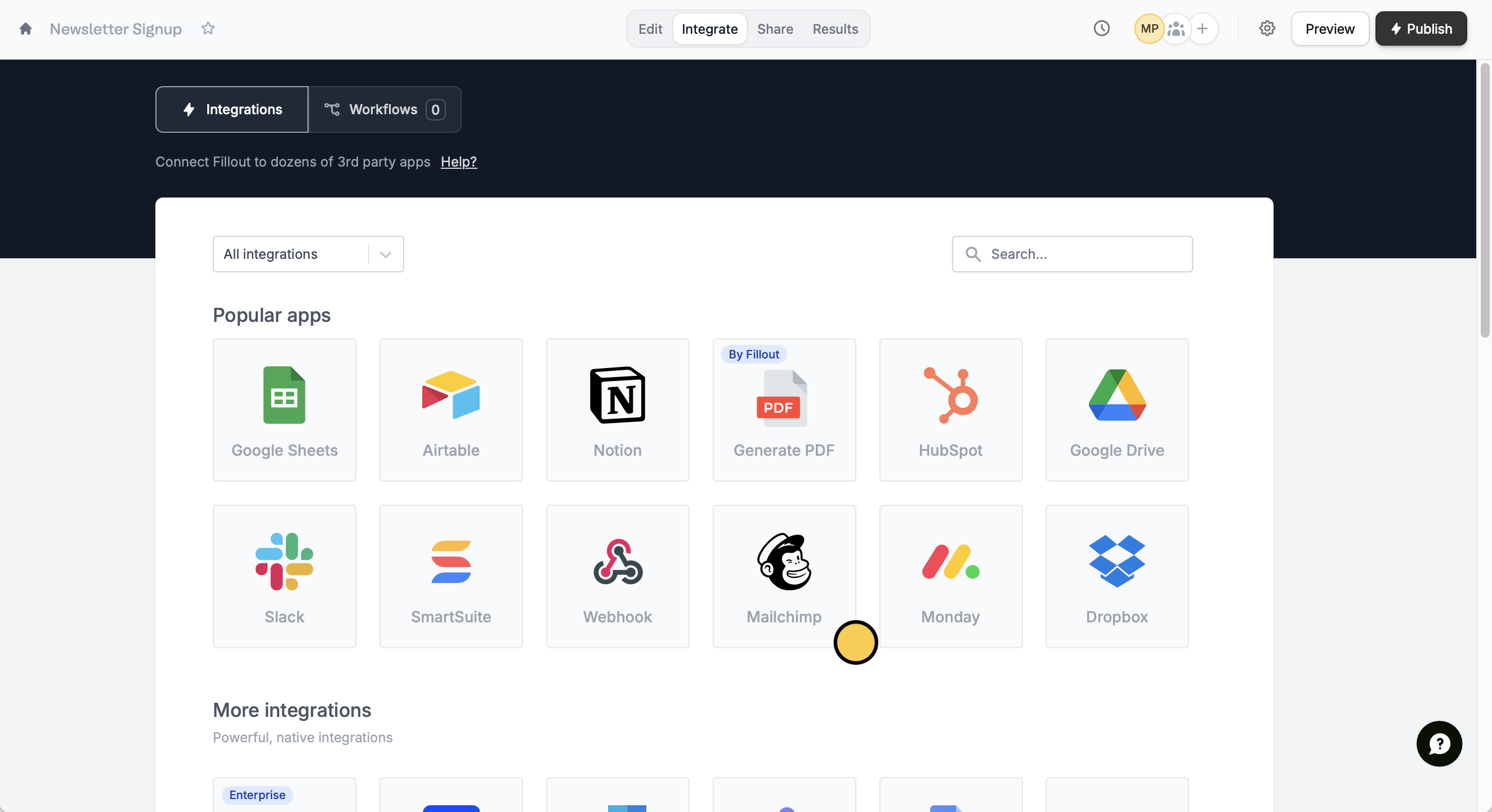
Click `Integrate` from the top menu followed by `Mailchimp`.
 When creating your form, make sure to set the email, name, and other fields you would like to link to your Mailchimp mailing list to **required**.
Choose which **account** and **audience** you would like to create or update contacts in, then click `Continue`.
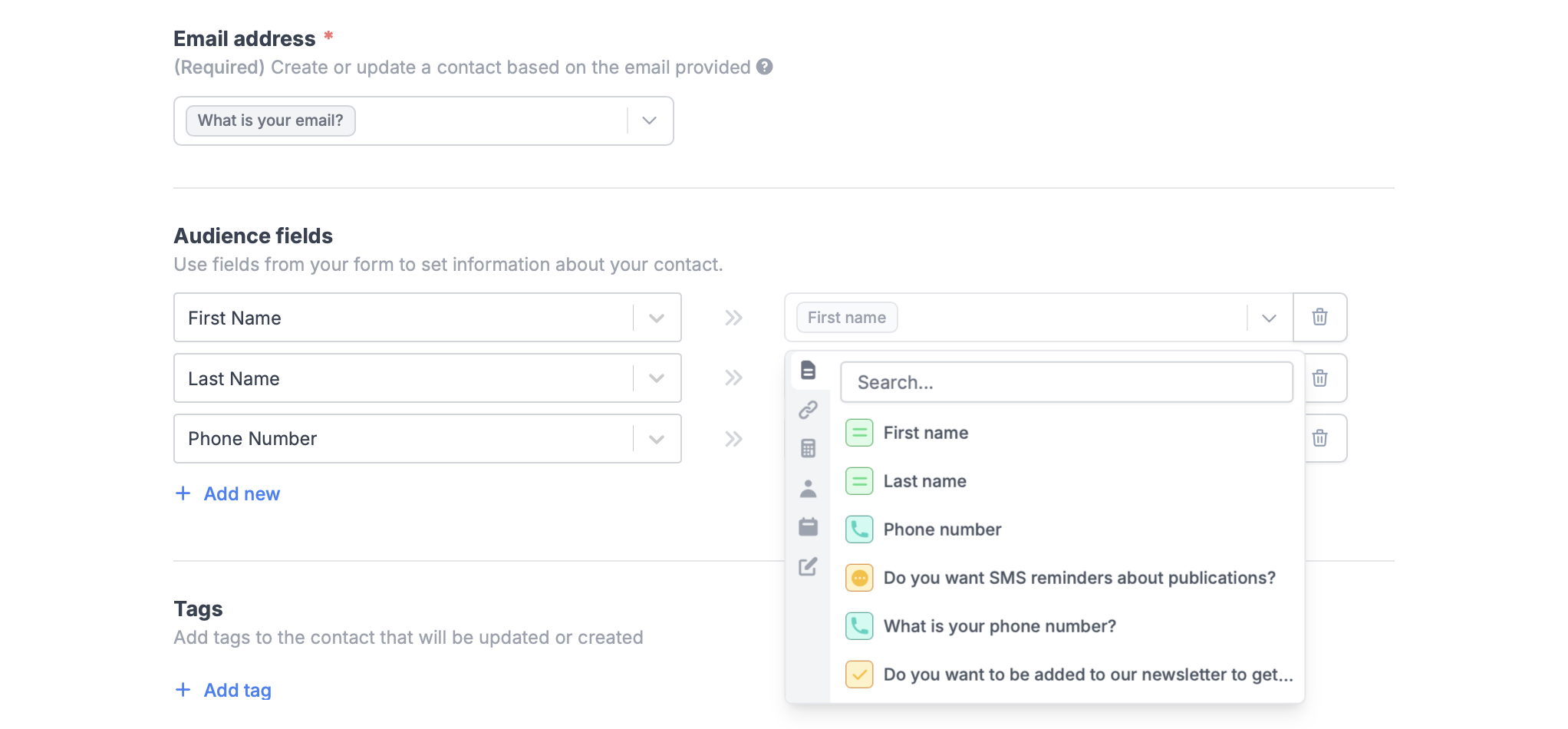
[Match the fields](https://www.fillout.com/help/additional-integration-mappings#how-to-map-fields-manually) in your Fillout form to the corresponding fields in your Mailchimp audience. For example, link the email address field by its respective question.
When creating your form, make sure to set the email, name, and other fields you would like to link to your Mailchimp mailing list to **required**.
Choose which **account** and **audience** you would like to create or update contacts in, then click `Continue`.
[Match the fields](https://www.fillout.com/help/additional-integration-mappings#how-to-map-fields-manually) in your Fillout form to the corresponding fields in your Mailchimp audience. For example, link the email address field by its respective question.
 `Publish` your form once everything’s set.
That's it! Answers from new submissions will now appear in your Mailchimp audience list.
If a contact with the provided email address already exists, Fillout will automatically update the existing contact's information.
## Add tags
You can add Mailchimp tags to new contacts automatically to help segment your email audiences. `+ Add tag` and choose from the dropdown.
`Publish` your form once everything’s set.
That's it! Answers from new submissions will now appear in your Mailchimp audience list.
If a contact with the provided email address already exists, Fillout will automatically update the existing contact's information.
## Add tags
You can add Mailchimp tags to new contacts automatically to help segment your email audiences. `+ Add tag` and choose from the dropdown.
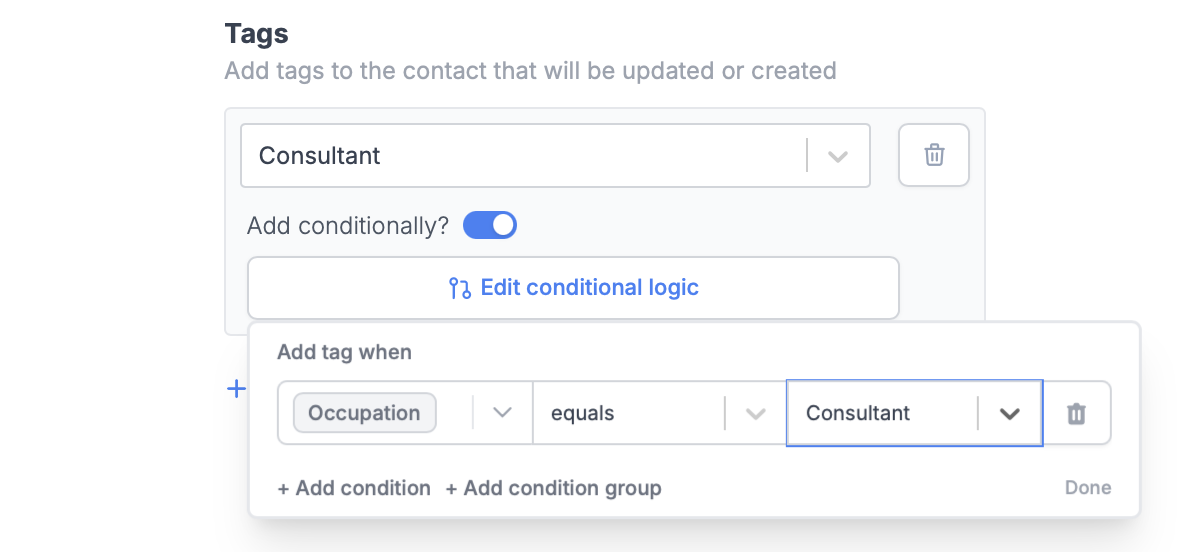 To add a tag to specific contacts, toggle the `Add conditionally?` switch. `Set conditional logic` and choose when to apply it. For example, tagging users with their "Occupation".
Remember to click `Publish` on the upper right corner after making any changes to the integration.
## Specify a condition
You can run your integration only when a specific condition is met. Check out this [guide](/conditional-integration).
## Related articles
Show or hide fields based on multiple conditions at once.
Hide or show pages or custom endings based on respondent input.
Calculate prices for order forms, compute quiz scores, and more.
To add a tag to specific contacts, toggle the `Add conditionally?` switch. `Set conditional logic` and choose when to apply it. For example, tagging users with their "Occupation".
Remember to click `Publish` on the upper right corner after making any changes to the integration.
## Specify a condition
You can run your integration only when a specific condition is met. Check out this [guide](/conditional-integration).
## Related articles
Show or hide fields based on multiple conditions at once.
Hide or show pages or custom endings based on respondent input.
Calculate prices for order forms, compute quiz scores, and more.