> ## Documentation Index
> Fetch the complete documentation index at: https://fillout.com/help/llms.txt
> Use this file to discover all available pages before exploring further.
# Manage Integrations
> Update or remove integrations your organization is connected to.
## View and edit existing connections
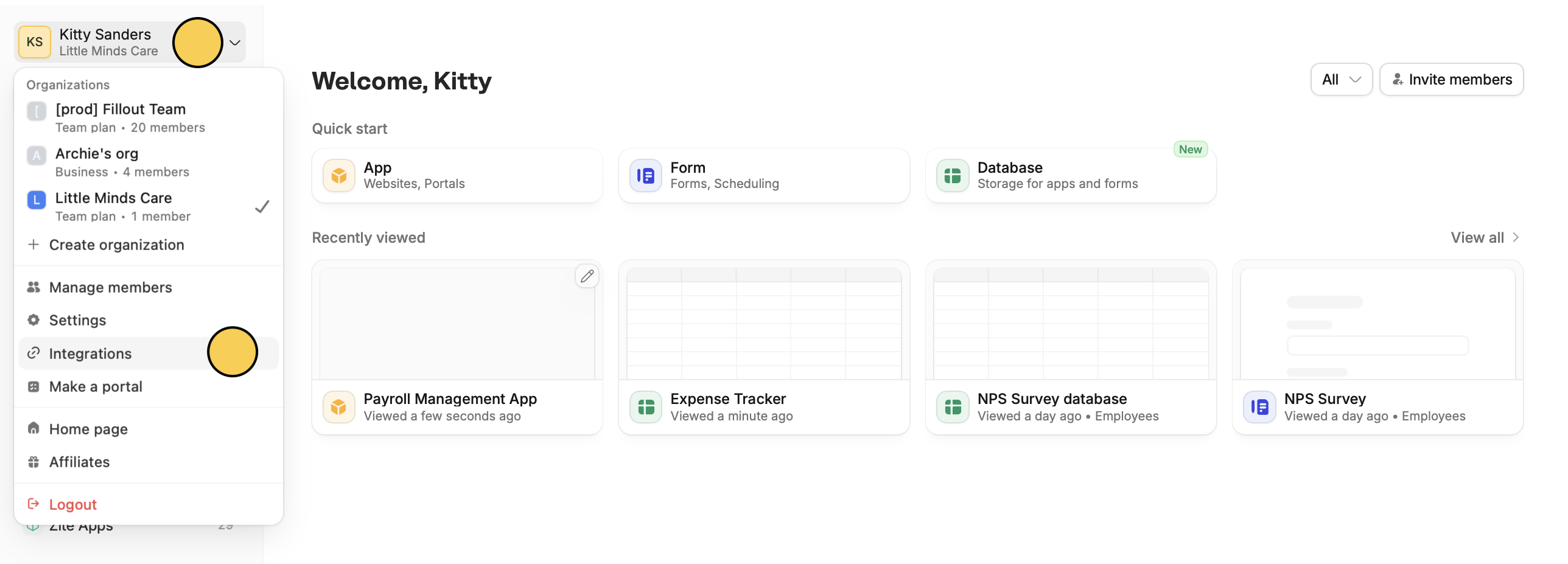
From the dashboard, click your `Account name` followed by `Integrations` in the dropdown menu.
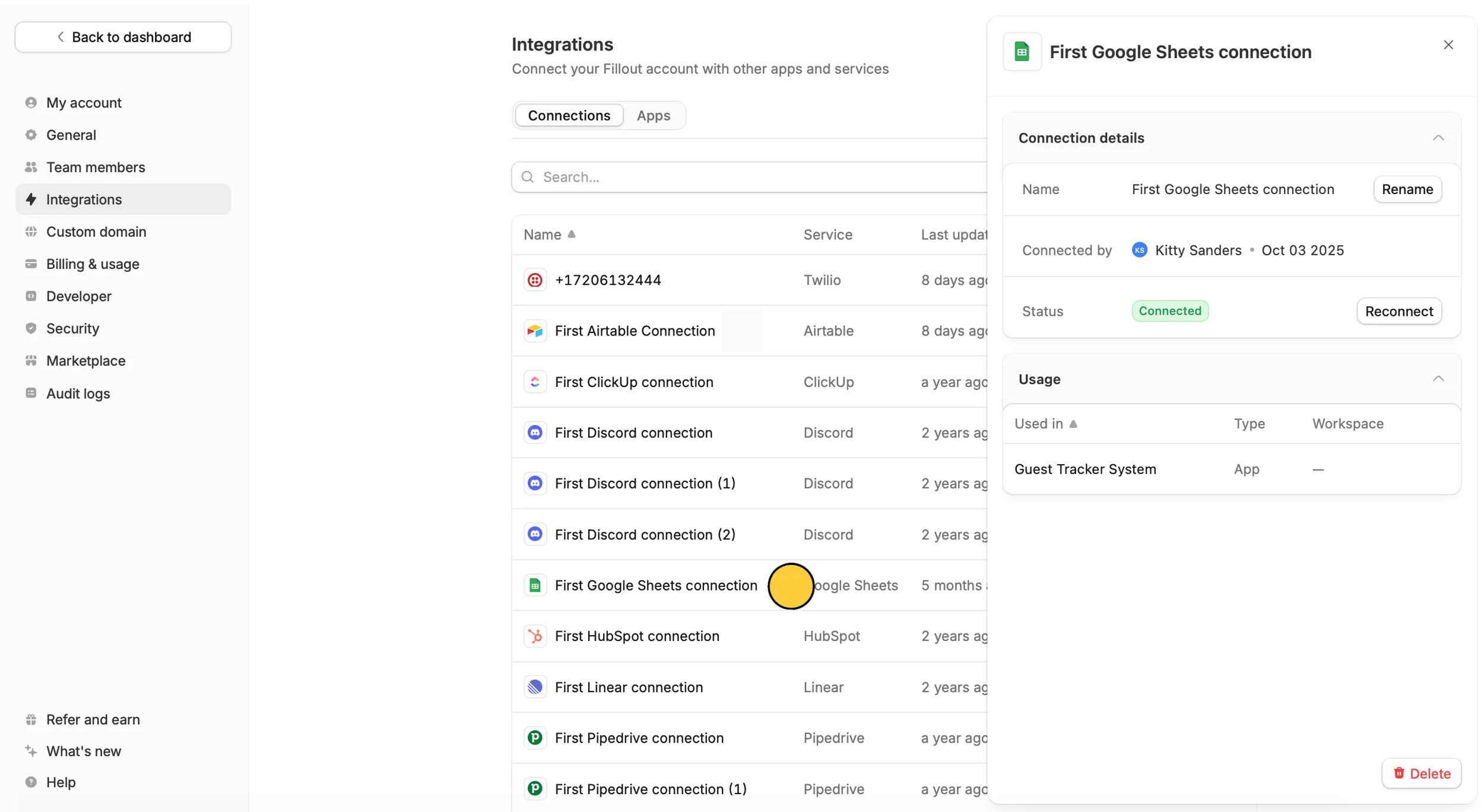
 [Here](https://build.fillout.com/home/settings/integrations), you’ll see a full list of all apps and services connected to your forms, apps, and databases.
Click any **connection** to see its name or display label, the user who connected it, its status, and which forms and/or apps it’s used in.
[Here](https://build.fillout.com/home/settings/integrations), you’ll see a full list of all apps and services connected to your forms, apps, and databases.
Click any **connection** to see its name or display label, the user who connected it, its status, and which forms and/or apps it’s used in.
 #### **Understanding the status**
This indicates the current state of your integration connection:
* **Connected**: The integration is successfully connected, and we were able to verify its connection with the external service in real time. Currently, Slack, Microsoft Teams, Google Sheets, Google Drive, Google Calendar, Notion, HubSpot, and Airtable support real-time verification.
* **Configured**: The integration has been authenticated and is ready to use. For some integrations, we aren't currently able to verify the connection in real time, so the status displays **Configured** instead of **Connected**. This does **not** indicate a problem—the integration should still work as expected.
* **Disconnected**: The connection is no longer valid, usually because the authorization has expired or was removed. Reconnecting the integration should restore functionality.
If you have multiple connections for the same integration, it helps to `Rename` them so you can easily tell them apart.
#### **Understanding the status**
This indicates the current state of your integration connection:
* **Connected**: The integration is successfully connected, and we were able to verify its connection with the external service in real time. Currently, Slack, Microsoft Teams, Google Sheets, Google Drive, Google Calendar, Notion, HubSpot, and Airtable support real-time verification.
* **Configured**: The integration has been authenticated and is ready to use. For some integrations, we aren't currently able to verify the connection in real time, so the status displays **Configured** instead of **Connected**. This does **not** indicate a problem—the integration should still work as expected.
* **Disconnected**: The connection is no longer valid, usually because the authorization has expired or was removed. Reconnecting the integration should restore functionality.
If you have multiple connections for the same integration, it helps to `Rename` them so you can easily tell them apart.
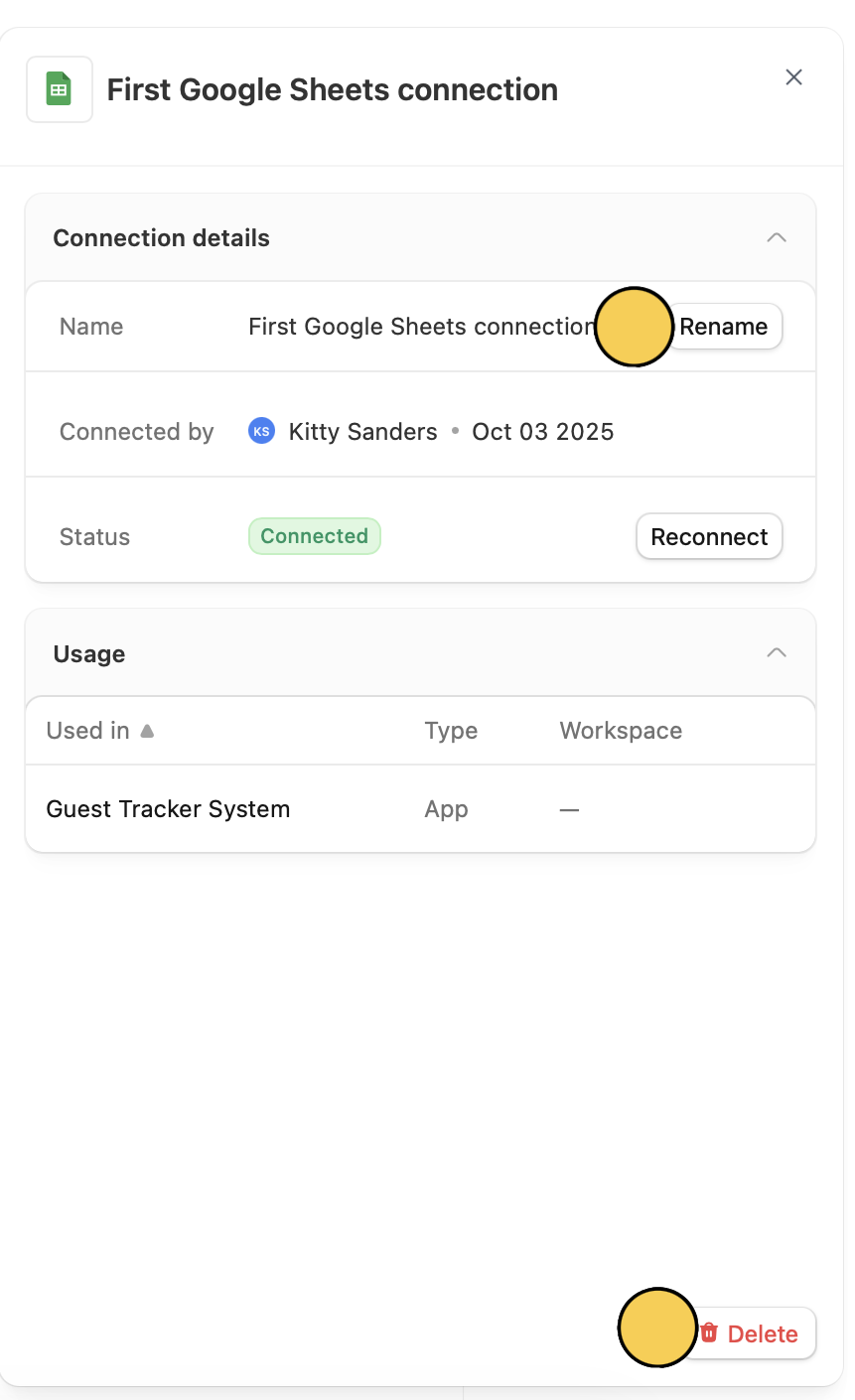 You can also `Reconnect` and `Delete` here.
Deleting a connection will stop responses from syncing with your integration.
## Limit workspace connections
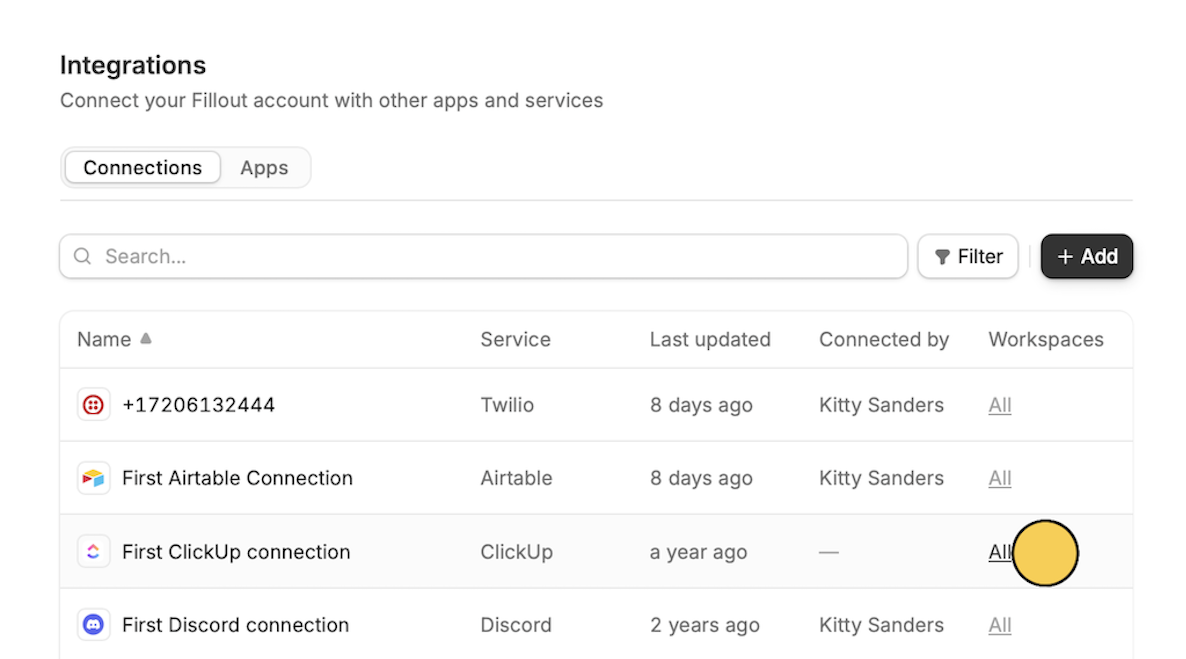
You can restrict connections to certain workspaces only. This is helpful if you have clients, partners, or team members with [granular permissions](/granular-permissions) in a specific workspace.
On your chosen connection's row, click `All`.
You can also `Reconnect` and `Delete` here.
Deleting a connection will stop responses from syncing with your integration.
## Limit workspace connections
You can restrict connections to certain workspaces only. This is helpful if you have clients, partners, or team members with [granular permissions](/granular-permissions) in a specific workspace.
On your chosen connection's row, click `All`.
 Zapier and Make integrations don’t support granular permissions. A workaround is to use the per-form [webhook integration](/webhook) to trigger external automations.
In the popup, click `Limited workspaces`, then select a **workspace** from the dropdown.
Zapier and Make integrations don’t support granular permissions. A workaround is to use the per-form [webhook integration](/webhook) to trigger external automations.
In the popup, click `Limited workspaces`, then select a **workspace** from the dropdown.
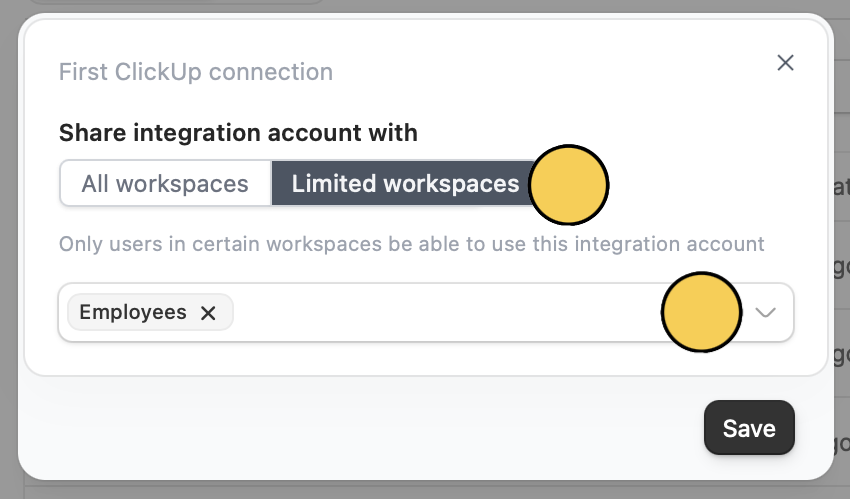 You can add more than one.
Click `Save`
## Disconnect 3rd party apps
From the dashboard, click your `Account name` followed by `Integrations` in the dropdown menu.
Only admins can connect 3rd party apps to Fillout. Once connected, make sure only authorized users who should have permission to add webhooks to **all forms across all workspaces** have access.
Go to `Apps`.
You can add more than one.
Click `Save`
## Disconnect 3rd party apps
From the dashboard, click your `Account name` followed by `Integrations` in the dropdown menu.
Only admins can connect 3rd party apps to Fillout. Once connected, make sure only authorized users who should have permission to add webhooks to **all forms across all workspaces** have access.
Go to `Apps`.
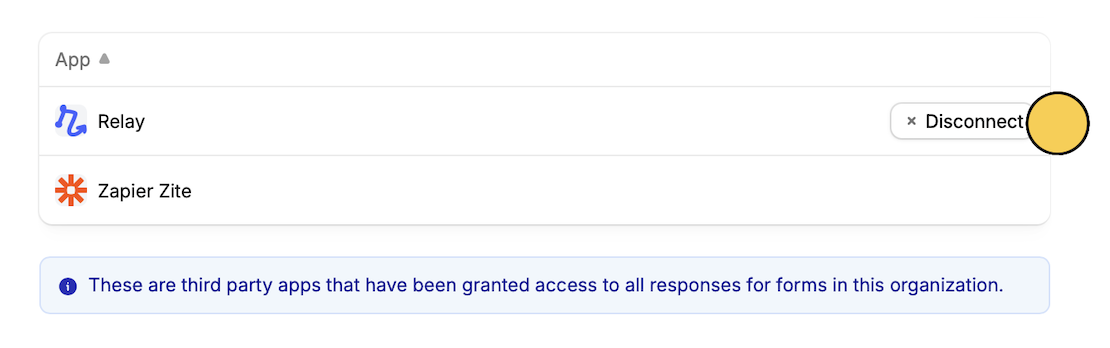
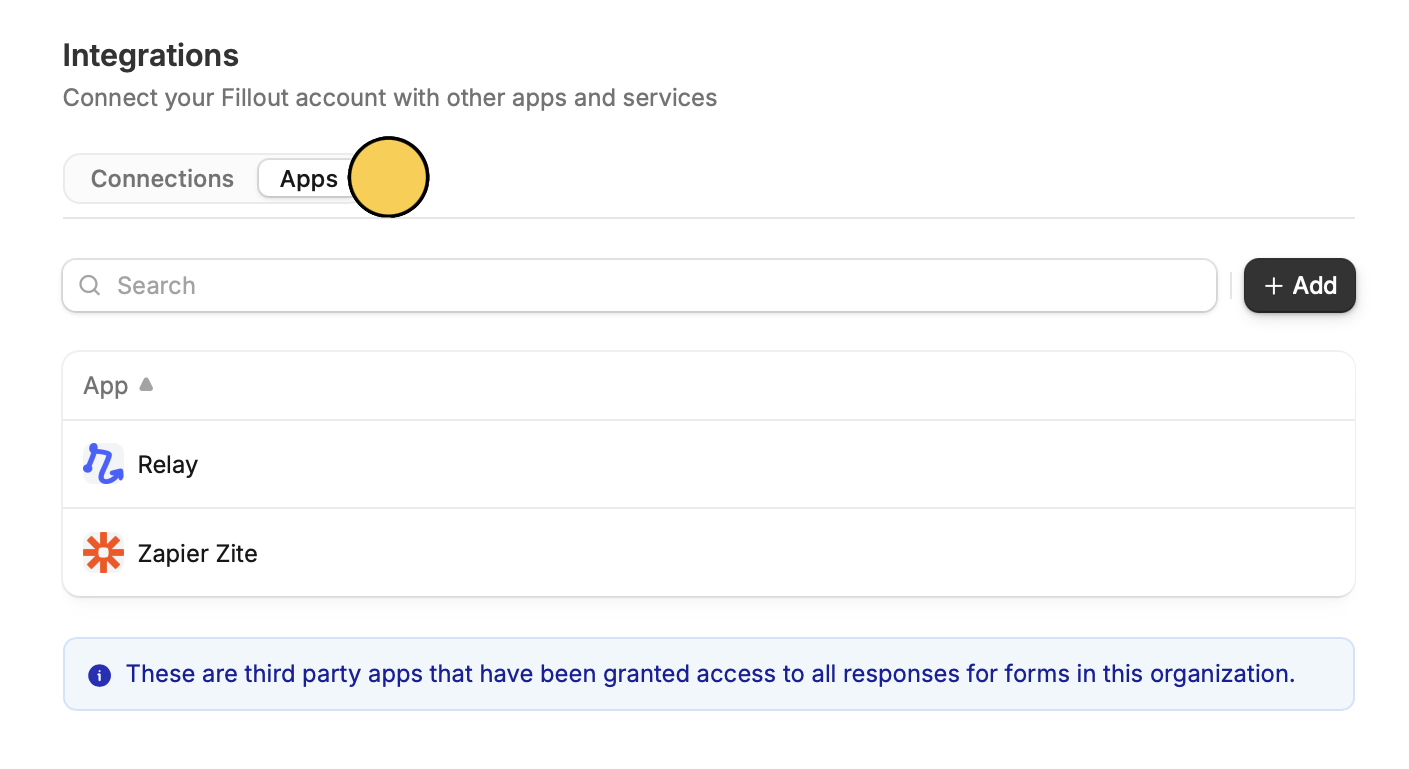 Hover over the app and click `Disconnect`.
 ## Related article
Set member access to view only, and manage existing permissions.
## Related article
Set member access to view only, and manage existing permissions.