> ## Documentation Index
> Fetch the complete documentation index at: https://fillout.com/help/llms.txt
> Use this file to discover all available pages before exploring further.

# Manage team members

> Remove or add team members, update their emails, and manage their account access.

export const SupportBanner = () => {
  const titleId = React.useId();
  return <div className="support-banner" role="region" aria-labelledby={titleId}>
      <span className="support-banner__ring support-banner__ring--outer" aria-hidden="true" />
      <span className="support-banner__ring support-banner__ring--middle" aria-hidden="true" />
      <span className="support-banner__ring support-banner__ring--inner" aria-hidden="true" />
      <span className="support-banner__ring support-banner__ring--center" aria-hidden="true" />

      <div className="support-banner__content">
        <div className="support-banner__title" id={titleId} role="heading" aria-level="2">Still have questions?</div>

        <div className="support-banner__copy">
          <span className="support-banner__line">Our team is happy to help. Start a live chat using the</span>
          <span className="support-banner__line">
            chat bubble <span className="support-banner__chat-icon" aria-hidden="true" /> in the bottom right, or email us at
          </span>
          <span className="support-banner__line">
            <a href="mailto:support@fillout.com">support{'@'}fillout.com</a>
          </span>
        </div>

        <a className="support-banner__cta" href="mailto:support@fillout.com">Contact us</a>
      </div>
    </div>;
};

## How to remove team members

<Steps>
  <Step title="Open member settings">
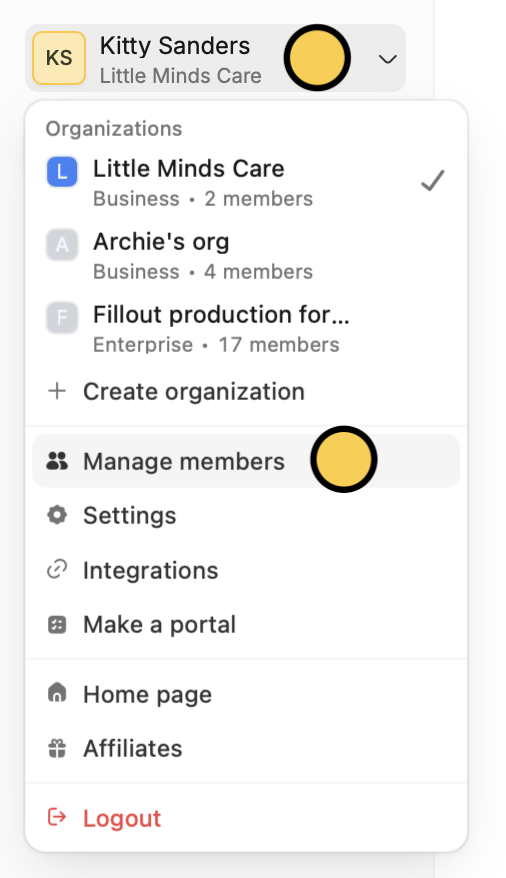
    On the Fillout dashboard, click your `Account name` on the upper left corner followed by `Manage members`.
    <img src="https://mintcdn.com/fillout-005a867b/1rxyHTio5BJAG-eJ/images/Screenshot2025-11-19at5.20.48PM.png?fit=max&auto=format&n=1rxyHTio5BJAG-eJ&q=85&s=3be1fb891bf4a06cf2deacbe1fa5876b" alt="Screenshot 2025-11-19 at 5.20.48 PM.png" title="Screenshot 2025-11-19 at 5.20.48 PM.png" style={{ width:"34%" }} width="506" height="878" data-path="images/Screenshot2025-11-19at5.20.48PM.png" />
  </Step>

  <Step title="Select account">
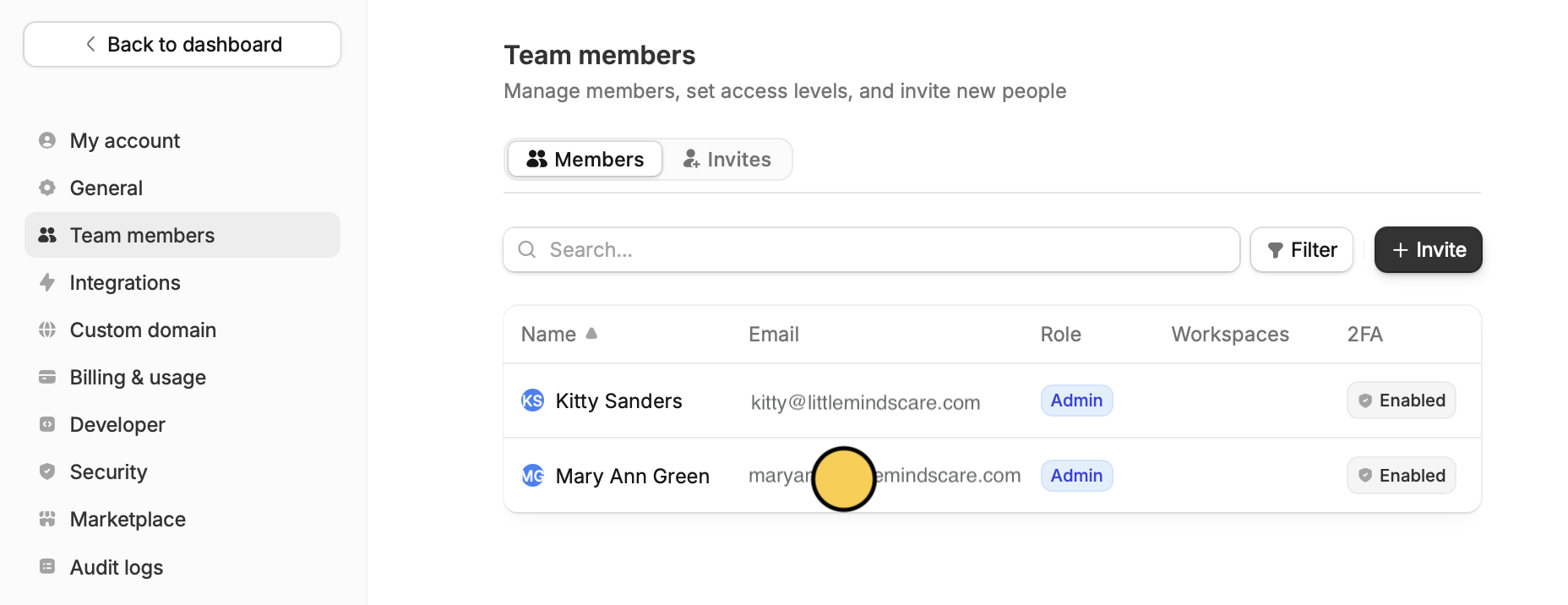
    Click the **account** you want to remove.
    <img src="https://mintcdn.com/fillout-005a867b/9Caa4Q7Dx7f_Y0G8/images/Screenshot2026-01-28at7.39.56PMcopy.png?fit=max&auto=format&n=9Caa4Q7Dx7f_Y0G8&q=85&s=59638bfc448a4006db11c9b1fbb9bd2b" alt="Screenshot 2026 01 28 At 7 39 56 PM Copy" width="1856" height="716" data-path="images/Screenshot2026-01-28at7.39.56PMcopy.png" />
  </Step>

  <Step title="Remove account">
    In the popup, click `Remove` to confirm.
  </Step>
</Steps>

## Add team members

`Invite members` directly from your dashboard. Check out [this guide](https://www.fillout.com/help/invite-collaborators).

## Update a member's email

<Steps>
  <Step title="Open member settings">
    From the dashboard, click your `Account name` on the upper left corner followed by `Manage members`.

    <img src="https://mintcdn.com/fillout-005a867b/1rxyHTio5BJAG-eJ/images/Screenshot2025-11-19at5.20.48PM.png?fit=max&auto=format&n=1rxyHTio5BJAG-eJ&q=85&s=3be1fb891bf4a06cf2deacbe1fa5876b" alt="Screenshot 2025-11-19 at 5.20.48 PM.png" title="Screenshot 2025-11-19 at 5.20.48 PM.png" style={{ width:"34%" }} width="506" height="878" data-path="images/Screenshot2025-11-19at5.20.48PM.png" />
  </Step>

  <Step title="Select account">
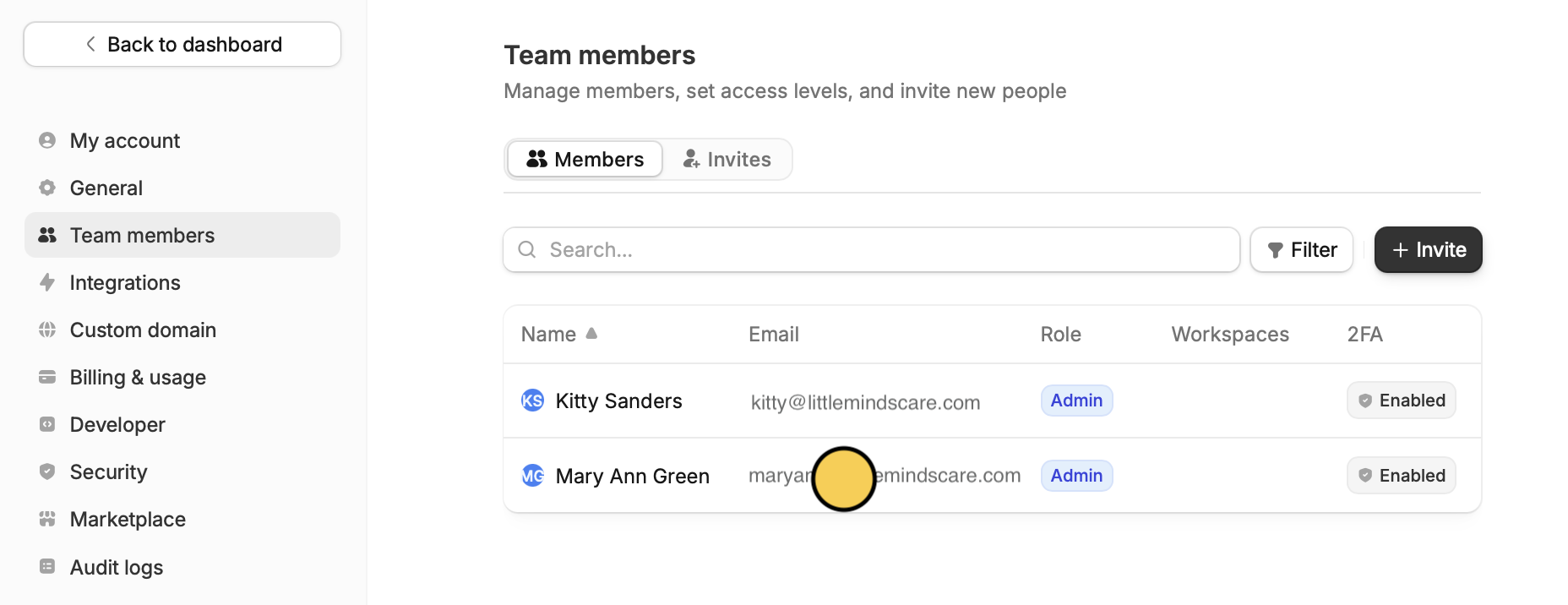
    Click the **account** you want to update with the new email.
    <img src="https://mintcdn.com/fillout-005a867b/9Caa4Q7Dx7f_Y0G8/images/Screenshot2026-01-28at7.39.56PMcopy-1.png?fit=max&auto=format&n=9Caa4Q7Dx7f_Y0G8&q=85&s=024ad107b6c008237d66c47180d9ac2c" alt="Screenshot 2026 01 28 At 7 39 56 PM Copy" width="1856" height="716" data-path="images/Screenshot2026-01-28at7.39.56PMcopy-1.png" />
  </Step>

  <Step title="Switch email">
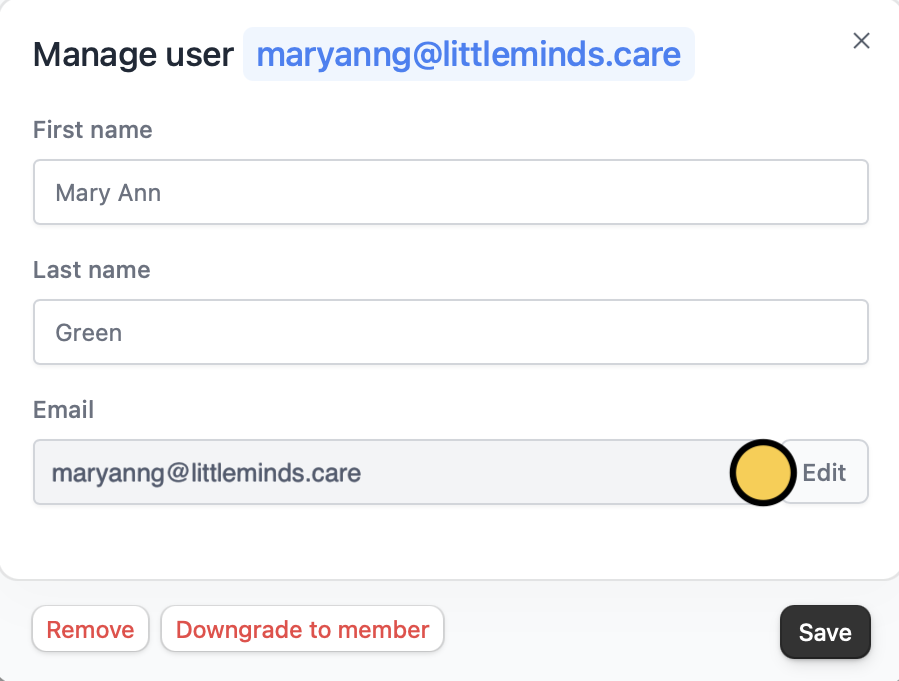
    `Edit` the email address and replace it with the updated email.
    <img src="https://mintcdn.com/fillout-005a867b/1rxyHTio5BJAG-eJ/images/Screenshot2025-11-19at5.50.32PM.png?fit=max&auto=format&n=1rxyHTio5BJAG-eJ&q=85&s=dc4ef0c735bff495484b7b579ff8b2f3" alt="Screenshot 2025-11-19 at 5.50.32 PM.png" title="Screenshot 2025-11-19 at 5.50.32 PM.png" style={{ width:"48%" }} width="899" height="681" data-path="images/Screenshot2025-11-19at5.50.32PM.png" />

    A verification link will be sent to the new email address.
  </Step>
</Steps>

<Note>
  Updating a member's email address only applies to your current org. It won't change their email or affect their access in other separate orgs.
</Note>

## Manage a member's access

To add or reduce a member's access to forms, workspaces, and integrations, check out [this guide](https://www.fillout.com/help/granular-permissions).

<SupportBanner />
