> ## Documentation Index
> Fetch the complete documentation index at: https://fillout.com/help/llms.txt
> Use this file to discover all available pages before exploring further.
# Send notifications to Microsoft Teams
> Notify your colleagues when a form is submitted. Allow them to view a summary of responses or a customized message within the Teams app.
## What is Microsoft Teams?
[Microsoft Teams](https://www.microsoft.com/en-us/microsoft-teams/group-chat-software?ref=filloutforms-helparticle) is an all-in-one tool for teamwork, combining messaging, meetings, and file sharing in a single place for easy collaboration. Whether it's chatting, video calls, or sharing documents, Teams makes working together effortless.
## How it works
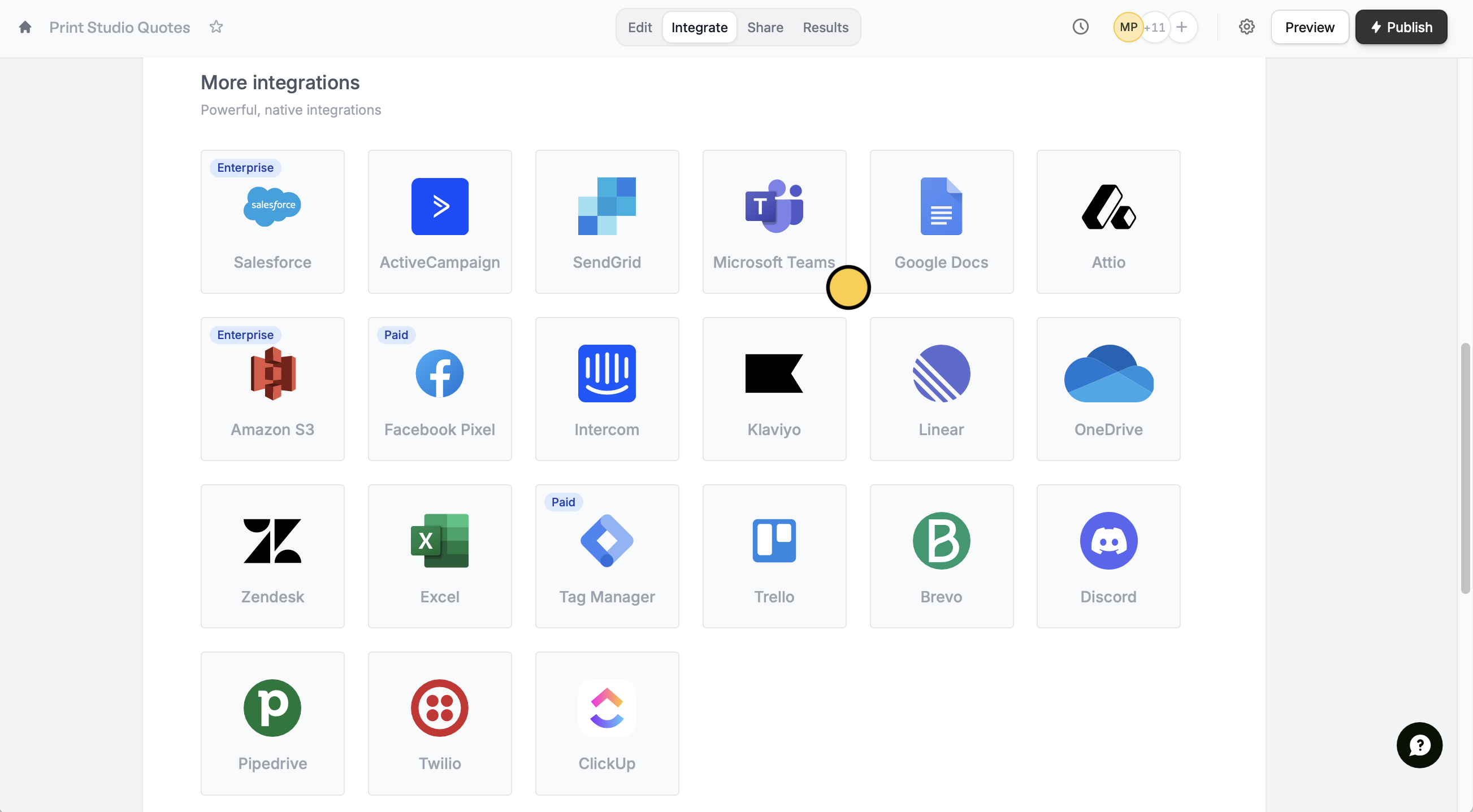
Click `Integrate` on the top menu followed by `Microsoft Teams`.
 You will be redirected to Microsoft's log in page. Sign in with your account to continue, then click `Accept` to allow Fillout to send notifications to your channels in Teams.
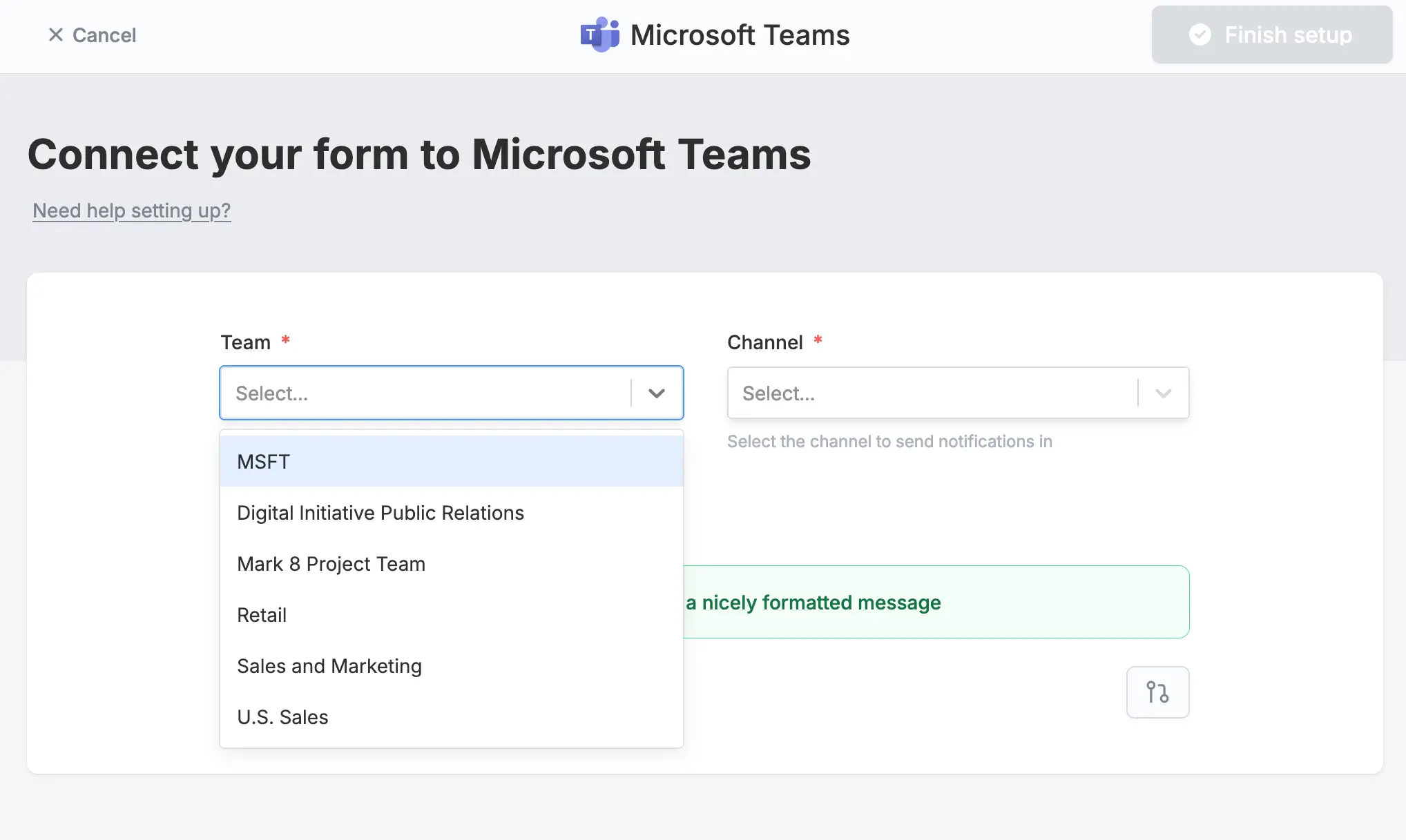
Select a **Team** followed by a **Channel** where you want notifications to be sent to.
You will be redirected to Microsoft's log in page. Sign in with your account to continue, then click `Accept` to allow Fillout to send notifications to your channels in Teams.
Select a **Team** followed by a **Channel** where you want notifications to be sent to.
 That's it! Every time a respondent completes your form, a notification will be sent to your Teams channel.
## Message formatting
### Send all fields (recommended)
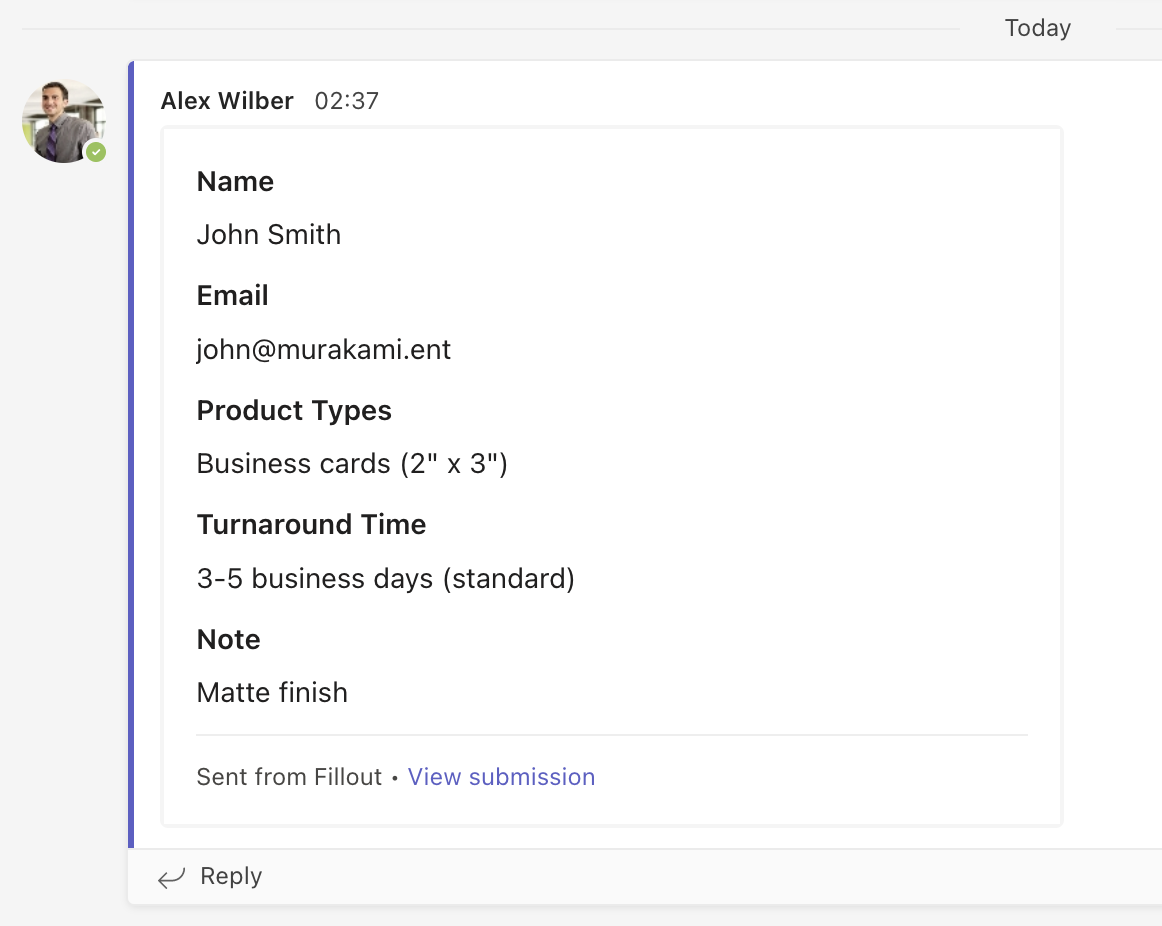
By default, form submissions will be sent in a nicely summarized format to your chosen channel.
That's it! Every time a respondent completes your form, a notification will be sent to your Teams channel.
## Message formatting
### Send all fields (recommended)
By default, form submissions will be sent in a nicely summarized format to your chosen channel.
 ### Custom message
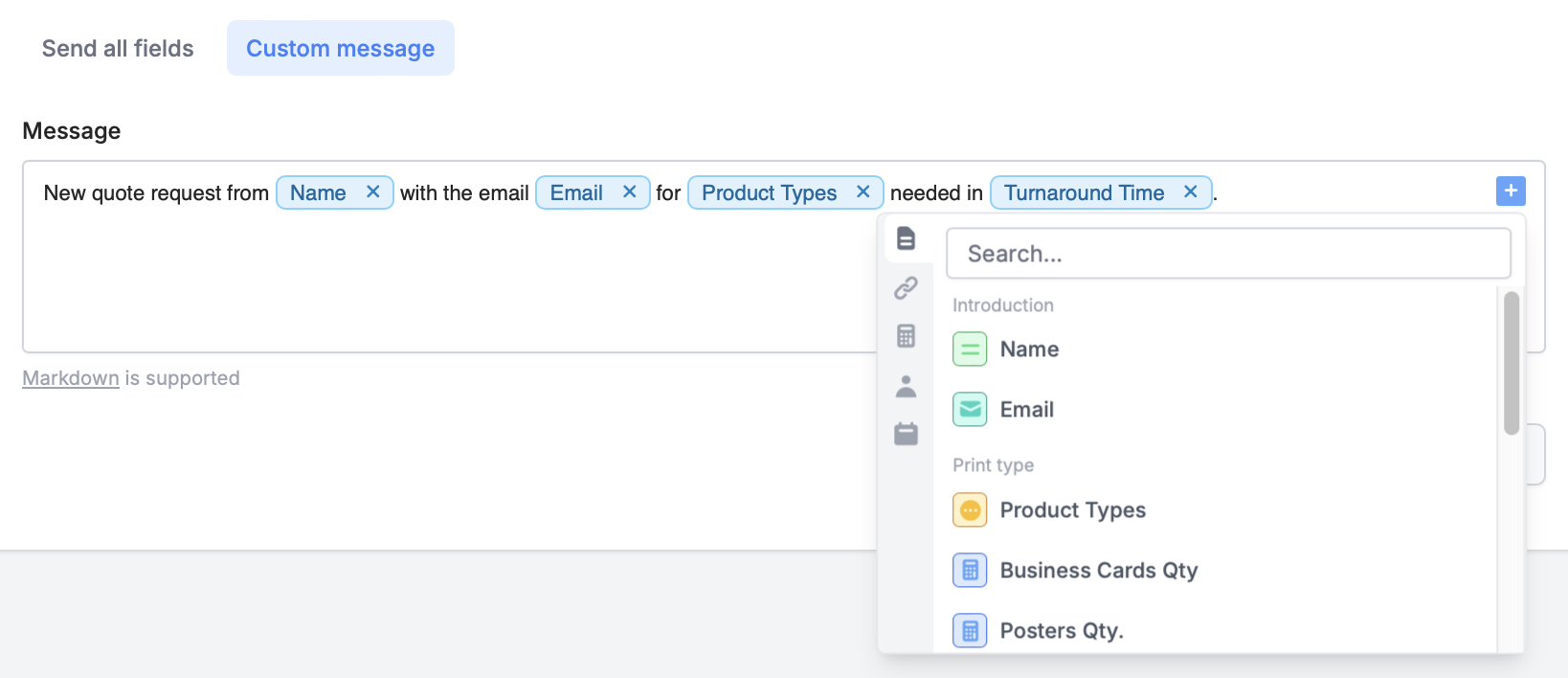
Edit the default message and choose which fields will appear in your Teams notification. Reference fields in your form by clicking or typing **@**.
### Custom message
Edit the default message and choose which fields will appear in your Teams notification. Reference fields in your form by clicking or typing **@**.
 ## Specify a condition
You can run your integration only when a specific condition is met. Check out this [guide](/conditional-integration).
## Other similar integrations
Get response summaries on Slack.
Get response summaries on Discord.
Send to automation tools or any endpoint.
## Specify a condition
You can run your integration only when a specific condition is met. Check out this [guide](/conditional-integration).
## Other similar integrations
Get response summaries on Slack.
Get response summaries on Discord.
Send to automation tools or any endpoint.