> ## Documentation Index
> Fetch the complete documentation index at: https://fillout.com/help/llms.txt
> Use this file to discover all available pages before exploring further.

# Sync form responses to Monday

> Create leads, orders, projects and custom objects in Monday with the Fillout form builder.

## What is Monday?

[Monday.com](http://Monday.com) is a user-friendly work management platform that helps teams streamline their tasks, projects, and collaborations.

## Video tutorial

<iframe class="notion-asset-object-fit" src="https://www.youtube.com/embed/wEnbsSVG0WQ" title="iframe video" frameborder="0" allowfullscreen loading="lazy" scrolling="auto" width="100%" height="420" />

## How it works

<Steps>
  <Step title="Link your Fillout form to Monday">
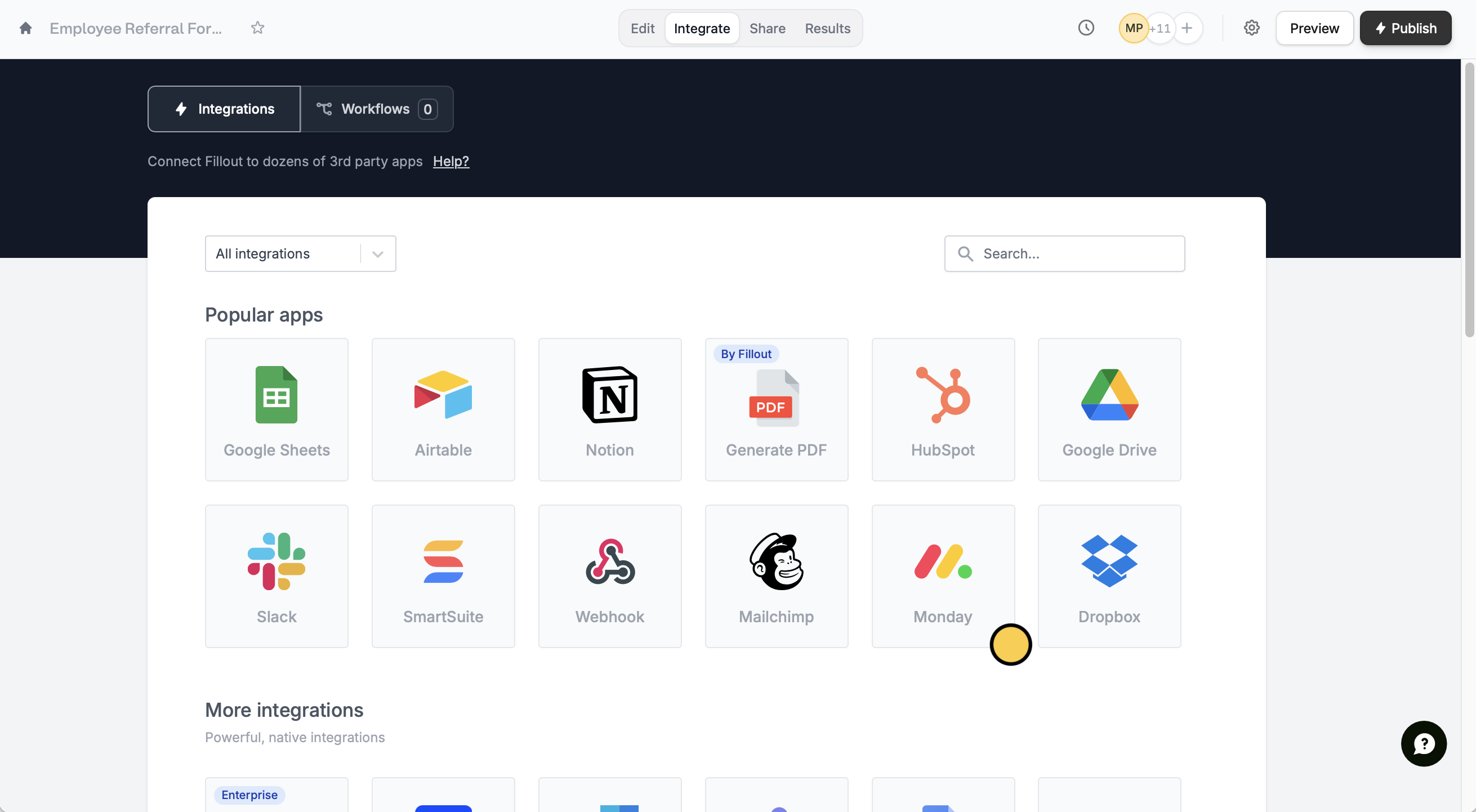
    Open the Fillout form you want to connect with Monday, then click `Integrate` on the top menu followed by `Monday`.

    <img src="https://mintcdn.com/fillout-005a867b/FBF7T0oCYBcgW7Mc/images/Screenshot2025-11-11at3.13.52PM.png?fit=max&auto=format&n=FBF7T0oCYBcgW7Mc&q=85&s=1f273fa31eed5561739ccff56f363f75" alt="Screenshot 2025-11-11 at 3.13.52 PM.png" width="2621" height="1442" data-path="images/Screenshot2025-11-11at3.13.52PM.png" />

    <Warning>
      When creating your form, make sure to set necessary fields you would like to link to your Monday columns to **required**.
    </Warning>

    Enter a `Name` for your Monday connection and your Monday `API Key`.

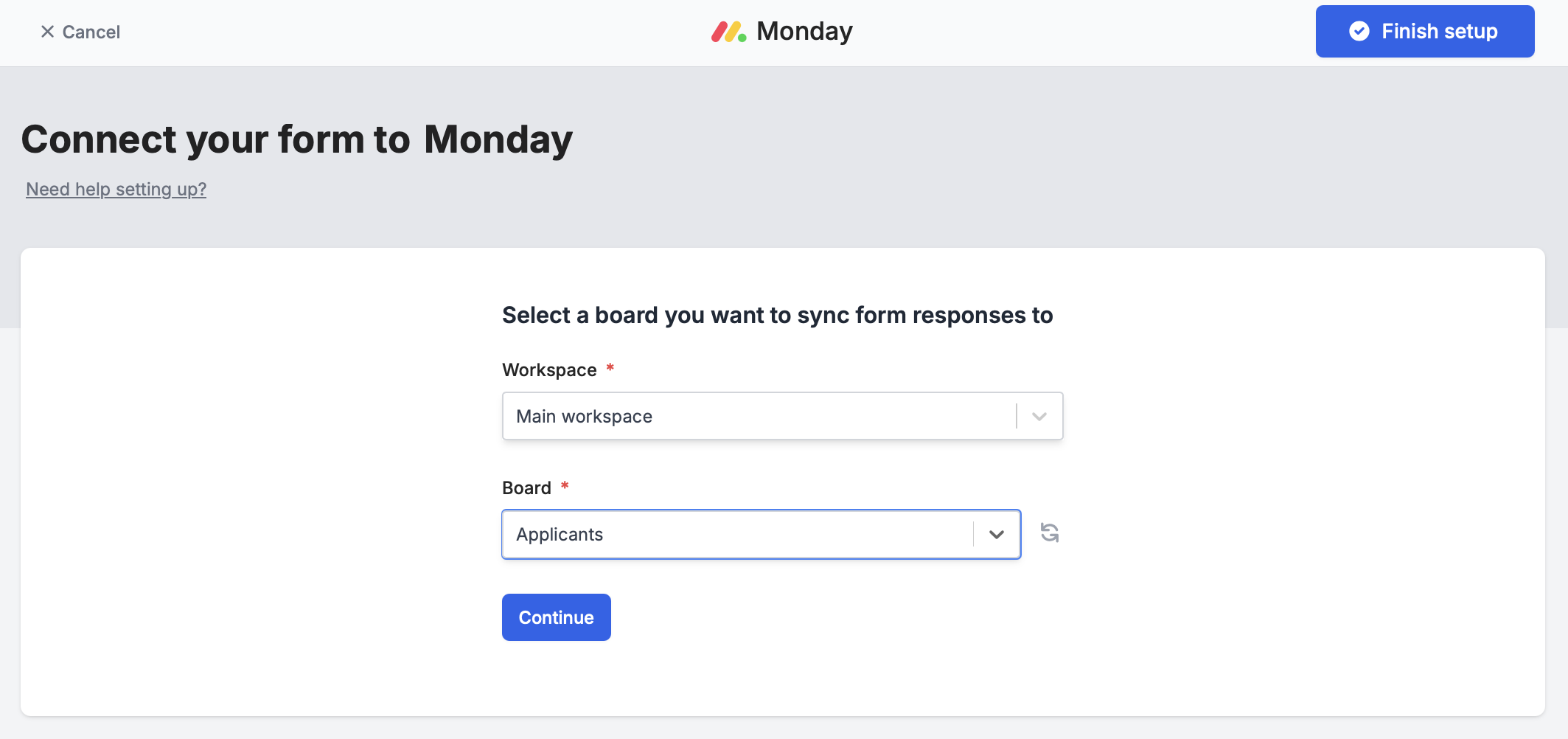
    Then, choose the **Workspace** and **Board** you would like to sync responses to.

    <img src="https://mintcdn.com/fillout-005a867b/NAcRDOGnlYuurtkT/images/Screenshot2025-02-10at1.22.21PM.png?fit=max&auto=format&n=NAcRDOGnlYuurtkT&q=85&s=341ac7198f36ef11f82a982c516fcd1a" alt="Screenshot of the Monday form creation page" style={{ width:"83%" }} width="2127" height="1002" data-path="images/Screenshot2025-02-10at1.22.21PM.png" />
  </Step>

  <Step title="Map your form fields on Fillout">
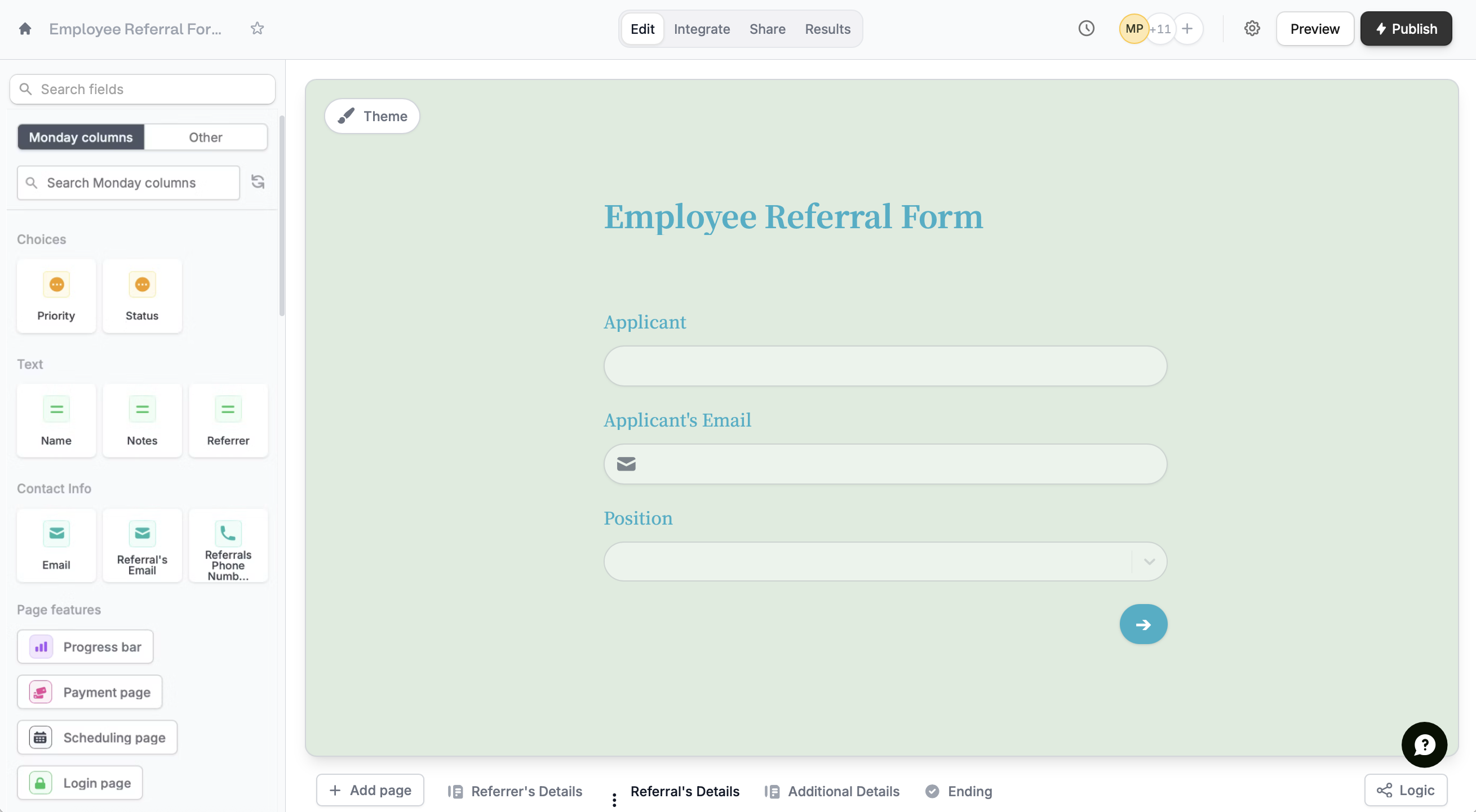
    After finishing the setup, Monday columns will automatically appear as Fillout fields on the form editor. Simply drag these to your form from the left-hand panel.

    <img src="https://mintcdn.com/fillout-005a867b/FBF7T0oCYBcgW7Mc/images/Screenshot2025-11-11at3.25.55PM.png?fit=max&auto=format&n=FBF7T0oCYBcgW7Mc&q=85&s=2c6b0d97ec52f07deecc43b28601e826" alt="Screenshot 2025-11-11 at 3.25.55 PM.png" width="2619" height="1441" data-path="images/Screenshot2025-11-11at3.25.55PM.png" />

    <Warning>
      You can only use a **column field** once. For example, if you used column field A in page 2, you can no longer use it in other pages.
    </Warning>

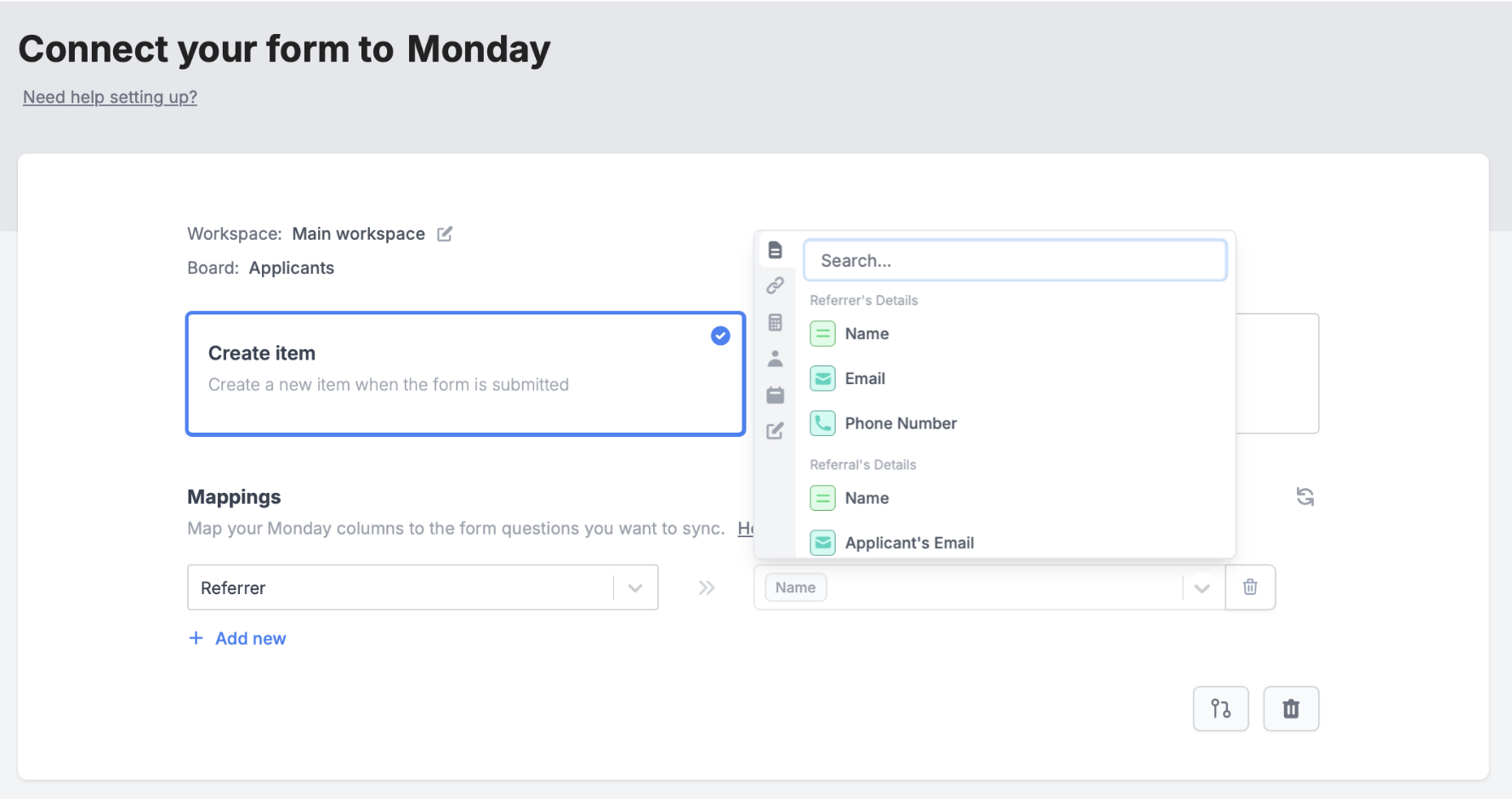
    Alternatively, you can go to the Monday connection in the `Integrate` page and [manually map](https://www.fillout.com/help/additional-integration-mappings#how-to-map-fields-manually) them. `+ Add new` Monday column on the left and select the corresponding Fillout field on the right.

    In the example below, we will link referrer column on Monday to the Referrer's Name field on Fillout.

    <img src="https://mintcdn.com/fillout-005a867b/NAcRDOGnlYuurtkT/images/Screenshot2025-02-10at1.34.06PM.png?fit=max&auto=format&n=NAcRDOGnlYuurtkT&q=85&s=8b0953a5e3c0ade0be689d0c6fbe7bb3" alt="Screenshot of the Monday form creation page" width="1778" height="940" data-path="images/Screenshot2025-02-10at1.34.06PM.png" />

    <Tip>
      You can click <Icon icon="arrows-rotate-reverse" size={12} /> on the right side to reflect the most recent changes.
    </Tip>
  </Step>

  <Step title="Publish and share">
    `Publish` your form. Now, answers to mapped fields will appear in the columns of your table on Monday.
  </Step>
</Steps>

## Specify a condition

You can run your integration only when a specific condition is met. Check out this [guide](/conditional-integration).

## **Related articles**

<CardGroup cols={3}>
  <Card title="Update existing items on Monday" icon="arrow-rotate-right" iconType="regular" color="#FFC738" href="/monday-update">
    Update existing items and pre-fills fields.
  </Card>

  <Card title="Integration logic" icon="gear-complex" iconType="regular" color="#FFC738" href="/conditional-integration">
    Perform an integration only when a certain condition is met.
  </Card>
</CardGroup>