> ## Documentation Index
> Fetch the complete documentation index at: https://fillout.com/help/llms.txt
> Use this file to discover all available pages before exploring further.
# Create multi-column forms
> Put questions side by side in your form with multiple columns.
## Overview
Multi-column forms can be a great way to save space and make your form look more organized. Instead of having all your questions listed in a long, single column, you can split them up into **multiple columns**. This is especially useful if you have a lot of questions or a limited amount of space on your form.
## How to add another column
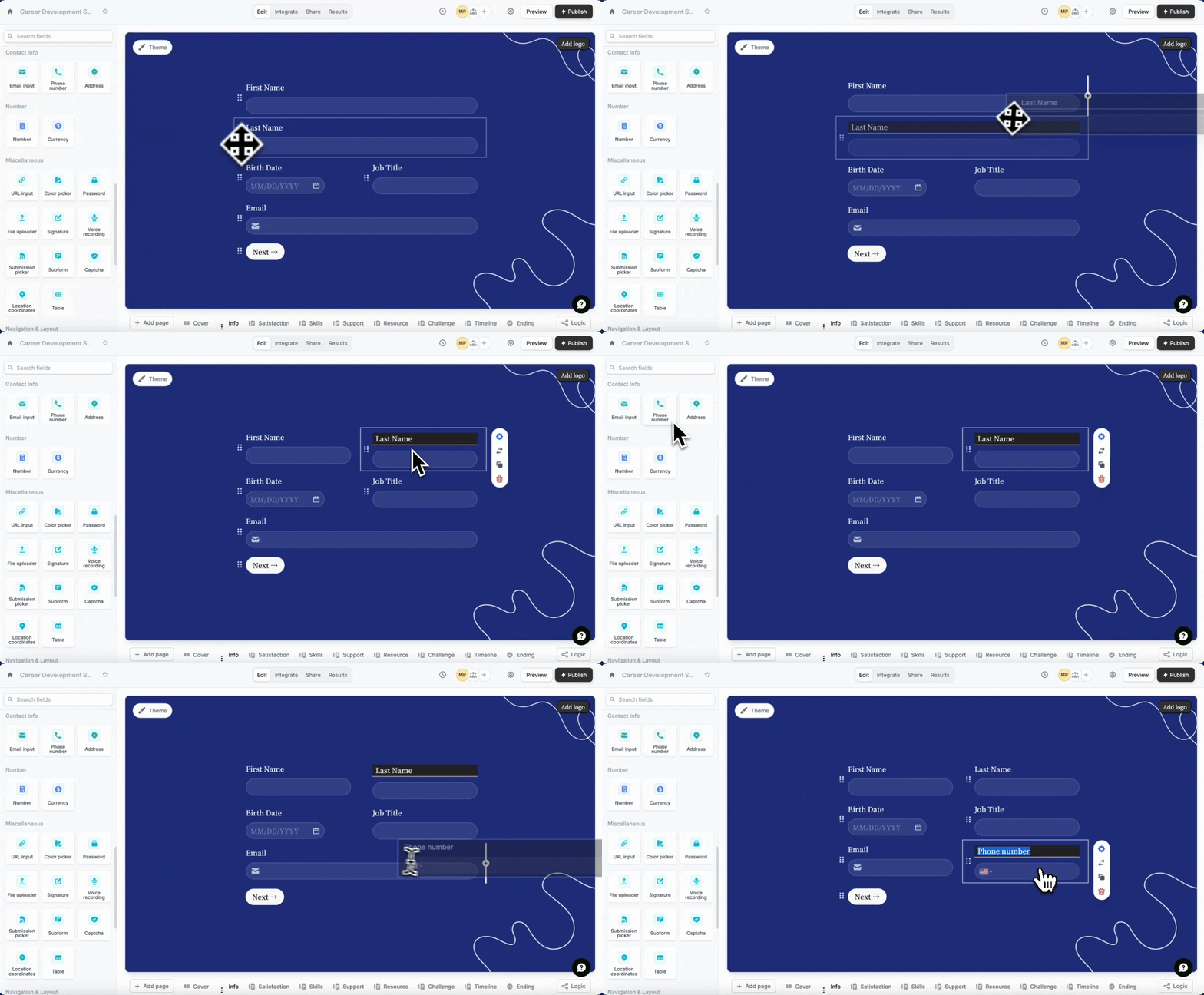
`Drag a question` to the right of another question. You can also reorder them with drag and drop.
 Some question types are not supported by multi-column layouts yet such as, Address, PDF viewer, Section collapse, Video, Button, Date time picker, Picture choice, Calendly and Payment. Contact [support@fillout.com](mailto:support@fillout.com) if you have a use case that requires one of these to be side by side.
Most questions have a `Half width` option in the right panel to shorten the input box. Click the field's .
Some question types are not supported by multi-column layouts yet such as, Address, PDF viewer, Section collapse, Video, Button, Date time picker, Picture choice, Calendly and Payment. Contact [support@fillout.com](mailto:support@fillout.com) if you have a use case that requires one of these to be side by side.
Most questions have a `Half width` option in the right panel to shorten the input box. Click the field's .
 ## Add three columns or more
You can choose the `Table` field in the left-hand panel to add a third, fourth, and additional columns. More info [here](/table).
## Related articles
Edit the position of your form's fields and background image.
Let respondents enter data in a spreadsheet-like format.
Improve your form's structure and user experience.
## Add three columns or more
You can choose the `Table` field in the left-hand panel to add a third, fourth, and additional columns. More info [here](/table).
## Related articles
Edit the position of your form's fields and background image.
Let respondents enter data in a spreadsheet-like format.
Improve your form's structure and user experience.