> ## Documentation Index
> Fetch the complete documentation index at: https://fillout.com/help/llms.txt
> Use this file to discover all available pages before exploring further.
# Get multiple answers from a single question
> Let respondents enter multiple sets of information for one question, such as registering several guests or listing items in an order.
## Overview
Questions usually call for a single answer, but some questions can have more. For example, you might ask respondents to:
* Add multiple contact people or team members
* Provide several dates/times they’re available
* Enter multiple addresses or delivery locations
* Upload several files or images in one go
* List several items in an order (e.g., products, services, menu items)
* Register multiple participants for an event or workshop
* Submit several project ideas or proposals
* List multiple preferences (e.g., meal options, shirt sizes, topics of interest)
## How to request multiple answers
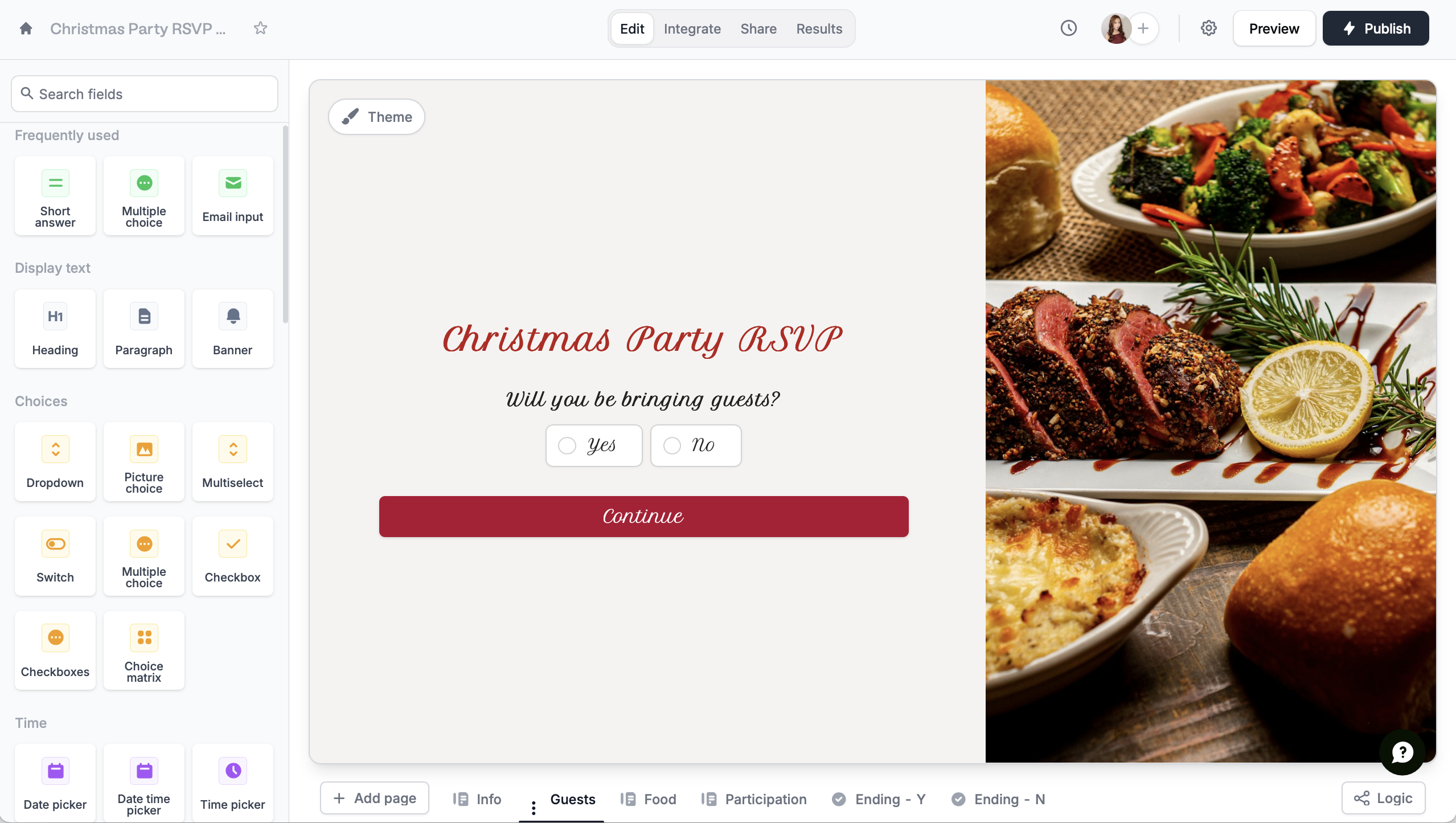
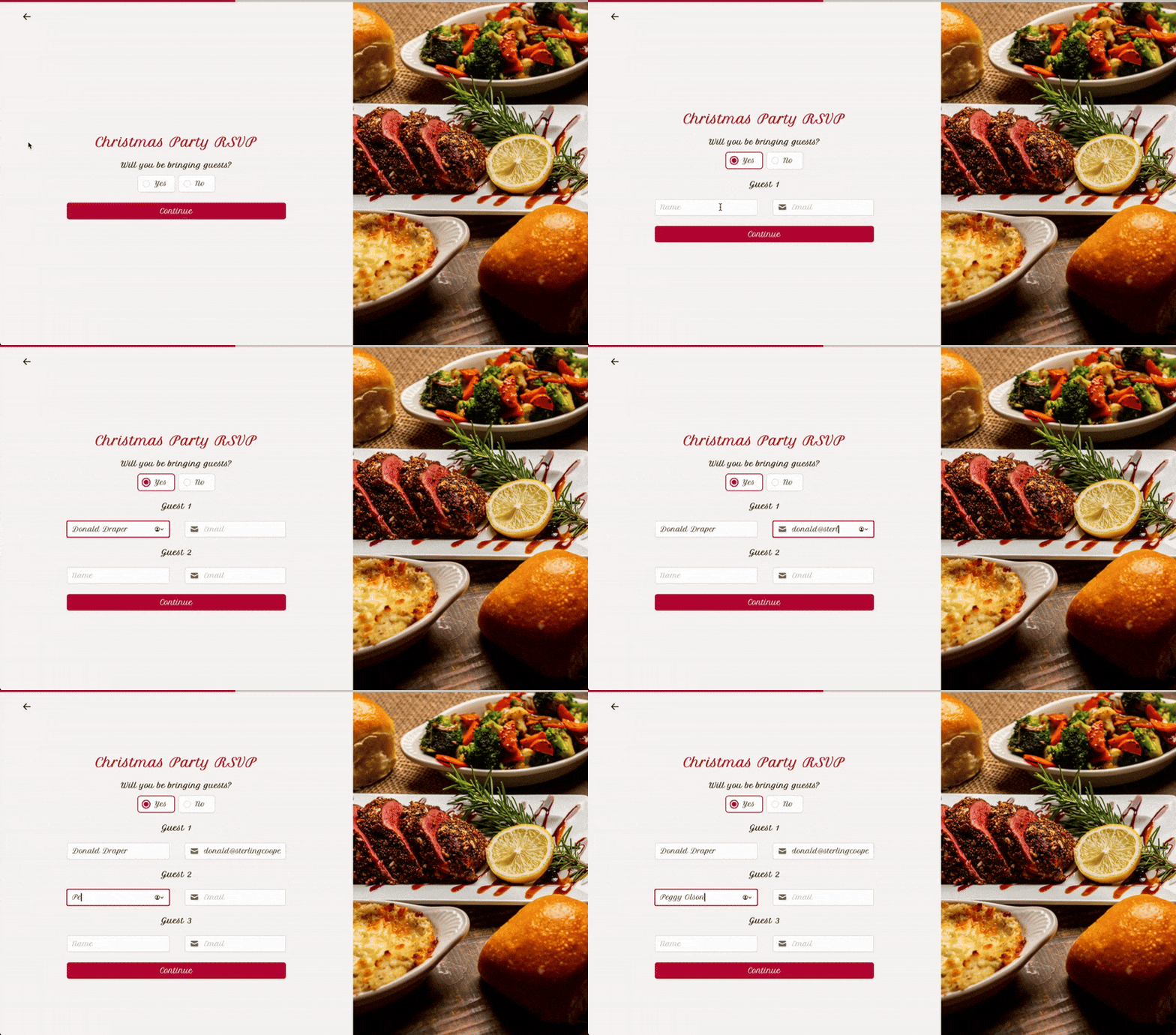
Choose the appropriate field from the left side bar. In our example, we'll ask if they'll be bringing guests.
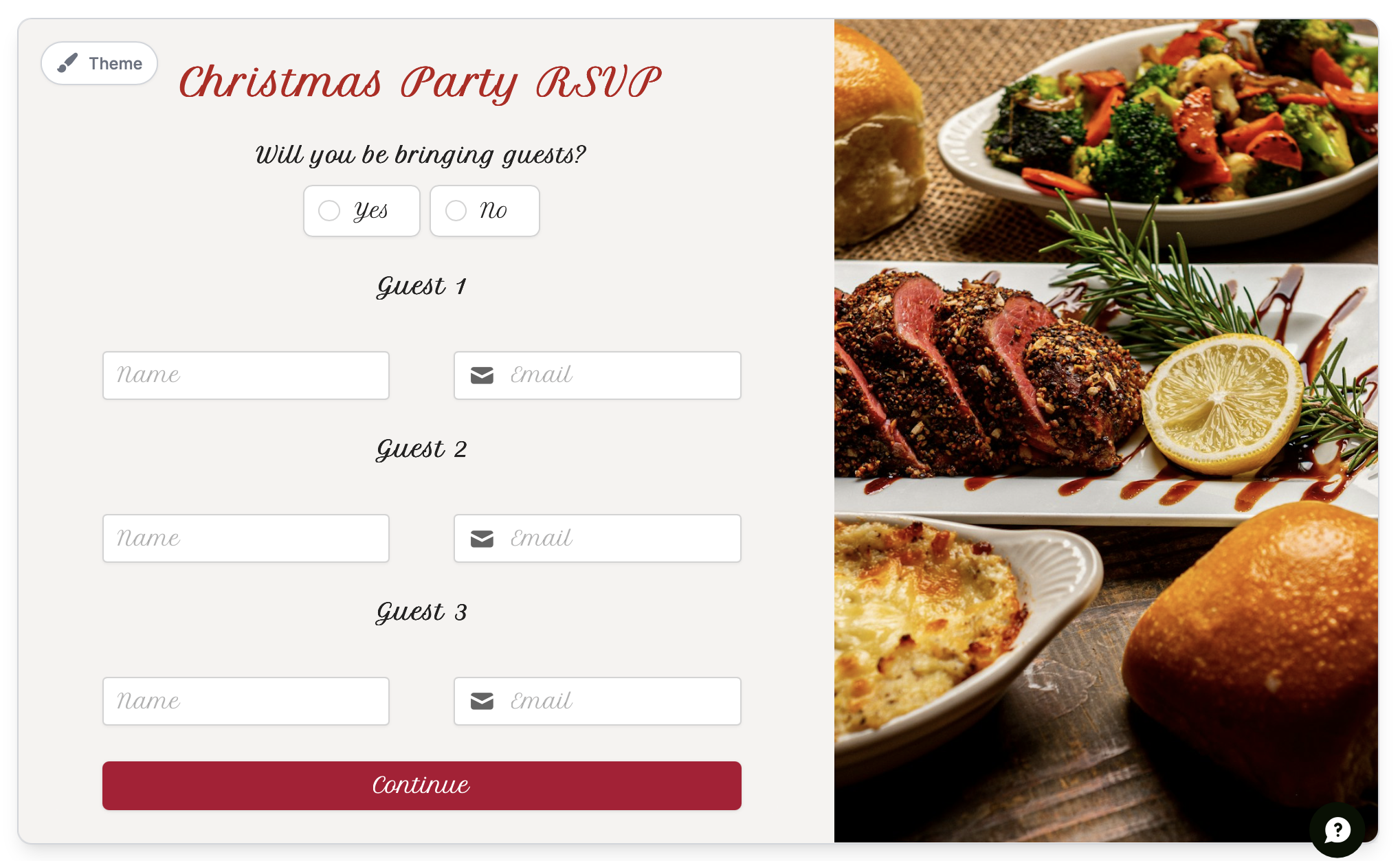
 Here, we'll collect the names and emails of their guests. [Duplicate](/duplicate-fields) the fields as many times as you need.
 For questions that require many fields per person or item, we recommend using a [subform](/subforms) or a [table](/table).
Now, we'll make the form adapt based on their answer. Click a supporting field followed by its , then go to **Logic** in the right sidebar.
For questions that require many fields per person or item, we recommend using a [subform](/subforms) or a [table](/table).
Now, we'll make the form adapt based on their answer. Click a supporting field followed by its , then go to **Logic** in the right sidebar.
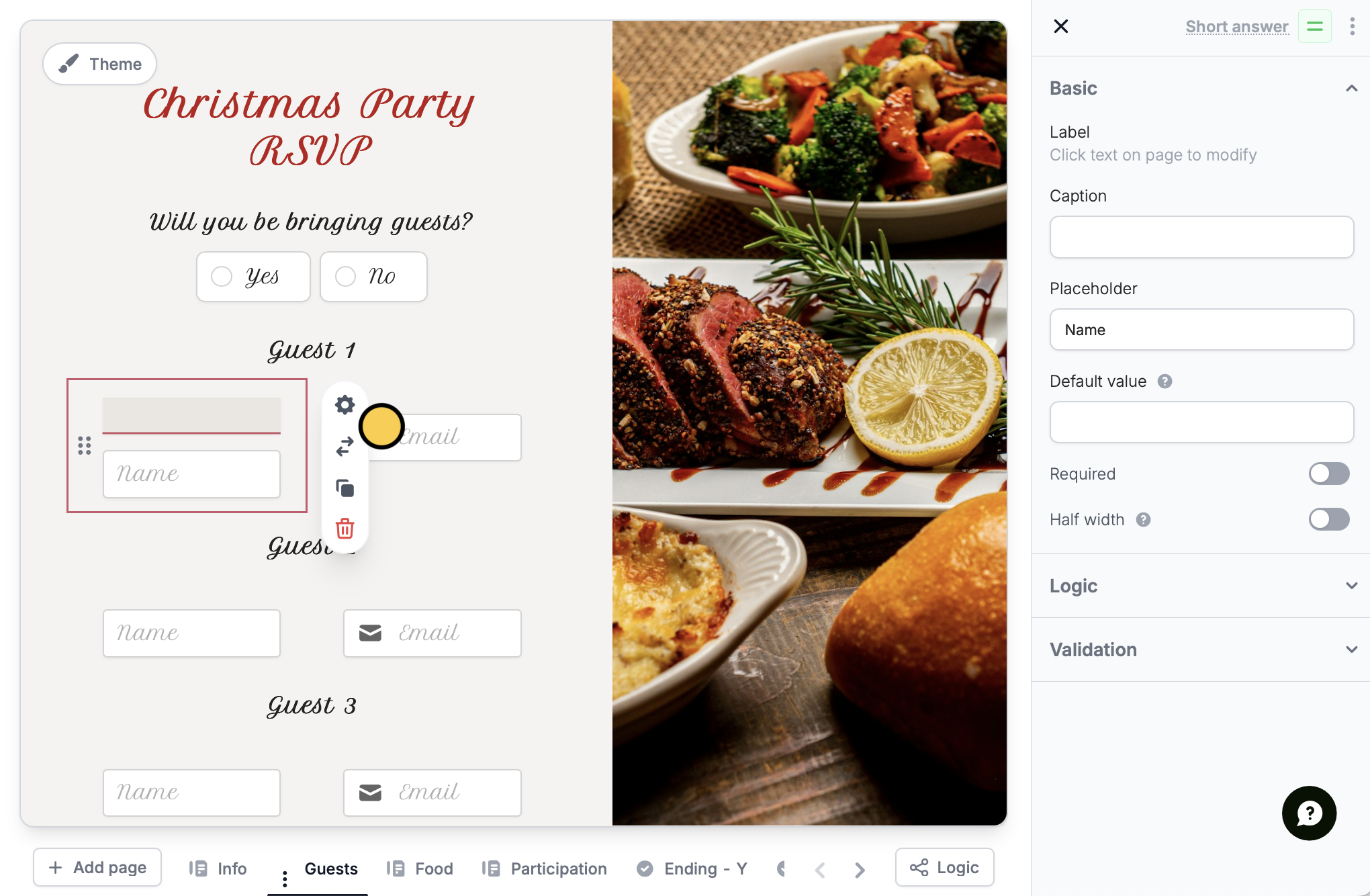 Let's start with the name field. We'll make this field **Show when** they answer "Yes" to bringing guests. Do the same for the email field.
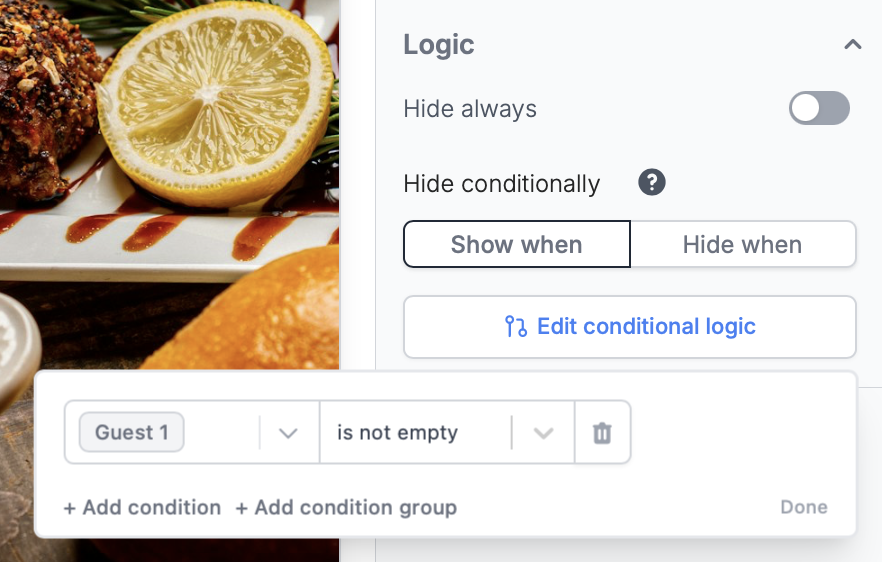
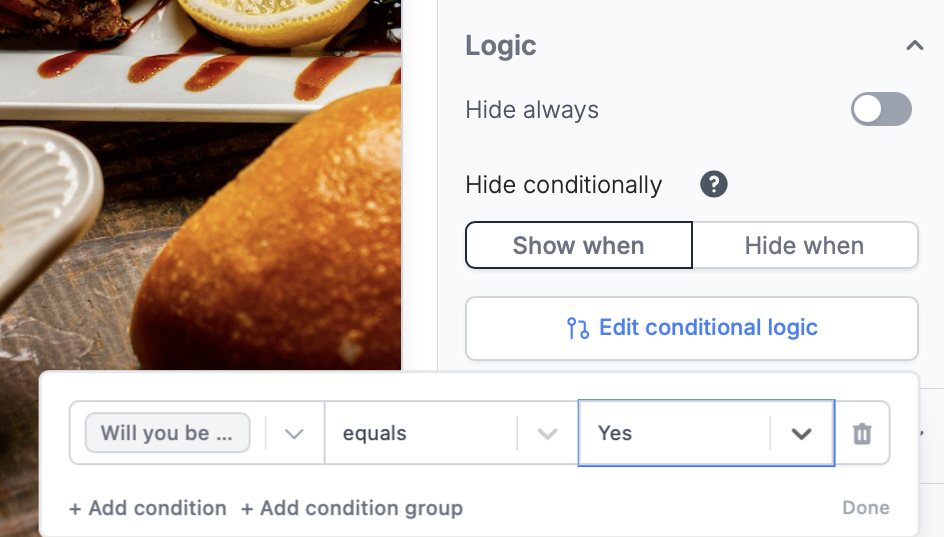 As for the fields for guests 2 and onward, you can also set them to only **Show when** the previous guest field (name or email) "is not empty".
 That's it! `Publish` and share your form link, or embed it on your website.
 ## Let respondents select multiple choices
For questions where respondents have to choose from a set list of options rather than typing their answers, use checkboxes, a multi-select or a picture choice field. More info [here](/multiple-option-answers).
## Related articles
Create choice questions that support multiple answers.
Hide or show fields based on answers, URL parameters or data.
Collect repeated data with compact nested forms.
## Let respondents select multiple choices
For questions where respondents have to choose from a set list of options rather than typing their answers, use checkboxes, a multi-select or a picture choice field. More info [here](/multiple-option-answers).
## Related articles
Create choice questions that support multiple answers.
Hide or show fields based on answers, URL parameters or data.
Collect repeated data with compact nested forms.