> ## Documentation Index
> Fetch the complete documentation index at: https://fillout.com/help/llms.txt
> Use this file to discover all available pages before exploring further.
# Let respondents select multiple options from a question
> Create choice questions that support multiple selections or answers.
export const SupportBanner = () => {
const titleId = React.useId();
return ;
};
## Overview
Some choice questions can have more than one answer. For example, you might ask respondents to:
* Share their preferences
* Select opinions they agree with
* Choose multiple skills or areas of expertise
* Pick all the products or services they use or have used
* Indicate dietary restrictions or allergies
* Select topics they're interested in
* Mark all applicable symptoms or conditions
* Select preferred schedules or time slots
You can collect these using checkboxes, a multiselect field, or a picture choice field.
## Add checkboxes
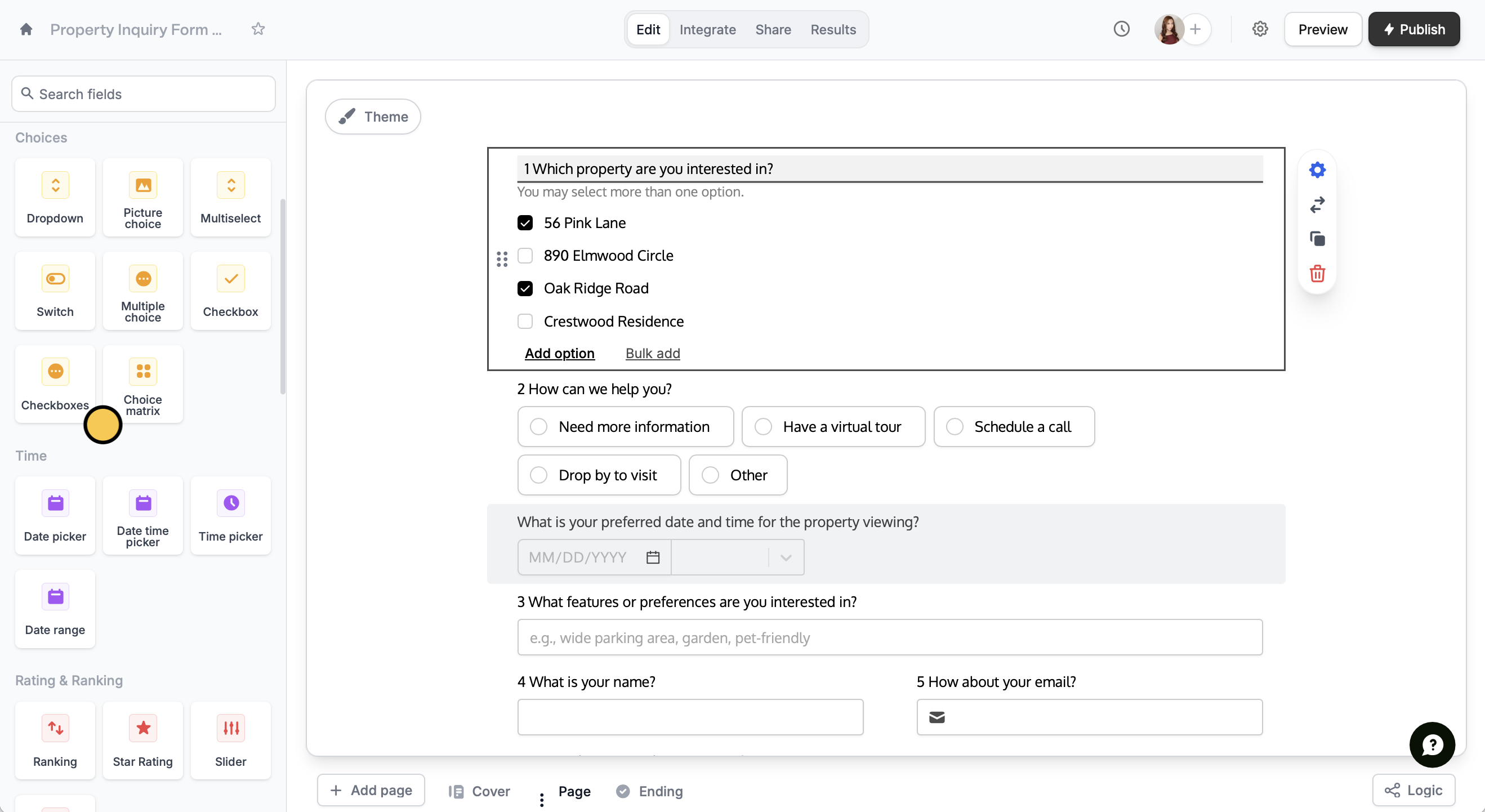
Simply click `Checkboxes` from the left-hand panel. Note that this is different from the checkbox field, which does not come with options.
 ## Use a multiselect field
Choose `Multiselect` in the left-hand panel. Then, add your **Options** in the right-hand panel.
## Use a multiselect field
Choose `Multiselect` in the left-hand panel. Then, add your **Options** in the right-hand panel.
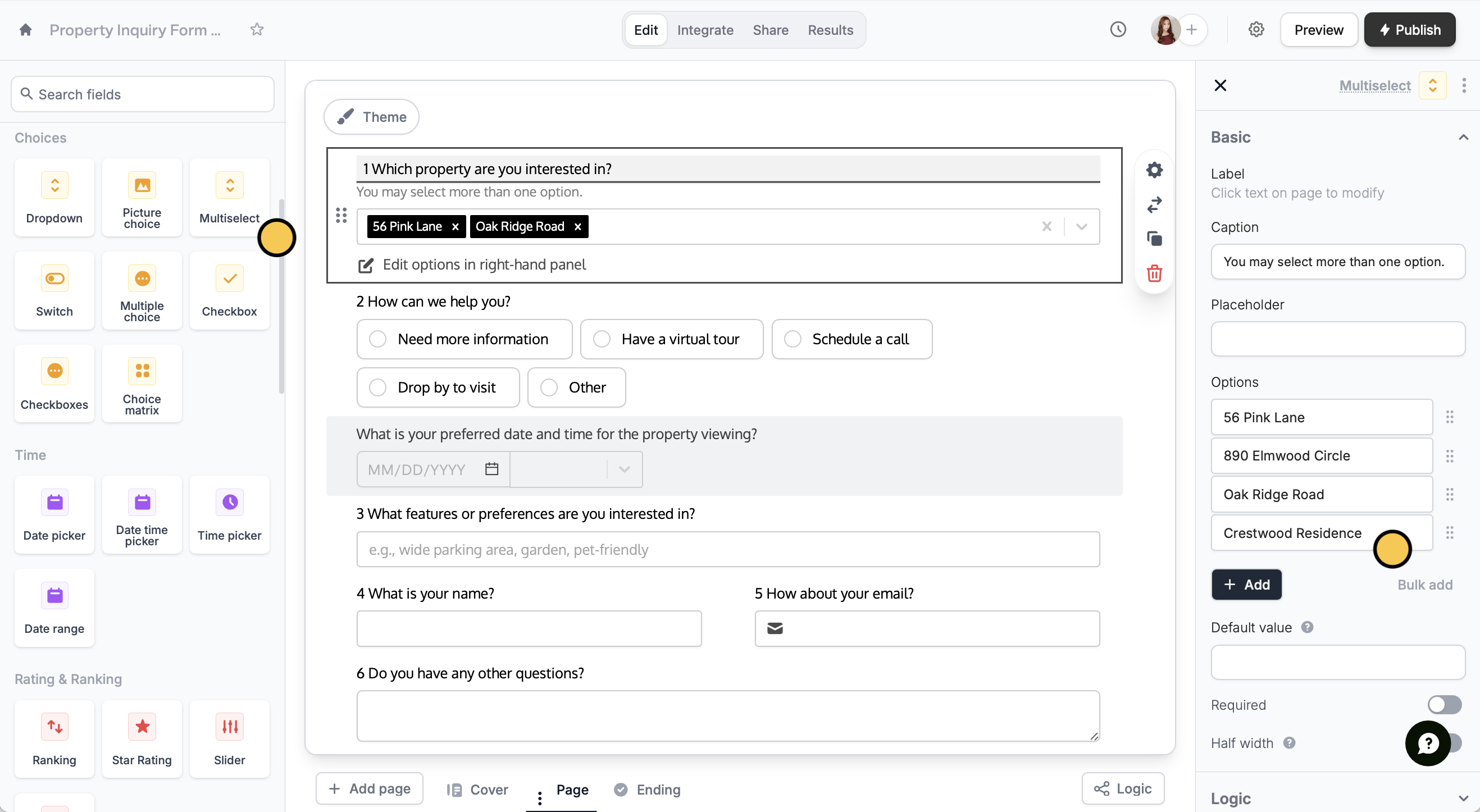 You can easily switch to checkboxes anytime by clicking the ⇄ icon and vice versa.
## Enable selecting multiple images
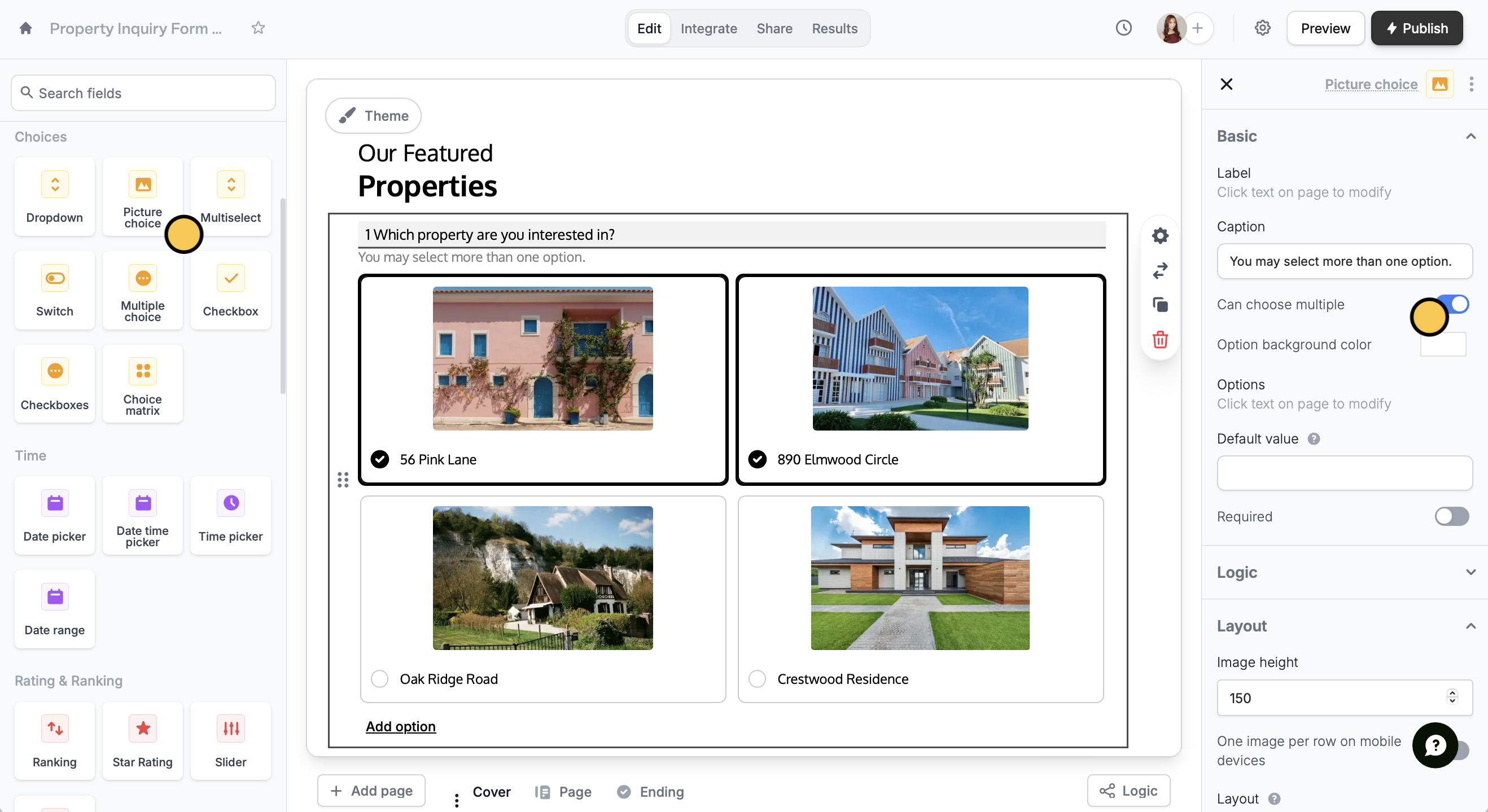
For `Picture choice` fields, you can let respondents select more than one choice by toggling `Can choose multiple` in the right-hand panel.
You can easily switch to checkboxes anytime by clicking the ⇄ icon and vice versa.
## Enable selecting multiple images
For `Picture choice` fields, you can let respondents select more than one choice by toggling `Can choose multiple` in the right-hand panel.
 To let respondents choose from the same set of options across multiple questions, use a [choice matrix](/help/matrix).
## Request answers for open-ended questions
For questions without fixed choices, like guest names or multiple projects, you can duplicate input fields and use logic to collect answers. Check out our guide [here](/help/multiple-answers).
## Related articles
Let respondents submit multiple entries for one question.
Collect a grid or table of selections from respondents.
Collect repeated data with compact nested forms.
To let respondents choose from the same set of options across multiple questions, use a [choice matrix](/help/matrix).
## Request answers for open-ended questions
For questions without fixed choices, like guest names or multiple projects, you can duplicate input fields and use logic to collect answers. Check out our guide [here](/help/multiple-answers).
## Related articles
Let respondents submit multiple entries for one question.
Collect a grid or table of selections from respondents.
Collect repeated data with compact nested forms.