> ## Documentation Index
> Fetch the complete documentation index at: https://fillout.com/help/llms.txt
> Use this file to discover all available pages before exploring further.
# How to create a Notion form
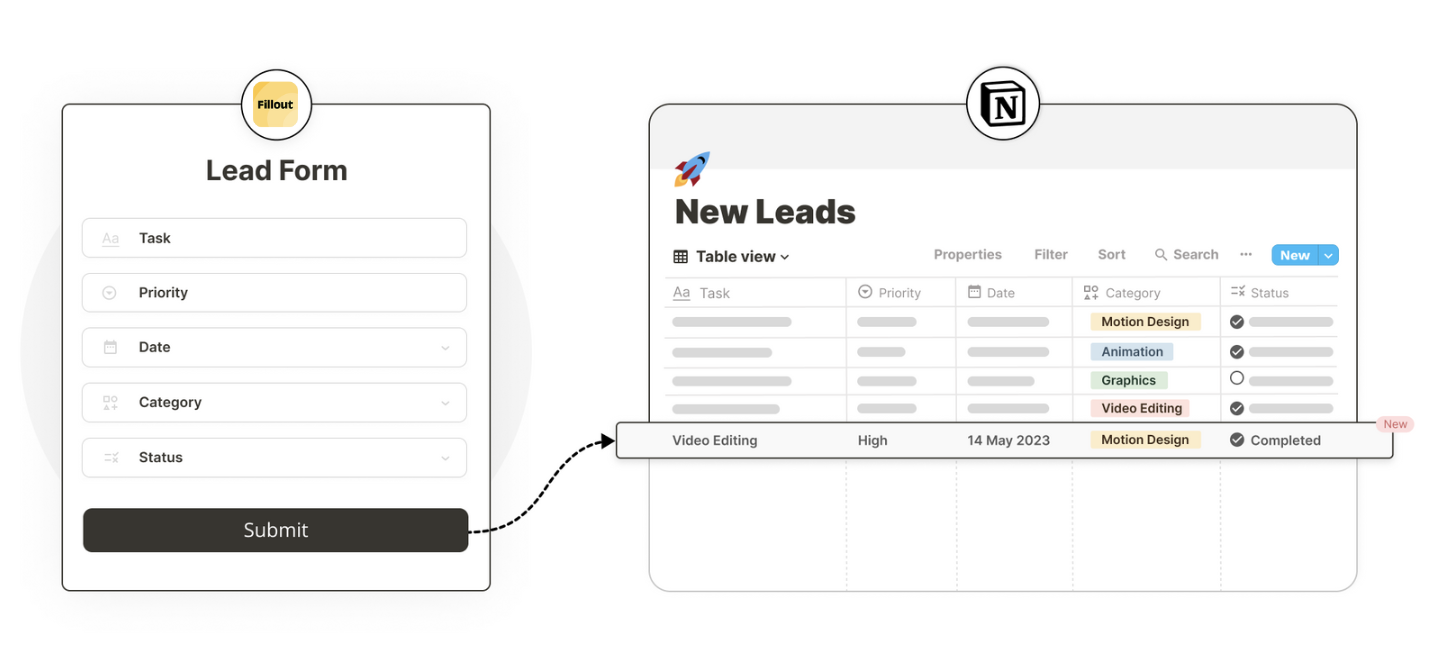
> Use a Fillout form to create or update your Notion databases. Embed your forms in Notion or share them anywhere.
## What is Notion?
[**Notion**](https://www.notion.so/) is one of the most popular all-in-one productivity and collaboration tools. It’s a flexible workspace for teams and individuals to create and organize notes, documents, databases, and task lists.
 ## Video tutorial
## How it works
If you already have your database created in Notion, you can skip this step.
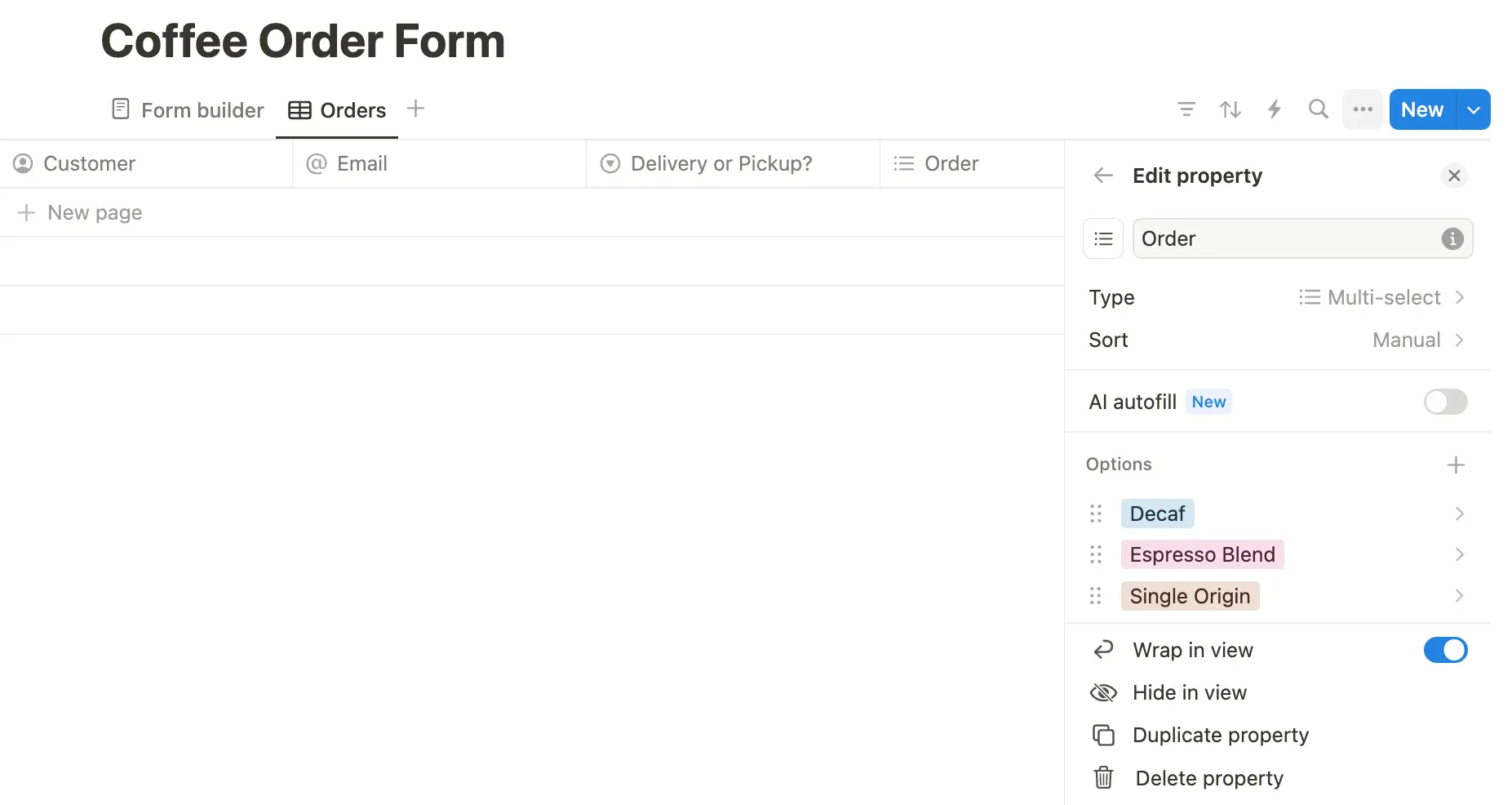
On your [Notion page](https://www.notion.com/help/create-your-first-page), type `/database`. Name your database and add a column for each question. Set the property type and, if using Select or Multi-select, enter the answer options.
## Video tutorial
## How it works
If you already have your database created in Notion, you can skip this step.
On your [Notion page](https://www.notion.com/help/create-your-first-page), type `/database`. Name your database and add a column for each question. Set the property type and, if using Select or Multi-select, enter the answer options.
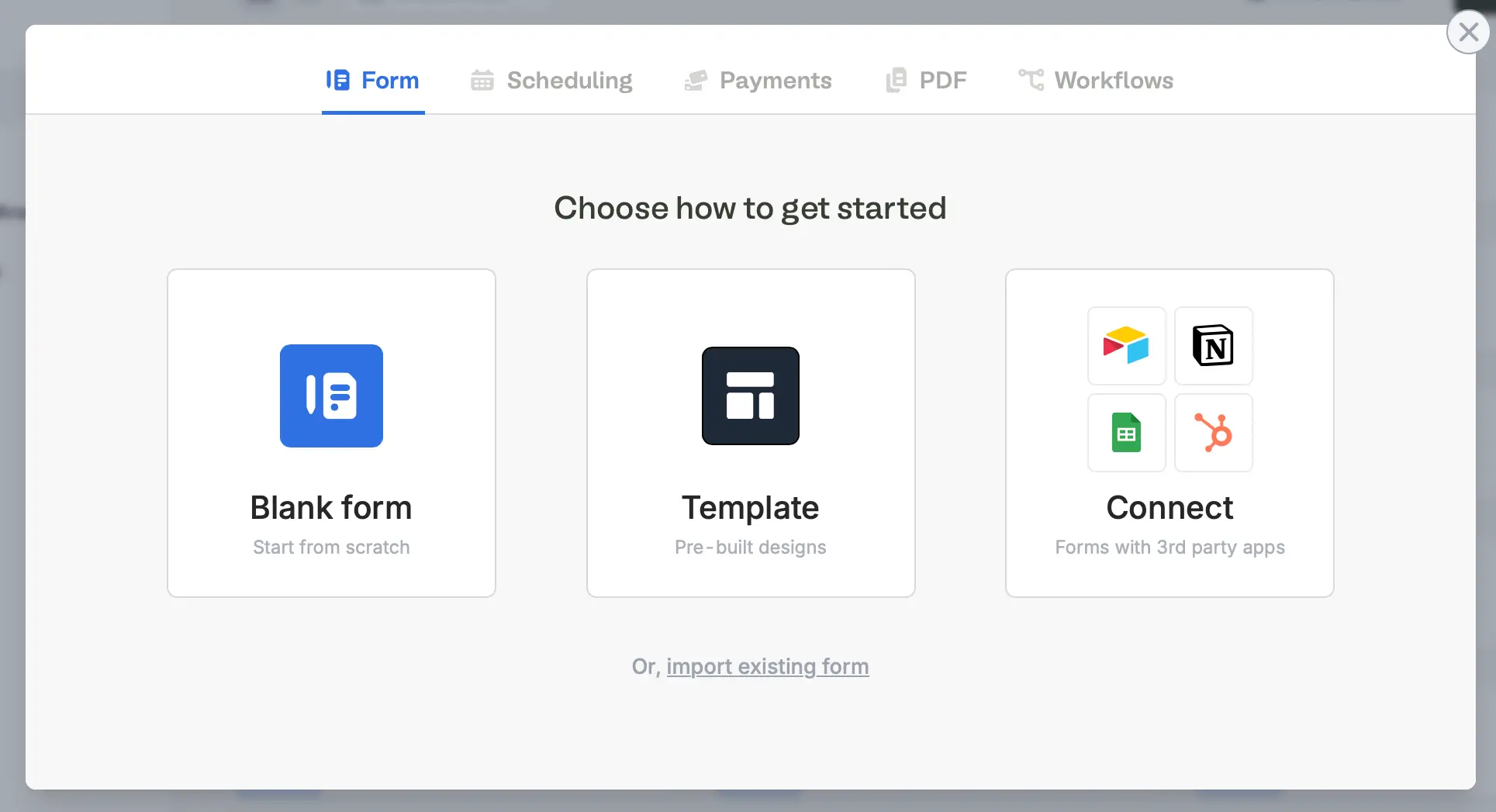
 On your [Fillout](https://build.fillout.com/home) dashboard, [create a form](https://www.fillout.com/help/make-a-form). Choose to `Connect` to Notion.
 Choose your theme (don’t worry, you can always change this later). Then, enter your **Account name** and `Connect to Notion`.
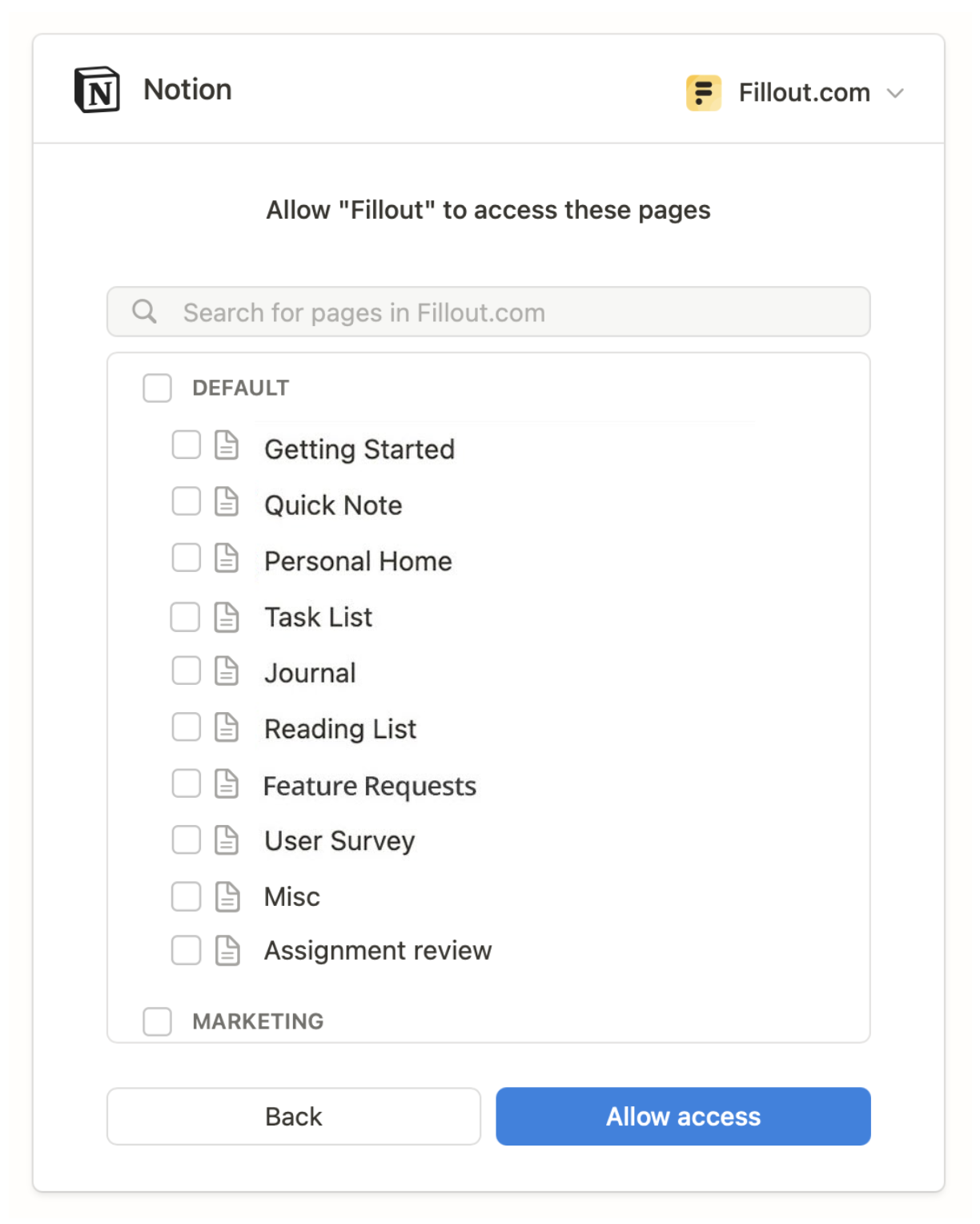
`Select pages` you’d like to allow Fillout access to. You can add and remove pages to this integration anytime in your Fillout dashboard.
Choose your theme (don’t worry, you can always change this later). Then, enter your **Account name** and `Connect to Notion`.
`Select pages` you’d like to allow Fillout access to. You can add and remove pages to this integration anytime in your Fillout dashboard.
 Then, choose the **Database** you’ll be using with your form.
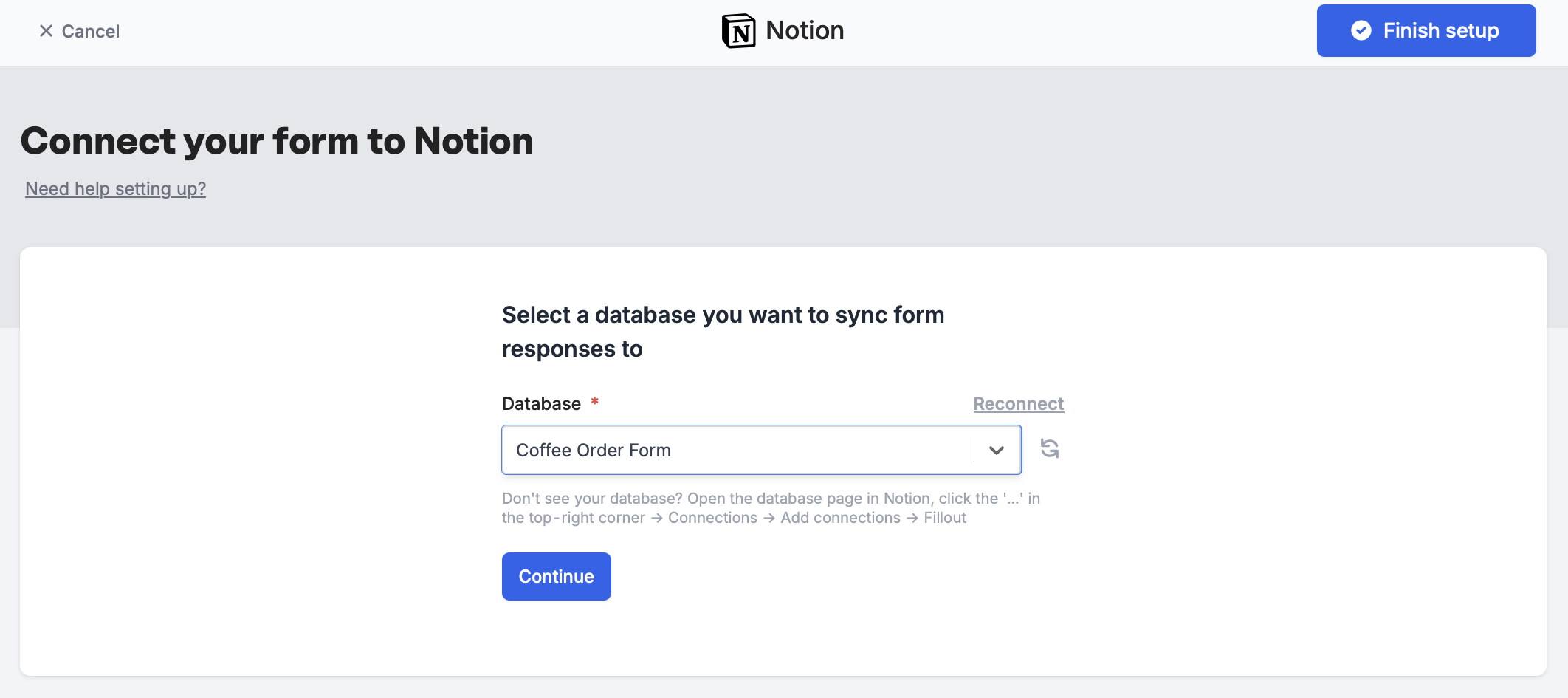 Don’t see your database in the dropdown list? Check you have connected to the correct workspace and granted access to the page where your database is.
Your `Notion Columns` now appear on the left-hand panel of your Fillout form editor. Simply drag and drop to start building your form.
Don’t see your database in the dropdown list? Check you have connected to the correct workspace and granted access to the page where your database is.
Your `Notion Columns` now appear on the left-hand panel of your Fillout form editor. Simply drag and drop to start building your form.
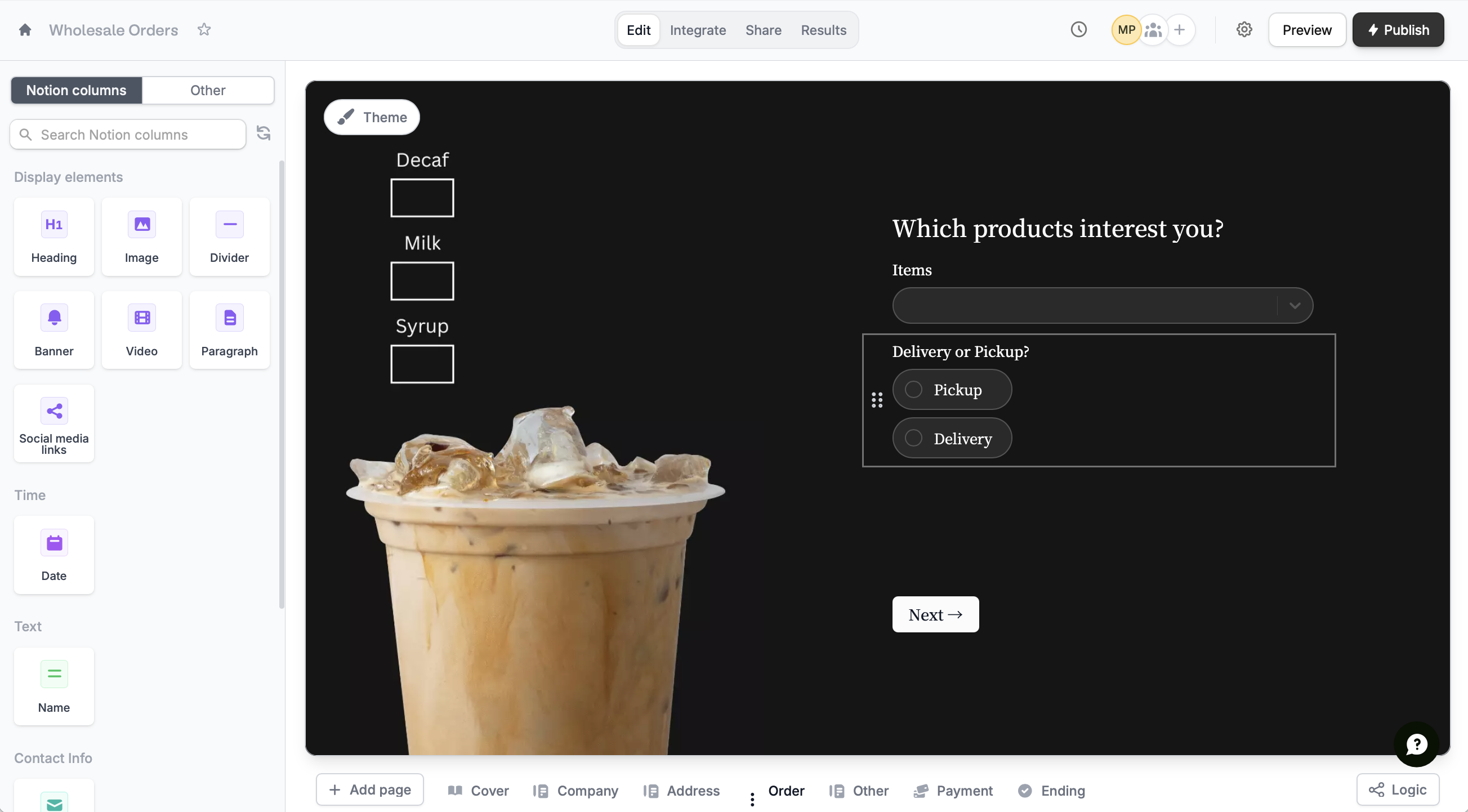 To update your Fillout form after editing your Notion database, click on the left-hand panel.
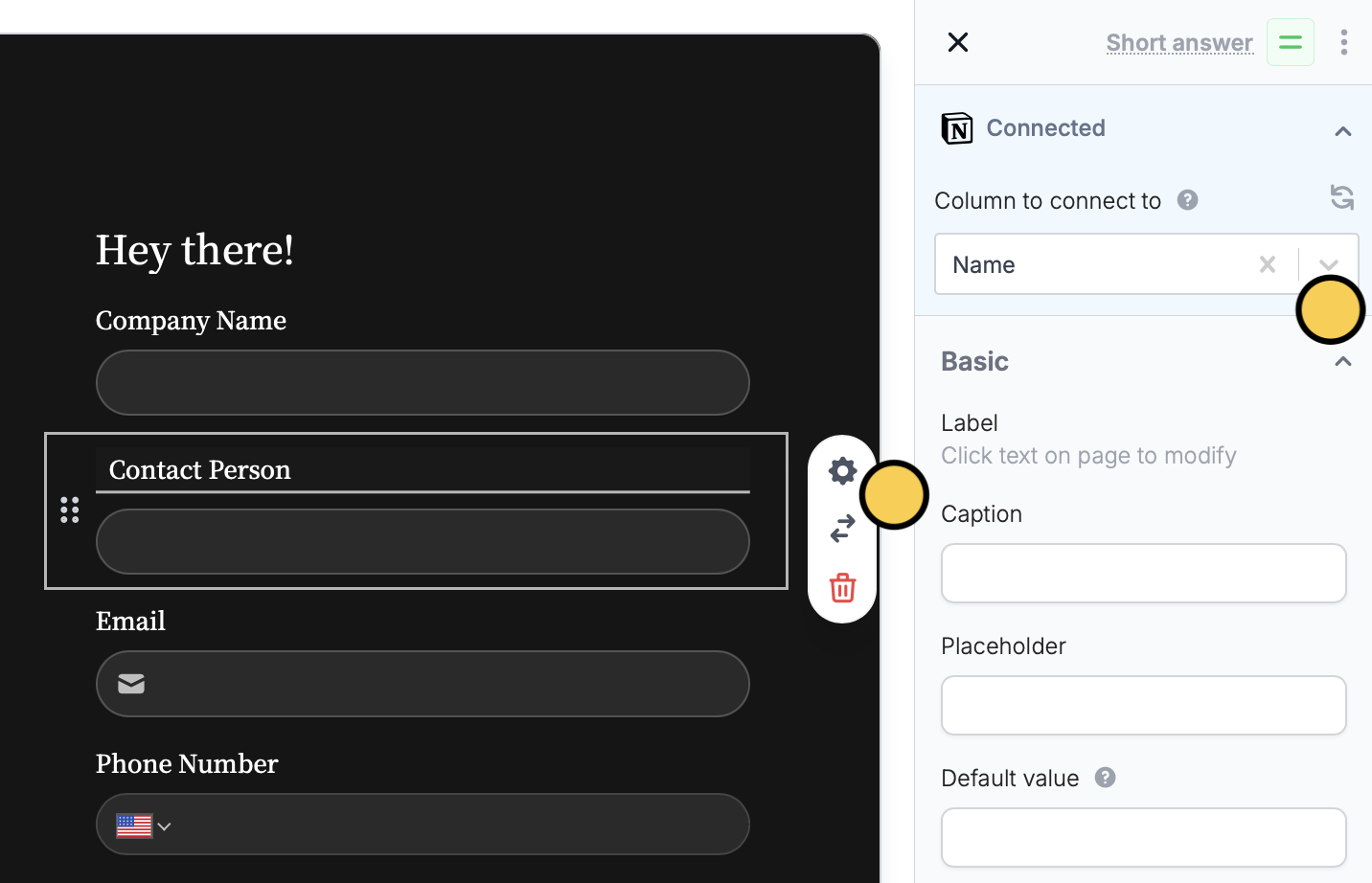
To connect a new question to your Notion database, or check an existing connection, click a field's and go to **Connected** in the right-hand panel.
To update your Fillout form after editing your Notion database, click on the left-hand panel.
To connect a new question to your Notion database, or check an existing connection, click a field's and go to **Connected** in the right-hand panel.
 Alternatively, you can [manually map fields](https://www.fillout.com/help/additional-integration-mappings#map-fillout-fields-to-integrations) in the `Integrate` page.
You can also add content to the body of a Notion page. See this [help article](/notion-add-page-content).
Once you’ve finished creating your form, you’re ready to go ! Simply `Publish` and share. Form responses will now automatically populate inside your Notion database.
Fillout has many powerful features like [**branching**](/page-logic) and [conditional hide/appear logic](/conditional-hiding). No matter how complex your needs are, there’s a way to build it in Fillout.
## Specify a condition
You can run your integration only when a specific condition is met. Check out this [guide](/conditional-integration).
## Notion specific guides
Edit existing pages and pre-fill fields.
Use a Fillout form to add styled content.
Include surveys, quizzes, and more.
Alternatively, you can [manually map fields](https://www.fillout.com/help/additional-integration-mappings#map-fillout-fields-to-integrations) in the `Integrate` page.
You can also add content to the body of a Notion page. See this [help article](/notion-add-page-content).
Once you’ve finished creating your form, you’re ready to go ! Simply `Publish` and share. Form responses will now automatically populate inside your Notion database.
Fillout has many powerful features like [**branching**](/page-logic) and [conditional hide/appear logic](/conditional-hiding). No matter how complex your needs are, there’s a way to build it in Fillout.
## Specify a condition
You can run your integration only when a specific condition is met. Check out this [guide](/conditional-integration).
## Notion specific guides
Edit existing pages and pre-fill fields.
Use a Fillout form to add styled content.
Include surveys, quizzes, and more.