> ## Documentation Index
> Fetch the complete documentation index at: https://fillout.com/help/llms.txt
> Use this file to discover all available pages before exploring further.
# Organizations
> Create multiple organizations for different companies or groups using the same email.
## How it works
When you create an account, you set up your own **organization** to create various forms. You can invite others to join as [collaborators](/invite-collaborators) and control their access to specific workspaces with [granular permissions](/invite-collaborators).
Each organization has its own subscription plan. Creating a new one won’t share or carry over a subscription from another.
## How to create another organization
On the upper left corner, click your `Account name` followed by `Create organization`.
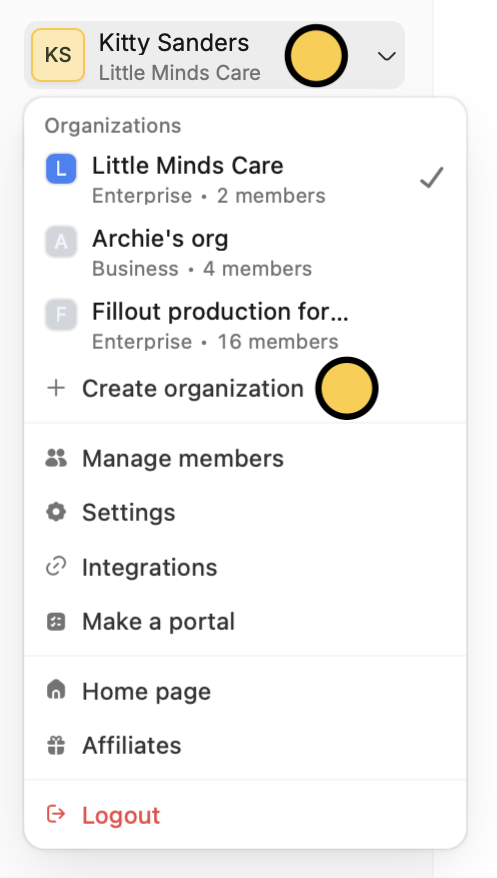 Each organization has its own forms, apps, and databases. Items created in one organization are only available within that organization and won’t appear in others. This separation helps keep data organized and secure.
## Identifying your current organization
To check which organization you’re currently in, look at the text displayed under your account name in the upper-left corner of your dashboard.
Each organization has its own forms, apps, and databases. Items created in one organization are only available within that organization and won’t appear in others. This separation helps keep data organized and secure.
## Identifying your current organization
To check which organization you’re currently in, look at the text displayed under your account name in the upper-left corner of your dashboard.
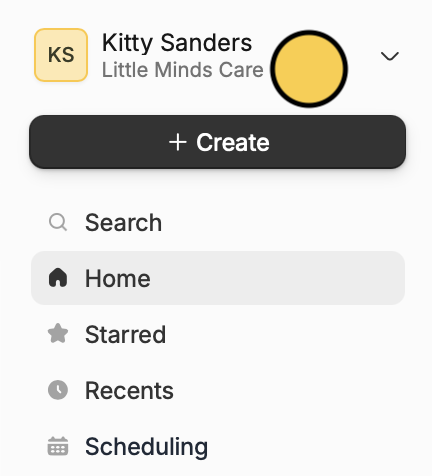 Apps, forms, and databases are specific to each organization, so you’ll only see them when you’re viewing the appropriate one. Search results are also limited to content within the current organization.
If you can't find forms, apps, and databases, make sure you're in the correct organization.
## Delete organization
From the dashboard, click your `Account Name` on the upper left corner followed by [Settings](https://build.fillout.com/home/settings/general) in the dropdown.
Only [admins](https://www.fillout.com/help/granular-permissions#view-existing-permissions) on the Free plan can delete organizations.
Scroll to the bottom and click `Delete organization`.
This will permanently delete all workspaces, forms, apps, and databases. They **cannot be recovered**. If you need any of these, we recommend [exporting](https://www.fillout.com/help/importing-and-exporting-forms#export-a-form) them before deleting.
## Related articles
View results, and edit forms with free seats.
Organize forms in folders and control user access.
Transfer between different accounts.
Apps, forms, and databases are specific to each organization, so you’ll only see them when you’re viewing the appropriate one. Search results are also limited to content within the current organization.
If you can't find forms, apps, and databases, make sure you're in the correct organization.
## Delete organization
From the dashboard, click your `Account Name` on the upper left corner followed by [Settings](https://build.fillout.com/home/settings/general) in the dropdown.
Only [admins](https://www.fillout.com/help/granular-permissions#view-existing-permissions) on the Free plan can delete organizations.
Scroll to the bottom and click `Delete organization`.
This will permanently delete all workspaces, forms, apps, and databases. They **cannot be recovered**. If you need any of these, we recommend [exporting](https://www.fillout.com/help/importing-and-exporting-forms#export-a-form) them before deleting.
## Related articles
View results, and edit forms with free seats.
Organize forms in folders and control user access.
Transfer between different accounts.